What is Azure Cosmos DB? Features, Use Cases, and .NET Example
Modern applications often require databases that are highly scalable, globally available, and capable of handling massive amounts of data...
Getting Started with Azure Cosmos DB in .NET: A Beginner-Friendly Guide
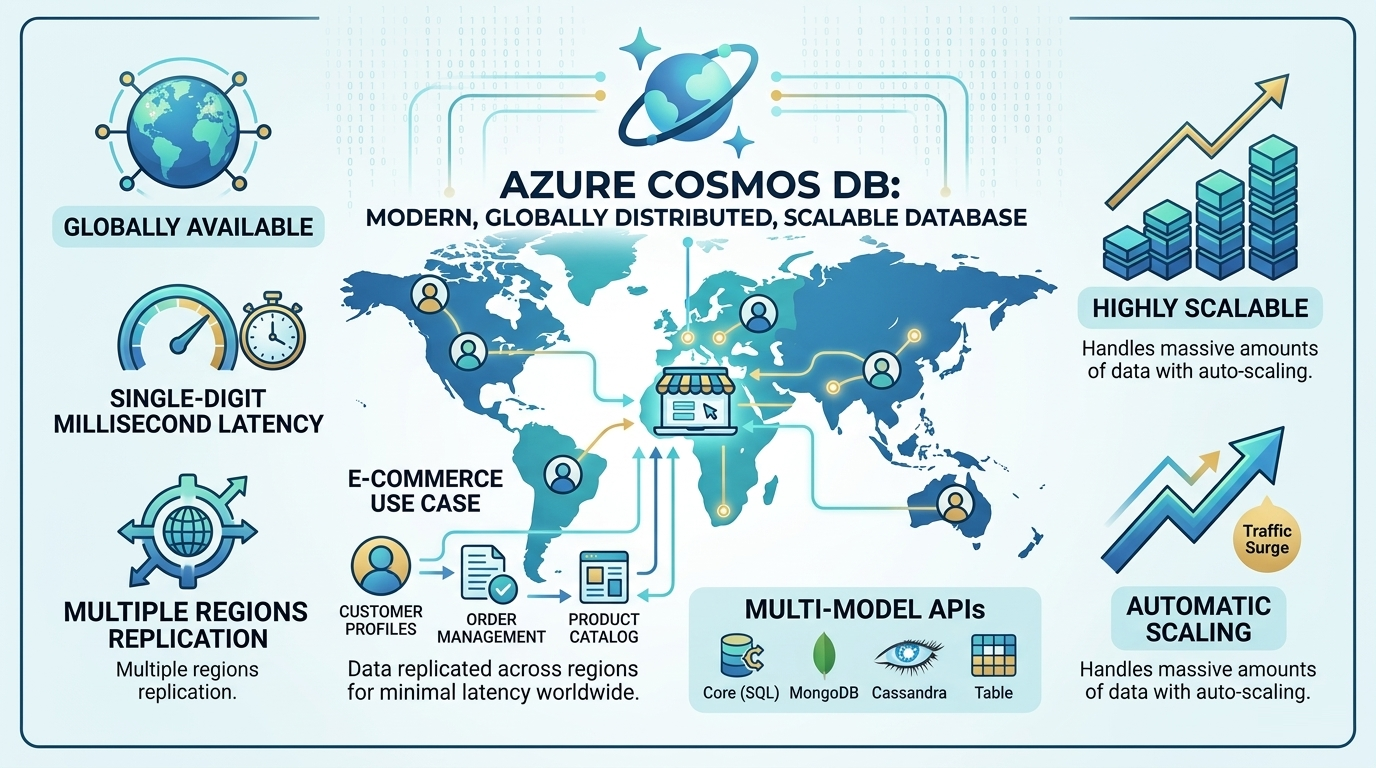
Modern applications often require databases that are highly scalable, globally available, and capable of handling massive amounts of data with low latency. Azure Cosmos DB is Microsoft’s fully managed NoSQL database designed to meet these needs. It provides automatic scaling, global distribution, and multiple data models such as Core (SQL), MongoDB, Cassandra, and Table APIs. Developers can easily integrate it with applications built on the Microsoft Azure ecosystem to build high-performance and globally distributed applications
Use Case
Consider a global e-commerce platform where users from different countries access the application simultaneously. Using Azure Cosmos DB allows the application to replicate data across multiple regions so users can access product catalogs with minimal latency. It can store customer profiles, orders, and product data in a highly scalable manner. As traffic increases during sales or promotional events, the database can automatically scale to handle the load without affecting performance.
Creating Cosmos Db in Azure Portal
- Go to your azure portal and search for CosmosDb.
- Click on create.
- Select Azure Cosmos DB for NoSQL.
- Select Workload type (Currently we will select development/testing).
- Select your Azure subscription & resource group.
- Give a unique account name.
- Keep the other settings as it is and navigate to backup policy tab select Backup storage redundancy to Locally-redundant backup storage.
- Click on Review + Create and then click on create.
The deployment may take sometime once done go to resource.
Now we need to create a container in our Cosmosdb
The below should be our database structure sp considering this we need to create our cosmos db container
public class Employee
{
    public string id { get; set; }
    public string Name { get; set; }
    public string Role { get; set; }
    public string PhoneNumber { get; set; }
}
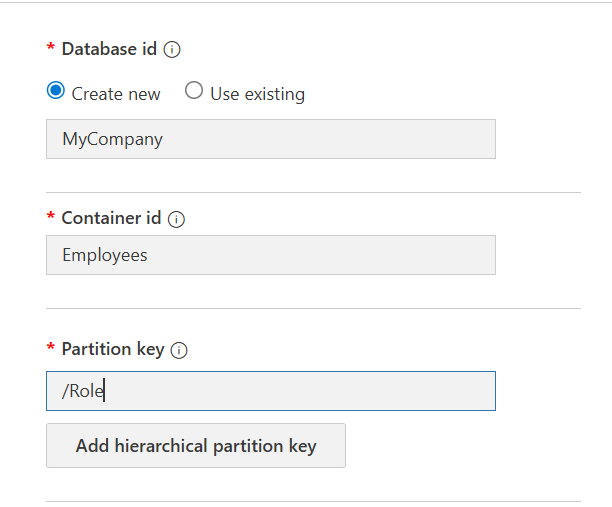
You will have to create new database now.
Enter the database name. Here consider the container id as table you use in relational database.
A partition key in Azure Cosmos DB is a specific document property you choose when creating a container — it automatically groups your data into logical partitions for optimal scaling and query performance.
So in this case the partition key will be role.
Now in your visual studio, create a new web api project.
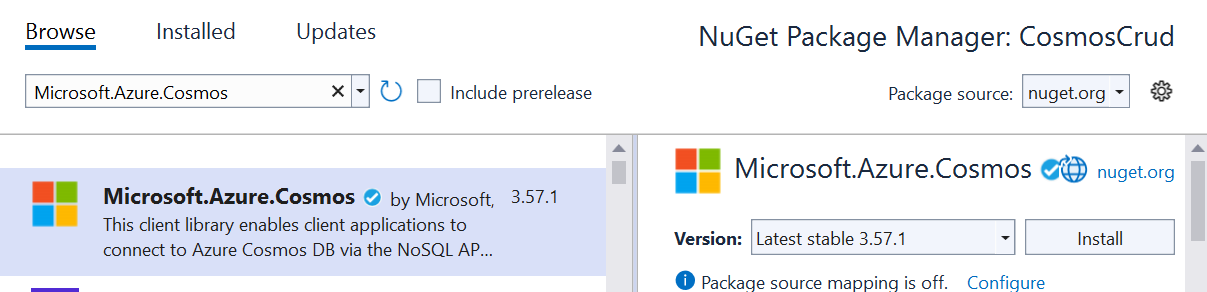
Install the below Nuget packages—
- Microsoft.Azure.Cosmos
- Newtonsoft.Json
Add the below model class as mentioned earlier.
Employee.cs
    public class Employee
    {
        public string id { get; set; }
        public string Name { get; set; }
        public string Role { get; set; }
        public string PhoneNumber { get; set; }
    }
If you notice we have kept id in small where as other properties are in Pascal Case.
⚠️ It is Important to know that Cosmos DB requires id in lowercase.
Add the below configurations in appsettings.json
"CosmosDb": {
  "Endpoint": "https://your-account.documents.azure.com:443/",
  "Key": "your-key",
  "DatabaseName": "CompanyDB",
  "ContainerName": "Employees"
}
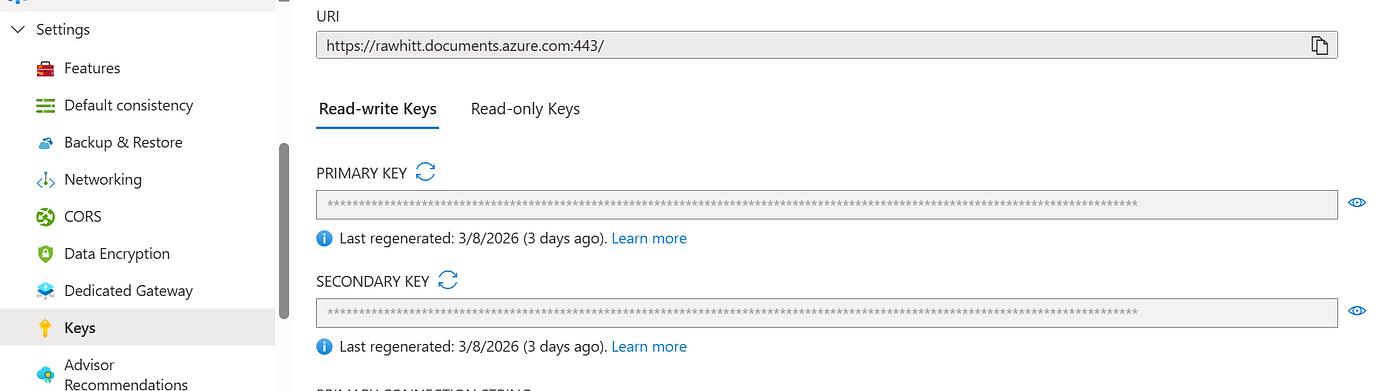
You can find key & URI in Settings -> Keys.
Create a class for this configuration.
public class CosmosDbSettings
{
    public string Endpoint { get; set; }
    public string Key { get; set; }
    public string DatabaseName { get; set; }
    public string ContainerName { get; set; }
}
Configure the same in your Program.cs
builder.Services.Configure<CosmosDbSettings>(
    builder.Configuration.GetSection("CosmosDb"));
Create a DTO for your Web API.
    public class EmployeeDTO
    {
        public string Name { get; set; }
        public string Role { get; set; }
        public string PhoneNumber { get; set; }
    }
Leave a clap if this article is helpful 👉 Follow me on Medium for more informational articles like this. 👨💻Connect with me on LinkedIn & Git
Creating a service to interact with our Cosmosdb service.
   public class CosmosService
  {
      private readonly Container _container;

      public CosmosService(IOptions<CosmosDbSettings> settings)
      {
          var cosmosSettings = settings.Value;

          CosmosClient client = new CosmosClient(
              cosmosSettings.Endpoint,
              cosmosSettings.Key);

          _container = client.GetContainer(
              cosmosSettings.DatabaseName,
              cosmosSettings.ContainerName);
      }

      public async Task AddEmployee(Employee emp)
      {
          await _container.CreateItemAsync(emp);
      }

      public async Task<List<Employee>> GetEmployeesByName(string name)
      {
          var query = new QueryDefinition(
              "SELECT * FROM c WHERE c.Name = @name")
              .WithParameter("@name", name);

          var iterator = _container.GetItemQueryIterator<Employee>(query);

          List<Employee> employees = new List<Employee>();

          while (iterator.HasMoreResults)
          {
              var response = await iterator.ReadNextAsync();
              employees.AddRange(response);
          }

          return employees;
      }

      public async Task UpdateEmployee(Employee emp)
      {
          await _container.UpsertItemAsync(emp);
      }

      public async Task DeleteEmployee(string id)
      {
          await _container.DeleteItemAsync<Employee>(id, new PartitionKey(id));
      }
  }
This class provides methods to add, retrieve, update, and delete employee records from the database. It uses CreateItemAsync for inserting data, UpsertItemAsync for updating records, and DeleteItemAsync for removing items. The GetEmployeesByName method performs a SQL-style query using QueryDefinition and FeedIterator to fetch all matching records.
Creating the employee controller
 [ApiController]
 [Route("[controller]")]
 public class EmployeeController : ControllerBase
 {
     private readonly CosmosService _service;

     public EmployeeController(CosmosService service)
     {
         _service = service;
     }

     [HttpPost("Add")]
     public async Task<IActionResult> Add([FromBody] EmployeeDTO emp)
     {
         try
         {
             Employee _emp = new Employee
             {
                 id = Guid.NewGuid().ToString(),
                 Name = emp.Name,
                 Role = emp.Role,
                 PhoneNumber = emp.PhoneNumber
             };

             await _service.AddEmployee(_emp);
             return Ok(_emp);
         }
         catch (Exception ex)
         {

             return StatusCode(500, ex.Message);
         }
     }

     [HttpGet("{name}")]
     public async Task<List<Employee>> GetByName(string name)
     {
         return await _service.GetEmployeesByName(name);
     }

     [HttpDelete("{id}")]
     public async Task<IActionResult> Delete(string id)
     {
         await _service.DeleteEmployee(id);
         return Ok();
     }
 }
This controller exposes API endpoints to manage employee data stored in Azure Cosmos DB. It uses dependency injection to access the CosmosService, which handles database operations.
Configuring services in controller
builder.Services.AddSingleton<CosmosService>();Once setup is done run your project and you can test the api in swagger.
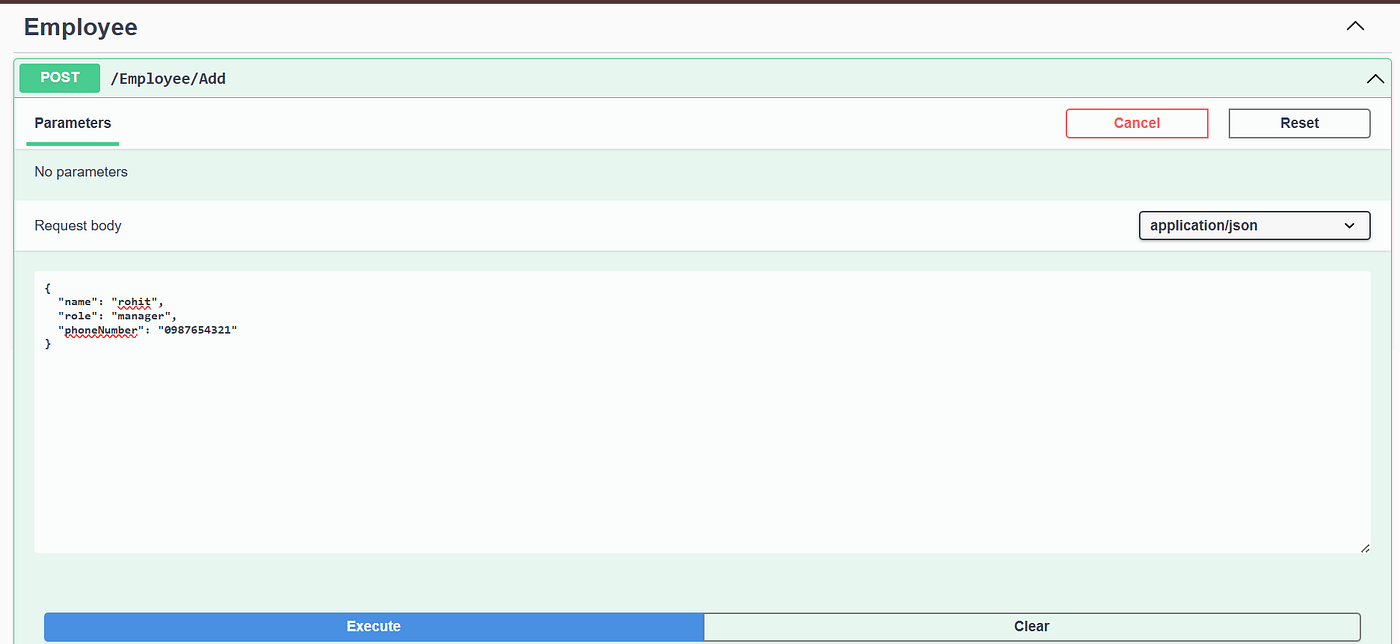
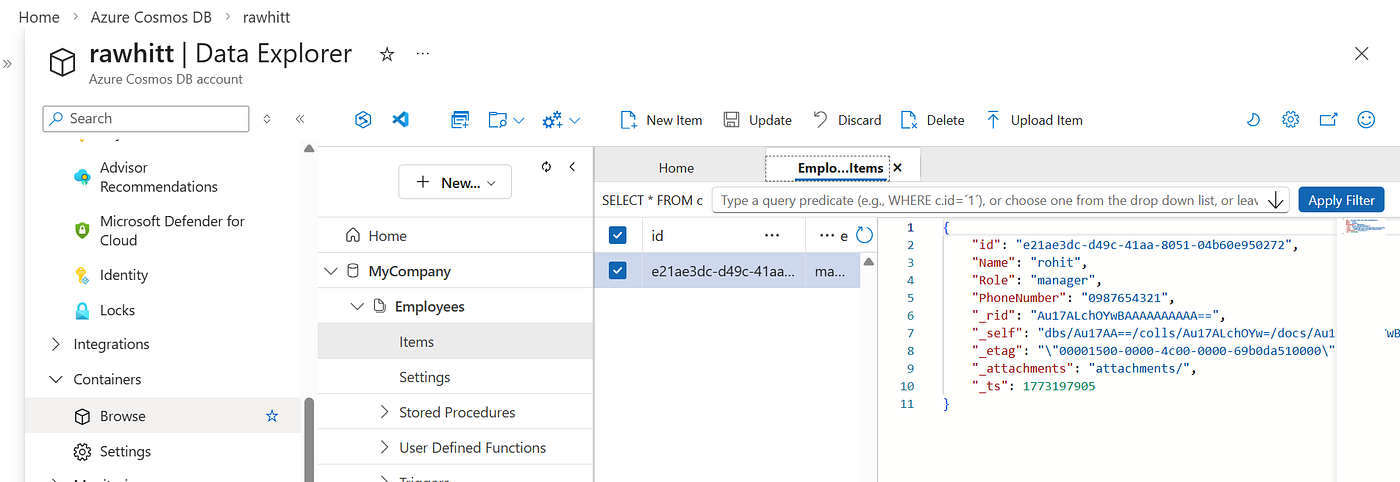
If your API runs successfully , check output in your cosmosdb, go to containers->browse->open your database.
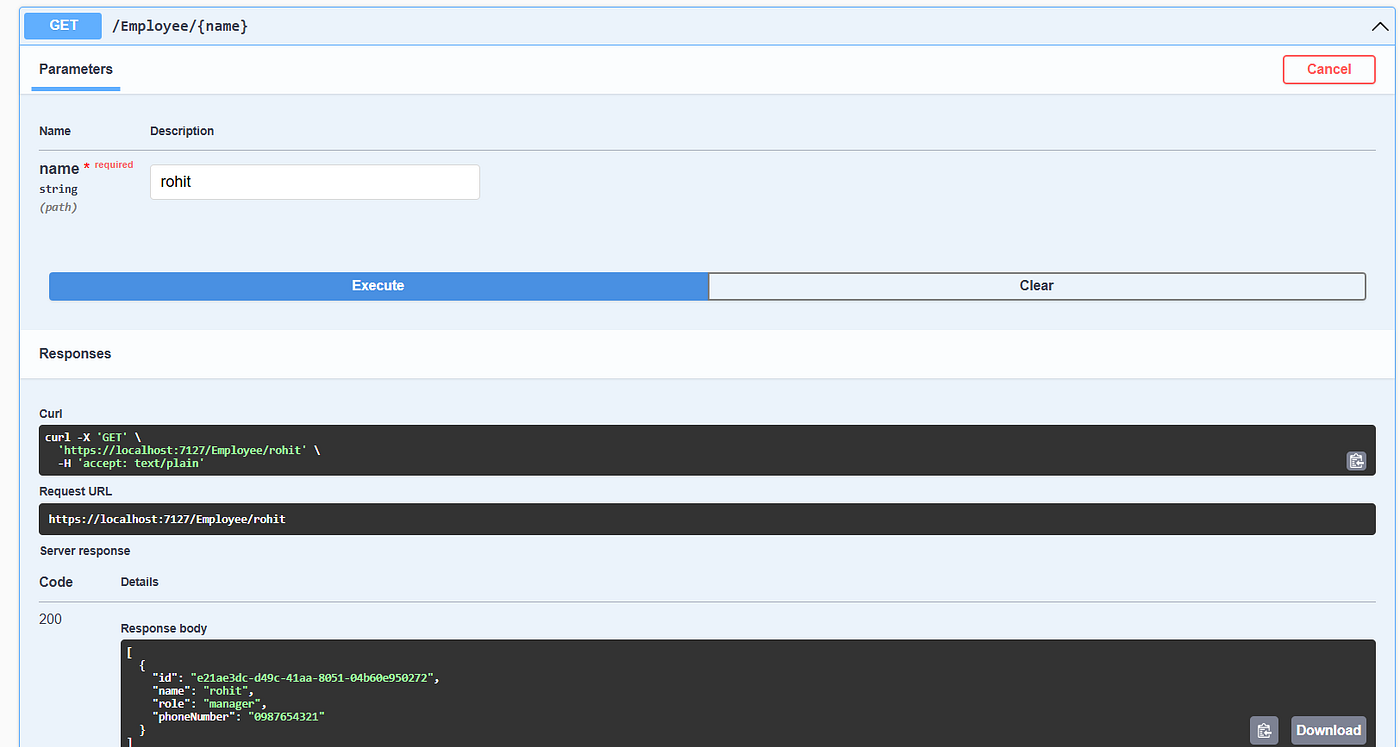
Getting the data —
Git repo —
Conclusion
Azure Cosmos DB provides a powerful solution for building modern, globally distributed applications. Its automatic scaling, multi-model support, and seamless integration with Microsoft Azure services make it a preferred choice for developers working with cloud-native architectures. By leveraging its capabilities, organizations can build highly available and responsive applications while reducing infrastructure management efforts.

Related Articles —
메타데이터
- post_id
- 2572c19fbb4a
- slug
- what-is-azure-cosmos-db-features-use-cases-and-net-example-2572c19fbb4a
- url
- https://medium.com/@rp99452/what-is-azure-cosmos-db-features-use-cases-and-net-example-2572c19fbb4a
- canonical_url
- https://medium.com/@rp99452/what-is-azure-cosmos-db-features-use-cases-and-net-example-2572c19fbb4a
- author_url
- https://medium.com/@rp99452
- status
- ok
- fetched_at
- 2026-06-15 20:49:13