How Do I Remove APFS Volumes on Mac Without Losing Your Data
A few years ago, I opened Disk Utility because my Mac kept warning me that the startup disk was almost full.
How Do I Remove APFS Volumes on Mac Without Losing Your Data
A few years ago, I opened Disk Utility because my Mac kept warning me that the startup disk was almost full.
What caught my attention wasn’t my files. It was something called “Other Volumes in Container.”
The storage usage seemed to change constantly. One day it occupied a few gigabytes. Another day it consumed tens of gigabytes. Like many Mac users, I wondered whether I could simply delete it and reclaim the space.
The answer is yes — but only if you understand what you’re deleting first.
If you’re looking at APFS volumes, containers, or partitions and trying to free up storage without accidentally breaking your Mac, this guide will help you understand the difference and choose the safest approach to delete APFS partition.
Who This Guide Is For
This article is for Mac users who:
- See APFS volumes taking up unexpected storage
. Want to reclaim disk space safely
. Are unsure about the difference between APFS volumes, containers, and partitions
. Want to avoid data loss or startup issues
Before deleting anything, it’s important to understand how APFS works.
Understanding APFS: Volumes vs. Containers vs. Partitions
One reason many users get confused is that APFS introduced a storage structure that’s different from older Mac file systems.
Here’s the simplified version:
- Partition: A dedicated section of a physical drive
- Container: The storage pool created within an APFS partition
- Volume: The usable storage area inside an APFS container
A single APFS container can contain multiple volumes that dynamically share available space.
When you see multiple APFS volumes in Disk Utility, they may all be drawing from the same container rather than having fixed storage allocations.
Understanding this distinction matters because deleting a volume is relatively straightforward, while deleting a container or partition can have much bigger consequences.
What Happens If You Delete an APFS Volume?
Deleting an APFS volume removes the data stored inside that volume.
Deleting a container or partition goes further and can remove entire storage structures associated with it.
If the volume contains important files, they will be lost unless you’ve backed them up.
That’s why my first recommendation is simple:
Create a backup before making any storage changes.
Whether you use Time Machine, an external drive, cloud storage, or another backup method, having a recovery option is worth the extra few minutes.
How to Delete an APFS Volume
If you’re only trying to remove an unused APFS volume, Disk Utility usually provides the easiest solution.
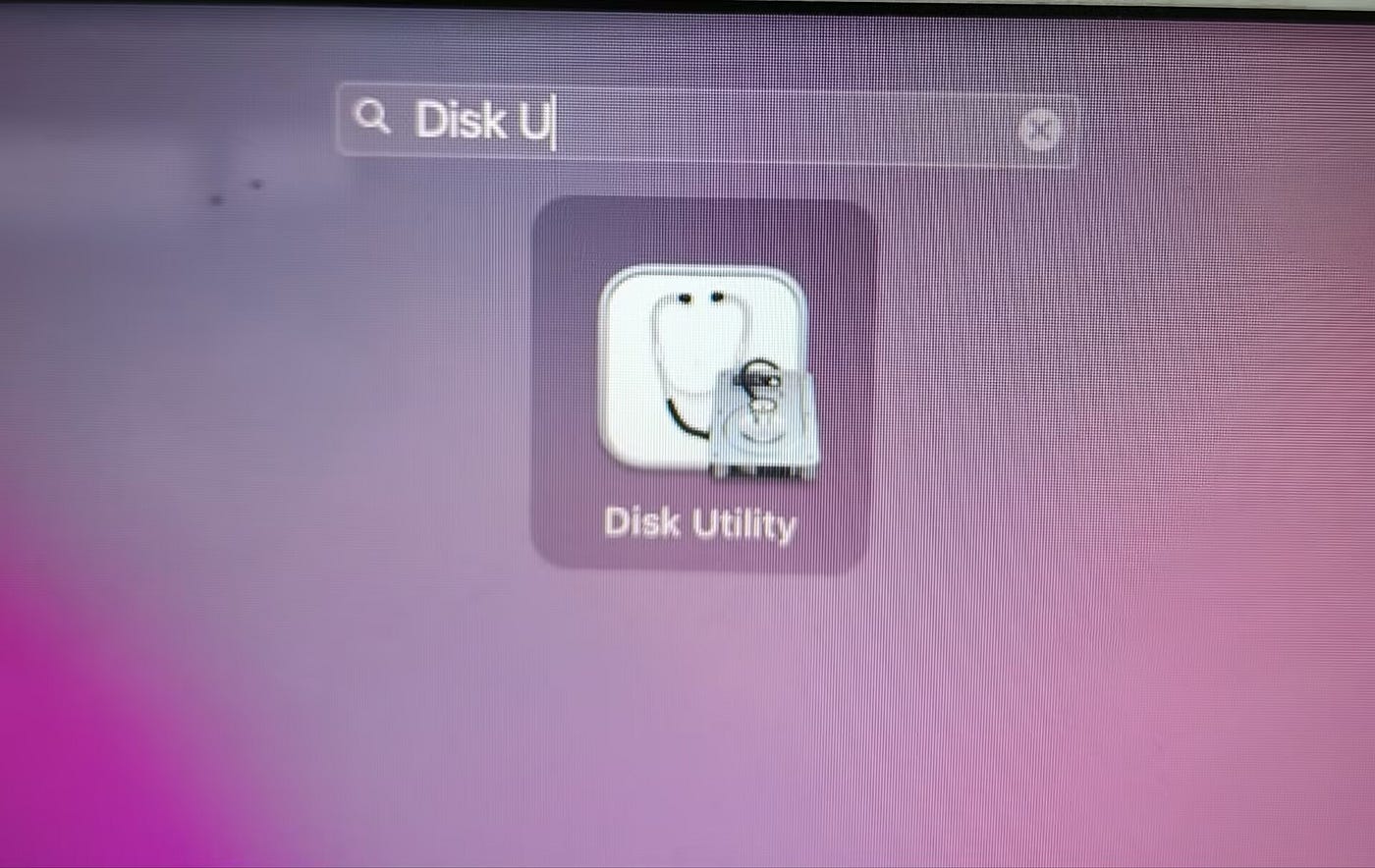
Step 1: Open Disk Utility
Go to:
Applications → Utilities → Disk Utility

Step 2: Locate the APFS Volume
Find the volume you want to remove in the sidebar.
Be careful to select the correct volume and not the startup volume currently used by macOS.
Step 3: Delete the Volume
Right-click the volume and choose:
Delete APFS Volume

Confirm the deletion when prompted.
Step 4: Wait for the Process to Finish
Once complete, the volume will be removed and its space will become available within the APFS container.
When You Need to Delete a Container Instead
Sometimes the problem isn’t an individual volume.
You may have multiple containers created during system migrations, testing, partitioning experiments, or external drive reconfiguration.
In these cases, deleting a container may be necessary.
However, this is where caution becomes critical.
If the Container Is on Your Startup Disk
Deleting an APFS container that contains macOS system files can make your Mac unbootable.
Before proceeding:
- Confirm exactly which container you’re targeting
- Verify backups are complete
- Double-check the container identifier
The process typically requires booting into macOS Recovery and using Terminal commands rather than Disk Utility alone.
If you’re not comfortable identifying APFS structures through Terminal, it’s worth slowing down and verifying every step before continuing.
Removing an APFS Container From an External Drive
For external drives, the process is generally less risky because you’re not affecting the operating system.
The typical workflow is:
- Open Disk Utility
- Enable Show All Devices

- Identify the target container
- Verify its identifier
- Use Terminal to remove the container
The most important step isn’t running the command.
It’s making sure you’ve identified the correct target before you run it.
Mistakes at this stage are what usually cause data loss.
Lessons I Learned Before Deleting Storage Structures
The biggest mistake I see isn’t technical.
It’s assuming that every APFS item taking space is unnecessary.
Over time, I’ve found it helpful to ask three questions before deleting anything:
1. Do I know exactly what this volume contains?
If the answer is no, investigate first.
2. Do I have a backup?
If the answer is no, stop and create one.
3. Am I deleting a volume or a container?
These are not the same operation, and the risk level is very different.
Taking five minutes to answer those questions can prevent hours of recovery work later.
A Simple Framework for Safe APFS Cleanup
Before deleting anything, follow this checklist:
Identify
- Volume, container, or partition?
Verify
- Confirm what data is stored there.
Backup
- Create a current backup.
Delete
- Remove only the target storage structure.
Validate
- Confirm macOS still boots and files remain accessible.
Most storage cleanup problems happen because one of these steps gets skipped.
Final Thoughts
If APFS storage structures are consuming space on your Mac, deleting the right volume can be an effective way to reclaim storage.
The key is understanding what you’re looking at before making changes.
In my experience, the safest approach is always the same: identify first, back up second, delete third.
A few extra minutes of verification can save you from a much larger recovery project later.
If you’ve run into unusual APFS storage behavior or found another safe cleanup method, I’d be interested to hear what worked for you.
메타데이터
- post_id
- 2652937ee8d8
- slug
- how-do-i-remove-apfs-volumes-on-mac-without-losing-your-data-2652937ee8d8
- url
- https://medium.com/@ae5385/how-do-i-remove-apfs-volumes-on-mac-without-losing-your-data-2652937ee8d8
- canonical_url
- https://medium.com/@ae5385/how-do-i-remove-apfs-volumes-on-mac-without-losing-your-data-2652937ee8d8
- author_url
- https://medium.com/@ae5385
- status
- ok
- fetched_at
- 2026-07-10 03:02:36