From Zero to Managed Fleet: Automating 5 Linux EC2 Servers with Terraform and AWS Systems Manager
How I built, configured, patched, and validated a small Linux web server fleet on AWS without manually SSH-ing into each instance.
From Zero to Managed Fleet: Automating 5 Linux EC2 Servers with Terraform and AWS Systems Manager
How I built, configured, patched, and validated a small Linux web server fleet on AWS without manually SSH-ing into each instance.
Introduction
In this project, I built a small production-style Linux web server fleet on AWS and managed it centrally using AWS Systems Manager.
Instead of logging into each EC2 instance manually, I used Terraform to provision the infrastructure and AWS Systems Manager Run Command to configure all five servers at scale. The project combined infrastructure as code, Linux administration, IAM, tagging, Bash scripting, patch management, and validation.
This project was designed around a real-world cloud operations problem: how to deploy, configure, patch, and validate multiple Linux servers without logging into each one individually.
The original lab scenario required five Linux EC2 servers, centralized management through AWS Systems Manager, tag-based automation, Bash configuration, Patch Manager, and validation of the final environment. It also specifically emphasized troubleshooting, automation, and thinking like a real engineer rather than following a simple step-by-step lab.
The project is available on GitHub: https://github.com/artemsaitov/linux-automation-ssm-terraform
Project Requirements
The main requirements were:
Launch exactly 5 Linux EC2 instances
Manage all servers through AWS Systems Manager
Use consistent tags for automation
Create and attach an IAM role for SSM access
Configure servers using Bash and SSM Run Command
Install and enable a web server
Create a Linux admin user named cloudadmin
Create an internal application directory
Deploy a simple HTML page
Patch all servers using AWS Systems Manager Patch Manager
Validate the configuration across the fleet
Avoid manual SSH configuration
The required tags were:
Environment = Capstone
Project     = LinuxAutomation
Role        = WebServer
ManagedBy   = SSM
These tags were important because they allow the servers to be grouped, identified, and targeted for automation.
Architecture Overview
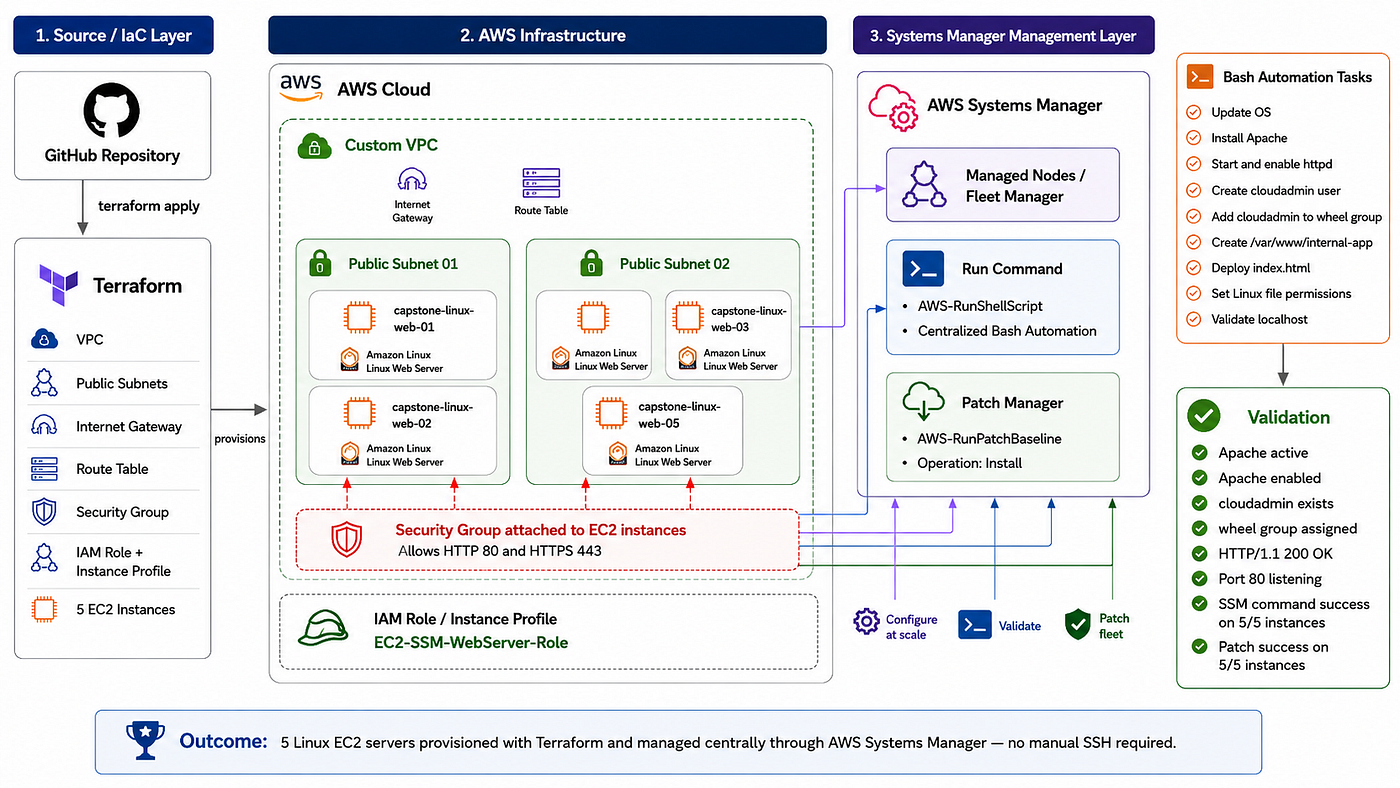
For the infrastructure layer, I used Terraform to create the AWS resources. The environment included:
Custom VPC
Public subnets
Internet Gateway
Route table
Security group
IAM role for SSM
IAM instance profile
Five Amazon Linux EC2 instances
Consistent project tags
For the configuration and operations layer, I used AWS Systems Manager:
Fleet Manager
Managed Nodes
Run Command
Patch Manager
AWS-RunShellScript
AWS-RunPatchBaseline
The high-level workflow was:
- Terraform provisions the infrastructure
- EC2 instances register with AWS Systems Manager
- SSM Run Command configures all servers
- Validation commands confirm the setup
- Patch Manager applies patching across the fleet
- Terraform destroys the infrastructure after screenshots are collected
Building the Infrastructure with Terraform
I started by creating a GitHub repository for the project and organizing the files into a clean structure:
linux-automation-ssm-terraform/
│
├── scripts/
│   ├── configure-webservers.sh
│   └── validate-webservers.sh
│
├── terraform/
│   ├── .terraform.lock.hcl
│   ├── main.tf
│   ├── outputs.tf
│   ├── provider.tf
│   ├── terraform.tfvars.example
│   ├── variables.tf
│   └── versions.tf
│
├── .gitignore
└── README.md
One important lesson came early. I originally tried to use the default VPC, but Terraform failed because the default VPC had no subnets. The default VPC existed, but there were no subnets available for Terraform to place EC2 instances into.
The error looked similar to this:
data.aws_subnets.default.ids is empty list of string
Call to function "element" failed: cannot use element function with an empty list.
Instead of trying to fix the default VPC manually, I updated the Terraform code to create a custom VPC, public subnets, an internet gateway, and a route table. This made the project stronger because the networking layer became part of the infrastructure as code design.

Successful terraform apply command
EC2 Fleet and Tagging
Terraform launched five Amazon Linux EC2 instances. I used a consistent naming convention so the fleet looked organized:
capstone-linux-web-01
capstone-linux-web-02
capstone-linux-web-03
capstone-linux-web-04
capstone-linux-web-05
Each instance had the required tags:
Environment = Capstone
Project     = LinuxAutomation
Role        = WebServer
ManagedBy   = SSM
I also added a Name tag to make each server easier to identify in the AWS Console.

EC2 instances list showing all 5 running instances

EC2 tags added: Environment, Project, Role, ManagedBy, and Name.
IAM Role and Systems Manager Access
To allow AWS Systems Manager to manage the EC2 instances, I created an IAM role named:
EC2-SSM-WebServer-RoleThe role used the AWS managed policy:
AmazonSSMManagedInstanceCoreThis policy allowed the EC2 instances to register with Systems Manager and receive commands through SSM.
After the instances launched, I verified that all five servers appeared in:
AWS Systems Manager → Fleet Manager → Managed NodesAll five nodes showed as online.

IAM role attached to EC2 instance

Systems Manager Fleet Manager showing 5 managed nodes online
Configuring the Fleet with SSM Run Command
The main configuration step was performed with AWS Systems Manager Run Command.
Instead of using SSH, I selected all five managed nodes and used the document:
AWS-RunShellScriptThe Bash automation script installed Apache, enabled the service, created the Linux admin user, created the application directory, deployed the HTML file, and applied permissions.
The script performed the following tasks:
Installed Apache
Started Apache
Enabled Apache on boot
Created cloudadmin user
Added cloudadmin to the wheel admin group
Created /var/www/internal-app
Created an index.html file
Copied the HTML file to /var/www/html/index.html
Set Linux ownership and permissions
Validated localhost connectivity
The Run Command result showed:
5 targets
5 completed
0 errors
0 delivery timeouts
SSM Run Command configuration success
Validation and Testing
After the configuration command completed, I ran a separate validation command across all five servers.
The validation checked:
Hostname
Apache active status
Apache enabled status
cloudadmin user
cloudadmin groups
Application directory permissions
Web root file permissions
Localhost HTTP response
Listening port 80
HTML content preview
One of the validation outputs showed:
===== HOSTNAME =====
ip-10-10-1-49.ec2.internal
===== APACHE STATUS =====
active
enabled
===== CLOUDADMIN USER =====
uid=1001(cloudadmin) gid=1001(cloudadmin) groups=1001(cloudadmin),10(wheel)
===== CLOUDADMIN GROUPS =====
cloudadmin : cloudadmin wheel
===== APPLICATION DIRECTORY =====
drwxr-xr-x. 2 apache apache 24 May 24 03:35 /var/www/internal-app
total 4
-rwxr-xr-x. 1 apache apache 433 May 24 03:35 index.html
===== WEB ROOT FILE =====
-rw-r--r--. 1 apache apache 433 May 24 03:35 /var/www/html/index.html
===== LOCALHOST TEST =====
HTTP/1.1 200 OK
Date: Sun, 24 May 2026 03:39:10 GMT
Server: Apache/2.4.66 (Amazon Linux)
Last-Modified: Sun, 24 May 2026 03:35:11 GMT
ETag: "1b1-65287f3067d22"
Accept-Ranges: bytes
Content-Length: 433
Content-Type: text/html; charset=UTF-8

===== LISTENING PORTS =====
tcp   LISTEN 0      511                                 *:80              *:*    users:(("httpd",pid=4443,fd=4),("httpd",pid=4442,fd=4),("httpd",pid=4441,fd=4),("httpd",pid=4300,fd=4))
===== HTML CONTENT PREVIEW =====
<!DOCTYPE html>
<html>
<head>
    <title>Internal App Deployment</title>
</head>
<body>
    <h1>Deployment Successful</h1>
    <p><strong>Hostname:</strong> ip-10-10-1-49.ec2.internal</p>
    <p><strong>Date/Time:</strong> Sun May 24 03:35:11 UTC 2026</p>
    <p><strong>Deployed by:</strong> Artem Cloud Engineering Team</p>
    <p>This server was configured automatically using AWS Systems Manager Run Command.</p>
</body>
</html>
This confirmed that Apache was running, the service was enabled on boot, the cloudadmin user existed, the application files were in place, and the local web server was responding successfully.
Patch Management
The final operational step was patching the fleet using AWS Systems Manager.
I used the SSM document:
AWS-RunPatchBaselineThe operation was set to:
InstallI targeted all five EC2 instances and ran the patch command through Systems Manager.
The result showed:
5 targets
5 completed
0 errors
0 delivery timeouts
This completed the patch management requirement and showed that the fleet could be maintained centrally through AWS Systems Manager.

Patch Manager or AWS-RunPatchBaseline success
Issues I Faced
The project had a few useful troubleshooting moments.
The first issue was with the default VPC. Terraform found the default VPC, but the subnet list was empty. Since EC2 instances require a subnet, Terraform could not continue. I fixed this by creating a custom VPC and public subnets directly in Terraform.
The second issue was with GitHub. I accidentally included Terraform provider files from the .terraform directory in Git history. GitHub rejected the push because the AWS provider binary was larger than the file size limit. I fixed this by resetting the Git history, updating .gitignore, and recommitting only the safe project files.
The third issue happened in Systems Manager Run Command. At first, I accidentally selected the wrong SSM document and saw Ansible playbook parameters instead of the Bash command box. The correct document was AWS-RunShellScript, which provided the Commands field where I could paste the Bash script.
Another validation attempt failed because I ran the validation command before the full configuration script had actually been applied. The output showed that httpd, cloudadmin, and /var/www/internal-app did not exist yet. After running the actual configuration script, the validation succeeded.
These issues were useful because they made the project feel closer to real cloud engineering work: build, test, fail, troubleshoot, and improve the solution.
terraform destroyThen I verified that the EC2 instances, networking resources, and other Terraform-managed resources were removed.
This is an important habit when working with AWS labs. Even small resources can create unnecessary charges if they are left running.
What I Learned
This project helped me connect several cloud engineering concepts together:
- How to provision a small Linux fleet with Terraform
- How to use IAM roles and instance profiles for SSM access
- How SSM Managed Nodes work
- How to run Bash commands across multiple servers without SSH
- How to validate Linux services, users, groups, ports, and permissions
- How to patch multiple servers using AWS Systems Manager
- How tags support automation and fleet management
- How to troubleshoot Terraform, Git, and SSM issues
The biggest takeaway was that managing servers at scale is not about logging into each machine and fixing things manually. It is about creating repeatable workflows, using automation, validating results, and treating infrastructure as a managed fleet.
Final Thoughts
This project started as a simple idea: launch five Linux servers and configure them.
But once Terraform, IAM, Systems Manager, Bash automation, tagging, validation, patching, and cleanup were included, it became a realistic cloud engineering exercise.
I liked this project because it forced me to think beyond just creating resources. I had to make sure the servers were manageable, consistent, secure enough for the lab, and validated across the full fleet.
That is the kind of workflow I want to keep practicing as I continue building cloud and DevOps projects.
메타데이터
- post_id
- 2822efcf64c3
- slug
- from-zero-to-managed-fleet-automating-5-linux-ec2-servers-with-terraform-and-aws-systems-manager-2822efcf64c3
- url
- https://medium.com/@art.saitov/from-zero-to-managed-fleet-automating-5-linux-ec2-servers-with-terraform-and-aws-systems-manager-2822efcf64c3
- canonical_url
- https://medium.com/@art.saitov/from-zero-to-managed-fleet-automating-5-linux-ec2-servers-with-terraform-and-aws-systems-manager-2822efcf64c3
- author_url
- https://medium.com/@art.saitov
- status
- ok
- fetched_at
- 2026-07-26 10:52:39


