z/OSMF Security Configuration Assistant For Zowe
{Core} Simplify Zowe Server Configuration with z/OSMF Security Configuration Assistant
z/OSMF Security Configuration Assistant For Zowe
Simplify Zowe Server Configuration with z/OSMF Security Configuration Assistant
{[Core](https://github.com/zowe/community/blob/master/blogging/blog_guidelines.md#zowe-general)} The Open Mainframe Project’s Zowe is an open-source framework that bridges modern applications and services to the IBM z/OS operating system. It has been a game-changer for developers and system administrators alike. However, when creating modern access to the Mainframe, configuring the security is of the utmost importance, and getting it right the first time can be challenging. Lets explore the z/OS Management Facility (z/OSMF) Security Configuration Assistant (SCA)— a tool designed to streamline and simplify security configurations on z/OS. In this blog post, we’ll look into how the SCA can significantly ease the process of setting up Zowe servers — security definitions in particular.
Understanding z/OSMF Security Configuration Assistant
z/OSMF is IBM’s web-based management console for z/OS, providing a simplified and modern interface for system management tasks. Within z/OSMF, the SCA is a feature that assists administrators in validation of security definitions required by various software products on z/OS.
The SCA automates the creation of security commands, reducing the potential for errors and saving valuable time. It analyzes the security requirements of software components and generates the necessary commands for security managers like RACF, ACF2, or Top Secret.
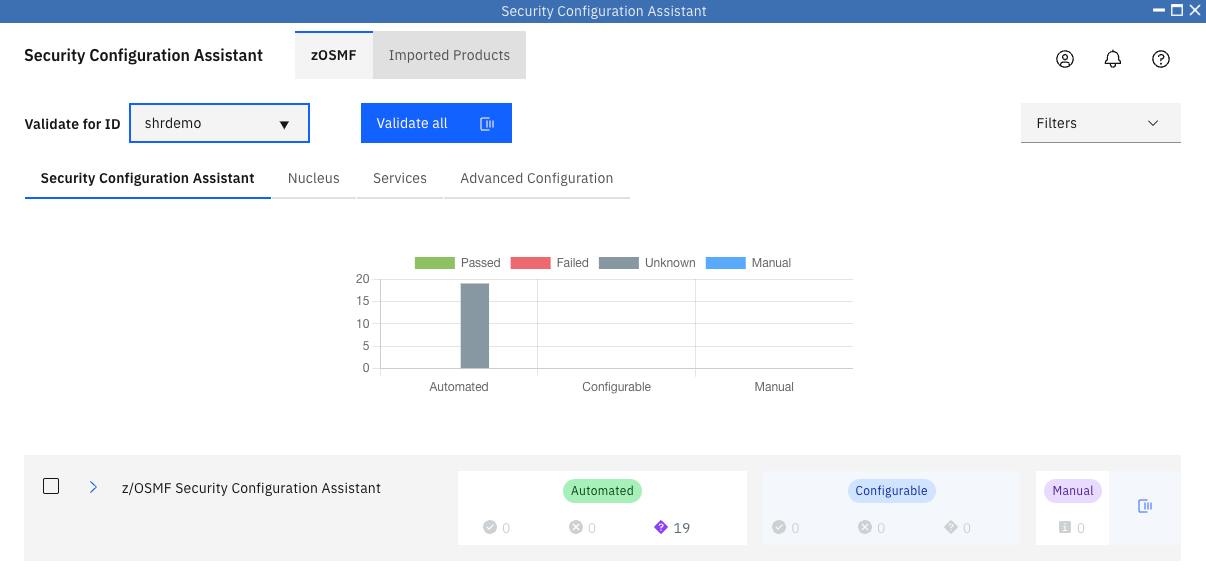
An initial screen of z/OSMF Security Configuration Assistant
The Challenges of Configuring Zowe Server
While Zowe brings modern interfaces to the mainframe securely, configuring a new server component isn’t always straightforward. One of the most significant hurdles is configuring the security settings correctly. Misconfigurations can lead to installation or operational issues, which are then not so easy to debug.
Key challenges include:
- Complex Security Requirements: Zowe components may require specific permissions, user IDs, and resource definitions.
- Manual Errors: Hand-coding security definitions is error-prone, especially when dealing with intricate configurations.
- Time-Consuming Processes: Manually setting up security can be a lengthy process, delaying deployments and updates.
How z/OSMF Security Configuration Assistant Enhances Zowe Server Deployment Experience
The SCA addresses these challenges by providing a guided approach to security configuration. Here’s how it helps:
1. Automated Security Definition Validation
Sysprogs can easily validate whether required definitions are defined in the security system for proper users and resources. It is possible to do it one by one or by one simple click.
2. Automated Security Command Generation
Where some definitions would be missing, instead of manually writing security commands, administrators can use the SCA to automatically generate them based on predefined templates and input parameters. This automation ensures that all necessary permissions and definitions are included.
3. Support for Multiple Security Managers
Whether your system uses RACF, ACF2, or Top Secret, the SCA can generate appropriate commands for your security manager. This flexibility is crucial in diverse mainframe environments.
4. Validation and Error Checking
Before applying any changes, the assistant validates the generated commands, checking for common errors or conflicts. This preemptive validation reduces the risk of security misconfigurations that could compromise the system.
5. Integration with Existing Workflows
The assistant integrates seamlessly with z/OSMF’s other features and can be incorporated into existing deployment and configuration workflows. This integration ensures that security setup is not an afterthought but a part of the overall system management process.

The Zowe Server v3 definition file for z/OSMF Security Configuration Assistant
Step-by-Step: Using the Security Configuration Assistant for Zowe
Let’s walk through a high-level overview of how you might use the SCA to configure a Zowe server:
Access z/OSMF: Log into the z/OSMF interface using your credentials.
Navigate to the SCA: Find the assistant under the “App center” in bottom right corner. If you don’t see the icon there, it might be in a different location depending on your z/OSMF configuration. Please check other areas of the interface. Not all IDs will have permission to use it by default, if you see IZUG3003E error, please reach out to your Sysprog to grant needed permission.

This icon represents SCA in the z/OSMF UI

z/OSMF error message
Import Zowe SCA files: Choose Imported Products on the top of the screen and then click on Import. There, locate the file which is usually in the files/sca directory of the Zowe Server, select *zowe_base_sca.json (default file name) and click Load. Note: If you are using Zowe server v2, you may see zowe_base_server.json and zowe_base_user.json*. In that case load both files. The rest of this blog will use Zowe server v3 SCA definitions, nevertheless SCA usage is the same.

Import Zowe Server

Load Zowe Server v3 definition file
Explore Zowe Server resources: If you did everything right, you should see Zowe Configuration — Server item on the screen. By clicking on blue arrow expand the list. Here, you can see all resources that are needed, divided into two categories: Automated — those are ready to be validated immediately, and Configurable — they need to fill some values before can be validated.

Automated Zowe Server Resources Validation


Configurable Zowe Server Resources Validation
Validate Zowe Server resources: You can validate each resource one by one, but now click on Validate all. As you can see, by default, you current account (logged user) is used, however you want to validate the resources for default Zowe started task user — ZWESVUSR. So change it in the Validate for ID input field. If a resource has configurable field, click on the blue + icon and fill value. Note: The ZWESVUSR user must be a member of the IZUUSERS group to successfully complete the validation process. Otherwise, the system will display the IZUSA0011E message.

Validated Resources For Default Started Task Zowe Server User — ZWESVUSR

Value Variable
Fixing Zowe Server resources: If validation for a resource is not successful, red icon is shown. By clicking on the three dots, you can open menu that allows you to re-validate the resource or, and that is what we want, Review & Fix. When you click on it, you will see a screen showing a security command that fixes the resource. You can review it and submit. If you have sufficient permissions, the command is executed and the resource is properly allocated. Note: The commands to fix a resource will be submitted using the currently logged-in user ID. If you lack the required permissions, you can copy and paste the commands to execute them outside of SCA by some one else.

Fixing Resources Where Test Failed

Command to Fix a Resource in the SCA
Conclusion
Configuring Zowe server doesn’t have to be a complex, error-prone process. The z/OSMF Security Configuration Assistant provides a powerful tool to simplify and streamline security configuration. By automating the generation of security commands and guiding administrators through the process, it ensures that the Zowe server security resources are securely and correctly configured.
Resources
Would you like to learn more about SCA or Zowe? Here are some useful resources:
z/OSMF Security Configuration Assistant: https://www.ibm.com/docs/en/zos/3.1.0?topic=configuration-security-assistant-task
z/OSMF Security Configuration Assistant Tutorial: https://mediacenter.ibm.com/media/1_vi437nry
Connecting an user to a group: https://www.ibm.com/docs/en/zos/3.1.0?topic=syntax-connect-connect-user-group#connect
GitHub repository with the definition file: https://github.com/zowe/zowe-install-packaging/tree/v3.x/staging/files/sca
Zowe Security Configuration: https://docs.zowe.org/stable/user-guide/configuring-security
메타데이터
- post_id
- 2827aa85daaa
- slug
- z-osmf-security-configuration-assistant-for-zowe-2827aa85daaa
- url
- https://medium.com/zowe/z-osmf-security-configuration-assistant-for-zowe-2827aa85daaa
- canonical_url
- https://medium.com/zowe/z-osmf-security-configuration-assistant-for-zowe-2827aa85daaa
- author_url
- https://medium.com/@jan.prihoda
- status
- ok
- fetched_at
- 2026-07-13 06:23:13