How to Master the Canva Horizontal Line (Yes, It’s That Simple)
A step‑by‑step guide to adding, styling, and flipping the canva horizontal line — plus a pro tip for perfect vertical lines.
How to Master the Canva Horizontal Line (Yes, It’s That Simple)
Master the Canva Horizontal Line
A step‑by‑step guide to adding, styling, and flipping the canva horizontal line — plus a pro tip for perfect vertical lines.
The canva horizontal line might be tiny, but it’s a design powerhouse. Want to separate sections in a presentation? Create a clean divider in a worksheet? Add a subtle visual break in a social media graphic? That little line does it all.
In this tutorial (inspired by CG Ian’s super concise video), I’ll show you exactly how to add a horizontal line in Canva, customize its style, adjust thickness, round the ends, and even turn it vertical — with perfect snapping.
And don’t worry. It takes less than two minutes.
First, Where Do You Find the Line?
Open Canva and any design (presentation, Instagram post, flyer — your call).
- On the left sidebar, click Elements.
- Scroll down to the Shapes section.
- Inside Shapes, look for Lines.
- Click the simple straight line icon.
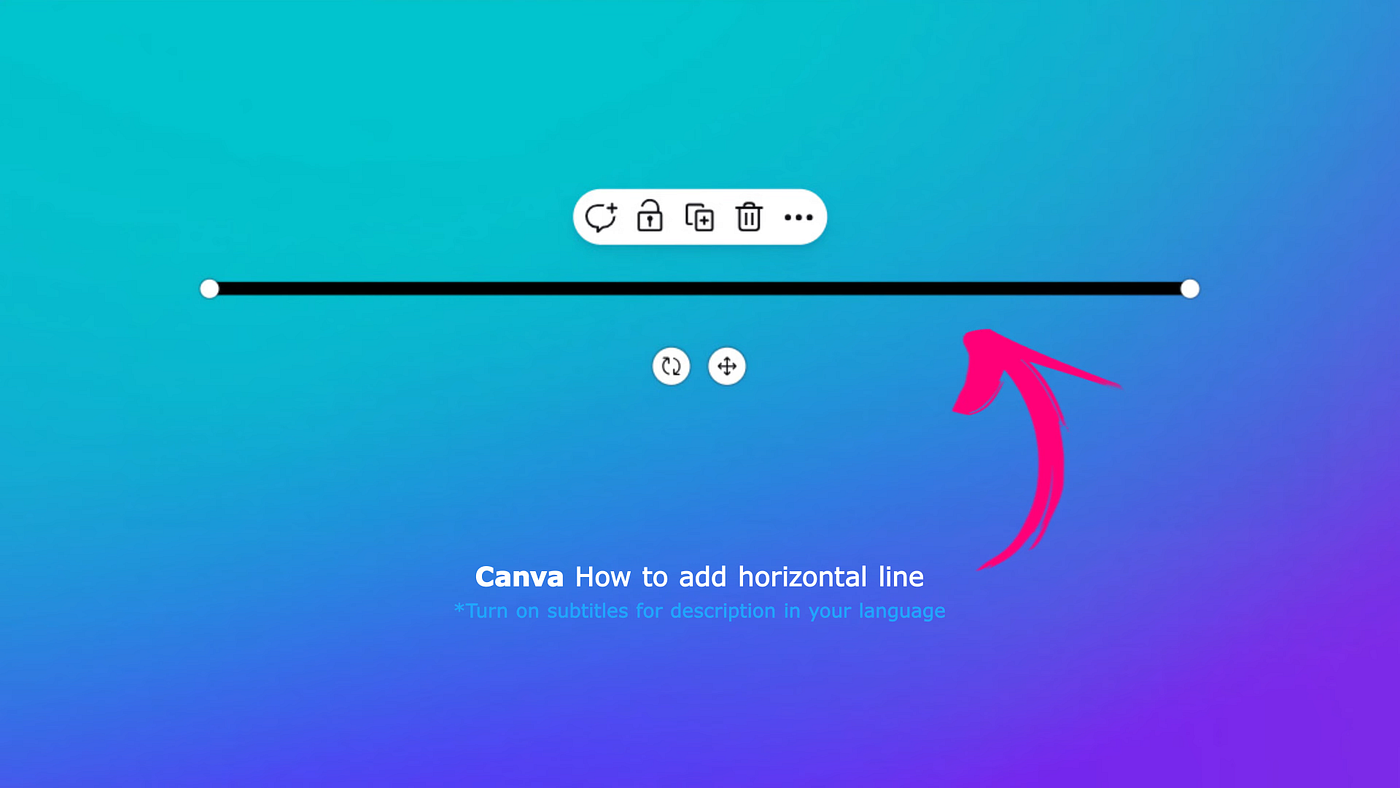
Boom. A default canva horizontal line appears right on your canvas.

canva horizontal line appears right on your canvas
Customizing Your Line (Make It Yours)
Once the line is selected, the top toolbar gives you some nice control. Here’s what you can tweak:
- Line style — Solid, dashed, or dotted. Dotted lines are great for “fill in the blank” worksheets.
- Stroke weight — Make it thicker (bold divider) or thinner (subtle separation).
- Round ends — Turns the line’s endpoints from flat to rounded. Perfect for softer, modern designs.
- Color — Change it to match your brand or background.
💡 Quick tip: A dashed canva horizontal line works beautifully as a “cut here” guide or a light separator between ideas.
How to Turn That Horizontal Line Vertical (Without Guessing)
Sometimes you need a vertical divider instead. No problem.
- Click the line to select it.
- Grab either endpoint (the little circle handle).
- Hold the Shift key on your keyboard, then drag.
The line will snap to a perfect 90‑degree angle — horizontal becomes vertical in one smooth move. Release the mouse, and you’re done.
No wobbly angles. No eye‑balling. Shift is your best friend here.
Why This Little Line Matters
Most beginners ignore the line tool. Big mistake.
Here’s why you should use it more often:
Use CaseWhy It WorksPresentation slidesSeparates title from content without heavy boxesResumes / portfoliosClean visual break between sectionsSocial media quotesA thin line above a quote adds emphasisWorksheets / checklistsDotted lines guide the user’s eye
And because Canva’s snapping (Shift + drag) keeps everything perfectly aligned, your layout stays professional — even if you have zero design experience.
Frequently Asked Questions (From Real Users)
Q: How do I add a canva horizontal line? A: Elements → Shapes → Lines → click the line icon. Done.
Q: Can I make it dashed or dotted? A: Yes. Select the line, then choose the dash or dot icon in the top toolbar.
Q: How do I make a vertical line instead? A: Drag one endpoint while holding Shift. It snaps vertical automatically.
Q: Can I adjust the thickness? A: Absolutely. Use the stroke weight slider — from hairline thin to chunky bold.
Q: What about rounded ends? A: Turn on the “round ends” toggle (looks like a circle with arrows).
Your Next 5 Minutes (Seriously)
Here’s a simple exercise:
- Open any Canva design.
- Add a horizontal line.
- Change it to dotted, make it thicker, and round the ends.
- Duplicate it, then hold Shift and drag one endpoint to make it vertical.
- Use both lines to frame a quote or separate a list.
Five minutes of practice, and you’ll never hunt for dividers again.
Watch on YouTube, https://youtu.be/a1hXXEkpRjE?si=NA5hmz5_12htVTx8&t=19
Final Thought
The canva horizontal line is one of those tiny tools that quietly makes your designs look 10x cleaner. It’s not flashy. But once you start using it intentionally — with the right weight, style, and alignment — people will notice the difference.
Now go add a line. And hold Shift.
Enjoyed this? Clap 👏 and follow for more Canva bite‑sized tutorials.
by CG Logs,
Original Post, https://cglogs.com/canva-horizontal-line-tutorial/
메타데이터
- post_id
- 285584dfa8e5
- slug
- how-to-master-the-canva-horizontal-line-yes-its-that-simple-285584dfa8e5
- url
- https://medium.com/@cg.artist.ian/how-to-master-the-canva-horizontal-line-yes-its-that-simple-285584dfa8e5
- canonical_url
- https://medium.com/@cg.artist.ian/how-to-master-the-canva-horizontal-line-yes-its-that-simple-285584dfa8e5
- author_url
- https://medium.com/@cg.artist.ian
- status
- ok
- fetched_at
- 2026-06-23 03:48:11