My full Yazi config: plugins, previews, fuzzy search and video thumbnails
I already made a first video about Yazi, but at that time I was mostly discovering it (all the links to my YouTube videos are at the end of…
My full Yazi config: plugins, previews, fuzzy search and video thumbnails
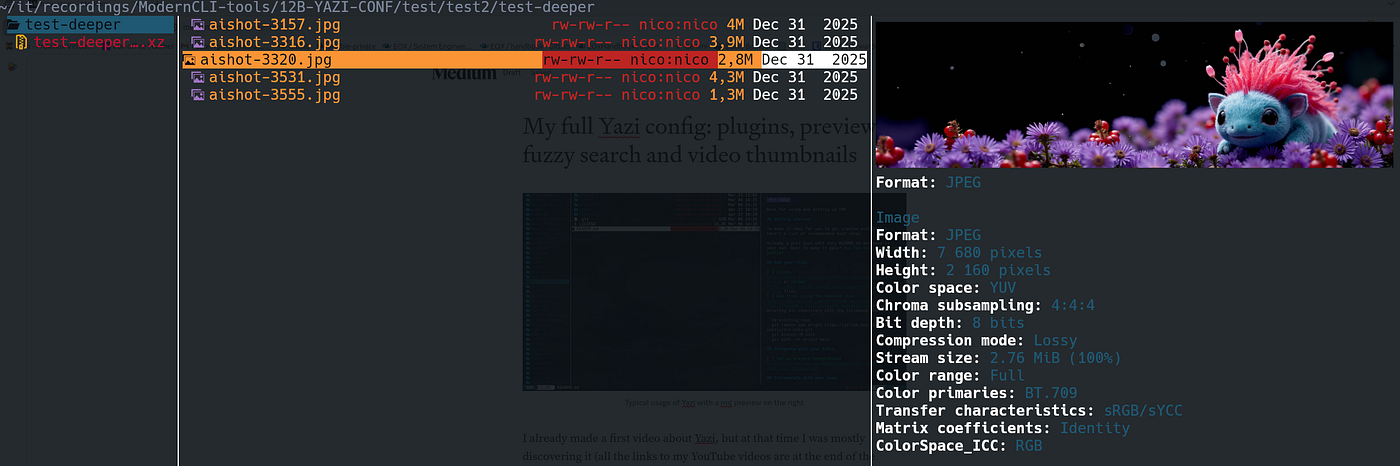
Yazi with viu integration for previewing pictures
I already made a first video about Yazi, but at that time I was mostly discovering it (all the links to my YouTube videos are at the end of the article).
It looked cool, it was fast, and I could already see why people liked it. But after using it a bit more and playing with the configuration, I realized that the really interesting part is not just Yazi itself.
The interesting part is what you can build around it.
So I made another video, this time about my Yazi configuration, the plugins I use (in the end I even wrote a new plugin myself), and the small workflow improvements that make it much nicer for me as a Linux user.
I also just updated my repo for the current version (the latest at the time of writing) I am using now before making this article:
Yazi 26.5.6Repo (public) here:
https://github.com/nbaud/nico-yazi-config/tree/mainThis is not supposed to be the perfect Yazi config. It is just my config. But it works nicely for my workflow, and maybe it can help you build your own (or use it as it is, it’s pretty cool I think).
Why I wanted to share the config
When I first started configuring Yazi properly, I quickly noticed that it is not always obvious where everything belongs.
You have several config files:
yazi.toml
keymap.toml
theme.toml
init.lua
And then you also need the right external tools installed.
That part is important. The config alone is not magic. If you want previews, archive extraction, fuzzy search, video thumbnails, PDF previews, and so on, you need the tools behind those features.
For example, in my setup I use tools like:
fd
ripgrep
fzf
zoxide
bat
glow
ouch
viu
ffmpeg
mediainfo
ripdrag
Some of those are for searching, some for previews, some for opening files, some for archives, and some for GUI integration.
This is the part I really like. Yazi becomes a kind of hub for other good command-line tools.
The custom view
One thing I really wanted was a better file list.
By default, Yazi is already nice, but I wanted to see more useful information directly in the middle panel.
Things like:
permissions
owner
group
size
date
This is especially useful if you work a lot with Linux files, repositories, configs, scripts, server stuff, and so on.
It sounds like a tiny thing, but I really like having this information visible directly.
Getting it to work the way I wanted was more annoying than expected. I had to do some Lua tweaking, and it took me a bit of time. But now I am happy with the result.
Maybe there is a cleaner way to do it. If yes, I am interested (let me know :D).
But for now, it works.
Archives with ouch
One of the cool parts of the setup is archive handling.
I use ouch for creating and extracting archives.
So instead of remembering the exact syntax for every archive format, I can select files in Yazi and create an archive directly from there.
For example:
select a few files
press the archive shortcut
choose zip, tar.gz, tar.xz, etc.
done
And extraction is just as quick.
This is one of those features that looks small, but once you use it, it feels very natural. Especially if you already spend most of your time in the terminal.
Tabs are also very useful
I had not really used Yazi tabs at the beginning, but now I find them very convenient.
You can have one tab in one directory, another tab somewhere else, copy or move files between them, extract archives in another place, and keep your context. All of that mostly (or exclusively) using your keyboard.
It feels a bit like using a graphical file manager, but without leaving the terminal.
And because the navigation is fast, it is often quicker.
Fuzzy search and quick navigation
Another big part of the setup is fuzzy search.
I use fzf, fd, ripgrep, and zoxide. If you are interested, I made videos for all these software in my Modern Linux CLI tools series, also on my YouTube channel.
Anyway, the idea is simple:
fd       -> search file names
ripgrep  -> search inside files
fzf      -> fuzzy selection
zoxide   -> jump to directories I often use
So from inside Yazi I can quickly find a file, search for content, or jump to some directory I used before.
This is also why I like these modern CLI tools as a series. They are nice alone, but they become much more powerful when they are combined, like an ecosystem.
Yazi is a good example of that.
Previews and openers

Typical usage of Yazi with a md preview on the right
Another important part is deciding what opens what.
For example, in my setup I use things like:
Markdown -> Typora
PDF      -> Xreader
images   -> Xviewer
videos   -> VLC
archives -> ouch
You do not have to use the same programs.
That is just what I use on my machine.
The point is that you can decide what happens when you press Enter on a file. You can also decide how files are previewed in the right panel.
So, you can have Markdown previews, PDF previews, image previews, video previews, Office file previews, archive previews, and so on.
But again: you need the external tools installed, otherwise the config will not magically work.
Git integration
I also use Git integration in Yazi.
This is useful when I am inside a repository and rename files, edit something, or add new files. I can see Git status directly in the file manager.
It does not replace git status, of course.
But it gives nice visual feedback while working.
For example, if I batch rename files in a repo, I can immediately see that Git sees them as changed or untracked.
That is convenient.
Batch rename
Batch rename is one of those features that made me like Yazi very quickly.
You select files, press the rename key, it opens your editor (vim for me), and you rename everything there.
For me, this is much nicer than doing complicated rename commands manually when I have several files to adjust.
It is also one of the features I showed in the video, because it is easy to understand visually.
chmod from inside Yazi
Another very nice plugin is the chmod plugin.

Using chmod to change the permissions inside Yazi
You can select multiple files and change permissions directly from Yazi.
For example, select a few files and set:
664
755
or whatever you need.
Of course, you can always use chmod manually. But when you already selected the files visually, it is very convenient to do it directly from there.
For sysadmin-type work, this is a nice little feature.
Drag and drop with ripdrag
I almost forgot this in the video, and then I recorded an extra part at the end, because this one is just too good!
I also use ripdrag.
This gives you a bridge between Yazi and the graphical desktop.
So you can select a file or directory in Yazi, trigger the drag-and-drop window, and then drag it into your graphical file manager or another GUI application.
I like this because I do not think terminal tools and GUI tools need to be enemies.
Sometimes the terminal is better.
Sometimes the GUI is practical.
This makes the two work together.
My own video timeline previewer
In the latest version of my config, I also added my own Yazi video timeline previewer.
This is useful for me because I work with a lot of video files for YouTube.
I often have recordings, failed takes, short clips, rendered videos, thumbnails, and test files in the same folders.
So being able to preview videos more clearly directly from Yazi is really useful.
I also made a separate video about that previewer.
Plugins used in my config
At the moment, my config uses or integrates things like:
git
fg
zoxide
smart-enter
chmod
ouch
video-timeline
ripdrag
I had full-border before, but for now I removed it because it was causing issues with the newer version of Yazi.
That is also something to keep in mind with Yazi: it moves fast.
That is good, but it also means configs and plugins can break.
So if you copy my repo, check the version. This one is updated for:
Yazi 26.5.6Should you use my config?
Yes, but mostly as a starting point.
Do not copy it blindly and expect every choice to be perfect for your machine.
You may want another PDF reader. You may want another Markdown editor. You may want another image viewer. You may not need all plugins. You may prefer different keybindings.
That is fine.
The goal is just to give you a working base and show what is possible.
For me, Yazi became much more interesting once I stopped seeing it as only a terminal file manager and started seeing it as a small workflow tool.
It brings together many CLI tools I already like:
fzf
fd
ripgrep
zoxide
bat
ouch
viu
ffmpeg
And when all of that works together, it feels really good.
Links
My Yazi config repo:
https://github.com/nbaud/nico-yazi-config/tree/mainVideo about my Yazi config:
https://www.youtube.com/watch?v=ko_uKMngU1oPrevious Yazi discovery video:
https://www.youtube.com/watch?v=2r5Z4fij1sE&t=40sMy Yazi video timeline previewer video:
https://www.youtube.com/watch?v=ekp8E8OhaqMIf you read everything, thank you :) It’s my first article on Medium, hopefully just the beginning!
메타데이터
- post_id
- 28cecfe7bcce
- slug
- my-full-yazi-config-plugins-previews-fuzzy-search-and-video-thumbnails-28cecfe7bcce
- url
- https://medium.com/@n.baudoin/my-full-yazi-config-plugins-previews-fuzzy-search-and-video-thumbnails-28cecfe7bcce
- canonical_url
- https://medium.com/@n.baudoin/my-full-yazi-config-plugins-previews-fuzzy-search-and-video-thumbnails-28cecfe7bcce
- author_url
- https://medium.com/@n.baudoin
- status
- ok
- fetched_at
- 2026-07-10 18:30:51