How to Upgrade Duo Authentication Proxy on Windows (Production Upgrade Guide)
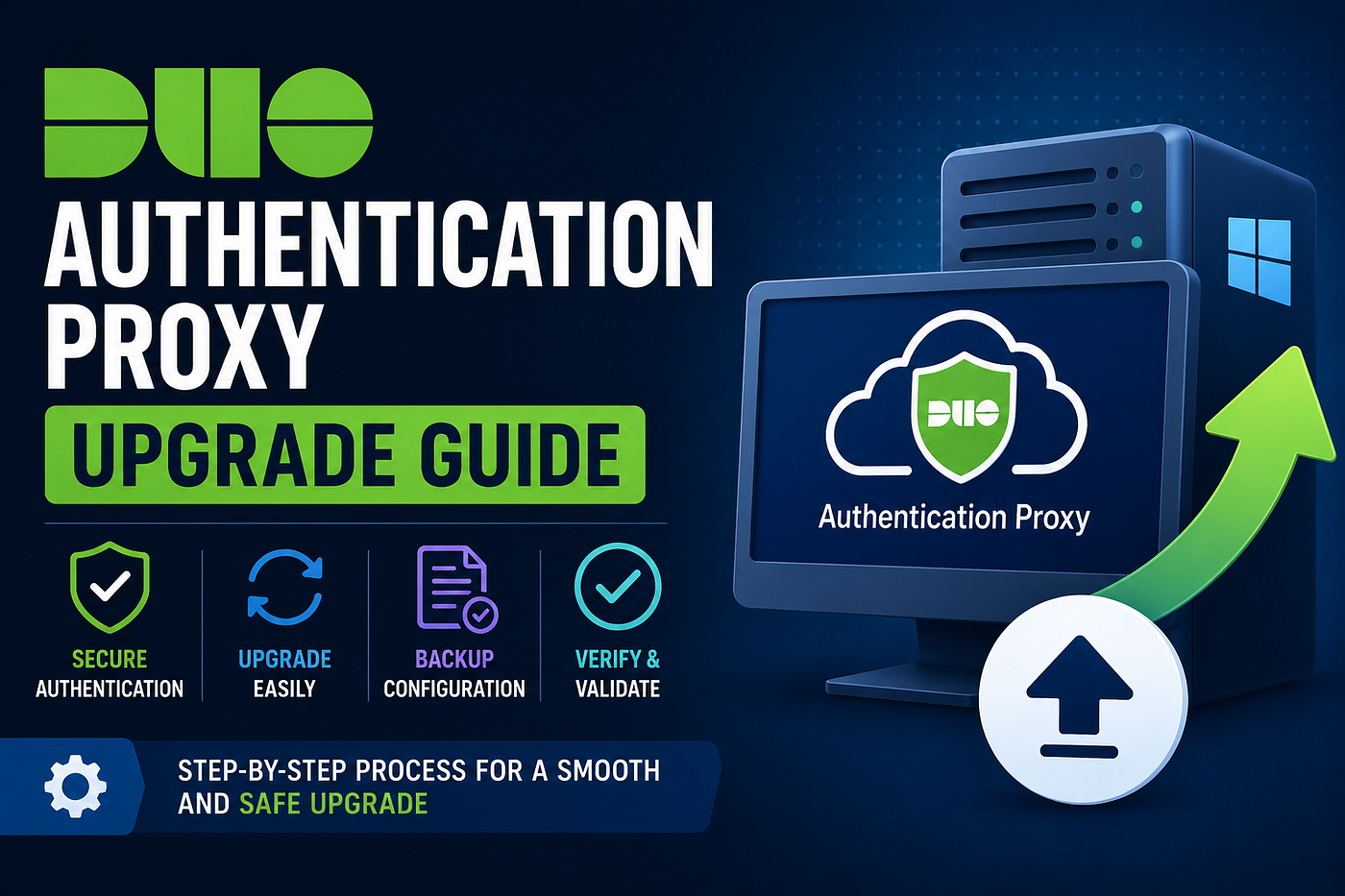
Keeping the Duo Authentication Proxy up to date is important for security, stability, and compatibility with the latest Duo features.
How to Upgrade Duo Authentication Proxy on Windows (Production Upgrade Guide)
Keeping the Duo Authentication Proxy up to date is important for security, stability, and compatibility with the latest Duo features.
Recently, I upgraded a production Duo Authentication Proxy server. Since the proxy sits between authentication requests and backend identity services, I wanted a repeatable process that minimized risk and provided an easy rollback if needed.
This article walks through the upgrade process I followed.
Why Upgrade Duo Authentication Proxy?
Keeping the Authentication Proxy updated provides several benefits:
- Security updates
- Bug fixes
- Support for newer authentication methods
- Improved compatibility with Active Directory and cloud services
- Continued vendor support
Before upgrading, always review the Duo release notes for breaking changes.
Pre-Upgrade Checklist
Before starting the upgrade:
- Verify the Authentication Proxy service is healthy.
- Confirm current proxy version.
- Back up configuration files.
- Back up log files.
- Record Windows service configuration.
- Download the latest installer from Duo.
- Verify the installer’s digital signature.
Step 1 — Verify the Server
Open PowerShell as Administrator.
Check the hostname.
hostnameRecord the current date.
Get-DateStep 2 — Verify the Service
Confirm the Authentication Proxy service is running.
Get-Service DuoAuthProxyExpected output:
Status   Name            DisplayName
------   ----            -----------
Running  DuoAuthProxy    Duo Security Authentication Proxy
Step 3 — Check the Installed Version
& "C:\Program Files\Duo Security Authentication Proxy\bin\authproxy.exe" --versionRecord the version before beginning the upgrade.
Step 4 — Create Backup Folders
Create folders to store backups.
New-Item -ItemType Directory -Path C:\backup -ForceNew-Item -ItemType Directory -Path C:\temp -ForceStep 5 — Backup Configuration
Create a timestamp.
$date = Get-Date -Format "yyyyMMdd_HHmm"Backup the configuration folder.
Copy-Item `
"C:\Program Files\Duo Security Authentication Proxy\conf" `
"C:\backup\conf_$date" `
-Recurse
Backup log files.
Copy-Item `
"C:\Program Files\Duo Security Authentication Proxy\log" `
"C:\backup\log_$date" `
-Recurse
Export the Windows service configuration.
sc.exe qc DuoAuthProxy > C:\backup\DuoServiceConfig_$date.txtThese backups make rollback much easier if something goes wrong.
Step 6 — Download the Latest Installer
Invoke-WebRequest `
-Uri "https://dl.duosecurity.com/duoauthproxy-latest.exe" `
-OutFile "C:\temp\duoauthproxy-latest.exe"
Step 7 — Verify the Download
Confirm the installer exists.
Get-ChildItem C:\temp\duoauthproxy-latest.exeVerify the digital signature.
Get-AuthenticodeSignature `
"C:\temp\duoauthproxy-latest.exe"
Expected result:
StatusValidNever install software if the signature is invalid.
Step 8 — Install the New Version
Run the installer silently.
C:\temp\duoauthproxy-latest.exe /SThe installer upgrades the existing Authentication Proxy while preserving the current configuration.
Step 9 — Validate the Upgrade
Verify the service.
Get-Service DuoAuthProxyVerify the version.
& "C:\Program Files\Duo Security Authentication Proxy\bin\authproxy.exe" --versionFinally, perform a test authentication to ensure the proxy communicates successfully with both Duo Cloud and your identity provider.
Rollback Plan
If validation fails:
- Stop the Duo Authentication Proxy service.
- Restore the backup configuration folder.
- Restore any modified files if required.
- Reinstall the previous proxy version.
- Restart the service.
- Perform another authentication test.
Having configuration and log backups significantly reduces recovery time.
Best Practices
- Upgrade during a maintenance window.
- Test in a non-production environment first.
- Verify digital signatures before installation.
- Keep a backup of the configuration and logs.
- Validate authentication immediately after the upgrade.
- Document the installed version.
Final Thoughts
Upgrading the Duo Authentication Proxy is generally straightforward, but because it plays a critical role in authentication, it’s worth following a structured process.
By backing up the existing configuration, verifying the installer, performing a silent upgrade, and validating the service afterward, you can minimize downtime and reduce upgrade risk in production environments.
메타데이터
- post_id
- 2938660409f4
- slug
- how-to-upgrade-duo-authentication-proxy-on-windows-production-upgrade-guide-2938660409f4
- url
- https://medium.com/@durgeshmishrablog/how-to-upgrade-duo-authentication-proxy-on-windows-production-upgrade-guide-2938660409f4
- canonical_url
- https://medium.com/@durgeshmishrablog/how-to-upgrade-duo-authentication-proxy-on-windows-production-upgrade-guide-2938660409f4
- author_url
- https://medium.com/@durgeshmishrablog
- status
- ok
- fetched_at
- 2026-07-10 21:17:37