How Do You Make a Doorbell Ring for Someone Who Can’t Hear It?
A $10 pile of parts, an Android app, and the part of modern Android that fought me the hardest
How Do You Make a Doorbell Ring for Someone Who Can’t Hear It?
A $10 pile of parts, an Android app, and the part of modern Android that fought me the hardest
A doorbell is one of the most ordinary things in a home. You press it, it rings, someone answers. It’s so ordinary that we never stop to think about what happens when it doesn’t work.
But a doorbell only produces sound. And if you can’t hear that sound, then the visitor at your door, the delivery you were waiting for, or an emergency simply never happened as far as you’re concerned. This isn’t a matter of convenience. It’s a matter of safety and independence.
For my senior capstone project, I tried to solve exactly this problem. What came out of it is called Engelsiz Zil — Turkish for “Barrier-Free Doorbell.” When someone presses the button at the door, it alerts you not with sound, but with vibration and a full-screen visual flash on your phone. It runs entirely offline, and the total hardware cost is around $10.
In this post I’ll walk through how I built it — and, more interestingly, the part that fought me the hardest. It wasn’t the part you’d expect.
Why don’t existing solutions work?
There are flashing-light and vibrating doorbells on the market aimed at deaf and hard-of-hearing users. But they share two problems.
They’re expensive. Commercial units typically run somewhere in the $50–$100 range.
And they’re fixed. They’re mounted to a wall, which means they only help in the room you happen to be standing in. If you’re in the kitchen and the flashing unit is in the living room, you’re back to hearing nothing.
Meanwhile, there’s already a device the user carries with them everywhere — one that can vibrate and has a bright screen: their phone.
That’s where the idea started. Turn the phone into the alert device.
How the system works
The architecture is deliberately simple:
Door button → Arduino + HC-05 → Bluetooth (SPP) → Phone → Vibration + full-screen flash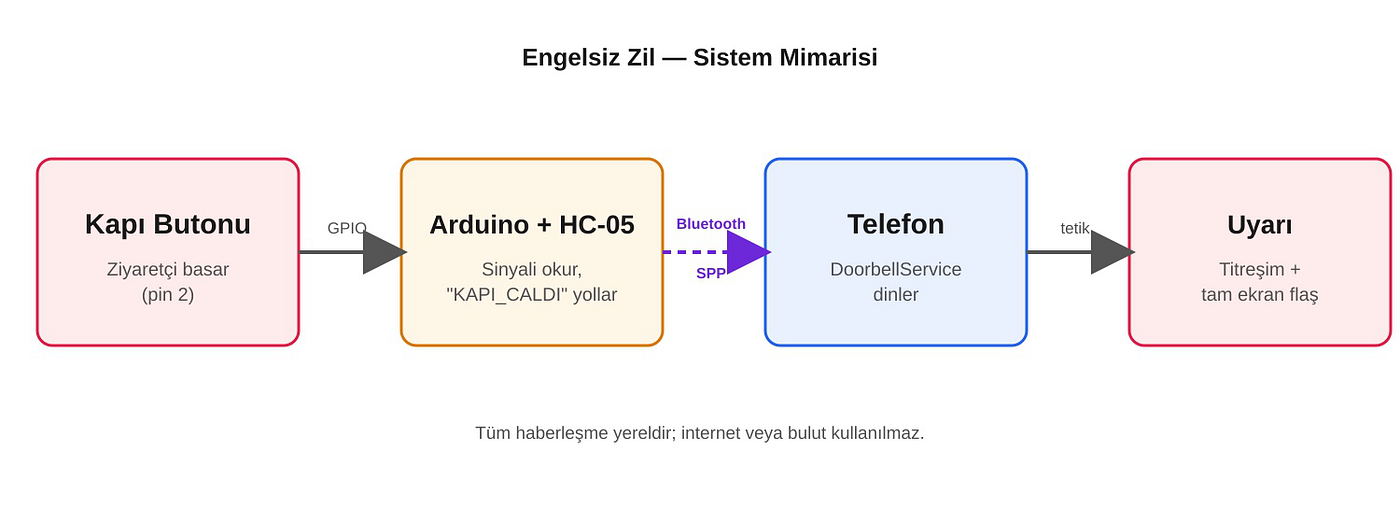
Figure 1 — The overall architecture. All communication is local; no internet or cloud is involved.
You place an Arduino and an HC-05 Bluetooth module at the door. When a visitor presses the button, the Arduino generates a signal, that signal travels to the phone over Bluetooth, and an app on the phone catches it and alerts the user silently.
That’s it. No internet. No cloud. No server. No data ever leaves the two devices — which is both a simplicity choice and a privacy choice.
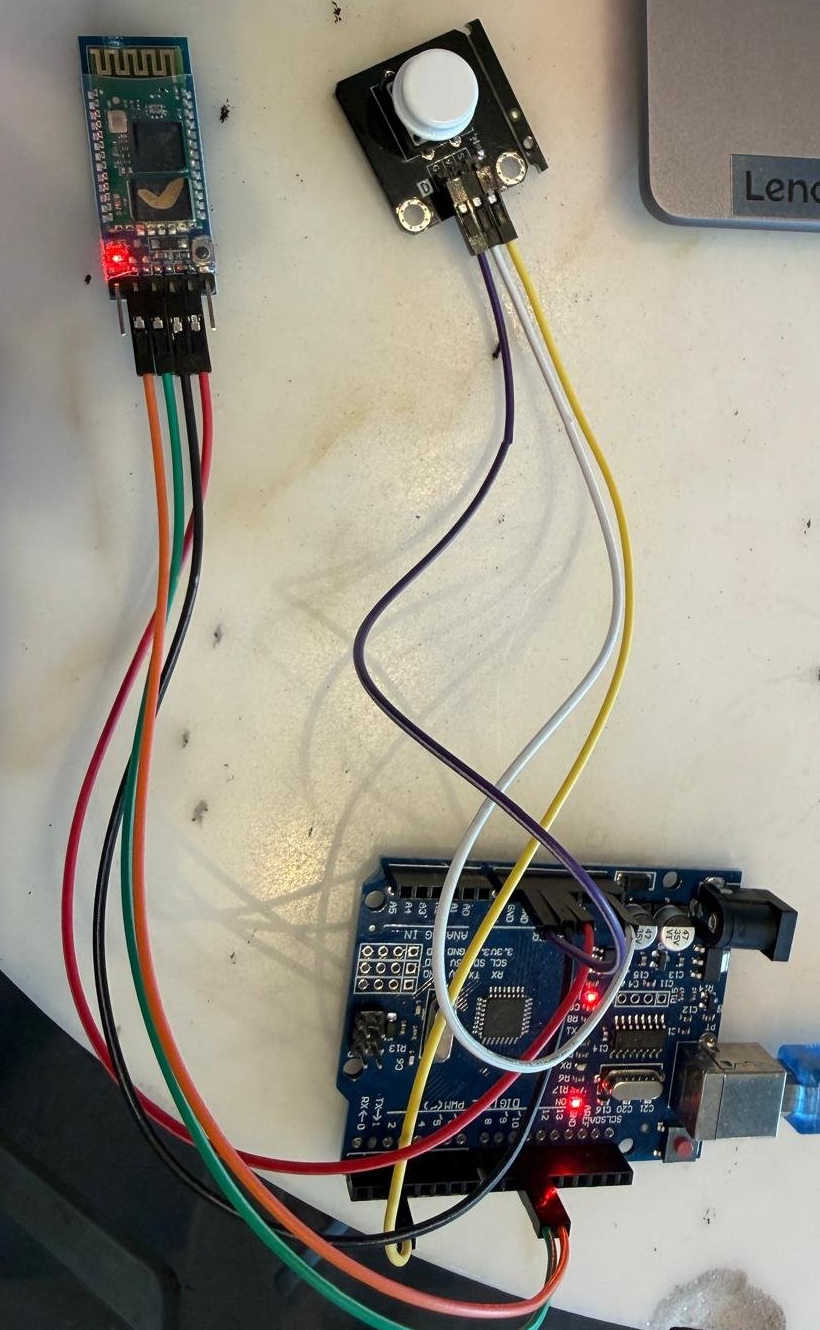
Figure 2 — The prototype circuit on a breadboard: Arduino, HC-05 Bluetooth module, and a push button.
The Arduino side: shorter than you’d think
The entire firmware is this:
#include <SoftwareSerial.h>
SoftwareSerial bt(10, 11); // RX, TX
int lastState = HIGH;
unsigned long lastPressMs = 0;void setup() {
pinMode(2, INPUT_PULLUP); // button
bt.begin(9600); // HC-05
}void loop() {
int state = digitalRead(2);
if (state == LOW && lastState == HIGH) {
if (millis() - lastPressMs > 500) { // debounce
lastPressMs = millis();
bt.println("KAPI_CALDI"); // signal ("doorbell rang")
}
}
lastState = state;
}Two small details made the whole thing much easier:
**INPUT_PULLUP** uses the Arduino's internal pull-up resistor. That means you don't need to add an external resistor — the button connects directly between the pin and ground. Fewer components, less soldering, fewer things to go wrong.
A 500 ms debounce. Mechanical buttons “bounce” when pressed: a single press can fragment into dozens of signals within milliseconds. Without debouncing, one doorbell press turned into a flood of alarms on the phone.
Why Bluetooth Classic instead of BLE?
The modern reflex is “use BLE, it draws less power.” But:
- The HC-05 is already a Bluetooth Classic module — cheap and available everywhere.
- BLE is designed for short, intermittent packets; it’s not ideal for a continuous serial stream.
- SPP (Serial Port Profile) emulates a wired serial port over Bluetooth. Underneath it sits RFCOMM: reliable, ordered, stream-based. So on the phone you just open a socket and read bytes. Done.
On the Android side, the connection is established using SPP’s standard UUID:
00001101-0000-1000-8000-00805F9B34FBThis number is fixed by the Bluetooth SIG — you’ll find SPP under this same UUID everywhere.
The trade-off: a range of about 10 meters. Fine for indoor use, not for a garden gate. I accepted that as a deliberate constraint.
The hard part wasn’t Bluetooth
Before I started, I assumed the hard part of the project would be the hardware. It wasn’t. The hardware worked in an afternoon.
The wall I actually ran into was this:
The user is asleep. The phone is locked. The app is closed. And when the doorbell rings, the phone has to notice it and wake the screen anyway.
Modern Android does not want you to do this. And, honestly, it’s right not to — because that same capability is exactly what a malicious app would use to drain your battery and hijack your screen whenever it likes.
But in my case this wasn’t a “nice to have.” If the alert doesn’t arrive, the whole system is useless. A half-working accessibility device is a non-working accessibility device.
The solution wasn’t one thing — it was a stack of layers:
What Why Foreground Service (connectedDevice type) Android kills background services. A foreground service (with a persistent notification) survives. Battery optimization exemption Doze mode still throttles your service on a "sleeping" phone. You have to explicitly request the exemption. **fullScreenIntent The mechanism that bypasses the lock screen and launches a full-screen alert directly. It's really meant for incoming-call screens. `WakeLock** To physically wake the screen.BootReceiver` So the service restarts on its own after the phone reboots. Auto-reconnect If the connection drops, it comes back within 5 seconds.
And then there’s the part no documentation warns you about: manufacturer skins. Some OEM layers — Xiaomi/HyperOS, for example — terminate services far more aggressively than stock Android does. You can do everything by Google’s book and the phone will still kill your service.
The result was a setup flow on the app’s main screen that walks the user through granting each permission one by one. It isn’t elegant. But it works.

Figure 3 — The app’s main screen: “Status: Connected (HC-05),” with the step-by-step permission setup flow.
What designing the alert taught me
My first instinct was “send a high-priority notification and call it a day.” But thinking about the actual user made two things clear.
1. Sound had to be removed entirely. Not just because it “doesn’t work” — the user can’t hear it, but other people in the home can. A constantly ringing alarm annoys everyone without helping anyone. So I built the notification channel with its sound explicitly set to null. Silent, but high priority.
2. The alert must not dismiss itself. Standard notifications disappear after a few seconds. But a deaf user might not be looking at their phone — they might notice the alert 20 seconds later. So the full-screen red-and-white flash stays on screen until the user taps “OK, GOT IT.”
That second decision taught me the most about accessibility design: default behaviors are built for the average user. Accessibility is the practice of questioning those defaults.
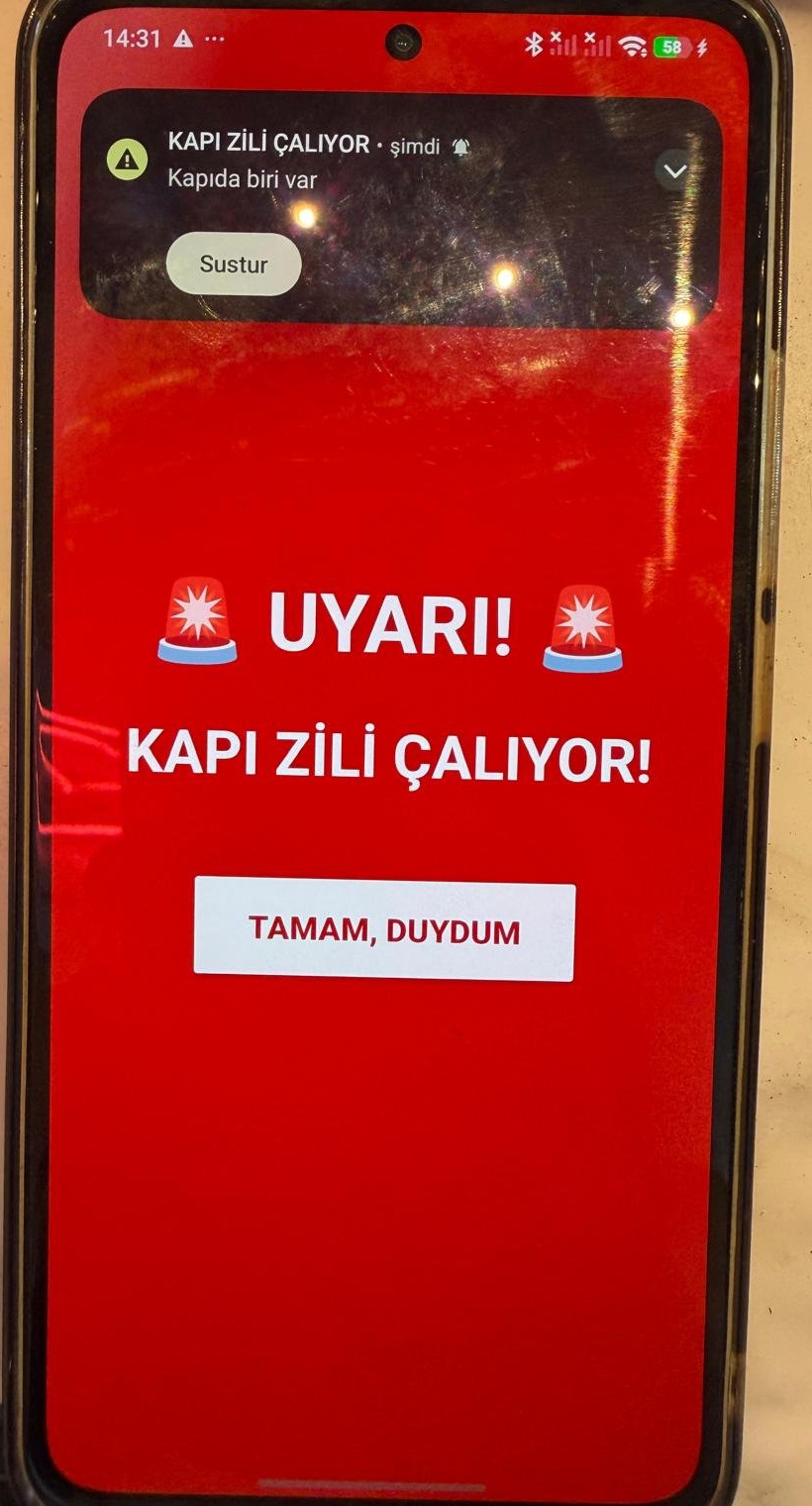
Figure 4 — The full-screen alert shown when the doorbell rings. It stays up until the user taps “OK, GOT IT.”
Results
Scenario Result App open, screen on Instant alert Screen locked, app in background Phone wakes, full-screen flash After a phone reboot Service auto-starts and alerts Bluetooth range ~10 m solid; intermittent drops at 12–15 m Connection drop Reconnects within 5 seconds Battery drain (per hour) 1–2%
Total hardware cost: about $10 — roughly five times cheaper than a fixed commercial flashing doorbell, and portable on top of that.
Being honest: the gaps
There’s no point pitching a capstone project as flawless. The system has known weaknesses:
- No authentication. Any meaningful byte from the paired device triggers the alarm. This was a deliberate looseness during development (early on the signal wasn’t being detected, and relaxing the trigger logic fixed it) — but a production version needs a signing mechanism.
- 10-meter range. Enough for an apartment door, not a garden gate.
- Still on a breadboard. I never moved to a soldered PCB; the project timeline didn’t allow it.
Things I’m considering next: a longer-range WiFi/MQTT-based version, doorbell-camera integration, smartwatch notifications, and signal authentication.
Why this project?
When choosing a capstone, a lot of us default to “the thing that uses the flashiest technology.” I picked a small, real problem instead.
And here’s what I realized: the technology part was already solved. Bluetooth is 25 years old, Arduino is 20, Android notifications fire a billion times a day. There was nothing to invent.
What was missing was someone sitting down and assembling these pieces for this problem. I suspect most accessibility problems are like that — they persist not because they’re unsolvable, but because no one made them a priority.
Ten dollars and a few weeks of work. In return, someone knows the door is ringing.
If you have questions, or you want to build something similar, leave a comment — happy to help.
메타데이터
- post_id
- 29ba3478fa6e
- slug
- how-do-you-make-a-doorbell-ring-for-someone-who-cant-hear-it-29ba3478fa6e
- url
- https://medium.com/@dilan.sazan01/how-do-you-make-a-doorbell-ring-for-someone-who-cant-hear-it-29ba3478fa6e
- canonical_url
- https://medium.com/@dilan.sazan01/how-do-you-make-a-doorbell-ring-for-someone-who-cant-hear-it-29ba3478fa6e
- author_url
- https://medium.com/@dilan.sazan01
- status
- ok
- fetched_at
- 2026-07-22 18:10:51