The Sims 4 Modding Guide: Level Up Your Gaming Experience
Read the complete guide here, and explore more tips on The Sims 4 here!
The Sims 4 Modding Guide: Level Up Your Gaming Experience
Read the complete guide here, and explore more tips on The Sims 4 here!
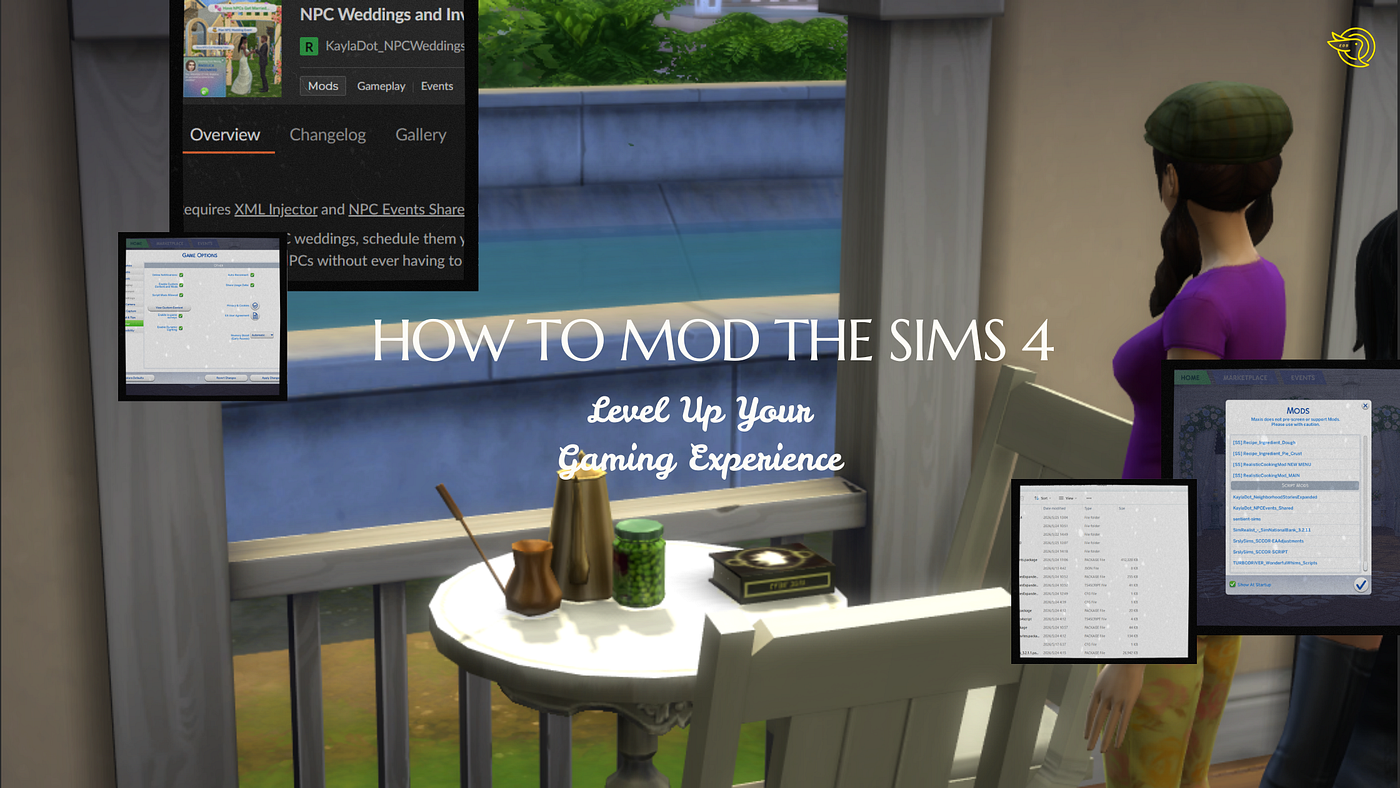
Modding The Sims 4 is one of the most rewarding things a player can do. The modding community has created thousands of mods that add everything from small quality-of-life fixes to complete gameplay overhauls. And modding The Sims 4 is easier than you might think. This guide covers everything needed to know about how to mod The Sims 4.
What Are Mods and Why Use Them?
Many players wonder how to mod The Sims 4 after getting tired of packs and the base game.
Mods are user-created files that change how the game works. They can add new objects, new careers, new traits, new interactions, or completely new systems. Some mods fix bugs that EA has never addressed. Others add features that the player wishes were in the base game.
The Sims 4 has one of the most active modding communities in gaming. Popular mods like MC Command Center, Wonderful Whims, and Basemental Drugs have millions of downloads. Many players consider these mods essential to their gameplay.
The key thing to understand is that mods are safe when downloaded from trusted sources. The player just needs to follow a few basic rules.
Explore: Sultan’s Game Anniversary Update
Step 1: How to Mod The Sims 4 in Game Settings
Before downloading anything, the player must enable mods in the game settings. New modders often download mods, place them in the correct folder, and then wonder why nothing appears in game.
Here is how to enable mods:
- Launch The Sims 4.
- Open the Game Options menu.
- Select “Other” from the left sidebar.
- Check both boxes: “Enable Custom Content and Mods” and “Script Mods Allowed.”
- Click “Apply Changes.”
- Restart the game.
Script mods are mods that add new functionality, like a banking system or an attraction system. Custom content mods are objects, hairstyles, clothing, and other visual items. Both boxes must be checked for all mods to work properly.
The player only needs to do this once. After enabling mods, the setting stays on unless the player disables it manually or the game updates.

Allow the use of custom content and mods in the game.
Explore: The Sims 4 Work Expansion Pack Trilogy: Get to Work, Dine Out, and Businesses & Hobbies
Step 2: Find the Mods Folder
The Sims 4 creates a dedicated Mods folder automatically. The player does not need to create it. The folder is located in Electronic Arts > The Sims 4 > Mods.
- On Windows, the path is: Documents > Electronic Arts > The Sims 4 > Mods.
- On Mac, the path is: Documents > Electronic Arts > The Sims 4 > Mods.
If the Mods folder does not exist for some reason, the player can simply create a new folder named “Mods” (capital M) in the The Sims 4 directory.
The Mods folder is where every single mod will go. Keep this folder organized. And in most cases, players need to place the mods in no more than one sub-folder in the mod folder.

The mod files should either be directly added to the folder, or have one subfolder at most.
Explore: Games Like InZOI: Six Best Life Simulation Alternatives to Play Right Now
Step 3: Download Mods from Trusted Sources
This is the most important step. Only download mods from trusted creators and websites. The safest places to find mods are:
- CurseForge: EA’s official mod hosting partner. All mods on CurseForge are vetted. Mods will be added to the Mods folder automatically once installed on CurseForge. This is the easiest way to add mods.
- Patreon: Most major mod creators have Patreon pages where they post their mods for free.
- Discord servers: Many modding communities have Discord servers where creators post updates and downloads.
- Dedicated websites: Some well-known mods have their own websites for official downloads, such as basemental drugs. Players can download from the websites and manually add the mods to the mod folder.
Always read the mod description before downloading. Some mods require other mods to work. Some mods conflict with each other. The description will usually list requirements and known conflicts.

Check the descriptions for prerequisite mods.
Explore: Sultan’s Game Fardak Full Walkthrough: The Hostage Prince’s Three Paths
Step 4: Install the Mods
Installing mods is simple, generally speaking. Most mods come as .package files or .ts4script files. Some mods come in ZIP or RAR archives that must be extracted first.
Here is the installation process:
- Firstly, download the mod file.
- If the file is in a ZIP or RAR archive, extract it using a program like 7-Zip or WinRAR.
- Locate the .package or .ts4script file.
- Drag the file into the Mods folder.
- Do not put files more than one folder deep. The Sims 4 can only read mods that are in the Mods folder or in one subfolder inside it. For example: Mods > [Creator Name] > [Mod File] works. Mods > [Creator Name] > [Mod Category] > [Mod File] does not work.
Explore: Sultan’s Game Gulis: Anniversary Update on Socialization Training
Step 6: Handle Game Updates
Game updates are the biggest challenge for modded players. Every time EA releases a patch, some mods will break. Do not update the game immediately. Wait a few days. Check the mod creators’ social media pages. They will usually announce whether their mods are compatible with the new patch.
When a game update is released:
- Turn off automatic updates in the EA app or Steam.
- Wait for mod creators to update their mods, then. This usually takes 24–72 hours for popular mods.
- Download the updated versions of all mods.
- Delete the old versions from the Mods folder.
- Install the new versions.
- Update the game.
- Launch the game and test.
If the player accidentally updates the game before updating mods, the game may crash or behave strangely. In that case, the player can either remove all mods temporarily or wait for updates while playing unmodded.
To test which mod is crashing the game, players can either look for help at Reddit or Discord servers, or add mods to the game one by one to sieve out the functioning mods and non-functioning ones.

The game lists all the added mods when players enter the game.
Explore: Sultan’s Game Faraj Full Walkthrough: Renown and Notoriety Routes
Final Tips on How to Mod The Sims 4
- Backup saves before adding major mods. The Mods folder can be backed up, but the save files are even more important. Saves are located in Documents > Electronic Arts > The Sims 4 > Saves.
- Keep the mod folder organized. When a game update breaks everything, the player will need to know which mods need updates. An organized and categorized mod folder can help players better rule out the non-functioning mods.
- Do not download too many mods at once. Add mods gradually. Test after each new mod. If something breaks, the player will know exactly which mod caused it.
- Read mod descriptions carefully. Many mods have specific installation instructions. Following them prevents problems.
- Join modding communities. The Sims 4 modding community on Discord and Reddit is incredibly helpful. Players can ask questions, report bugs, and find new mods.
Explore: The Sims 4 Businesses & Hobbies Expansion Pack: Turn Your Passion into Profit
메타데이터
- post_id
- 29df8ebcd0dc
- slug
- the-sims-4-modding-guide-level-up-your-gaming-experience-29df8ebcd0dc
- url
- https://medium.com/@evalvyiping/the-sims-4-modding-guide-level-up-your-gaming-experience-29df8ebcd0dc
- canonical_url
- https://medium.com/@evalvyiping/the-sims-4-modding-guide-level-up-your-gaming-experience-29df8ebcd0dc
- author_url
- https://medium.com/@evalvyiping
- status
- ok
- fetched_at
- 2026-07-09 08:02:55