Full Stack Web Development — MERN — Part 4
CSS:
Full Stack Web Development — MERN — Part 4

CSS:
What is CSS?
CSS stands for Cascading Style Sheets. It is the language used to style and design web pages — controlling how HTML elements look on screen, paper, or other media.
HTML builds the structure of a webpage, and CSS makes it look beautiful — by adding colors, layouts, fonts, spacing, animations, and more.
CSS can control:

A basic example adding CSS using <style> tag:

What is a selector?
A selector tells the browser which HTML elements you want to style. It’s the first part of a CSS rule, before the { … }.
Syntax:
selector {
property: value;
}
Example:

Here, div is the selector. While declaration says that background-color be blue.

Also, even if I write the <div> twice, properties defined for the first will also be possessed by the next.
Example:

Example: assigning properties using the comma.

3 ways to add CSS:

Example of Inline CSS: We just write the ‘style=””’ and define what we want to change

Example: adding more than one properties

Example of internal CSS: we uses <style> tag (which is a closed tag) inside the <head> tag.

Example of external CSS: we just write the line <link rel=”stylesheet” href=”styles.css”>
External.html:

Style.css:

Selectors:
What are Selectors in CSS?
A selector tells the browser which HTML elements you want to style. It’s the first part of a CSS rule, before the { … }.
Syntax:
selector {
property: value;
}
Example:
p {
color: blue;
font-size: 18px;
}
Types of CSS Selectors:

Example: a basic div tag use

Example: element selector, we just use the element name in the style tag to style them.

Example: adding another div tag, we can see that same properties get applied to both

Example: targeting element using there class name, just write the name of class starting with “.”. It is an example of class selector.

Example: id selector, we just name the id inside the style tag using the # and add the properties we want

Example: child selector, This will select all div elements that are direct children of the body

For above example, in case we have <p> inside some other element, then it don’t directly get applied.
Example: clearly <p> is inside the <div> and also inside the <article>, so inside the article one it don’t get applied.

Example: Descendant selector, This will select all p elements that are descendants of div elements

Example: universal selector, we just uses * in the <style> tag.

Example: pseudo selectors

Output:

Example: pseudo selector usage in other tags, like <p> tag

Example: trying one more <p> inside the <div>

CSS box model:

What is CSS box model?
The CSS Box Model describes how every HTML element is treated as a rectangular box in a webpage layout. It defines how space is distributed around each element — including its content, padding, border, and margin.
Explanation of each part:

Example: a basic <div> without any <style> tag

Example: adding a basic CSS to it

Clearly, in above example we can see that there is some space between the top and left corner of the screen and the coloured <div>. This means that there is some default margin and padding is added.
Example: removing that default margin and padding from that <div> and making sure that margin and padding be 0.

Note: padding means that space between content and border (inside the box).
We can also cross check the styles applied to the element via the “inspect” option on the browser:

Total Box Size Formula:
Total Width = content width + left/right padding + left/right border + left/right margin Total Height = content height + top/bottom padding + top/bottom border + top/bottom margin
Example: now we have added one more <div> in above example, with different class name and

Example: showing how 0 margin and 0 padding looks if added to both <div>

Now, we will make small changes in the padding and margin: changed padding from 0 to 10px. Clearly, padding adds space inside the element

Now, adding margin to the above example from 0 to 10px: margin adds space outside the element

Example: adding border to the class box

Box-sizing:
What is box sizing?
The box-sizing property controls how the total size of an element is calculated — whether the padding and border are included inside the width/height or added outside.
By Default: box-sizing: content-box
(Default behaviour of browsers)
The width and height only apply to the content area, and padding + border are added on top of that.
Example:

Actual rendered width = 200 (content) + 20 + 20 (padding) + 5 + 5 (border) = 250px
The box becomes bigger than the width you set. This can cause layout issues when you expect exact sizes.
**Important: When Using **box-sizing: border-box
The width and height include content + padding + border.

Total rendered width = 200px (everything included)
The content area automatically shrinks to make room for padding and border — so the total box stays exactly 200px wide.
Margin collapse:
What is margin collapse?
Margin collapse happens when two vertical margins meet (top and bottom) and combine into a single margin, instead of adding together.
It applies only to vertical margins (top/bottom), not horizontal ones (left/right).
When two blocks touch vertically — like one <div> stacked above another — the space between them isn’t the sum of both margins. It becomes the larger of the two margins.
When Does It Happen?

Example:

CSS Fonts, Text and Color properties:
Default font appearance: no <style> tag is there

Adding some font type using the CSS inside the <style> tag: for which we will specify the font-family for that element.
Example:

Now, an example showing the font-style value:

Example: use of font-weight in CSS

Example: use of text-decoration

Example: use of line-height

Example: use of letter-spacing

Example: use of word-spacing

Example: use of text-transform

Example: use of text-decoration-color

Example: use of text-decoration-style

Example: use of text-indent

Example: use of text-align

Example: use of colors

Ways to represent color in CSS:

CSS Specificity & Cascade
A very simple example of using <div> without any CSS properties:

Now, we applied many properties to one <div>, we can see that only the last property is applied. But why?

The above example is an example of CSS cascade.
CSS cascade:
What is CSS cascade?
The CSS Cascade is the process the browser uses to decide which CSS style rule is applied to an element when there are multiple conflicting rules.
Think of it like layers of priority — the browser looks at who said it last and how important it was.
Example: just change the position of the .purple above the .cred:

Clearly, the properties changed completely. Now, output is of red colour. It means what we wrote at later about that property, it get followed only, and all above it get ignored.
But how this is decided?
The 3 Core Principles of the Cascade
- Origin / Importance
- CSS comes from different sources:
§ User agent (browser) — default styles
§ User styles — user-defined accessibility settings
§ Author styles — your CSS (highest priority)
- You can override normal rules with:
- !important → highest priority (use sparingly)
- Specificity
- Determines which selector wins if multiple rules apply.
- Specificity is calculated by selector type:

3. Source Order (Last Rule Wins)
- If two rules have the same importance & specificity, the one written last in the CSS file wins. (as shown just above)
Example: using the specificity

Output:

Example: !important usage

CSS Sizing Units:

CSS display properties:
What is the CSS display Property?
The display property defines how an element is shown (rendered) on a webpage — i.e., how it behaves in the document layout (block, inline, grid, flex, etc).
It controls whether elements sit side-by-side, stack vertically, or become layout containers.
Common display values:

Example: a simple <div>

But, <div> is a block element. It means it will occupy whole block space. We can prove it by adding border to it. As shown below:

So, as <div> is block element, if we write one more <div> after it, then we will see that it goes to new line. As shown below:

Example: changing the block elements to inline elements using the display: inline property

Clearly, the <div> adjusted in one line as per the inline element properties.
But, there is an issue with the “display:inline”, when we apply margin or padding to such, we will see that it will not get applied from the top.
Example:

So, how to deal with this issue? We will use the “display:inline-block” instead of “display:inline”.

In some cases we may wish that a particular <div> should not be displayed, then in that case we will use the “display:none”, as shown below:

Also, we can observe that in the display:none, we are seeing that the element space is also removed. For demonstration:

Whereas, in case we did “visibility:hidden”, then the space of that element be still there in page:

Now, some standard examples for future reference:
Example: display:block Each box starts on a new line and takes full width.

Example: display:inline All boxes appear in the same line (no line breaks).

Example: display: inline-block Boxes appear in one line but can have width and height.

Example: display: none The <div> is completely hidden — not even space is left.

Example: display:flex Boxes align side by side and adjust flexibly.

Example: display:grid Boxes arranged in a 3-column grid layout.

CSS Shadows:
What are CSS Shadows?
In CSS, shadows are visual effects used to add depth, realism, and emphasis to elements like boxes or text. There are two main types of shadows:
-
Box Shadow
-
Text Shadow
A simple <div> without any CSS properties:

What is Box shadow?
Adds a shadow behind an element’s box (like a card, button, or div). Uses box-shadow
Syntax:
box-shadow: offset-x offset-y blur-radius spread-radius color;
Explanation:
· offset-x: Horizontal position of shadow
· offset-y: Vertical position
· blur-radius: How soft the shadow’s edges are
· spread-radius: How large or small the shadow is
· color: Shadow color (can use rgba for transparency)
Example:
Without box-shadow: simple <div> with borders

With box-shadow:

We can also get an idea about its alignment, if we do the inspect for this:

What is Text shadow?
Adds shadow behind text to make it pop or glow.
Example: without any CSS on the text

Example: with text-shadow

CSS Outline:
What are CSS Outlines?
A CSS outline is a line drawn outside an element’s border — often used for highlighting elements (like focus indicators in forms or buttons). It does not take up space or affect element size, unlike borders.
Syntax:
outline: width style color;

Common outline properties:

A basic example: just with outline

A basic example: with both border and outline

A basic example: here the border size is more than the outline size.
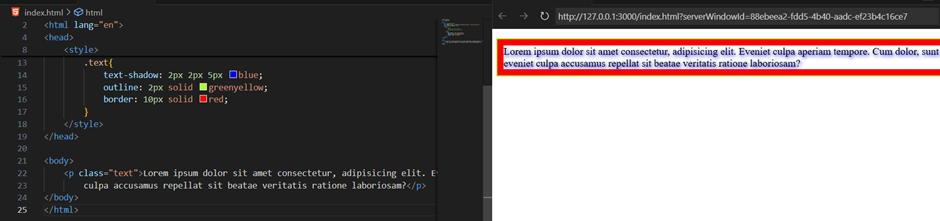
In case we specify both the outline, border, we can see that later on specifying the border-radius, outline follows it. Since, we can’t apply the border-radius to the outline.

Styling Lists using CSS
A simple list without any CSS:

Example: removing the marker of the list, we will use the list-style-type:none

Example: adding background colour to the list item

Clearly, above we can see that the marker is not in the background colour. But, in case we want it to be inside: we will use list-style-position: inside

We can also add borders to the list items:

Contact Me: 📧 Email: adii.utsav@gmail.com 🔗 LinkedIn: https://www.linkedin.com/in/aditya-kumar-3241b6286/ 💻 GitHub: https://github.com/Rememberful
메타데이터
- post_id
- 2ad2c2f3516a
- slug
- full-stack-web-development-mern-part-4-2ad2c2f3516a
- url
- https://medium.com/@adii.utsav/full-stack-web-development-mern-part-4-2ad2c2f3516a
- canonical_url
- https://medium.com/@adii.utsav/full-stack-web-development-mern-part-4-2ad2c2f3516a
- author_url
- https://medium.com/@adii.utsav
- status
- ok
- fetched_at
- 2026-07-13 06:23:13





