Mastering Cisco IOS Command Modes
Cisco IOS (Internetwork Operating System) uses a hierarchical command-line interface (CLI) structure to organize administrative tasks by…
Mastering Cisco IOS Command Modes
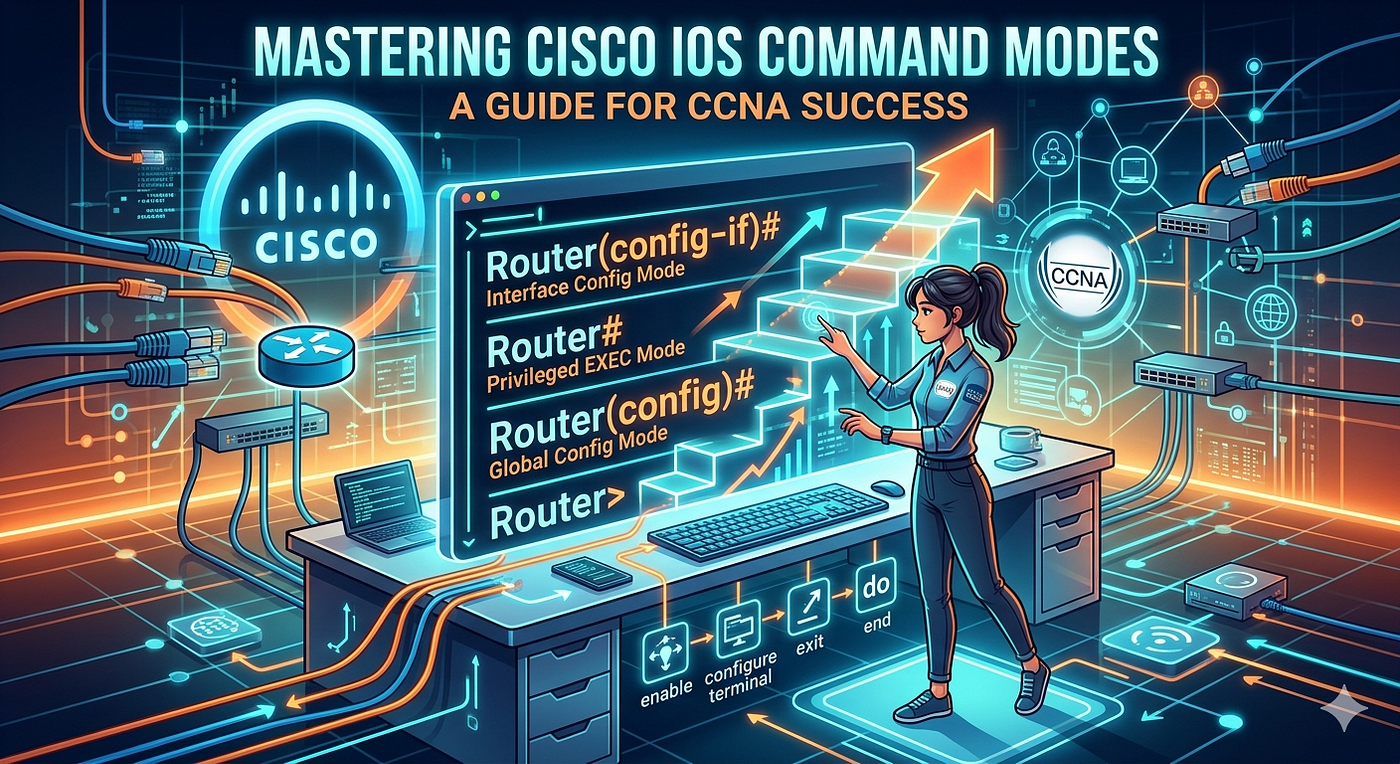
Mastering Cisco IOS Command Modes
Cisco IOS (Internetwork Operating System) uses a hierarchical command-line interface (CLI) structure to organize administrative tasks by privilege level and functional scope.
Mastering these modes is the foundational skill for any network engineer, as it ensures security by restricting configuration capabilities and provides a logical workflow for troubleshooting and device management.
Understanding how to navigate these modes is essential for moving from basic monitoring to advanced infrastructure deployment.
The Hierarchy of Command Modes
The Cisco IOS environment is structured as a series of nested levels. You must exit one mode to return to a previous one or enter a deeper sub-mode to perform specific tasks.
1. User EXEC Mode
This is the entry-level mode, identified by the > prompt. It provides limited access to basic monitoring commands, such as ping or show commands for status checks. You cannot modify device configuration here.
- Prompt:
Router> - Capability: Basic verification and troubleshooting.
2. Privileged EXEC Mode
Accessible by typing enable, this mode allows full access to all commands, including those that modify the configuration and the ability to save the running configuration. The prompt changes to a #.
- Prompt:
Router# - Capability: View configuration, save files, and reboot the system.
3. Global Configuration Mode
To make changes that affect the entire device, you must enter this mode using configure terminal from Privileged EXEC mode. Changes made here apply to the global system settings.
- Prompt:
Router(config)# - Capability: Hostname changes, IP addressing, and protocol global settings.
4. Interface Configuration Mode
Many settings are specific to individual ports. You enter this sub-mode by specifying the interface from Global Configuration mode.
- Prompt:
Router(config-if)# - Capability: Assigning IP addresses, enabling/disabling ports, and trunking.
Essential Navigation Commands
Navigating between modes requires specific commands. The following table highlights the most critical movement commands:

Essential Navigation Commands
Best Practices for Efficient Command Entry
As you progress through your CCNA studies, speed and accuracy become vital. Utilizing the IOS shortcut features significantly reduces configuration time and minimizes syntax errors.
- Context-Sensitive Help: Type a question mark (
?) at any point to see available commands or parameters. - Command Completion: Press
Tabto complete a command once you have typed enough unique characters. - Command History: Use the
Up ArroworCtrl+Pto recall previous commands. - Abbreviation: You only need to type enough characters to uniquely identify a command (e.g.,
conf tforconfigure terminal).
Example: Configuring an Interface
To configure an interface, follow this logical path:
Router> enable
Router# configure terminal
Router(config)# interface gigabitethernet 0/1
Router(config-if)# ip address 192.168.1.1 255.255.255.0
Router(config-if)# no shutdown
Router(config-if)# end
Router# write memory
Troubleshooting Mode Issues
When stuck or lost in the hierarchy, remember these key troubleshooting tips:
- “Invalid input detected”: This indicates you are likely in the wrong mode. Verify your current mode by looking at the prompt.
- Using
endvsexit:exitdrops you back one level at a time.endtakes you directly to Privileged EXEC mode, regardless of how deep you are in the configuration hierarchy. - The
showcommand limitation: You cannot run mostshowcommands inside Configuration mode. You must usedobefore the command (e.g.,do show ip interface brief) to execute it without leaving your current configuration context.
Summary Checklist for CCNA Success
- Always secure the privilege level: Use
enable secretto password-protect the transition to Privileged EXEC mode. - Verify before committing: Use
showcommands to confirm the current state of the device before making changes. - Save frequently: Changes exist only in RAM; use
writeorcopy running-config startup-configto persist them. - Practice context-sensitive help: Relying on
?helps you memorize command structures faster than rote memorization. - Learn the prompt changes: Being able to identify your mode by the prompt is the fastest way to maintain orientation during complex configurations.
메타데이터
- post_id
- 2b61bb0093cb
- slug
- mastering-cisco-ios-command-modes-2b61bb0093cb
- url
- https://medium.com/@0x9z/mastering-cisco-ios-command-modes-2b61bb0093cb
- canonical_url
- https://medium.com/@0x9z/mastering-cisco-ios-command-modes-2b61bb0093cb
- author_url
- https://medium.com/@0x9z
- status
- ok
- fetched_at
- 2026-07-10 01:40:30





