Integration Services Catalogs — 101
Simple tutorial to explain how to create, import and export .dtsx packages
Integration Services Catalogs — 101
Simple tutorial to explain how to create, import and export .dtsx packages
SSMS (SQL Server Management Studio) is an amazing SQL client which offers plenty of features for developers.
One such feature is integrating SSDT (SSIS) packages in SQL Server.
How to import or add SSIS / SSDT (.dtsx) files to SQL Server ?
Step 1:
Expand SSMS, navigate to Integration Services Catalog
Right click and choose Create Catalog.
Make sure the check boxes are checked and enter a password. If password is not complicated SSMS will not let you create the catalog.
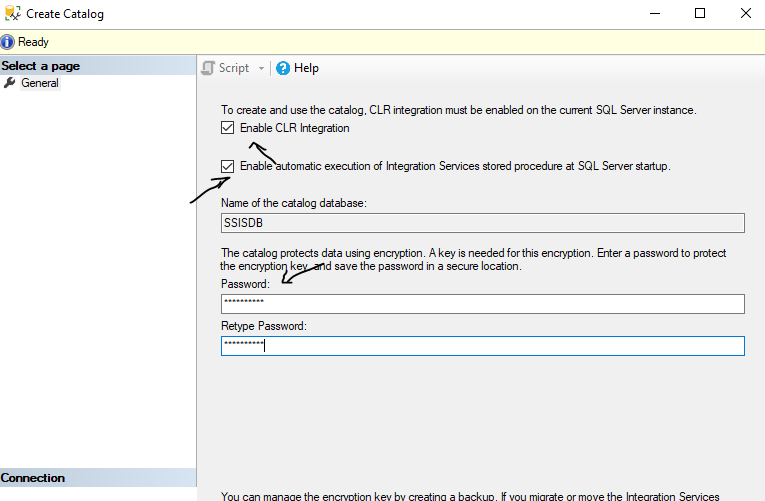
Integration Services Catalog Creation
Step 2 : Importing SSIS / SSDT (.dtsx) packages into Integration Services Catalog.
Navigate to SSISDB
Right click and choose Create Folder
Enter Folder Name (without spaces)
Click OK

Step 3 :
Navigate to the folder which was just created (Main_Project_V2010) and right click on Projects

Step 4 :
Click Import Packages and select .dtsx file from your machine and click Okay.
Step 5 : Execute the imported package
Navigate to the Projects > Project Name > Packages > yourimported.dtsx
Right click on the .dtsx file and click Execute.
Pro Tip : This execution can be automated by creating a SQL Server Agent JOB.
How to Export the existing Integration Services Catalog project to to .dtsx
Step 1 : Navigate to the Folder

Step 2 : Right click on the folder and choose Export

Step 3 : Enter a filename, when it prompts for .ispac (Integration Services Package file)

Step 4 :

Step 5 : Go to the exported file combo_loop.ispac
Step 6 : Even though the extension is .ispac its basically a .ZIP file.
Step 7 : Using your favorite UnZip software, unzip the *.ispac file
Step 8 : It will extract bunch of files, one of the file will your .dtsx file which was originally imported.
Pro Tip : If your unzip software doesn’t recognize the extension rename the file combo_loop.ispac to combo_loop.zip and unzip the file.
Pro Tip 2 : Use 7Zip Open Source software, which unzips file without any issues.
메타데이터
- post_id
- 2c43a1df890
- slug
- integration-services-catalogs-101-2c43a1df890
- url
- https://medium.com/analytics-vidhya/integration-services-catalogs-101-2c43a1df890
- canonical_url
- https://medium.com/analytics-vidhya/integration-services-catalogs-101-2c43a1df890
- author_url
- https://medium.com/@gchandra
- status
- ok
- fetched_at
- 2026-08-06 12:05:14