Embedding Power BI Reports in React.JS Application
Power BI is a powerful business intelligence tool developed by Microsoft that allows users to analyze data and create interactive…
Embedding Power BI Reports in React.JS Application
Power BI is a powerful business intelligence tool developed by Microsoft that allows users to analyze data and create interactive dashboards and reports. One of its key features is the ability to embed Power BI reports into web applications, providing users with interactive visualizations and data exploration capabilities. In this blog post, we will explore how to embed a Power BI report in a React.js application using the powerbi-client-react npm library.
Let’s get started!
Step 1: Set up a new React.js project with Vite
Let’s create a new ReactJS project using Vite. We can do this by running the following command in our terminal:
npm create vite@latest embed-powerbi-report --template react
cd embed-powerbi-report
npm install
npm run dev
Step 2: Install the powerbi-client-react library
Next, we need to install the powerbi-client-react npm library. We can do this by running the following command:
npm i powerbi-client-reactOnce the library is installed, we can start embedding Power BI reports in our ReactJS applications.
Step 3: Create a new React component for embedding the report
In our React.js project, let’s navigate to the src directory and create a new folder for components & in that folder create a file called PowerBiReport.jsx. Open the file and add the following code:
import { PowerBIEmbed } from "powerbi-client-react";
import * as pbi from "powerbi-client";

const PowerBiReport = () => {
  const models = pbi.models;

  return (
    <div>
      <PowerBIEmbed
        embedConfig={{
          type: "report", // Supported types: report, dashboard, tile, visual, qna and paginated report
          embedUrl: undefined, // [report embedUrl here]
          accessToken: undefined, // Keep as empty string, null or undefined
          tokenType: models.TokenType.Embed,
        }}
      />
    </div>
  );
};
export default PowerBiReport;
Let’s break down the code:
First we have imported the PowerBIEmbed componet & pbi module from the powerbi-client-react library. PowerBIEmbed component provides the functionality to embed Power BI reports in a React application. And the pbi module is used to access various models and functionalities related to Power BI.
Then we have defined PowerBiReport functional component, which will render the embedded Power BI report. Within the component, the models object is assigned the pbi.models value, providing access to the Power BI models, including the TokenType used for authentication.
The PowerBIEmbed component is used to embed the Power BI report. It takes an embedConfig prop, which is an object that defines the configuration for embedding the report.
In the embedConfig object:
- The
typeproperty is set to"report", indicating that we want to embed a Power BI report. Other supported types include "dashboard", "tile", "visual", "qna", and "paginated report". - The
embedUrlproperty is left asundefinedand should be replaced with the actual embed URL of the Power BI report. - The
accessTokenproperty is also left asundefinedand should be replaced with the access token for the Power BI report. It can be an empty string, null, or undefined, indicating that the access token will be obtained through authentication. - The
tokenTypeproperty is set tomodels.TokenType.Embed, which specifies that an embed token will be used for authentication.
Finally, the PowerBiReport component is exported for use in other parts of the application.
Step 4: Embed the Power BI report in our React application
Now, let’s embed the Power BI report in our React application. Open the src/App.jsx file and replace the existing code with the following:
import "./App.css";
import PowerBiReport from "./components/PowerBiReport";

function App() {
  return (
    <>
      <h1>Power BI Report Embedded in React</h1>
      <PowerBiReport />
    </>
  );
}

export default App;
since we have the app running already, let's save the changes and verify the embedded Power BI report in the browser [Open your browser and navigate to http://127.0.0.1:5173/ (or the specified port if different)].
We should now see the embedded Power BI report displayed within our React application. We can interact with the report and explore the data and visualizations provided by Power BI.
If we have not provided the actual embedUrl and accessToken in the code, we might see a screen similar to the following:
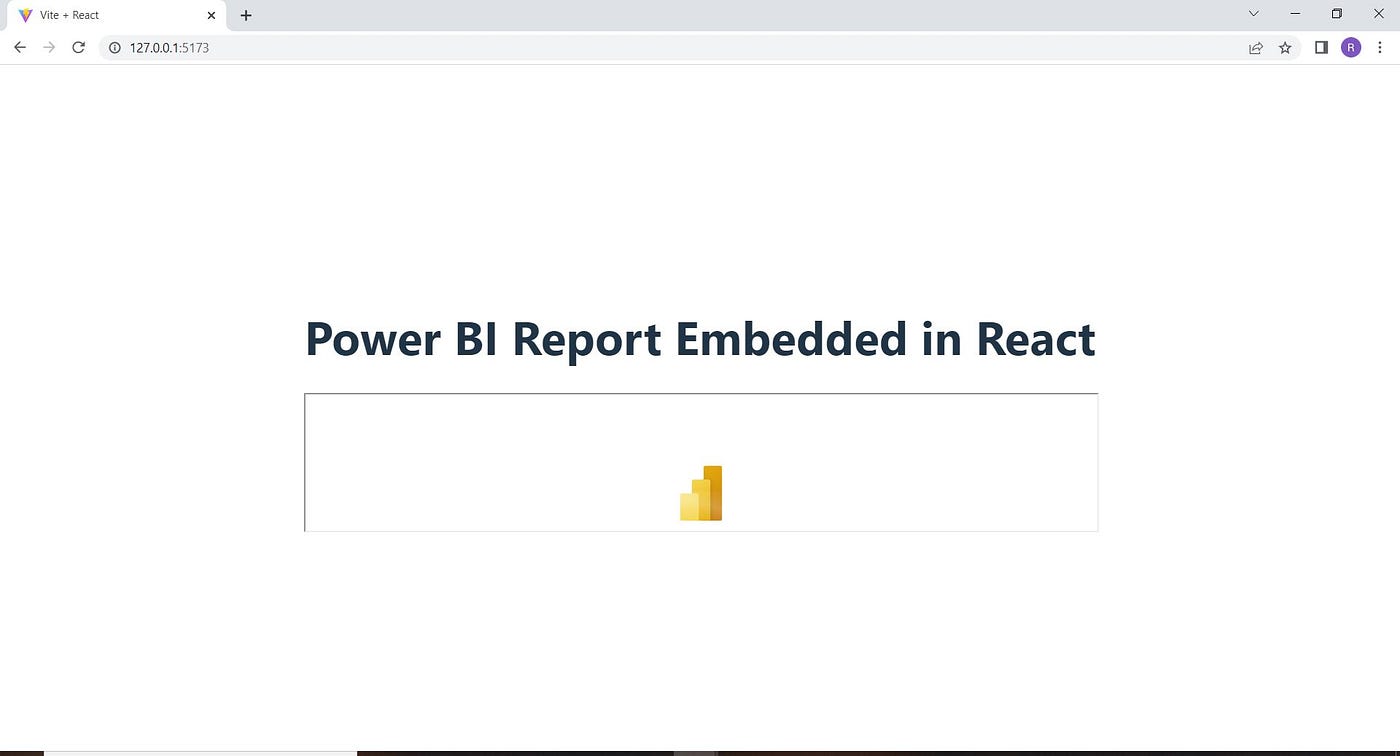
Image showing PowerBI Report embed in ReactJS Application when embedUrl & accessToken props is undefined
However, if we have correctly provided the actual embedUrl and accessToken of our report, we will be able to see your Power BI report embedded within our application.
Conclusion:
In this blog, we have learned how to embed a Power BI report in a React.js application using powerbi-client-react npm library. By following the steps outlined above, we can seamlessly integrate/embed interactive Power BI reports in our React.js projects, enabling users to gain valuable insights from their data within our application.
메타데이터
- post_id
- 2d609e625f0e
- slug
- embedding-power-bi-reports-in-react-js-application-2d609e625f0e
- url
- https://medium.com/@therajesh/embedding-power-bi-reports-in-react-js-application-2d609e625f0e
- canonical_url
- https://medium.com/@therajesh/embedding-power-bi-reports-in-react-js-application-2d609e625f0e
- author_url
- https://medium.com/@therajesh
- status
- ok
- fetched_at
- 2026-07-22 06:57:32