Install XMind 7.5 on Linux
This article will guide you to install XMind 7.5 on Linux, in the demo I will install XMind on Linux Mint 18.1 Cinnamon 64 bit. This is a software for drawing tree charts, drawing useful tree ideas.
About XMind
Currently I am using this software to draw out the ideas that I have. I also use it to draw the necessary work for my plan. The use of XMind is quite simple and a very good thing is that XMind has a free version for Linux.
You Might Be Interested In
- Get Help For Shell Builtins With Help Command
- How To Install Mariadb 10 3 In Debian 8
- How To Create Telegram Bot And Get Chat Id
You can find out more about this software at XMind homepage.
Install XMind 7.5 on Linux Mint
In the demo, I will install XMind version 7.5 on Linux Mint 18.1. At the same time, I will also show you how to put XMind into the main menu, so you can open the software more easily.
Download and install
First, you need to download the software to your computer through this link. Once the download is complete, right-click on the compressed file and choose Extract. In the image below, I downloaded the software on the Download folder and extracted it.
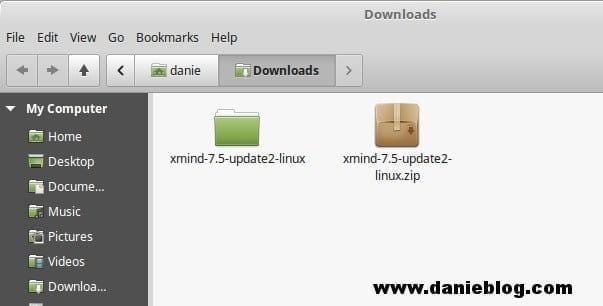
Download and extract XMind 7.5.
Now right-click in the Download folder and select Open in Terminal to open the Terminal window. I will run the command below to proceed with the installation.
On the Terminal, you type the command below and enter the password of the root user (the user when you install the OS).
su -Next you type the following command to copy the entire software to the **/opt **directory.
cp -rp /home/danie/Downloads/xmind-7.5-update2-linux /opt/xmind
Copy the entire software to /opt directory.
After copying, you type the following command to open the configuration file and edit. The reason is that if you do not modify this section, XMind will not be able to open it.
gedit /opt/xmind/XMind_amd64/XMind.ini
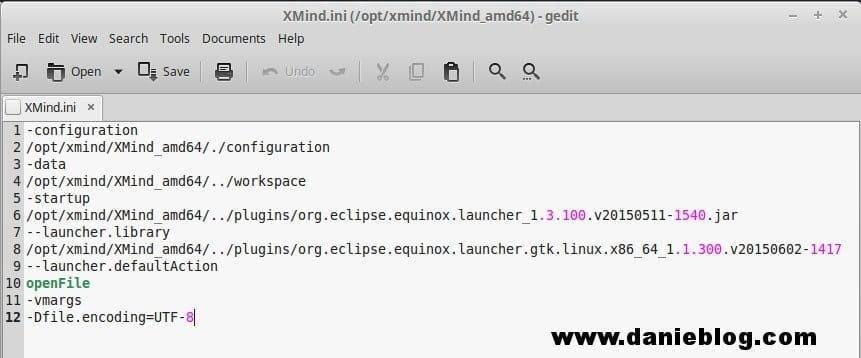
Open and edit the file XMind.ini.
I have copied the contents of the file has been edited XMind.ini below. Edit the .ini file on your computer to do the same.
-configuration
/opt/xmind/XMind_amd64/./configuration
-data
/opt/xmind/XMind_amd64/../workspace
-startup
/opt/xmind/XMind_amd64/../plugins/org.eclipse.equinox.launcher_1.3.100.v20150511-1540.jar
--launcher.library
/opt/xmind/XMind_amd64/../plugins/org.eclipse.equinox.launcher.gtk.linux.x86_64_1.1.300.v20150602-1417
--launcher.defaultAction
openFile
-vmargs
-Dfile.encoding=UTF-8
Right now, you can open the XMind software by typing the following command.
/opt/xmind/XMind_amd64/XMindAdd XMind to menu
You can not always open the XMind software by typing commands or moving to **/opt/xmind/XMind_amd64** and clicking on the executable. That is very inconvenient.
I have written a tutorial on how to add a software to the menu and I demo it with the XMind software. You can read that article and follow.
Conclusion
Personally, I think XMind is a useful software that you should use. It can help you a lot in your work, especially planning. It helps you figure out what you need to do, things that you might have missed if not written.
(This is an article from my old blog that has been inactive for a long time, I don’t want to throw it away so I will keep it and hope it helps someone).
Original post: https://devopslite.com/install-xmind-7-5-on-linux
메타데이터
- post_id
- 2db2f58e3d3b
- slug
- install-xmind-7-5-on-linux-2db2f58e3d3b
- url
- https://medium.com/@devopslite/install-xmind-7-5-on-linux-2db2f58e3d3b
- canonical_url
- https://medium.com/@devopslite/install-xmind-7-5-on-linux-2db2f58e3d3b
- author_url
- https://medium.com/@devopslite
- status
- ok
- fetched_at
- 2026-06-23 03:48:11