Looking at main.dart for the First Time
After creating the Flutter project, I open the first important Dart file and try to understand where the app begins.
Looking at main.dart for the First Time
After creating the Flutter project, I open the first important Dart file and try to understand where the app begins.
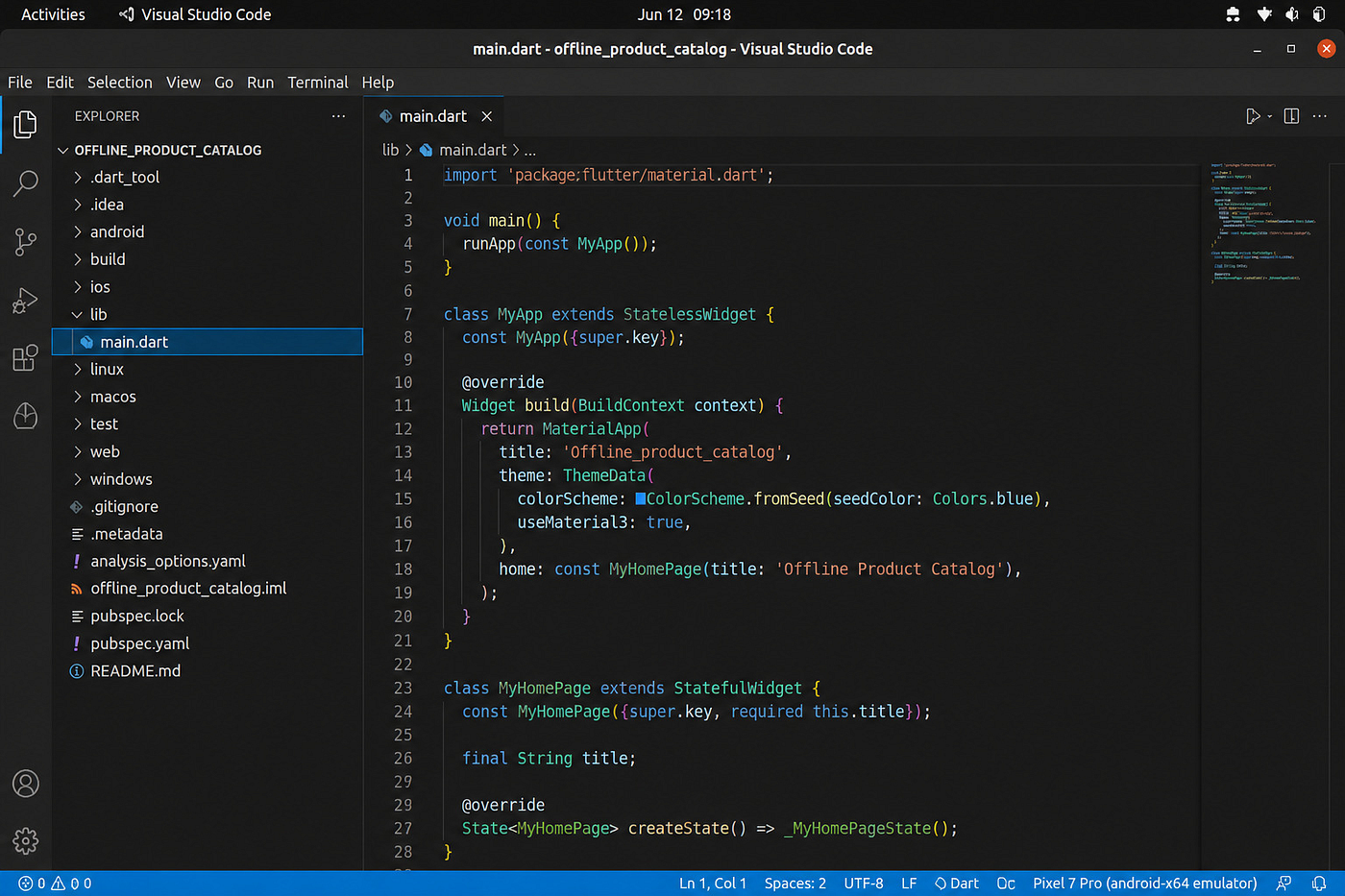
Screenshot: Opening lib/main.dart inside the offline_product_catalog Flutter project in Visual Studio Code.
Episode 9 — Opening the First Dart File
In the previous episode, I created the first Flutter project for this season.
The project now has a name:
offline_product_catalog
It also has a folder, a structure, and a place inside Visual Studio Code.
That already feels like progress.
Not loud progress.
Not fireworks progress.
More like finding the right key, opening the workshop door, and seeing all the tools waiting quietly inside.
Now I want to look at the first important file in the project:
main.dart
This file lives inside the lib folder.
In many Flutter projects, main.dart is where the app begins.
It is the front door of the Flutter application.
Before I edit anything, I want to open the file and understand what is already there.
I am not trying to master Dart today.
I am not trying to redesign the app today.
I only want to answer one simple question:
Where does this Flutter app start?
Checking the lib Folder From the Terminal
Before I open the file in Visual Studio Code, I want to check it from the terminal first.
This keeps the workflow simple.
The terminal tells me what exists.
Visual Studio Code helps me read and edit it more comfortably.
Since I am already inside the offline_product_catalog project folder, I check the lib folder with:
ls lib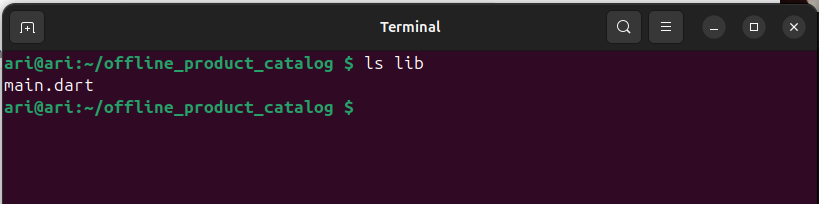
Screenshot: The terminal showing main.dart inside the lib folder.
The lib folder is important because this is where the main Dart code usually lives.
Opening main.dart in Visual Studio Code
After confirming from the terminal that main.dart exists inside the lib folder, I can open it in Visual Studio Code.
Now the editor is not showing me a mystery file.
It is showing the same file that I already found from the terminal.
That makes the workflow easier to follow.
The terminal helps me confirm where the file is.
Visual Studio Code helps me read the file with colors, spacing, and a cleaner layout.
So I open the lib folder in the Explorer panel and click:
main.dart
Now the first Dart file is open.
This is where I can start reading the default Flutter app.
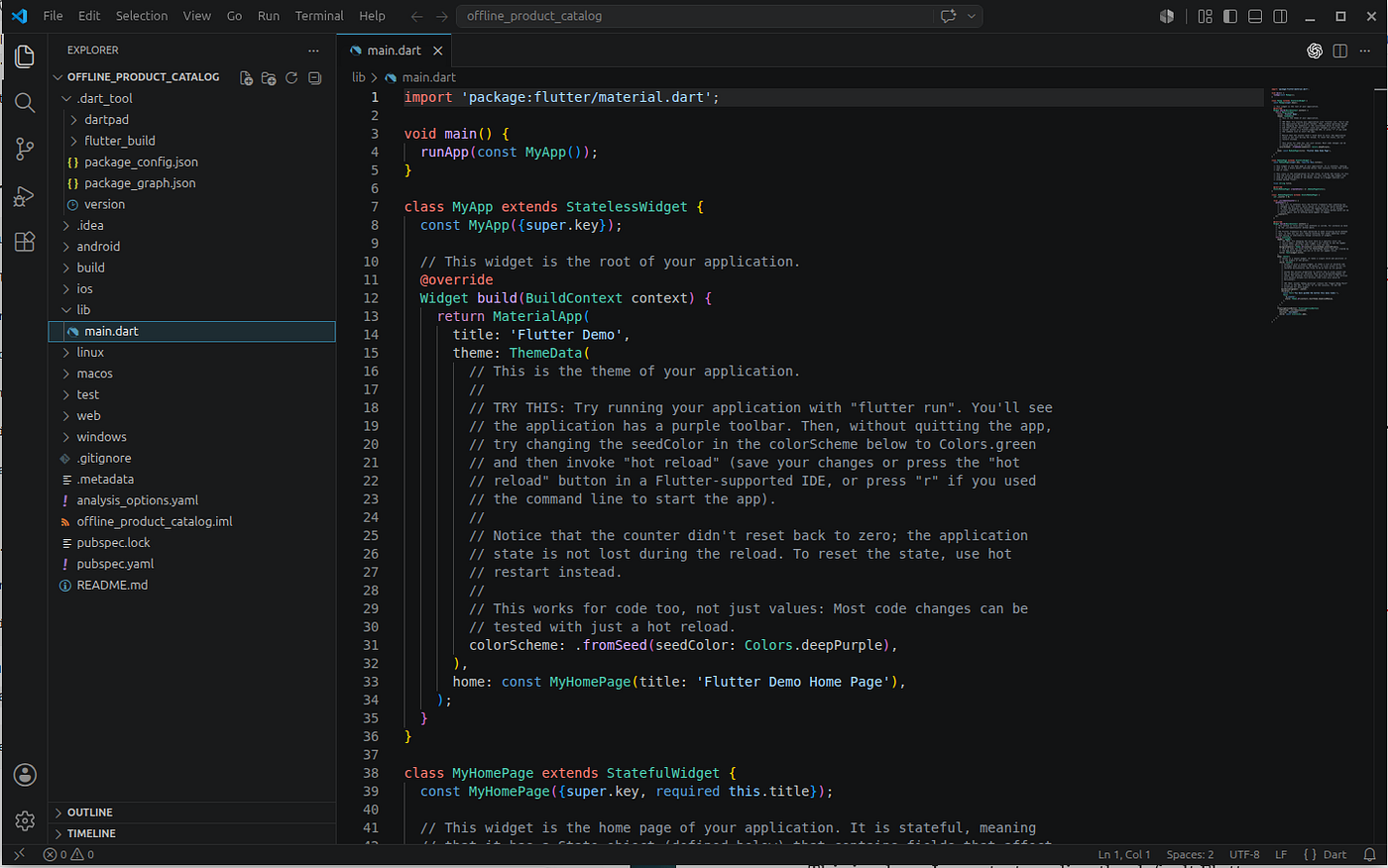
Screenshot: Opening lib/main.dart inside the offline_product_catalog Flutter project in Visual Studio Code.
Reading main.dart Slowly
Now that main.dart is open in Visual Studio Code, the code is easier to read.
The colors help.
The spacing helps.
The Explorer panel on the left also reminds me where the file lives:
lib/main.dart
This is the same file I found earlier from the terminal.
Now I can read it more comfortably.
At the top of the file, I see this line:
import 'package:flutter/material.dart';This line imports Flutter’s Material package.
In simple words, it brings Flutter’s main UI toolbox into this file.
Buttons, text, colors, layouts, app bars, and many other interface pieces come from this toolbox.
Without this import, many Flutter widgets would not be recognized.
So even though this line looks small, it has an important job.
It is the moment the file says:
“Bring in the tools. We are going to build a screen.”
No screen has changed yet.
No catalog has appeared yet.
But the toolbox is open.
Finding the Starting Point: void main()
After the import line, I see this part:
void main() {
  runApp(const MyApp());
}
This is where the Flutter app starts.
When the app runs, Dart looks for the main() function first.
Inside main(), there is a line called runApp().
That line tells Flutter which widget should be shown first.
In this default project, Flutter starts by running:
MyApp
So I can read this code in plain English like this:
“Start the app and show MyApp.”
That is all.
Small code, big responsibility.
This little block is like turning the key on a motorcycle. The engine is not racing yet, but the system is awake.
Understanding MyApp
Since runApp() starts the app with MyApp, the next thing I want to find is the MyApp class.
In the default Flutter project, I can see something like this:
class MyApp extends StatelessWidget {
  const MyApp({super.key});

  @override
  Widget build(BuildContext context) {
    return MaterialApp(
      title: 'Flutter Demo',
      theme: ThemeData(
        colorScheme: ColorScheme.fromSeed(seedColor: Colors.deepPurple),
      ),
      home: const MyHomePage(title: 'Flutter Demo Home Page'),
    );
  }
}
This class is called MyApp.
The name matches the widget that was used inside runApp().
That means MyApp is the first big widget Flutter loads when the app starts.
I can think of MyApp as the main wrapper of the application.
It does not show the product catalog yet.
It does not show product cards yet.
It still belongs to the default Flutter starter app.
But it already gives the app some basic structure.
Inside MyApp, I can see MaterialApp.
MaterialApp is important because it gives the application a Material Design structure.
It helps Flutter handle things like theme, title, navigation, and the first screen.
So the flow is starting to make sense:
main() starts the app.
runApp() tells Flutter to run MyApp.
MyApp returns MaterialApp.
MaterialApp points to the first screen.
The app is not magic.
It is a chain.
Small links, one after another.
Finding the First Screen: MyHomePage
Inside MaterialApp, I see this line:
home: const MyHomePage(title: 'Flutter Demo Home Page'),This line tells Flutter which screen should appear first.
The word home is important here.
In simple words, home means:
“This is the first screen of the app.”
For now, the first screen is MyHomePage.
The title is still:
Flutter Demo Home Page
That makes sense because this is still the default starter project.
I have not changed it into the Offline Product Catalog App yet.
So the app is still wearing Flutter’s starter uniform.
Clean, useful, but not ours yet.
Later, this is one of the places I will change.
Instead of a demo home page, I will need a home screen for the product catalog.
But today, I am only reading the map.
I am not moving the buildings yet.
What I Understand So Far
After reading the first parts of main.dart, the flow becomes clearer.
The file starts by importing Flutter’s Material package.
Then the main() function starts the app.
Inside main(), runApp() tells Flutter to run MyApp.
MyApp returns MaterialApp.
Inside MaterialApp, the home property points to MyHomePage.
So the basic flow looks like this:
main.dart
→ main()
→ runApp()
→ MyApp
→ MaterialApp
→ MyHomePage
This is not the whole app yet.
It is only the starting path.
But understanding this path helps me know where to look next.
If I want to change the app title, I know MyApp is involved.
If I want to change the first screen, I know the home property matters.
If I want to understand what appears on the screen, I need to look at MyHomePage.
That is enough for today.
I do not need to swallow the whole Flutter cookbook in one bite.
I only need to understand the first route through the project.
Closing
In this episode, I did not change the app yet.
I only opened main.dart and tried to understand where the Flutter app begins.
That may sound simple, but it is an important step.
Now I know that the app does not start randomly.
There is a path.
Flutter enters through main().
Then runApp() starts MyApp.
MyApp returns MaterialApp.
MaterialApp points to MyHomePage as the first screen.
The code is still the default Flutter starter code.
The Offline Product Catalog App has not appeared yet.
But now I understand the front door.
That matters.
Before changing a house, I want to know which door I am walking through.
In the next episode, I will run the starter Flutter app and see what appears on the screen.
The code has been opened.
The map has been read.
Now it is time to press run and see the little machine wake up.
메타데이터
- post_id
- 307dd7df1d0b
- slug
- looking-at-main-dart-for-the-first-time-307dd7df1d0b
- url
- https://medium.com/@lenakendari/looking-at-main-dart-for-the-first-time-307dd7df1d0b
- canonical_url
- https://medium.com/@lenakendari/looking-at-main-dart-for-the-first-time-307dd7df1d0b
- author_url
- https://medium.com/@lenakendari
- status
- ok
- fetched_at
- 2026-07-17 17:19:20






