How I Built a Realistic IT Infrastructure for a Company with 600 Users
When I started working on my MCSA final project, I wanted it to feel as close to real-world IT administration as possible. I didn’t want…
How I Built a Realistic IT Infrastructure for a Company with 600 Users
When I started working on my MCSA final project, I wanted it to feel as close to real-world IT administration as possible. I didn’t want just a theoretical setup — I wanted to simulate how things work in an actual company. So I designed and implemented an IT environment for a company with three departments and 600 users.
goal was to deploy and configure core network services such as Active Directory Domain Services (AD DS), Domain Name System (DNS), Dynamic Host Configuration Protocol (DHCP), Group Policy Objects (GPOs), and more, all hosted on a Windows Server virtual machine within a VMware environment.
The environment was created to mimic a small to medium-sized organization’s IT setup, focusing on centralized management, security policies, and automated network services.
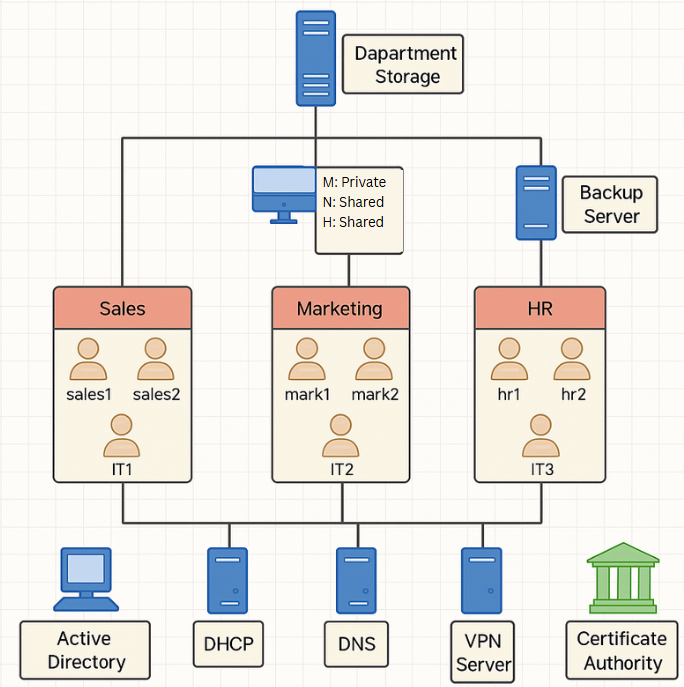
this is te architecture
Objectives
The primary objectives of this project were to:
Install and configure Windows Server as the backbone of the infrastructure.
Set up Active Directory Domain Services (AD DS) to enable centralized authentication and user management.
Configure DNS to provide internal name resolution within the domain.
Set up DHCP to dynamically assign IP addresses to domain clients.
Implement Group Policy Objects (GPOs) for enforcing security and customization policies such as:
Password complexity and expiration Desktop wallpaper enforcement Software restrictions (optional)
Simulate how Windows 10 clients would join and interact with the domain infrastructure.
Improve understanding of enterprise-grade IT environments and basic system administration tasks.
This project reflects foundational skills expected from an MCSA-level system administrator and prepares for real-world network environments.
Tools & Technologies
The following tools and platforms were used to complete the project:
VMware Workstation Used to host the virtual machines. Windows Server 2019 Primary OS for the domain controller and infrastructure services. Windows 10 (theoretical client) Client used to simulate domain joining and testing GPO application. Active Directory Core service for identity management. DNS & DHCP Network services installed and configured via Server Manager. Group Policy Management Console (GPMC) Used to create and apply GPOs to users and computers.
Designing the Structure
The company had four main departments:
- Sales
- Marketing
- Human Resources (HR)
Each department had 200 users, operating within clearly defined access controls and time restrictions. Here’s how I structured the environment:
- Users: Named with department-specific identifiers (e.g.,
sales1,mark1,hr1) - Dedicated IT Support Users: Each department had its own IT support account (e.g.,
IT1for Sales)
Each user had a personalized and restricted Windows experience to boost productivity and tighten security.
The simulated environment consists of the following virtual machines hosted on VMware Workstation:
1. Domain Controller
- Operating System: Windows Server 2019
- Role: Active Directory Domain Controller, DNS Server, DHCP Server
- IP Address: 192.168.254.11 (Static)
- Hostname: Adminstrator
- Domain: hcompany.local
2. (Optional) Windows 10 Client
- Operating System: Windows 10 Pro
- Role: Domain-joined client (for testing GPOs and domain connectivity)
- IP Address: Assigned dynamically via DHCP
Network Configuration:
- Virtual Network: Custom Host-only Network (VMnet8)
- Subnet: 192.168.254.0/24
- VLAN: All machines are on the same virtual switch to simulate LAN behavior.


Note: Communication between VMs is fully internal and does not rely on internet connectivity.
Server Configuration
Multiple core services were installed and configured to simulate an enterprise IT infrastructure.

Roles & Services:
Active Directory Domain Services (ADDS): Single forest, multiple OUs by department.


setting up the domain controller

File Server: Departmental shared folders with NTFS and Share permissions.

Backup Server: Regular backups via Windows Server Backup.
A dedicated Backup Server was implemented using Windows Server Backup. It included:
- Daily incremental backups
- Weekly full backups
Backup of:
- AD DS (Active Directory Domain Services)
- File Server
- WSUS configurations
- Backups stored securely with access restricted to IT admins


WDS (Windows Deployment Services): Used for automated deployment of Windows 10 images.


- WSUS (Windows Server Update Services): Centralized updates management for all domain-joined clients.


- VPN Server: Configured using RRAS for secure remote access.


Enforcing Group Policies
One of the most engaging parts of the project was implementing realistic Group Policies that simulate a controlled corporate environment. The following policies were applied based on department-specific requirements:
Access Control
Disabled access to:
Control Panel

C: Drive

USB Ports

Default Games


Policies were enforced via Organizational Units (OUs) for department separation.

Software Restrictions:
- Sales Department: Only Notepad allowed.


- Marketing Department: Paint application disabled.

- HR Department: Allowed Notepad and Calculator only.


Policies were implemented using Software Restriction Policies and AppLocker.
Visual Customization:
- Standard desktop wallpaper per department based on the group policy.
- Wallpaper deployed via GPO to promote a consistent corporate visual identity.

Printers & Print Priorities
Each department was assigned a dedicated network printer, configured via Group Policy Preferences:


Printer Mapping:
- Printers were mapped automatically at user logon using GPP (Group Policy Preferences).

Priority Settings:
- Department managers were given elevated print priorities.


Time-Based Access:
- Sales Department: Printer access restricted to working hours (10:00 AM — 4:00 PM) using Scheduled Task and GPO scripting.


Access Control & Security Measures
Security and access were configured with an emphasis on the principle of least privilege and user-role separation.
User Permissions:
- Only the first user per department (e.g.,
sales1,hr1) had local admin privileges.


All other users were standard users with restricted access.
File Sharing and storage management:
managing the storage


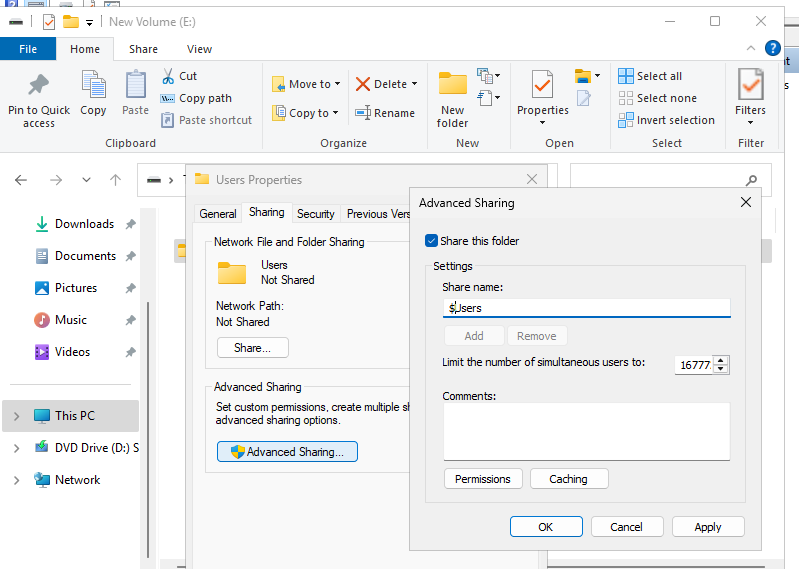


I created group policy for those shared folder:

Partitioned Drives:
M: – Private for each user

N: – Shared within the department

H: – Shared across the whole company

- Quotas enforced on departmental file shares:
- 5GB per user on the file server using FSRM (File Server Resource Manager).


Content Restrictions:
- Audio and video file formats were blocked via FSRM to reduce unnecessary storage usage and distractions.

Enterprise Certificate Authority Setup
To ensure a secure and scalable enterprise setup, a Public Key Infrastructure (PKI) was deployed using the built-in Certificate Services on Windows Server.
CA Configuration:
- Deployed an Enterprise CA (Active Directory-integrated).
- Configured key services: Certificate Authority, Web Enrollment, and Online Responder.


Custom Certificate Templates:
- Created and published templates for:
- Digital Signatures
- Email and File Encryption
- User and Computer Authentication
Key Management:
- Securely generated and distributed X.509 certificates.
- Enforced certificate auto-enrollment via GPO.


Advanced Features:
Enabled and published:
- Certificate Revocation List (CRL)
- Auto-renewal policies
- Auditing for certificate issuance and requests
- Enabled IPsec certificate-based authentication for secure machine-to-machine communication.


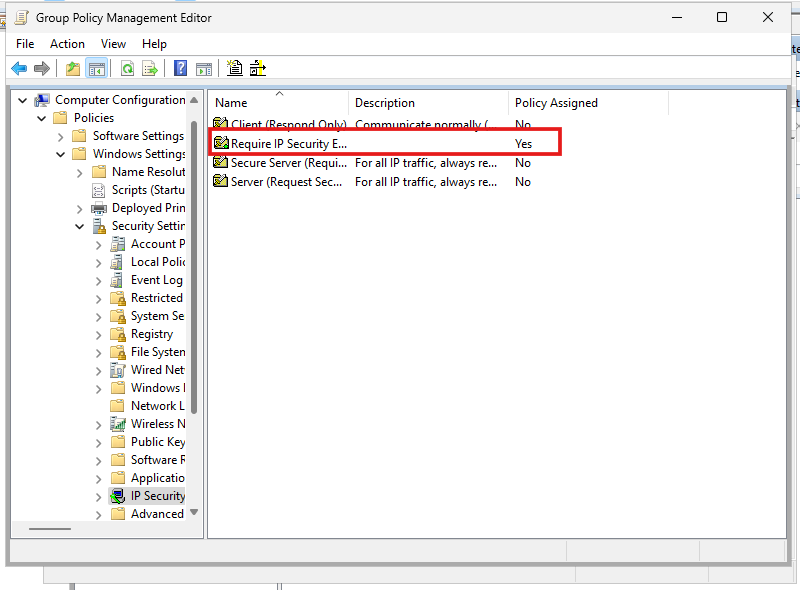


Simulated Departmental Structure
To mirror a real-world organizational layout, the Active Directory was segmented by departments with clear user roles and permissions.
Each OU had its own:
- Group Policies tailored to department needs
- User groups for RBAC (Role-Based Access Control)
- Mapped network drives based on job role and department
- Login scripts where applicable
- Printer
Organizational Units (OUs) Created:
- Sales
- Marketing
- HR

IT for each department user 200 of each department

Managers the first user of each department

User Account Management
Users were created and organized based on a standard naming convention. Passwords, account policies, and permissions were assigned according to department.
Examples:
- sales1, sales2, …
- hr1, hr2, …
- mark1, mark2, …

Account Policies Applied:
- Enforced password complexity
- 90-day password expiration
- Account lockout after 3 failed login attempts
DNS and DHCP Configuration
DHCP Server:
Configured with DHCP Scopes per department (e.g., Sales, HR, Marketing).


- Separate IP pools for each department to support network segmentation
- Reservations for critical servers
- DHCP Options set to push correct DNS and default gateway settings

DNS server setup and configration :


Internal Websites:
Created forward and reverse lookup zones
Forwarding to external DNS with domain blocking
Internal domain: hcompany.local
Hosted on IIS: www.site1.com, www.site2.org with DNS A-records.
Blocking of specific domains (e.g., www.network.com using Conditional Forwarding or Blackhole DNS).

DNS Suffix Search List:
- Configured as: hcomany.local
- Ensures domain name resolution within the internal network.
What a Windows 10 Client Would Do
Although client-side testing was not performed, the environment is fully prepared to support Windows 10 domain-joined clients.
A Windows 10 client would be expected to:
- Obtain IP address from DHCP based on its VLAN
- Join the domain
hcompany.local - Authenticate against Active Directory
- Receive and apply department-specific GPOs (e.g., password policies, desktop settings)
- Resolve DNS queries via the internal DNS Server
- Access shared resources like printers and network folders
- Use certificates from the CA for secure email, login, and IPsec
What I Learned
This project wasn’t just about configuring servers or ticking technical boxes.
- I learned how to think like a system administrator.
- I practiced how to design secure and scalable infrastructure based on business needs.
- I explored how small configuration decisions — even limiting access to Paint! — can influence productivity, security, and overall user experience.
By simulating a real-world company environment, I deepened my understanding of enterprise IT operations and built a practical foundation for my future in system administration and cybersecurity.
Sorry if I could not explain in details
This is GitHub link for the project :
https://github.com/hadiramr/Simulating-a-Real-IT-Environment-MCSA-Final-Project
Thank You For Your Time Wishing This Is Helpful :)
메타데이터
- post_id
- 30e7d0973441
- slug
- how-i-built-a-realistic-it-infrastructure-for-a-company-with-600-users-30e7d0973441
- url
- https://medium.com/@hadir3mr/how-i-built-a-realistic-it-infrastructure-for-a-company-with-600-users-30e7d0973441
- canonical_url
- https://medium.com/@hadir3mr/how-i-built-a-realistic-it-infrastructure-for-a-company-with-600-users-30e7d0973441
- author_url
- https://medium.com/@hadir3mr
- status
- ok
- fetched_at
- 2026-06-25 07:00:49