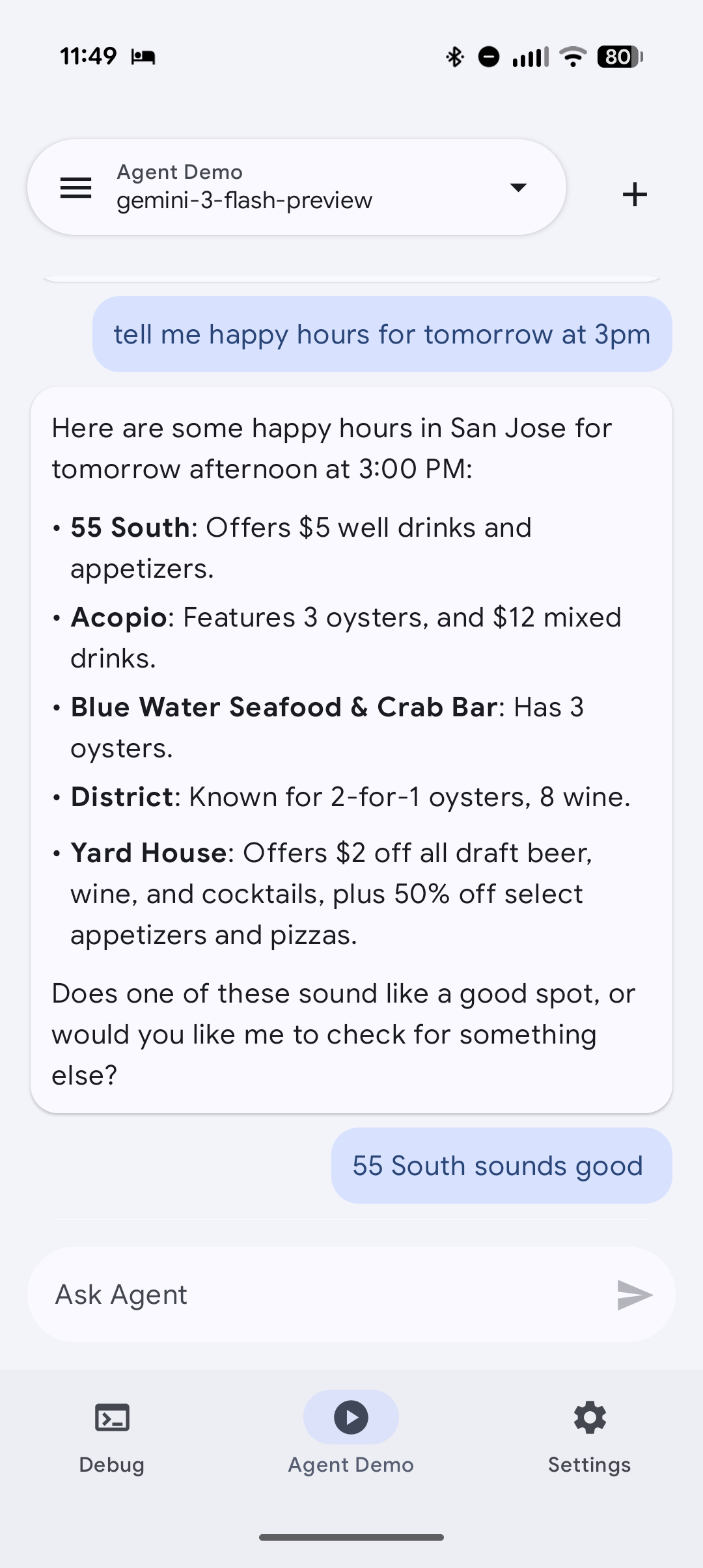
Android Studio + Gemma4: Run Gemma4 Locally with Ollama
Your data never leaves your machine. No API keys, no usage costs. Here’s how to get Google’s Gemma 4 running locally via Ollama and wired…
Android Studio + Gemma4: Run Gemma4 Locally with Ollama
Your data never leaves your machine. No API keys, no usage costs. Here’s how to get Google’s Gemma 4 running locally via Ollama and wired up as the AI brain inside Android Studio.
Android Studio now supports local models as a first-class option inside its Gemini AI panel. Pair that with Ollama — the simplest way to run open-weight models locally — and Gemma 4, Google’s own open model family, and you have a fully private, offline-capable AI coding assistant that runs on your laptop, not in the cloud.
Part 1: Install Ollama + Gemma 4
- Install Ollama. Download the installer for macOS, Windows, or Linux from the official site
[ollama.com/download](https://ollama.com/download)
Browse all available models in the library: [ollama.com/library](https://ollama.com/library)
- Pull Gemma 4 from the terminal. Gemma 4 comes in several sizes. The
e4bvariant is the best starting point for laptop-class hardware — it fits comfortably in 4–5 GB of RAM with no GPU required.[ollama.com/library/gemma4](https://ollama.com/library/gemma4)
$ ollama run gemma4:e4b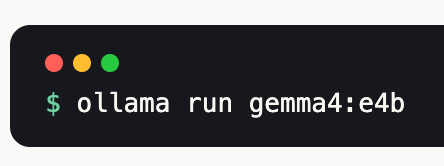
- Chat in the terminal. Once the model finishes downloading you’re dropped straight into a chat prompt. Type your message and press Enter. Exit with Ctrl+D.
$ ollama run gemma4:e4b
>>> Send a message (/? for help)
Gemma different version:
- e4b — laptop / no GPU, ~4 GB
- 12b — 8–12 GB VRAM
- 26b — 16+ GB VRAM
- 31b — high-end workstation
Stop Ollama from the terminal
Ollama keeps the model resident in memory after you exit the chat. If you want to free that RAM, stop it explicitly.
Check what’s running
$ ollama psStop the model
$ ollama stop gemma4:e4b👍 Example workflow
$ollama run gemma4:e4b
# start + chat

Ctrl + D
# exit chat
$ollama stop gemma4:e4b
Part 2: Connect to Android Studio
How to add it to Android Studio (local model). Android Studio’s Gemini panel now supports local model providers. Here’s how to point it at your running Ollama instance and switch to Gemma 4.
⚙️Open the model provider settings
In Android Studio, navigate to:
- Settings → Tools → AI → Model Providers
- Add a new Ollama provider and set the server URL to: http://localhost:11434
- Note: Make sure Ollama is running before you open Android Studio — the model list populates at IDE startup, not on demand.
🤖 Select Gemma 4 as your active model
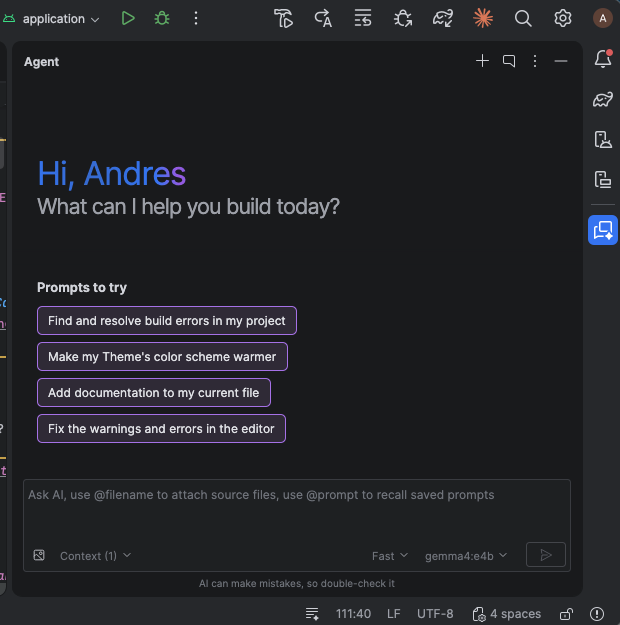
Open the Gemini chat window inside Android Studio and use the model picker to switch from the default Gemini cloud model to your locally configured Gemma 4 instance.
In Agent Mode, Gemma 4 can read files, write files, and run builds — chaining multi-step tasks across your codebase without sending anything to a remote server.
Modifying local files with Agent Mode
Once Gemma 4 is connected, you can ask it to make real edits across your project directly from the chat window. It can read a file, apply a change, and run a Gradle build in a single prompt — no copy-pasting required. All inference stays on your machine.
// Example Agent Mode prompt in Android Studio:
Refactor MainActivity.kt to use ViewBinding,
update the layout file, and run the build.
References
- https://android-developers.googleblog.com/2026/04/android-studio-supports-gemma-4-local.html
- https://developer.android.com/studio/gemini/use-a-local-model#set-up-local-model-support
- https://ollama.com/library/gemma4
- android-developers.googleblog.com/2026/04/android-studio-supports-gemma-4-local.html
Thank you for reading. Hope you learn something new.🙌🙏✌.
Don’t forget to clap 👏 50 times to support me and follow me for more such useful articles about Android Development, Gemini AI, Kotlin & KMP.
If you need any help related to Android, Kotlin and KMP. I’m always happy to help you. [Hopefully you will find this useful]
Thank you for reading!
- If you enjoyed this, please follow me on Medium
- Buy me a coffee
Follow me on:
**Medium, [LinkedIn](https://www.linkedin.com/in/andres-sandoval/), GitHub, [Google developer](https://g.dev/andres1)**
Thank you for taking the time to read this. I welcome your feedback on how I can improve or if you have any questions.
— Andres 🙌🏻
Get started
메타데이터
- post_id
- 30ef29d1908f
- slug
- android-studio-gemma4-run-gemma4-locally-with-ollama-30ef29d1908f
- url
- https://medium.com/@andresand/android-studio-gemma4-run-gemma4-locally-with-ollama-30ef29d1908f
- canonical_url
- https://medium.com/@andresand/android-studio-gemma4-run-gemma4-locally-with-ollama-30ef29d1908f
- author_url
- https://medium.com/@andresand
- status
- ok
- fetched_at
- 2026-07-23 15:48:51