How to Change Azure VM Size — And What You Must Think About First
At some point, every cloud engineer hits this moment.
How to Change Azure VM Size — And What You Must Think About First
At some point, every cloud engineer hits this moment.
Your application feels slow. CPU looks busy. Memory usage is always high.
And you start thinking:
“Maybe this VM is just too small.”
In Azure, changing a VM size is surprisingly easy. But doing it safely — especially in production — requires a bit more thought.
Let’s walk through how to change VM size in Azure, and more importantly, what you should consider before clicking Resize.
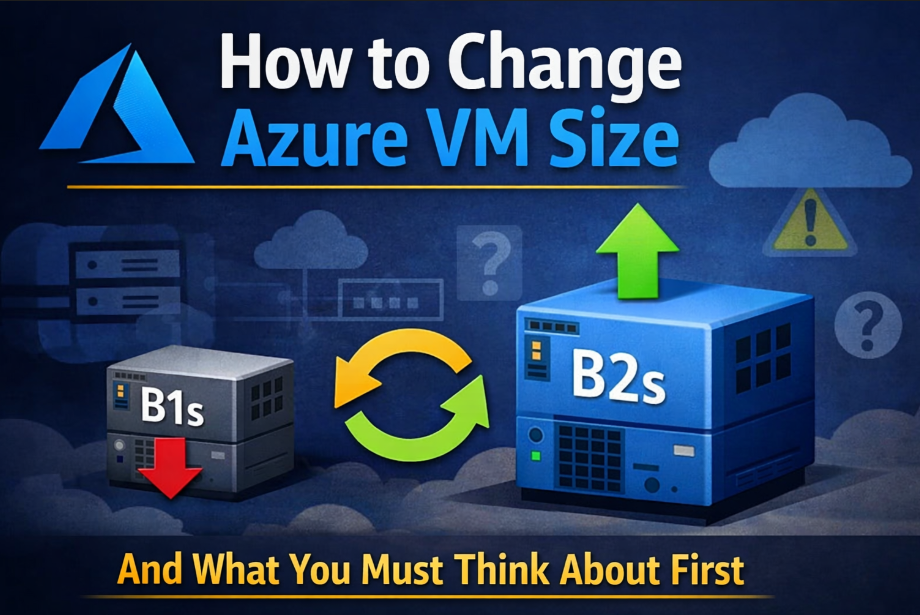
generated with chatGPT
Why We Change VM Size in the First Place
Azure VMs come in different sizes for a reason.
Each size defines:
- number of CPU cores
- amount of memory (RAM)
- max network and disk performance
If your VM is too small:
- apps become slow
- processes get killed
- users start complaining (the worst metric)
Scaling up the VM (for example, from Standard_B1s to Standard_B2s) gives your server more resources without changing architecture.
It’s often the first and fastest fix.
The Simple Way: Changing VM Size via the Azure Portal
From a UI perspective, Azure makes VM resizing feel almost too easy.
No scripts. No CLI. No complicated steps.
Everything happens directly in the portal.
Here’s the usual flow:
- Open the Azure Portal
- Go to Virtual Machines
- Select your VM
(for example:
apps-server-vm) - In the left-hand menu, click Size
- Choose a new size
(for example:
Standard_B2s) - Click Resize
If your VM is currently running, Azure will immediately show a warning.
And this warning is important.
By clicking Yes, you are explicitly allowing Azure to:
- restart your VM
- temporarily stop all running applications
- apply the new hardware configuration
You don’t need to stop the VM yourself — but you must understand that a restart will happen.
Once you confirm, Azure will:
- stop the VM
- resize it
- start it again automatically
From your side, it’s just a few clicks.
But operationally, it’s a real restart — and that’s why timing and verification still matter.
But Here’s the Important Part: The VM Will Restart
Even though Azure handles it for you, resizing always causes a restart.
That means:
- applications go down temporarily
- open connections are dropped
- in-memory data is lost
So even though the UI feels easy, the impact is real.
This is where DevOps thinking starts.
What You Must Think About Before Resizing a VM
Changing VM size isn’t dangerous — changing it without thinking is.
Here are the key things to consider.
1. If This Is Production, Timing Matters
Never resize production VMs randomly.
Because resizing causes downtime, it’s best to do it during:
- low traffic hours
- maintenance windows
- late night or early morning (midnight is common)
Even a 2–3 minute restart can affect users.
Plan first. Click later.
2. Watch Out for Dynamic Public IP Addresses
This one is critical and often forgotten.
If your VM uses a Dynamic Public IP:
- restarting the VM may change the IP
- users may no longer reach your application
- DNS records may suddenly be wrong
If your service must stay reachable:
- use a Static Public IP
- or verify the IP after resize
Many “app is down” incidents are actually just IP changes.
3. A Running VM ≠ A Running Application
After resize, Azure will start the VM automatically.
But:
- not all apps start automatically
- some services may stay stopped
- containers might not come up
Before you mark the task as “done”, always:
- check application status
- test endpoints
- review logs
The VM being “Running” only means the OS is alive — not your business logic.
4. Treat Resizing Like a Mini Maintenance Event
A good mindset is this:
Resizing a VM is small maintenance, not a casual click.
That means:
- you know the impact
- you verify afterward
- you confirm everything works
This habit separates beginners from reliable engineers.
Final Thoughts: Simple Action, Smart Execution
Azure makes resizing VMs easy — and that’s a good thing.
But real DevOps skill shows in:
- when you resize
- how you plan it
- what you verify afterward
Changing VM size is not just about performance. It’s about responsibility.
Scale up carefully. Verify thoroughly. Then move on with confidence.
메타데이터
- post_id
- 31a3df7f115a
- slug
- how-to-change-azure-vm-size-and-what-you-must-think-about-first-31a3df7f115a
- url
- https://medium.com/@randiadhityassaputra/how-to-change-azure-vm-size-and-what-you-must-think-about-first-31a3df7f115a
- canonical_url
- https://medium.com/@randiadhityassaputra/how-to-change-azure-vm-size-and-what-you-must-think-about-first-31a3df7f115a
- author_url
- https://medium.com/@randiadhityassaputra
- status
- ok
- fetched_at
- 2026-07-13 13:42:41



