Enable MinIO as File Storage with Mendix Studio Pro
MinIO is an open-source object storage service compatible with the Amazon S3 API. It allows developers to store and manage data securely…
Enable MinIO as File Storage with Mendix Studio Pro
MinIO is an open-source object storage service compatible with the Amazon S3 API. It allows developers to store and manage data securely and efficiently. By integrating MinIO with Mendix Studio Pro, you can leverage scalable object storage for your Mendix applications. This combination is beneficial for applications requiring high volumes of unstructured data storage such as media files, backups, and user-generated content.
Steps to Enable MinIO with Mendix Studio Pro
Step-1. Configure MinIO Server
1.1. Download MinIO Server
https://min.io/download?license=agpl&platform=kubernetes
Choose Enterprise or AGPL v3 and Platform type
1.2. Setup MinIO Server
Create a directory for MinIO bucket repository.
For Example, I create directory minio-data on my Drive C:\
Go to your minio file directory, and run this command on your Windows PowerShell
C:\apps> .\minio.exe server C:\minio-data — console-address “:9001”
For Linux reference, please refer to https://min.io/download?license=agpl&platform=linux
Your PS will return information like this:

Port: 9000 (for API) Port: 9001 (for MinIO WebUI)
Default rootUser: minioadmin
Default rootPassword: minioadmin
How to change the credentials, please refer to
1.3. Enable access keys and secret keys
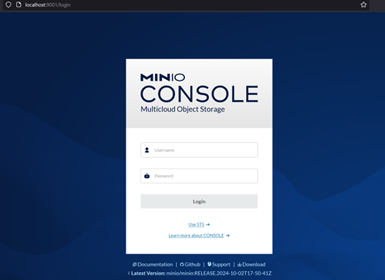
Login into your MinIO Platform with your root user and root password.
Go to Menu Identity -> Service Accounts -> Create Service Account

Write down and save your Access Key & Secret Key or Download for Import to save the credential file.

1.4. Define a bucket (storage folder) for your application
Go to Menu Buckets -> Create Bucket
Define your Bucket Name to store your application file.

Step-2. Configure Mendix Studio Pro
Go to App -> Settings

Go to Configurations -> Edit Default Configuration

Go to Custom, and add New Custom Configuration settings for Runtime:

For the detail and other custom runtime can be configure, please refer to

Run your local Mendix Project on your Mendix Studio Pro, and your local application will use MinIO as file Storage.

메타데이터
- post_id
- 31eef98bf5cd
- slug
- enable-minio-as-file-storage-with-studio-pro-31eef98bf5cd
- url
- https://medium.com/@rejaluo/enable-minio-as-file-storage-with-studio-pro-31eef98bf5cd
- canonical_url
- https://medium.com/@rejaluo/enable-minio-as-file-storage-with-studio-pro-31eef98bf5cd
- author_url
- https://medium.com/@rejaluo
- status
- ok
- fetched_at
- 2026-07-28 01:14:14


