How to Maximize Your Xfinity Internet Speeds at Home
Boost Your Xfinity WiFi Performance for Faster Speeds, Better Coverage, and Fewer Connection Issues at Home
How to Maximize Your Xfinity Internet Speeds at Home
Boost Your Xfinity WiFi Performance for Faster Speeds, Better Coverage, and Fewer Connection Issues at Home
If you’ve ever sat down for a 4K Netflix binge or a late-night gaming session only to be greeted by buffering, slow downloads, or spotty Wi-Fi, I feel your pain. Even though you’re paying for Xfinity’s high-speed internet, your equipment and setup can quietly sabotage your experience. Over the years, I’ve learned that getting the most out of your Xfinity internet isn’t just about the plan you choose, it’s about your modem, router, devices, and home setup.
In this guide, I’ll walk you through practical, actionable tips to boost your internet speed at home, whether you’re streaming, gaming, or just browsing.
1. Check Your Internet Plan First
Before you start rearranging your network like a tech wizard, it’s worth confirming what speed you’re actually paying for. Xfinity offers plans ranging from basic broadband to multi-gigabit packages, and your performance will always be capped by your plan.
Here’s what I do:
- Log in to your Xfinity account and check the download/upload speeds listed.
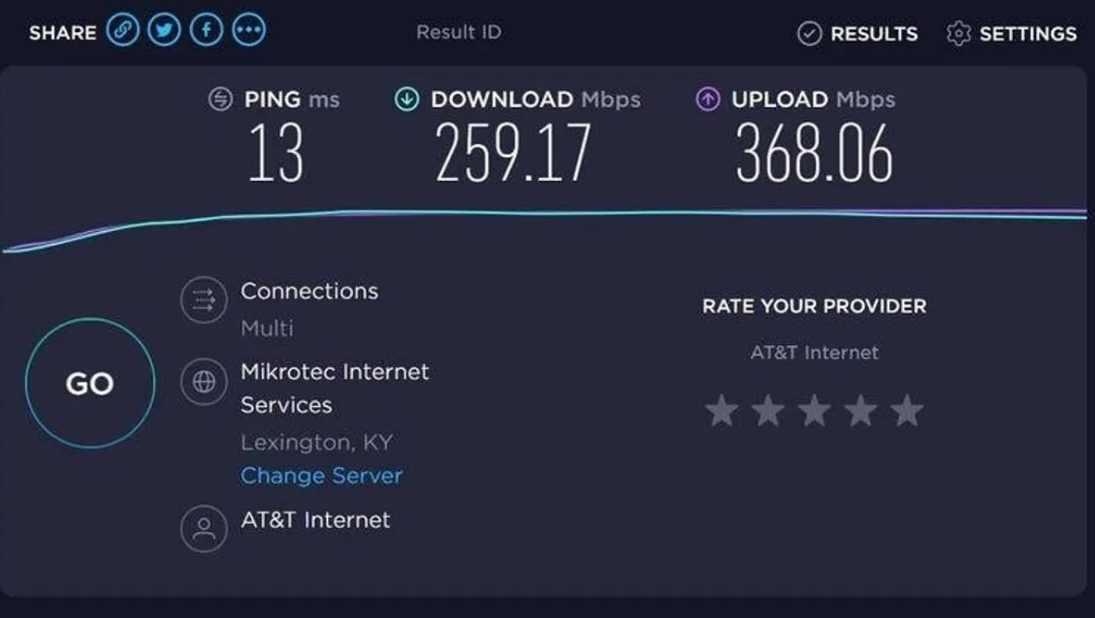
- Run a speed test using a reliable site like Speedtest.net.
- Compare the results to your plan.
If you consistently get slower speeds than promised, the first step is troubleshooting your equipment and home network before blaming Xfinity.
2. Replace or Upgrade Your Modem
One of the biggest speed killers is the modem itself. Many of us are still using the ISP-provided gateway that’s “good enough” but far from high-performance. I used to rent a basic Xfinity modem, and even with a fast plan, my speeds were disappointing. Once I upgraded to a DOCSIS 3.1 modem, I immediately noticed faster downloads, smoother streaming, and more reliable connections.
Here are a few top picks I recommend:
- NETGEAR Nighthawk CM3000: Handles Xfinity’s fastest plans, supports multi-gig speeds, and future-proofs your network. Perfect for gaming and 4K streaming.
- ARRIS SURFboard SB8200: A reliable DOCSIS 3.1 modem with strong performance, ideal for heavy internet users.
- Motorola MB8600: Great compatibility with Xfinity, solid speed, and excellent for multi-device households
Pro Tip: Make sure your modem is compatible with your plan and supports DOCSIS 3.1 for optimal speed. Owning your modem also saves rental fees; trust me, the savings add up fast.
3. Pair Your Modem With a Quality Router
Even the fastest modem won’t magically improve Wi-Fi coverage or speed throughout your home. That’s where a good router comes in. A router controls how your internet reaches your devices, and if it’s outdated, it can bottleneck your connection.
Some routers I’ve personally tested and love:
- ASUS RT-AX88U WiFi 6 Router: Handles multiple devices effortlessly, perfect for large homes, and delivers ultra-fast speeds for gaming or streaming.
- TP-Link Archer AX73 WiFi 6 Router: Budget-friendly, reliable, and easy to set up, making it a great option for families.
- NETGEAR Nighthawk RAX50: Strong coverage, Wi-Fi 6, and ideal for homes with many smart devices.
Tip: If your modem and router are combined in one device (a gateway), consider separating them. A standalone modem paired with a powerful router is much easier to upgrade individually as technology evolves.
4. Optimize Router Placement
Even the best router can’t fix a poor setup. Wi-Fi signal strength is heavily influenced by placement and obstacles.
Here’s what I do to maximize coverage:
- Place the router in a central location in your home. Avoid basements or corners.
- Keep it away from thick walls, metal objects, and microwaves; these can interfere with signals.
- Elevate the router on a shelf or table instead of placing it on the floor.
I once spent hours troubleshooting slow speeds in one room, only to realize that moving the router 10 feet to the center of the house fixed everything. Small changes like this can have a huge impact.
5. Use Wired Connections When Possible
Wi-Fi is convenient, but nothing beats Ethernet for speed and reliability. If you have a PC, gaming console, or smart TV that’s stationary, connecting via Ethernet ensures the device gets the full speed your plan provides.
Pro Tip: Even using a single Ethernet cable for your primary streaming device can relieve pressure on your Wi-Fi network, especially if you have multiple devices connected simultaneously.
6. Minimize Interference and Device Overload
Too many devices connected at once can slow down your network. Wi-Fi signals can also suffer interference from neighboring networks or devices.
Here’s how I keep things smooth at home:
- Disconnect devices that aren’t in use.
- Use dual-band or tri-band routers to separate heavy-use devices. For example, 2.4 GHz for smart home devices and 5 GHz for gaming or streaming.
- Consider a mesh Wi-Fi system if you have a large home or dead zones. It’s a bit of an investment, but it completely eliminates weak spots.
7. Keep Firmware and Devices Updated
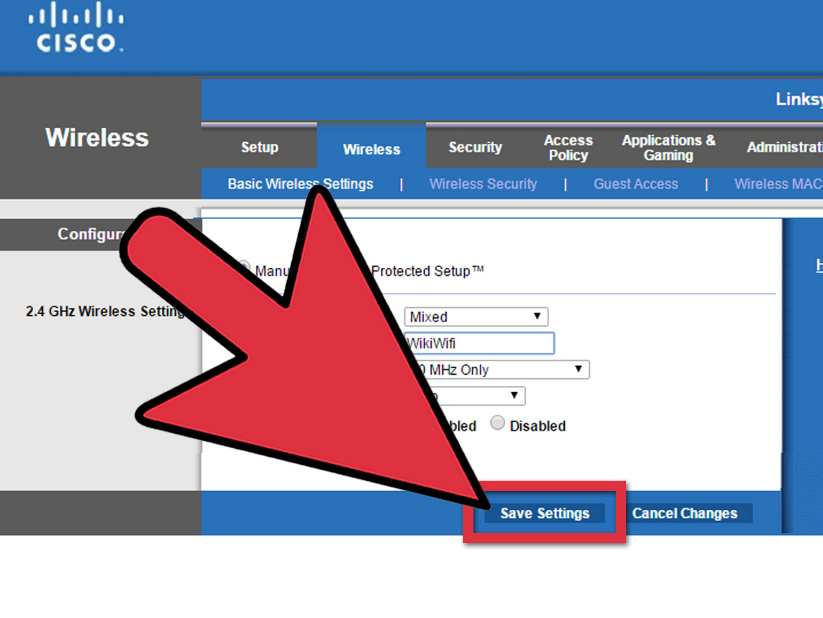
It sounds simple, but updating your router’s firmware and your devices can improve speed, stability, and security. I set a reminder to check for updates every few months. Most modern routers have automatic update features, take advantage of that.
8. Test and Monitor Your Network
Finally, make sure you regularly test your speeds. Speed tests are your best friend when trying to optimize your network. I run one before and after each change to see how much difference it made. This helps you understand which tweaks truly matter.
Amazon Affiliate Disclaimer
Some links in this article are Amazon affiliate links. If you make a purchase through them, I may earn a small commission at no extra cost to you. It helps me keep providing guides like this.
FAQs
Q1: Can upgrading my modem and router really improve my Xfinity speed? Yes. Even with a fast plan, old or rented equipment can bottleneck your internet. Upgrading ensures you get the speed you’re paying for.
Q2: Is Wi-Fi 6 necessary for Xfinity internet? Not strictly, but Wi-Fi 6 routers offer faster speeds, better multi-device performance, and improved coverage. worth it if you have multiple devices or heavy streaming needs.
Q3: How can I tell if my modem is compatible with Xfinity? Look for DOCSIS 3.0 or 3.1 modems that explicitly list Xfinity compatibility. Xfinity’s website also has an updated list of approved modems.
Q4: Do mesh networks really help with slow Wi-Fi in large homes? Absolutely. Mesh systems use multiple nodes to create seamless coverage, eliminating dead zones and boosting speeds in far-reaching areas of your home.
Final Thoughts
Maximizing your Xfinity internet isn’t rocket science, but it does require attention to your equipment and setup. From upgrading your modem to a high-performance option, pairing it with a solid Wi-Fi 6 router, and optimizing placement, small changes make a big difference.
In my experience, taking control of your home network not only improves speed and reliability but also saves money and prepares you for future internet plans. Whether it’s smoother 4K streaming, lag-free gaming, or better Wi-Fi for all your smart devices, these tips will ensure you get the most out of your Xfinity internet at home.
메타데이터
- post_id
- 3285b9b37e60
- slug
- how-to-maximize-your-xfinity-internet-speeds-at-home-3285b9b37e60
- url
- https://medium.com/@sarakhan.com/how-to-maximize-your-xfinity-internet-speeds-at-home-3285b9b37e60
- canonical_url
- https://medium.com/@sarakhan.com/how-to-maximize-your-xfinity-internet-speeds-at-home-3285b9b37e60
- author_url
- https://medium.com/@sarakhan.com
- status
- ok
- fetched_at
- 2026-06-29 01:02:39