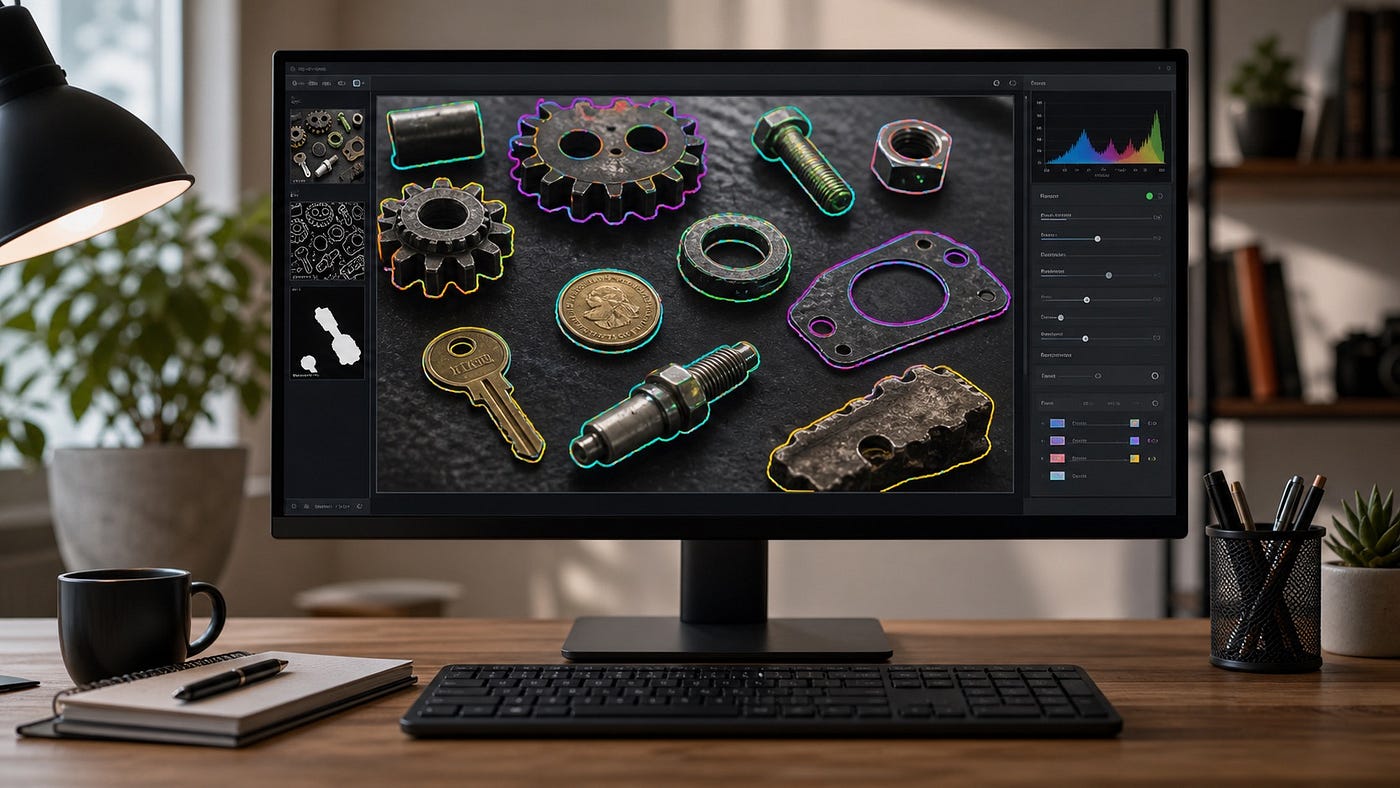
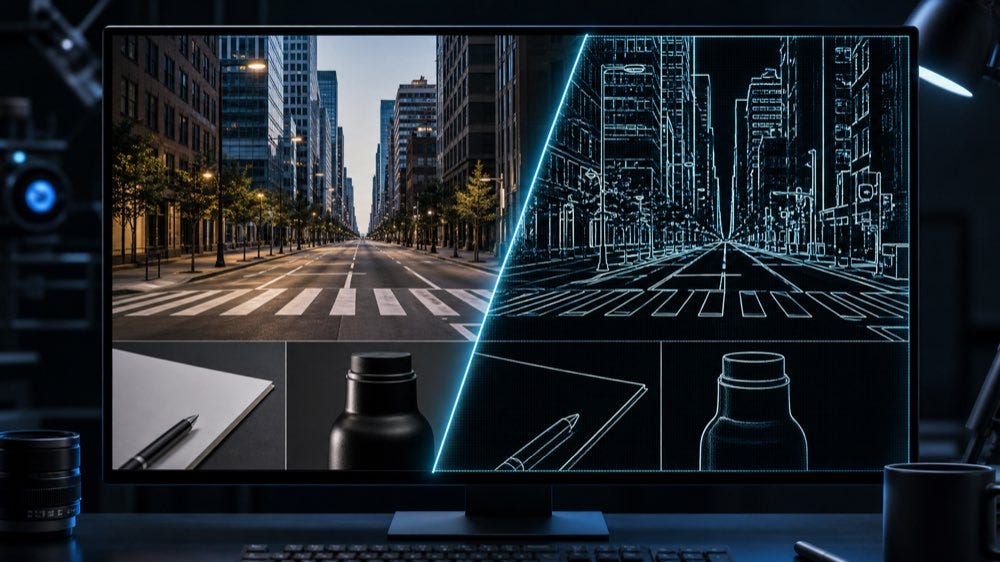
Image Alignment Online: ECC Registration, Warp Modes, and Before-After Comparison Explained
A few pixels can ruin an otherwise fair image comparison. One frame is shifted. Another is slightly rotated. A phone photo of a document…
Image Alignment Online: ECC Registration, Warp Modes, and Before-After Comparison Explained
A few pixels can ruin an otherwise fair image comparison. One frame is shifted. Another is slightly rotated. A phone photo of a document was taken from a different angle. A before-and-after inspection shot is close, but not from the exact same position.
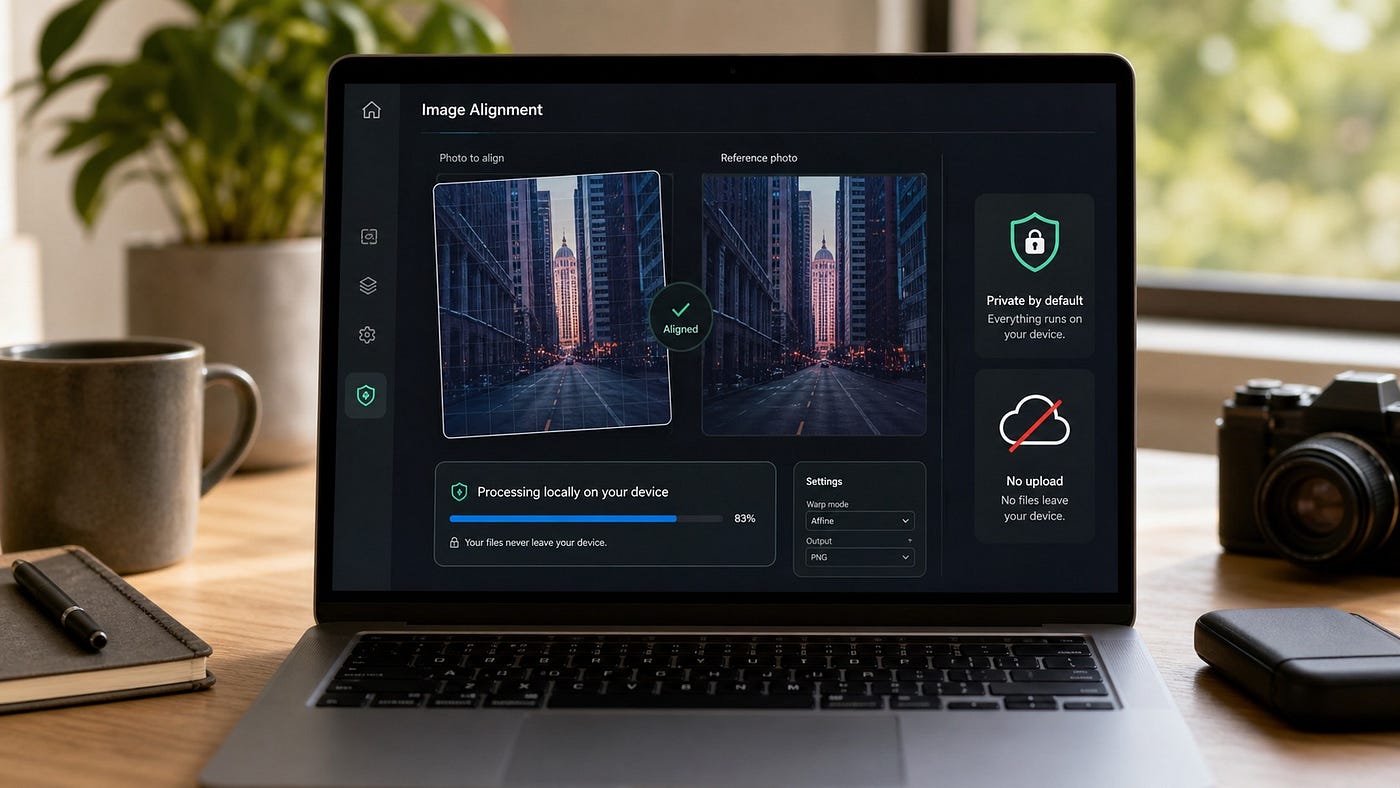
Image alignment is the step that puts two captures into the same visual coordinate space before you compare, blend, subtract, stack, or inspect them.
That is the job of Pixlane Image Alignment. You upload the moving image and the reference image, choose a warp mode, and download the aligned result. It is a practical browser-side image registration tool for before-and-after comparison, repeated scans, inspection photos, and computer vision prototyping.
Why Image Alignment Matters Before Comparison
Raw before-and-after comparisons are easy to misread. If the two frames are not registered, every edge can turn into a false difference. A building facade looks doubled. A document line appears blurred. A small product defect gets mixed with camera motion.
The point of Image Alignment Online is not to make the image prettier. It is to make the second image occupy the same geometry as the reference. Once the frames sit in the same coordinate space, downstream work becomes easier to trust: difference maps, overlays, stacking, visual QA, and documentation are all cleaner to read.
The ECC Idea: Align by Maximizing Shared Structure
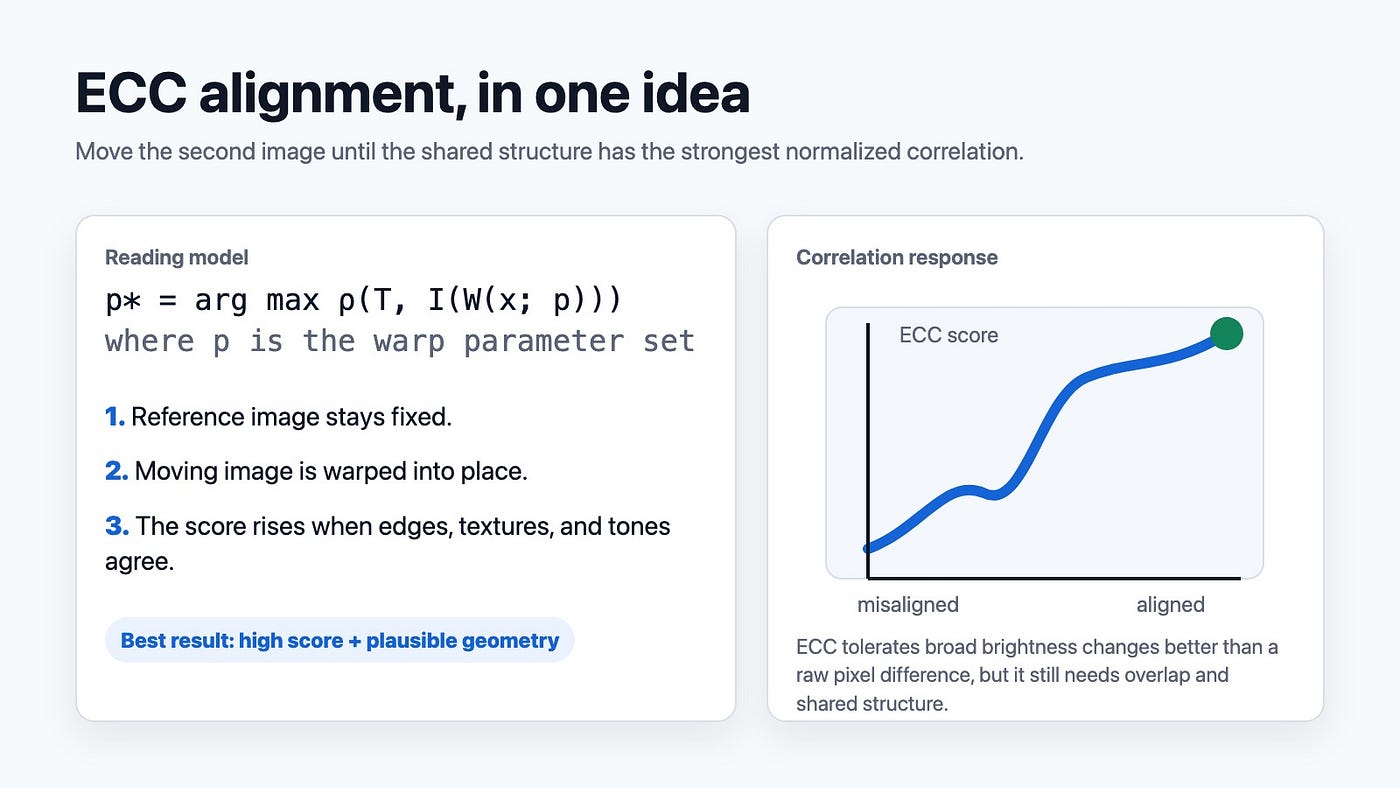
Pixlane’s tool uses the Enhanced Correlation Coefficient idea, usually shortened to ECC. Think of ECC as a direct image registration method. Instead of first finding named keypoints, it adjusts a geometric transform until the warped moving image agrees with the reference image as strongly as possible.
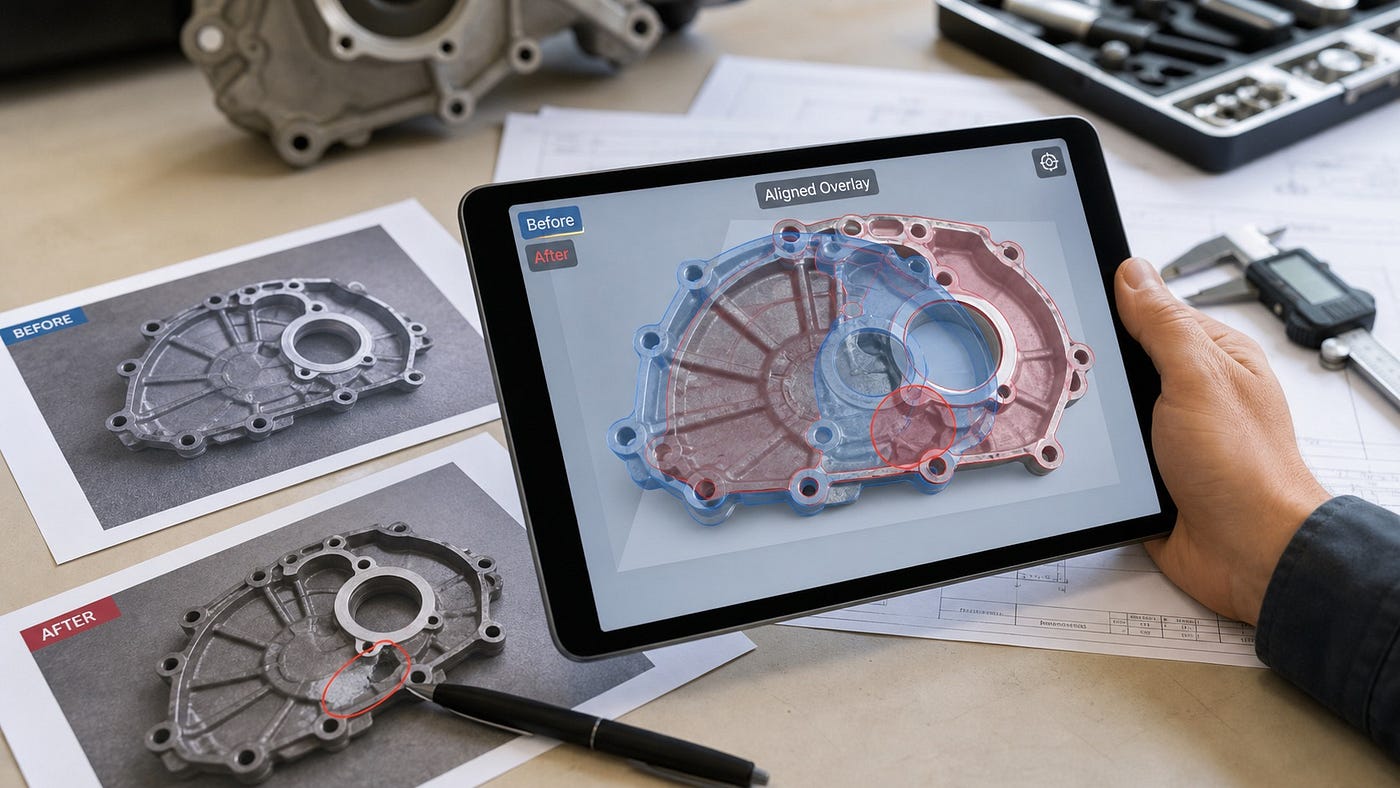
ECC alignment searches for the warp parameters that make the shared structure line up best.
A simplified reading model is:
p* = arg max rho(T, I(W(x; p)))
Here, T is the reference image, I is the moving image, W(x; p) is the warp applied to the moving image, and rho is the normalized correlation score. In practical terms, the method keeps changing the warp until the common visual structure agrees better.
That correlation view matters because plain pixel difference is fragile. If one photo is brighter, darker, or contrast-adjusted, a raw difference can exaggerate the change. ECC is more interested in normalized agreement, so it can stay useful when the scene is mostly the same but the capture conditions are not perfectly matched.
Translation, Euclidean, Affine, or Homography?
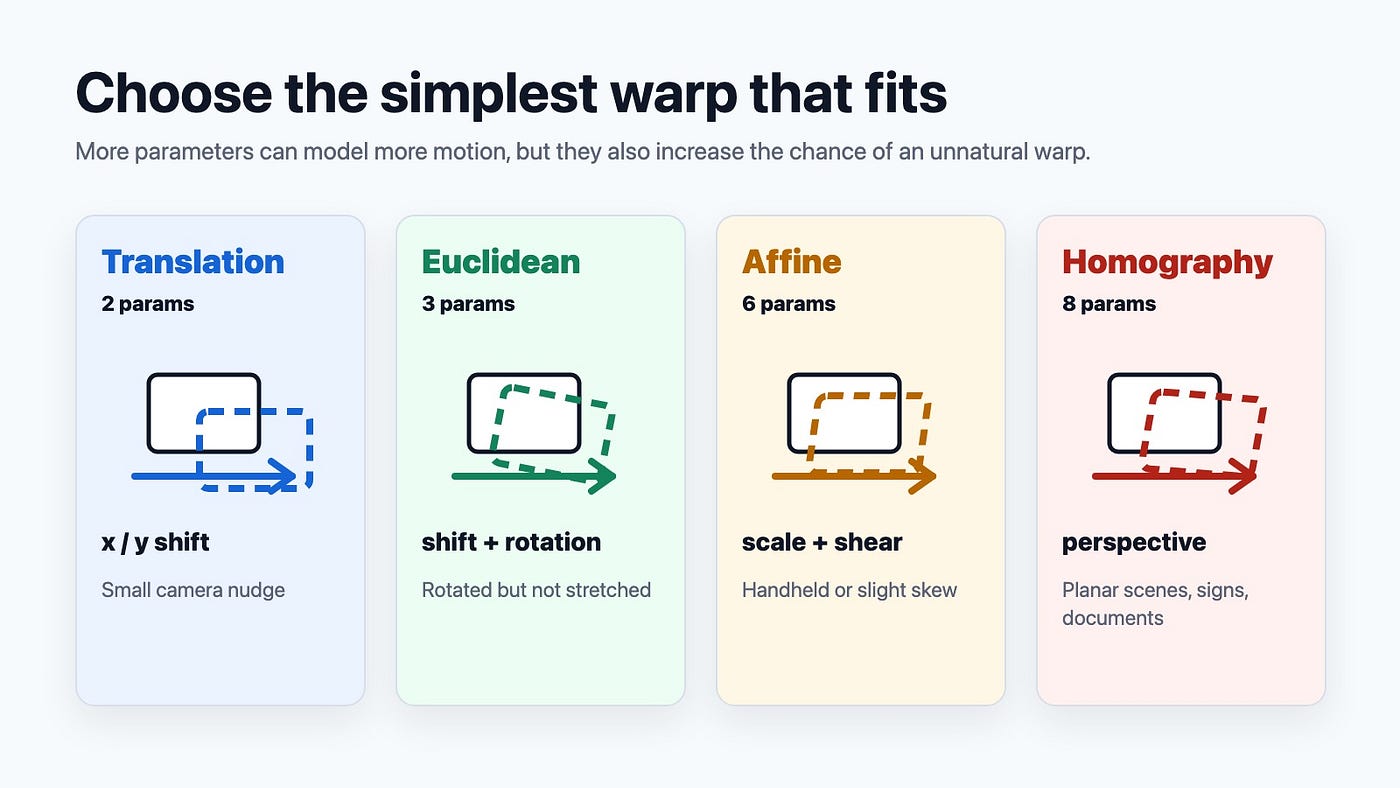
The most important choice in Pixlane Image Alignment is the warp mode. It controls how much freedom the moving image has while it is being aligned to the reference.
The practical rule is simple: start with the simplest transform that can explain the camera motion.
- Translation has 2 parameters. It handles horizontal and vertical shift. Use it when the camera nudged but did not rotate or change perspective.
- Euclidean has 3 parameters. It adds rotation while preserving shape. Use it when the second image is shifted and slightly rotated.
- Affine has 6 parameters. It can model shift, rotation, scale, and shear. This is a good default for many handheld or small-angle cases.
- Homography has 8 effective parameters. It models full planar perspective change. Use it for documents, signs, flat surfaces, and scenes captured from different viewpoints.
More flexible is not automatically better. Homography can correct perspective, but it can also invent geometry when the real motion is simple or the overlap is weak. Affine is often the better starting point because it gives useful flexibility without letting the image bend too freely.
Try It on Pixlane
You can test the workflow directly with the free Image Alignment Online tool on Pixlane. Upload a moving image, upload the reference image, choose the warp mode, then export the aligned result as PNG or JPG.
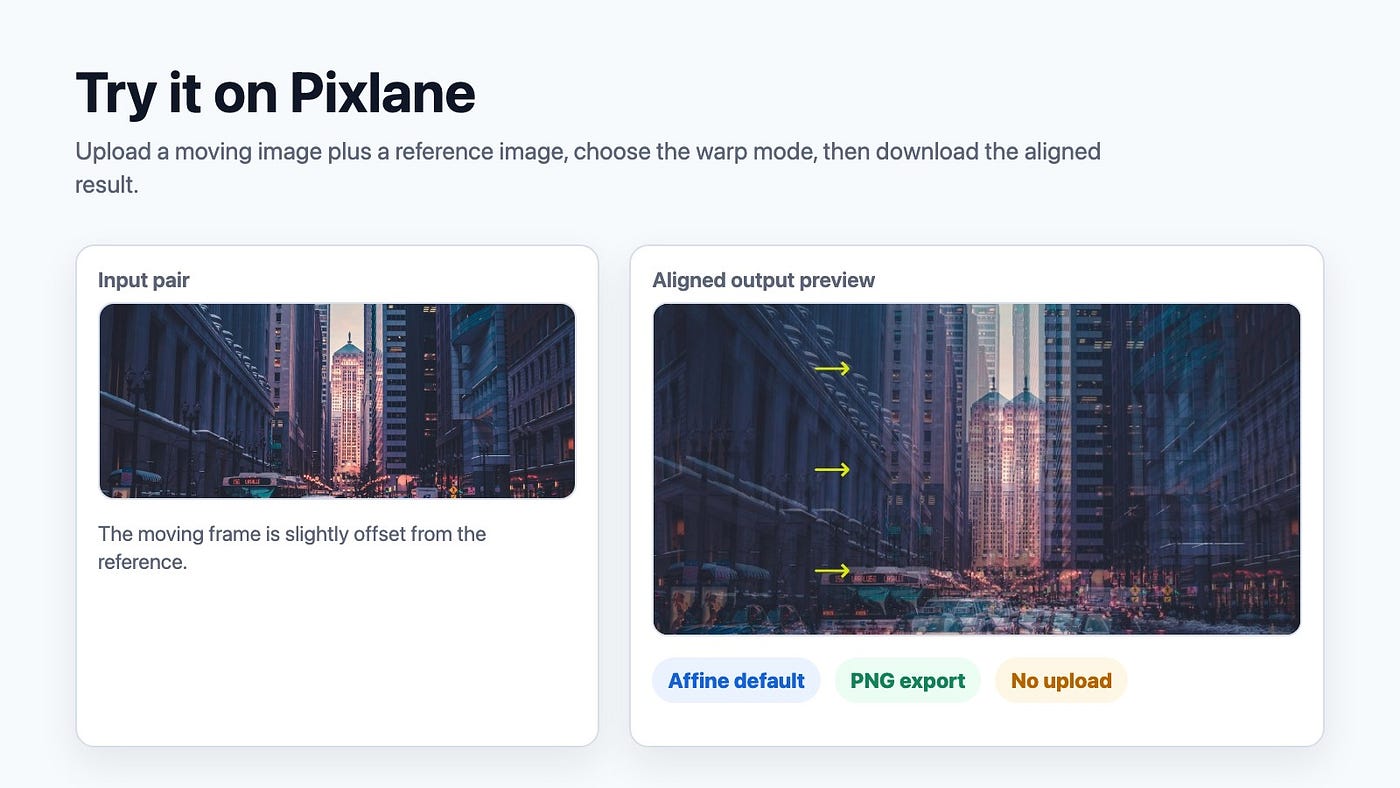
Pixlane Image Alignment lets you test the alignment visually before using the result in another step.
The tool sits inside the broader Pixlane Dev Tools collection, which is built around fast, browser-based experimentation with computer vision concepts. You can use Edge Detection before alignment when noisy structure needs to be emphasized, or move to Contour Detection after alignment when you need shapes and boundaries in the registered frame.
How It Differs From Related Pixlane Tools
Image alignment overlaps with feature matching, template matching, and perspective correction, but it does not answer the same question.
Feature Detection is useful when you want local points, corners, or descriptors. It is often the better first step when the two images are far apart, have a large scale change, or need a coarse match before direct alignment.
Template Matching answers a narrower question: where does this known patch appear in the larger image? It is excellent for searching for a specific object or repeated pattern, but it does not automatically register the whole image pair.
Homography / RANSAC Visualizer is closer to a feature-based geometry workflow. It is helpful when you want to understand matched points, outlier rejection, and the planar transform behind a viewpoint change.
Perspective Transform is different again. It is best when you manually or algorithmically know the four corners of a planar region and want to rectify it, such as a document, whiteboard, label, or sign.
When Alignment Works, and When It Fails
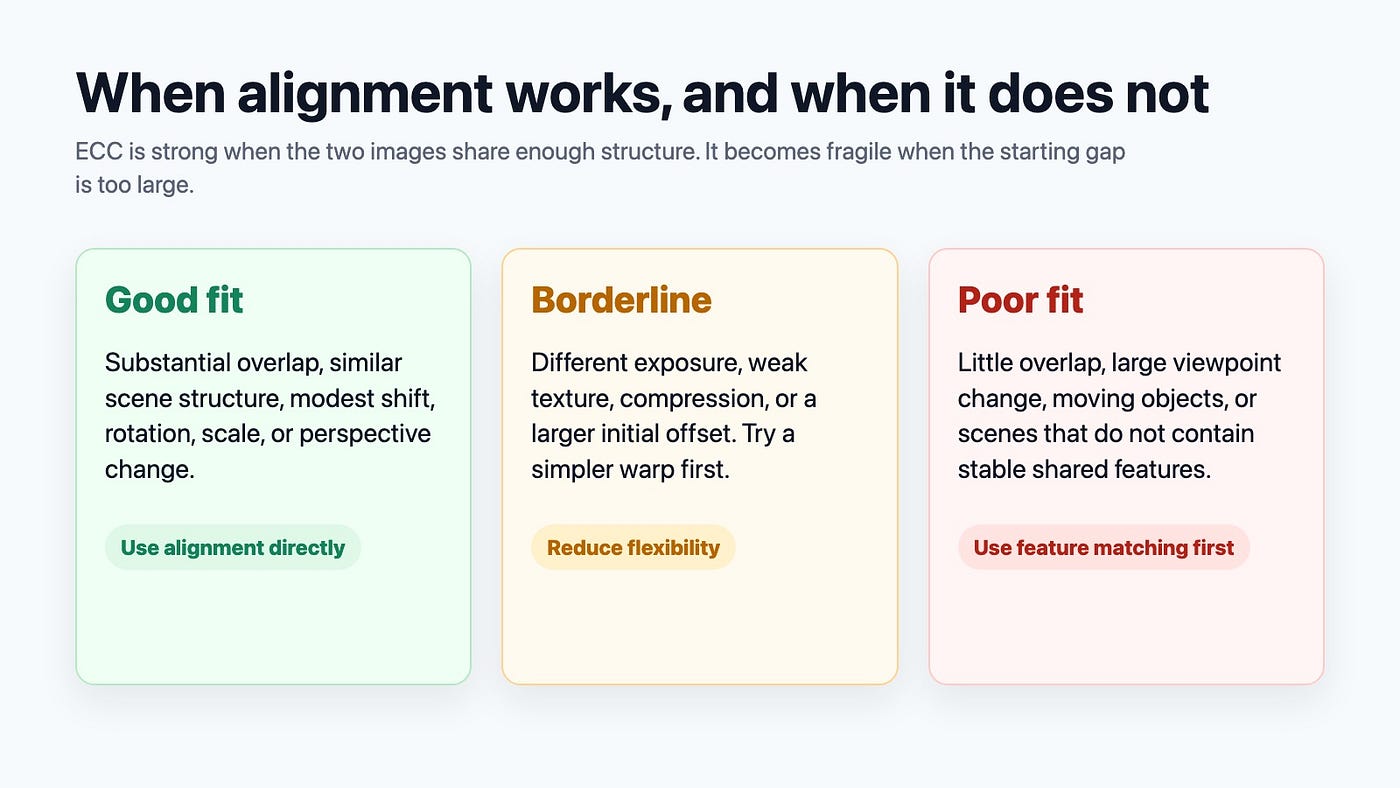
ECC-style image alignment works best when the two images share enough stable structure and start reasonably close to each other. Depending on the selected warp mode, it can handle modest shifts, rotations, scale changes, and perspective differences.
The best result is the transform that explains the real camera motion without inventing geometry.
Alignment gets harder when the images have little overlap, very different viewpoints, heavy motion inside the scene, repeated texture, large exposure differences, or a starting offset outside the method’s convergence range. In those cases, try a simpler warp first, crop to the overlapping region, or use a feature-based tool to get a coarse match before direct alignment.
If your goal is comparison, do not judge the tool only by whether the overlay looks dramatic. Check whether stable structures line up: corners, edges, windows, text baselines, road markings, document borders, or product outlines. Those are the signals that make the aligned output useful.
Practical Use Cases
Image registration is useful anywhere two captures of the same subject need to be compared honestly.
Aligned overlays are especially useful when a small change would otherwise be hidden by camera movement.
In product inspection, alignment lets a reviewer compare a new photo against a reference without being distracted by handheld shift. In document work, it helps repeated scans sit on the same grid before cleanup or visual checking. In photography, alignment is a prerequisite for stacking, blending, or stabilizing a burst. In research and field documentation, it supports before-and-after comparisons where the capture position was close but not perfect.
If the images are part of a larger processing chain, Image Pyramids can help explain the coarse-to-fine idea behind aligning large shifts, while tools like Merge Images are better for final presentation once the visual assets are ready.
Why Browser-Side Alignment Matters
The images people align are often private: inspection frames, internal product photos, scanned documents, family archives, lab captures, or unpublished creative work. Sending both images to a random upload service is not always acceptable.
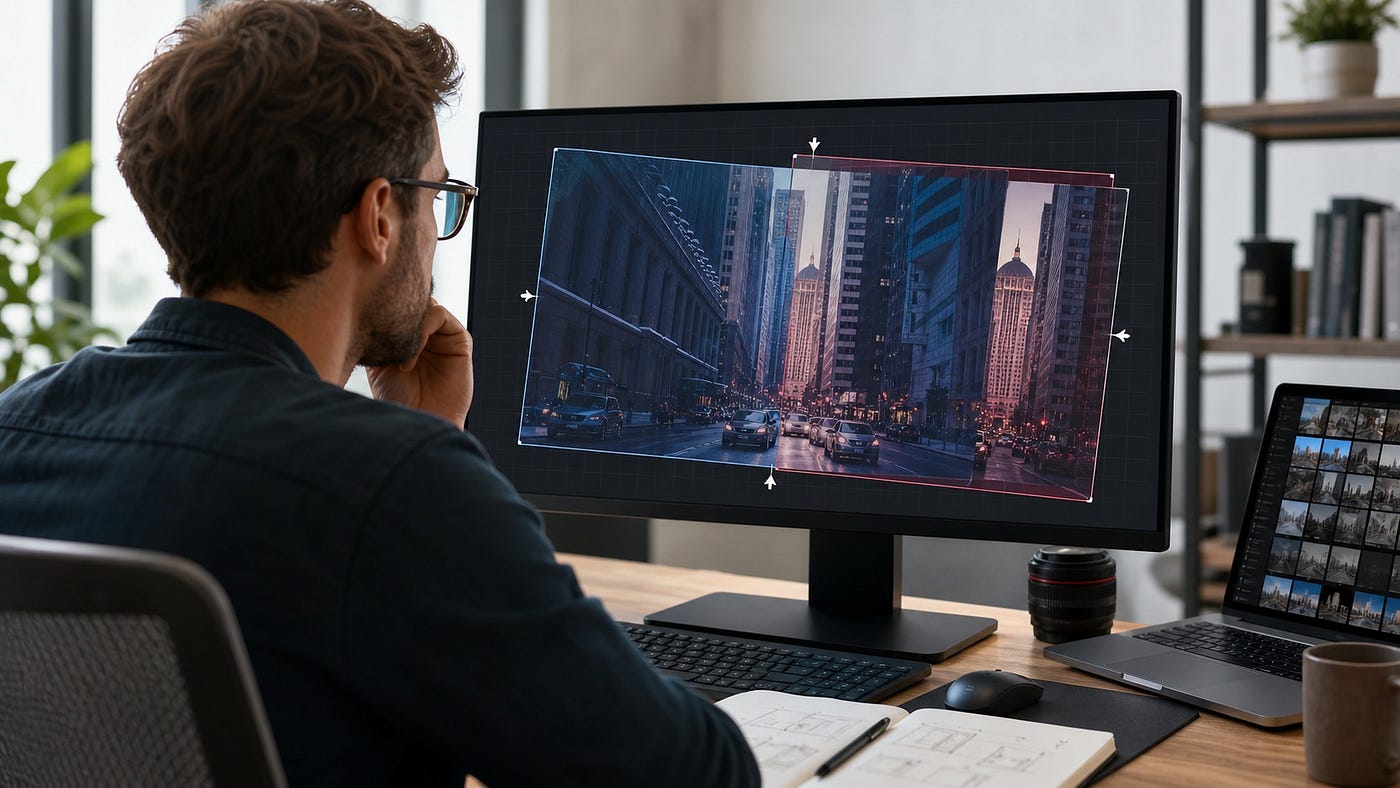
Local alignment is useful when the image pair itself is sensitive.
That is why the browser-side model matters. Pixlane lets you run Image Alignment without turning a two-image comparison into a file-sharing workflow. The practical benefit is simple: test the registration, inspect the result, and export the aligned image while keeping the source files on your device.
A Quick Checklist Before You Align
Before running alignment, check four things:
- Do the images show the same scene or object?
- Is there enough overlap for the tool to lock onto shared structure?
- Which motion is realistic: shift, rotation, scale, shear, or perspective?
- Is a simple warp enough, or do you need Homography because the surface is planar and viewed from a different angle?
After alignment, inspect stable geometry first. If the shared structure lines up, the result is useful. If the output looks stretched, folded, or locally distorted, reduce the warp flexibility or prepare the pair with a related tool first.
Final Takeaway
Image alignment is a quiet step, but it changes the quality of everything that follows. Before-and-after comparison, change detection, stacking, document review, and visual QA all improve when the frames occupy the same coordinate space.
Try it here: Image Alignment Online on Pixlane. For the wider set of browser-based computer vision tools, start from pixlane.media or browse the Pixlane Dev Tools collection.
메타데이터
- post_id
- 3314b4baa930
- slug
- image-alignment-online-ecc-registration-warp-modes-and-before-after-comparison-explained-3314b4baa930
- url
- https://medium.com/@pixlanemedia/image-alignment-online-ecc-registration-warp-modes-and-before-after-comparison-explained-3314b4baa930
- canonical_url
- https://medium.com/@pixlanemedia/image-alignment-online-ecc-registration-warp-modes-and-before-after-comparison-explained-3314b4baa930
- author_url
- https://medium.com/@pixlanemedia
- status
- ok
- fetched_at
- 2026-07-13 06:23:13