Azure Virtual Desktop — Azure AD (AAD) Join Guide
What is Azure Virtual Desktop (AVD)?
Azure Virtual Desktop — Azure AD (AAD) Join Guide
What is Azure Virtual Desktop (AVD)?
Azure Virtual Desktop, or AVD in short — is a born in the cloud Managed-platform service offering on top of the Microsoft Azure Cloud.
Azure Virtual Desktop (AVD) is a comprehensive desktop and app virtualization service running in Azure to enable secure remote work. It gives you access to work applications securely from anywhere, anytime, on any device. This enables you to access data and work applications on the go, not just at your desk.
Azure Virtual Desktop offers you the only multi-session Windows 11 / Windows 10 experience, including compatibility with Microsoft Store and existing Windows line-of-business applications, while delivering cost benefits.
Its great to know that Azure Virtual Desktop session host VMs are not exposed to the internet directly. They can run using a private IP address and run isolated from other workloads or even the internet. The reverse connect technology allows the VMs to be accessed.
Azure Virtual Desktop currently support for full Azure Active directory (AAD) join for your session hosts.
What is Azure Virtual Desktop (AVD) AAD Join?
Now you can join your Azure Virtual Desktop virtual machines directly to Azure Active Directory (Azure AD) and connect to the virtual machine from any device with basic credentials. Joining directly to Azure AD removes the previous need to use Active Directory Domain Services (AD DS) domain controllers.
Azure AD join also gives you option to automatically enroll the VM with Intune for Windows 10, Windows 10 and Windows 11 multi-session VMs.

Supported Use cases / Configurations
The following configurations are currently supported with Azure AD-joined VMs:
- Personal desktops with local user profiles.
- Pooled desktops used as a jump box. In this configuration, users first access the Azure Virtual Desktop VM before connecting to a different PC on the network. Users shouldn’t save data on the VM.
- Pooled desktops or apps where users don’t need to save data on the VM. For example, for applications that save data online or connect to a remote database.
- Personal or pooled desktops with FSLogix user profiles with synced users from Active Directory.
User accounts can be cloud-only or synced users from the same Azure AD tenant.
Storing FSLogix profiles on Azure Files for Azure Active Directory (AD)-joined VMs is currently in public preview.
Step by Step guide to deploy an Azure AD join host pool
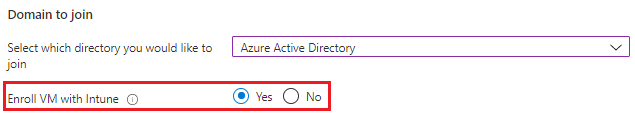
To deploy an Azure AD host pool, On the Create a host pool screen, on the Virtual Machines tab, under Domain to join, select Azure Active Directory.

Choose “Azure Active Directory” under Domain to join section
Selecting Azure Active Directory presents the option to enroll the VMs with Intune. Select Yes if you want to enroll the VM with Intune.
AAD Role Assignments to enable user access
- End Users (Non-Admin Users) on the virtual machine should be part of Virtual Machine User Login. Users with this role assigned can log in to an Azure virtual machine with regular user privileges.
- Go to Resource Groups and select the resource group that you used for building Azure AD joined session hosts.
- Click on Access Control (IAM).

- Click +Add button to add role assignment.

- Select the Role “Virtual Machine User Login“.

- Select the Azure AD group where the login (AVD end-users) users are member of.

- Virtual desktop administrators (Admin Users) should be part of a Virtual Machine Administrator Login. Users with this role assigned can log in to an Azure virtual machine with administrator privileges.
- Custom RDP setting in the host pool “targetisaadjoined:i:1” to connect Remote Desktops from non-Windows end-user devices ( such as Mac, iOS, Android, web, the Store client, or pre-version 2004 Windows 10)
- Go to Host Pool - Select the Hostpool where Azure AD joined VMs are located.
- Click on RDP properties.
- Select Advanced button.

- Enter targetisaadjoined:i:1 as the last custom properties and click Save.

Verification
After you create the host pool VMs, you can see the VMs in Azure AD > Devices.

For our final step to check wether the AAD join worked we can run the command dsregcmd /status.
The output shows the VM’s Azure AD join status.

Testing
- Login using AAD account

- After you login, you can able to view session hosts under the workspace

- Click the Session Host
- Click Allow on the Access Local Resources popup window

Login using AAD account

- Successfully login session host using AAD account

The opinions and views expressed here are those of my own and do not necessarily state or reflect those of Microsoft Singapore or Microsoft Corporation.
메타데이터
- post_id
- 33e99c659f85
- slug
- azure-virtual-desktop-azure-ad-aad-join-guide-33e99c659f85
- url
- https://medium.com/@riyasudeen/azure-virtual-desktop-azure-ad-aad-join-guide-33e99c659f85
- canonical_url
- https://medium.com/@riyasudeen/azure-virtual-desktop-azure-ad-aad-join-guide-33e99c659f85
- author_url
- https://medium.com/@riyasudeen
- status
- ok
- fetched_at
- 2026-07-27 05:29:19


