Setting Up Auto Refresh for Power BI Dashboard Using On-Premises Data Gateway
Introduction
Setting Up Auto Refresh for Power BI Dashboard Using On-Premises Data Gateway
Introduction
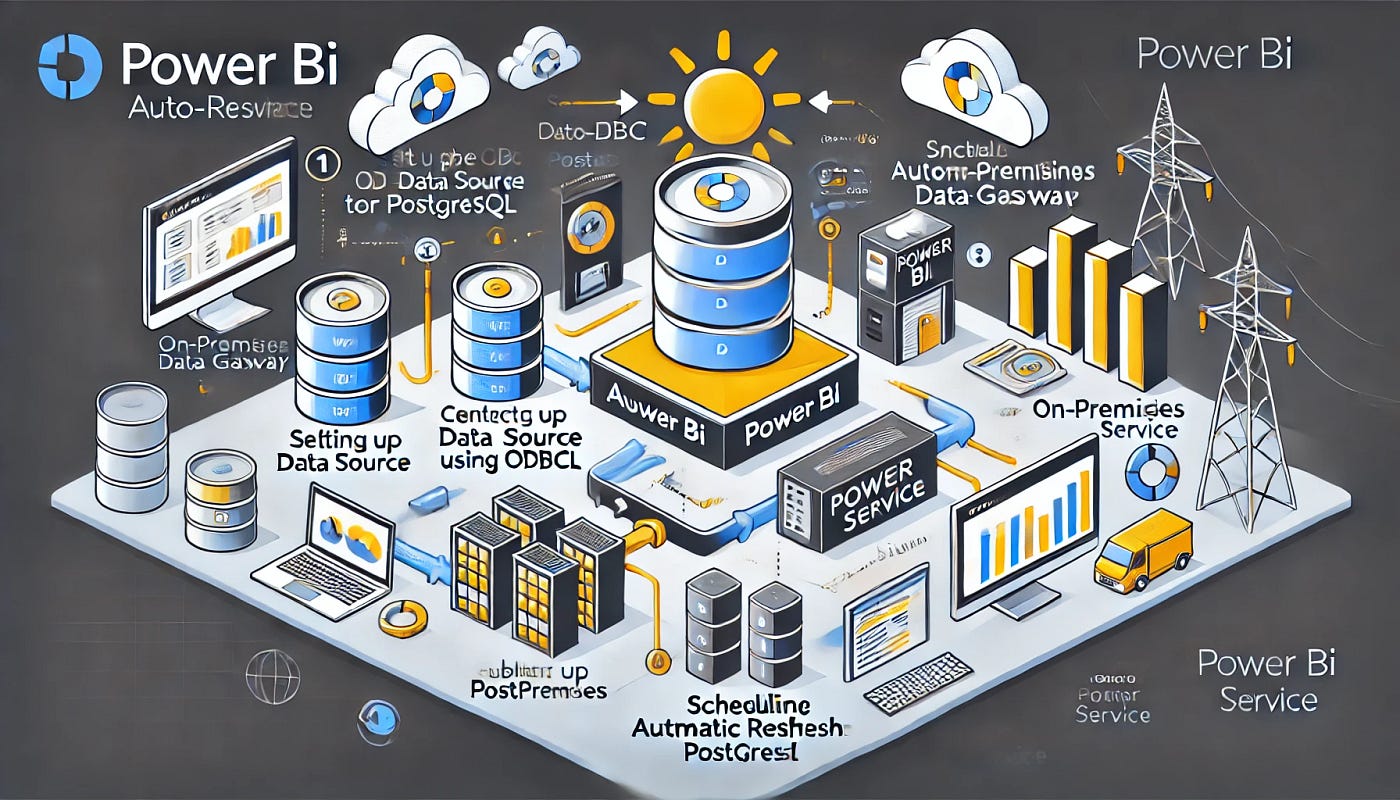
Power BI is a powerful business intelligence tool that enables organizations to visualize and analyze data from various sources. When working with on-premises databases such as PostgreSQL, maintaining an up-to-date dashboard requires setting up an automated data refresh mechanism.
This guide will walk you through the process of configuring Power BI to connect to a PostgreSQL database using ODBC, publishing the dashboard to Power BI Service, and setting up an On-Premises Data Gateway to enable seamless auto-refresh of your data. By the end of this guide, your Power BI reports will stay updated without manual intervention.
Step 1: Install and Configure PostgreSQL ODBC Driver
Power BI does not have a direct connector for PostgreSQL, so you need to use ODBC (Open Database Connectivity) to connect to a PostgreSQL database.
1.1 Install PostgreSQL ODBC Driver
- Open ODBC Data Sources (64-bit) from the Start menu on your device.
- Click on the System DSN tab.
- Click Add to create a new ODBC data source.
- Look for PostgreSQL Unicode(x64) in the list.
- If the PostgreSQL Unicode option is not available, download and install the necessary ODBC driver:
- Go to PostgreSQL ODBC Driver Download.
- Download and install the latest x64 Unicode driver for Windows.
- Restart your system after installation.
- After installing, the PostgreSQL Unicode(x64) driver should now appear in the Add menu.

1.2 Configure the ODBC Connection
- Select PostgreSQL Unicode(x64).
- Enter the PostgreSQL database details:
- Data Source Name (DSN): A name for your connection.
- Server: PostgreSQL server IP or hostname.
- Database: Name of the database.
- User Name: Database username.
- Password: Database password.
- Port: Usually 5432 (default PostgreSQL port).
- SSL Mode: Set to Allow to ensure secure communication.
- Click Test Connection to verify the connection.
- If successful, click OK and Close the ODBC Data Source Administrator.
Step 2: Connect Power BI to PostgreSQL via ODBC
- Open Power BI Desktop.
- Sign in into you Power BI account.
- Click Get Data.
- Select ODBC as the connection type.
- From the list of available DSNs, select the one you created in Step 1.
- Enter your database username and password.
- Click Connect to import the data into Power BI.
- Once connected, you can now load tables and queries into Power BI for analysis.

Step 3: Build and Publish a Dashboard
- In Power BI Desktop, load the required tables and data.
- Create necessary KPIs, charts, and visuals based on the imported data.
- Once the dashboard is ready, click on File →Publish → Publish to Power BI .
- Choose the appropriate workspace in Power BI Service to publish your report or create a new workspace.
Step 4: Access the Published Dashboard on Power BI Web
- Open Power BI Service.
- Log in using your Power BI credentials.
- Navigate to the workspace where the report was published.
- Open the dashboard to view and interact with the visualizations.
Step 5: Setup On-Premises Data Gateway
To enable automatic data refresh from an on-premises PostgreSQL database, you need to set up the On-Premises Data Gateway.
5.1 Download and Install Data Gateway
- Download the On-Premises Data Gateway from Microsoft’s official site.
- Install the gateway on a computer that has access to the PostgreSQL database.
- During installation, log in using your Power BI account.
- Choose “Standard Mode” to allow multiple users to connect to the gateway.

5.2 Configure Data Gateway in Power BI Service
- Open Power BI Service.
- Click on Settings → Manage Gateways.
- Add a new data source:
- Select ODBC as the connection type.
- Enter the DSN name you created in Step 1.
- Provide database credentials.
- Click Apply to save the gateway configuration.
Step 6: Schedule Automatic Refresh
- In Power BI Service, go to Datasets.
- Select your dataset and click Schedule Refresh.
- Enable Refresh Schedule and set the refresh frequency (e.g., every 30 minutes).
- Ensure that the system hosting the Data Gateway is always online and connected to the internet for scheduled refreshes to work.
Summary
✔ Install and configure the PostgreSQL ODBC driver ✔ Connect Power BI to PostgreSQL using ODBC ✔ Build and publish dashboards in Power BI Service ✔ Setup On-Premises Data Gateway for automatic refresh ✔ Schedule data refresh to keep the reports updated
Author: Naveen Kumar S Linkedin: https://www.linkedin.com/in/naveen-kumar-s-190469214/
메타데이터
- post_id
- 33ee3c381e8d
- slug
- setting-up-auto-refresh-for-power-bi-dashboard-using-on-premises-data-gateway-33ee3c381e8d
- url
- https://medium.com/@naveen.datascientist/setting-up-auto-refresh-for-power-bi-dashboard-using-on-premises-data-gateway-33ee3c381e8d
- canonical_url
- https://medium.com/@naveen.datascientist/setting-up-auto-refresh-for-power-bi-dashboard-using-on-premises-data-gateway-33ee3c381e8d
- author_url
- https://medium.com/@naveen.datascientist
- status
- ok
- fetched_at
- 2026-06-27 18:20:27




