Devin CLI beyond the defaults
Most developers stop at the REPL. Here’s what the extensibility layer unlocks: hooks, skills, subagents, MCP servers, and fine-grained…
Devin CLI beyond the defaults
Most developers stop at the REPL. Here’s what the extensibility layer unlocks: hooks, skills, subagents, MCP servers, and fine-grained permissions.
Become a Devin CLI power user in no time!
If you work with AI coding tools daily, I write about the configuration patterns that make them genuinely reliable — subscribe to catch the next one.
I’ve been enjoying Devin CLI quite a lot lately.
The install takes about fifteen seconds. You run devin, type a prompt, and the agent writes code, runs commands, and reports back. That part just works.
Most people stop there.
What they miss is the robust configuration surface underneath. Devin CLI has a permission system that can auto-approve safe actions and hard-block dangerous ones. It has a hooks layer that runs your own scripts before and after every tool call. It has skills, reusable prompts with their own tool restrictions, and an MCP layer that hands the agent keys to your issue tracker, your database, your GitHub account.
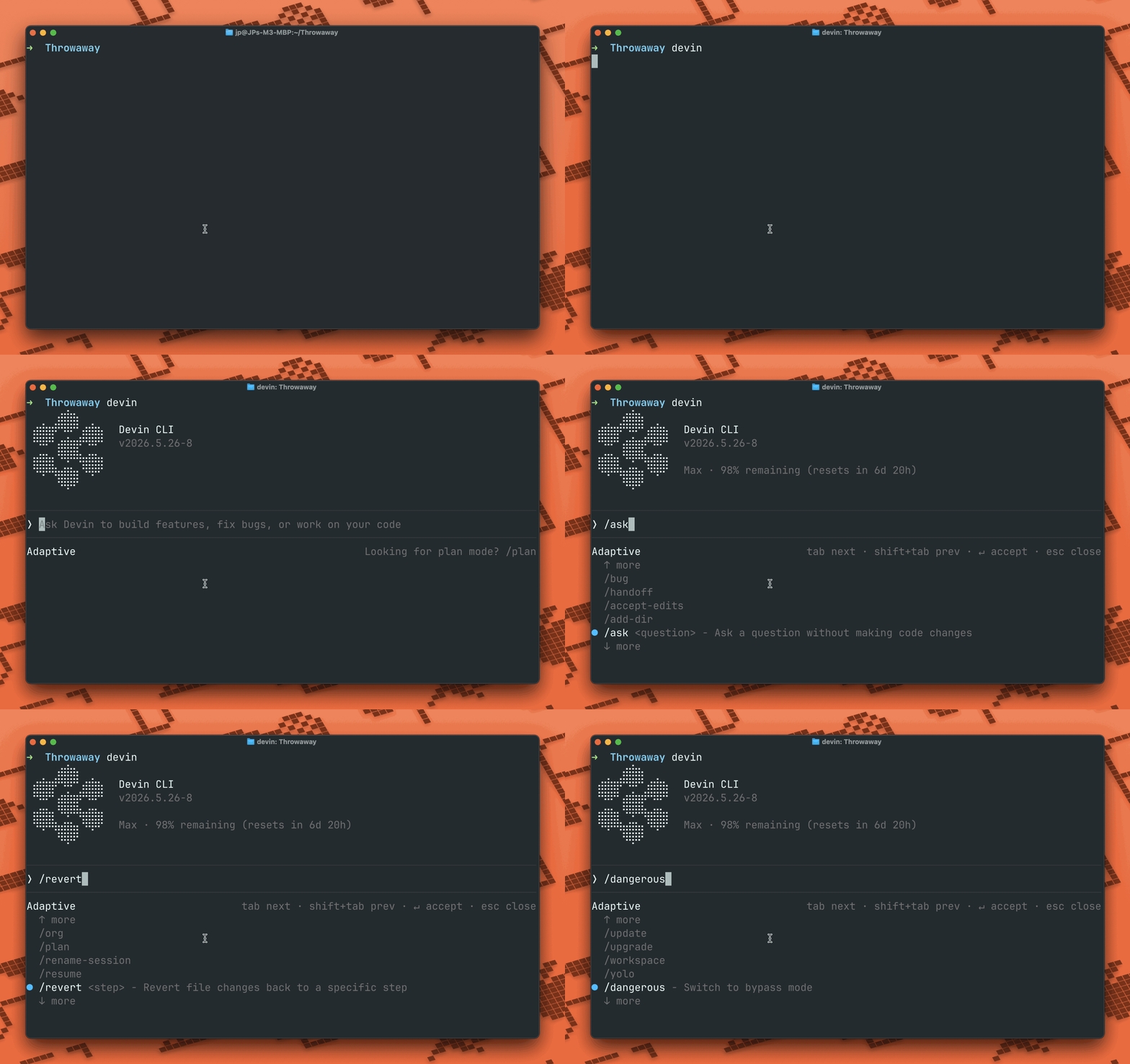
It has EVERYTHING you need for an agent harness.
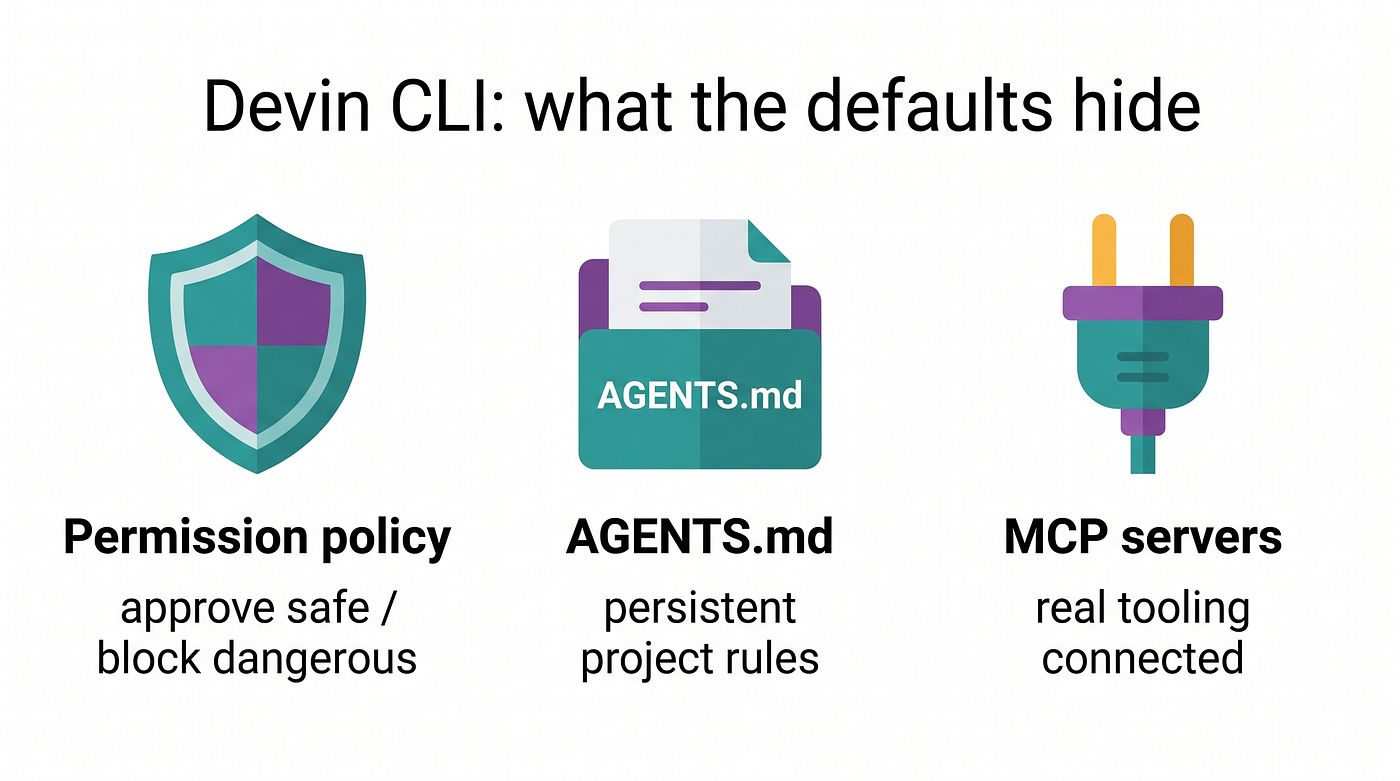
None of that is obvious from the quickstart. This guide covers it all, with working config examples for each.
Why the defaults are not enough
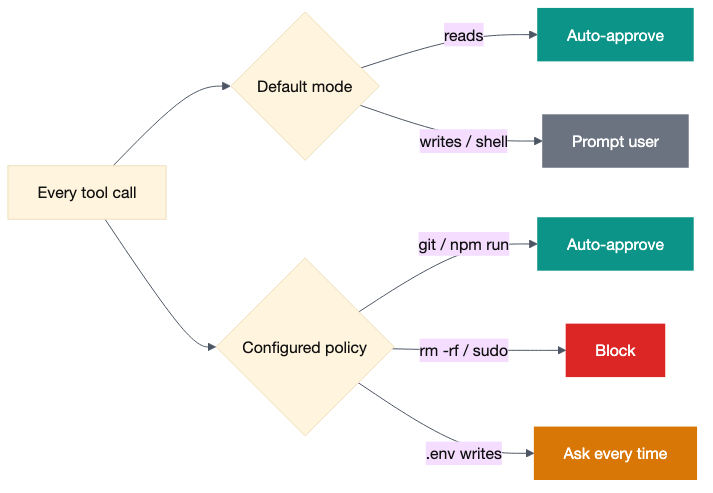
Out of the box, Devin CLI runs in Normal mode. (Good enough for exploration, but not quite there yet for power users, which most of us have become.) Read-only operations inside your project directory go through without asking. Writes and shell commands prompt you every time. That’s the right default for a first session. It is not the right default for a team that runs the agent all day.
Every approval click is a context switch. Every ignored approval is a risk you haven’t thought about. The extensibility layer lets you codify a real policy: approve git and npm run automatically, always prompt before writes outside src/, block rm -rf outright. You do that once in a config file and stop thinking about it.
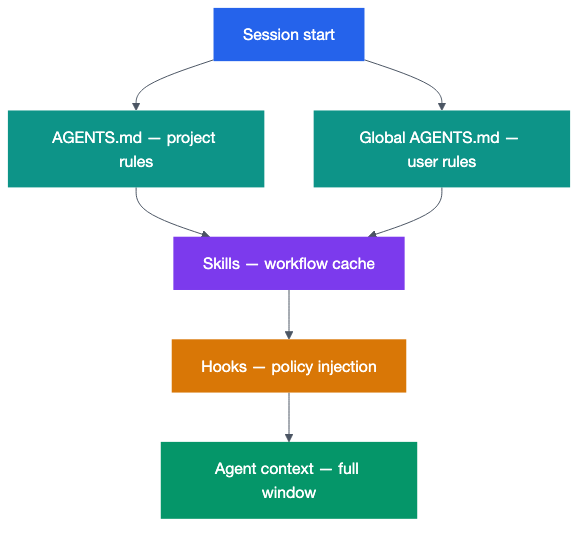
The same applies to knowledge. The agent starts each session knowing nothing about your project except what it can read from the file system. An AGENTS.md at your project root changes that.
Skills cache specific workflows. Hooks inject context at exactly the right moment. Together they turn a generic coding assistant into something that behaves like a senior developer who already knows your codebase.
Installation and first session
macOS / Linux / WSL:
curl -fsSL https://cli.devin.ai/install.sh | bashWindows (PowerShell):
irm https://static.devin.ai/cli/setup.ps1 | iexDo not run the PowerShell command in Git Bash or CMD. Use PowerShell for installation, then switch to whichever terminal you prefer.
Restart your terminal, navigate to a project directory, and type devin. You are in the REPL.
To pre-load a prompt without the interactive interface:
devin -- check out this code and suggest a feasible, helpful featureThe -- separator tells the CLI that everything after it is a prompt, not a subcommand. For automation and scripts, -p runs a single turn and prints the response to stdout, then exits:
devin -p "list all fixme comments in src/"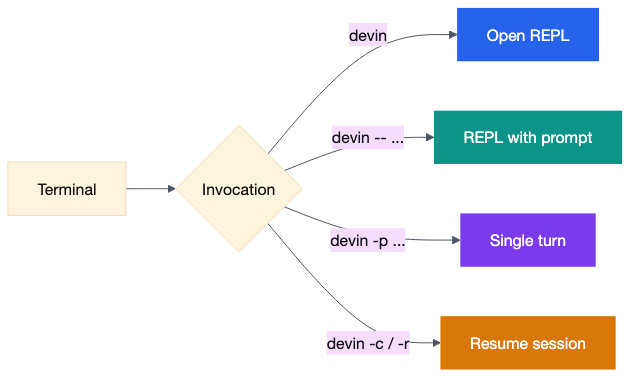
Resuming sessions:
Your conversation history is saved locally. To continue where you left off:
devin -c # Resume the most recent session in the current directorydevin -r # Open an interactive session pickerdevin -r brisk-otter # Resume a specific session by IDInside the REPL, the same is available as /continue and /resume. Use /ls to list recent sessions in the current directory, or /ls --all to see sessions across all directories.
Permission modes — which one to use and when
Devin CLI has four permission modes. You switch between them with Shift+Tab or the /mode command.
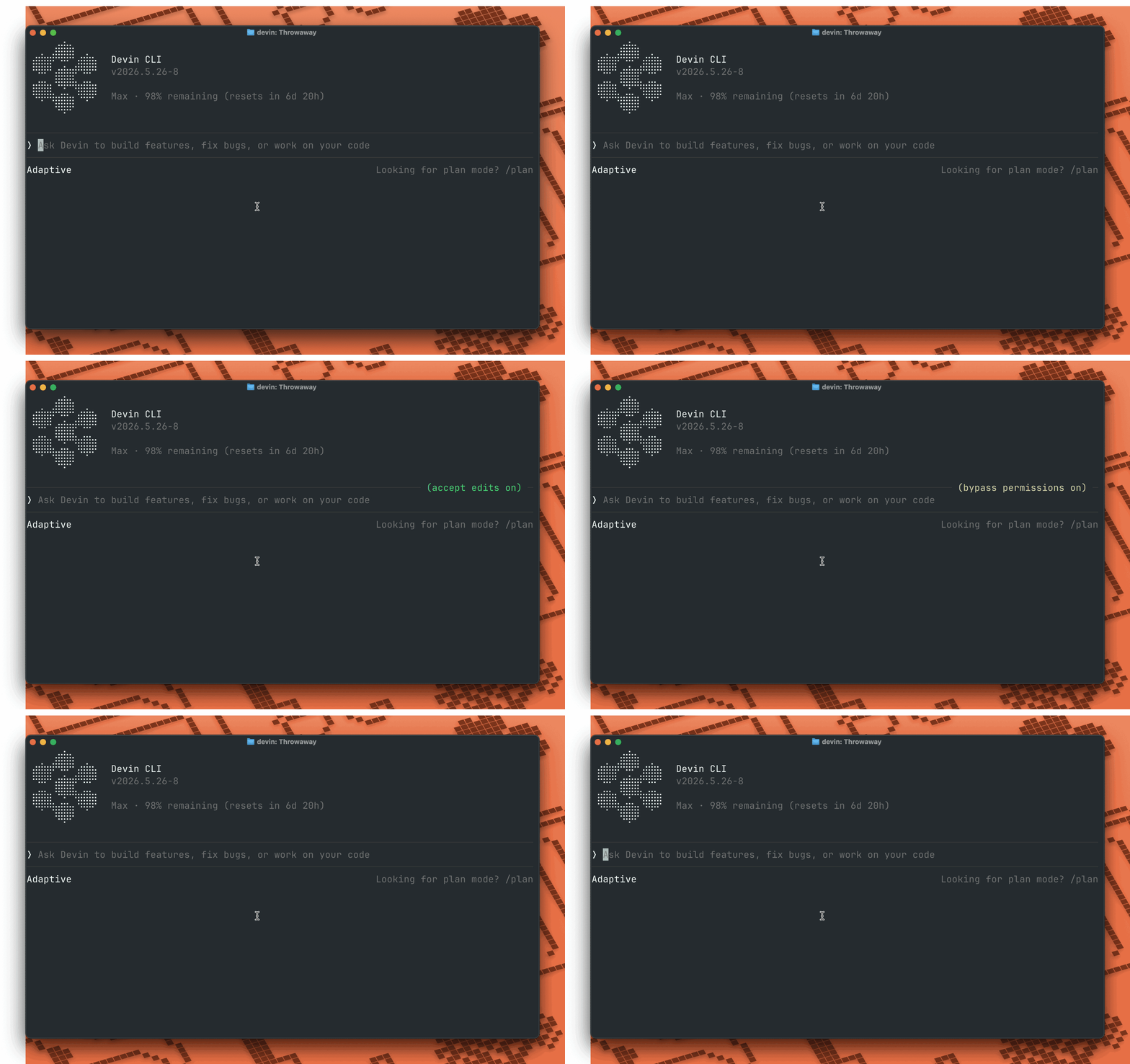
Normal is the default. Read-only tool calls within your project directory go through automatically. Writes and shell commands ask you first. This is the right choice when you are exploring unfamiliar code or working in a sensitive repo.
Accept Edits auto-approves file edits within the workspace while still prompting for shell commands and writes outside it. Most developers end up spending the bulk of their time here once they trust the agent on a project.
Bypass auto-approves everything: reads, writes, shell commands, all of it. Save it for tasks you fully trust. The aliases /yolo and /dangerous do the same thing. Note that enterprise-level deny rules always remain active regardless of this mode.
Autonomous is the sandbox mode. It requires the --sandbox flag and is the only permission mode available when sandboxing is active. Shell commands and network fetches auto-approve because the OS enforces what they can reach and write to. Direct file edits via the edit and write tools still prompt, because those tools run inside the CLI process and cannot be bounded by the sandbox.
# Start in bypass mode

devin --permission-mode bypass
# Start in yolo mode
devin --sandbox --permission-mode yolo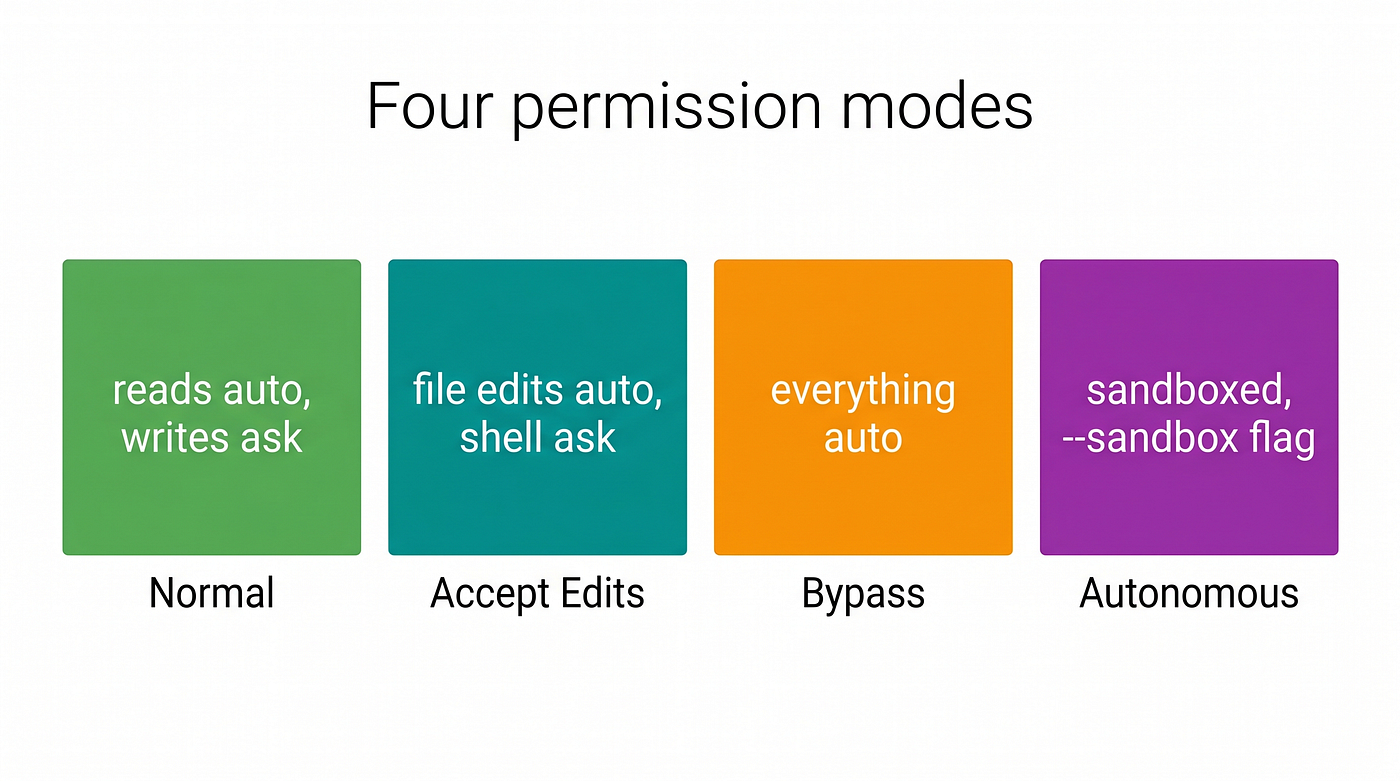
The difference between Bypass and Autonomous is worth understanding:
If you want the agent to have its own computer with enforced boundaries, use --sandbox. If you trust it completely on your machine, use Bypass. If you like the feel of Bypass but want genuine isolation, consider cloud Devin.
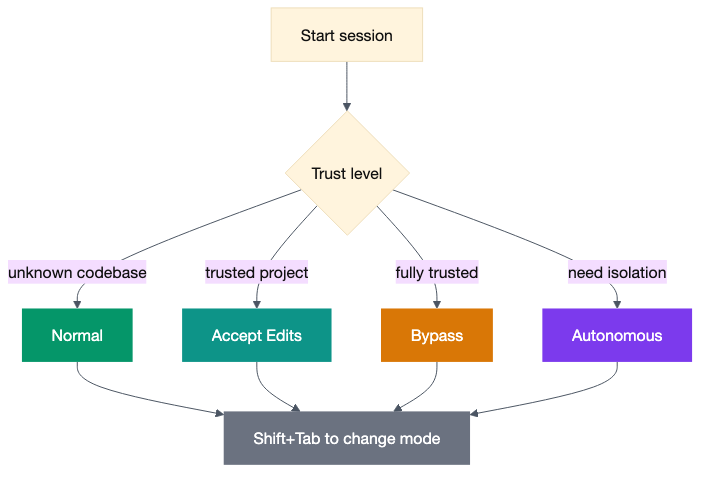
Choosing the right trust level.
Shell integration
Shell integration wires Devin directly into your existing terminal session. Install it once:
devin shell setup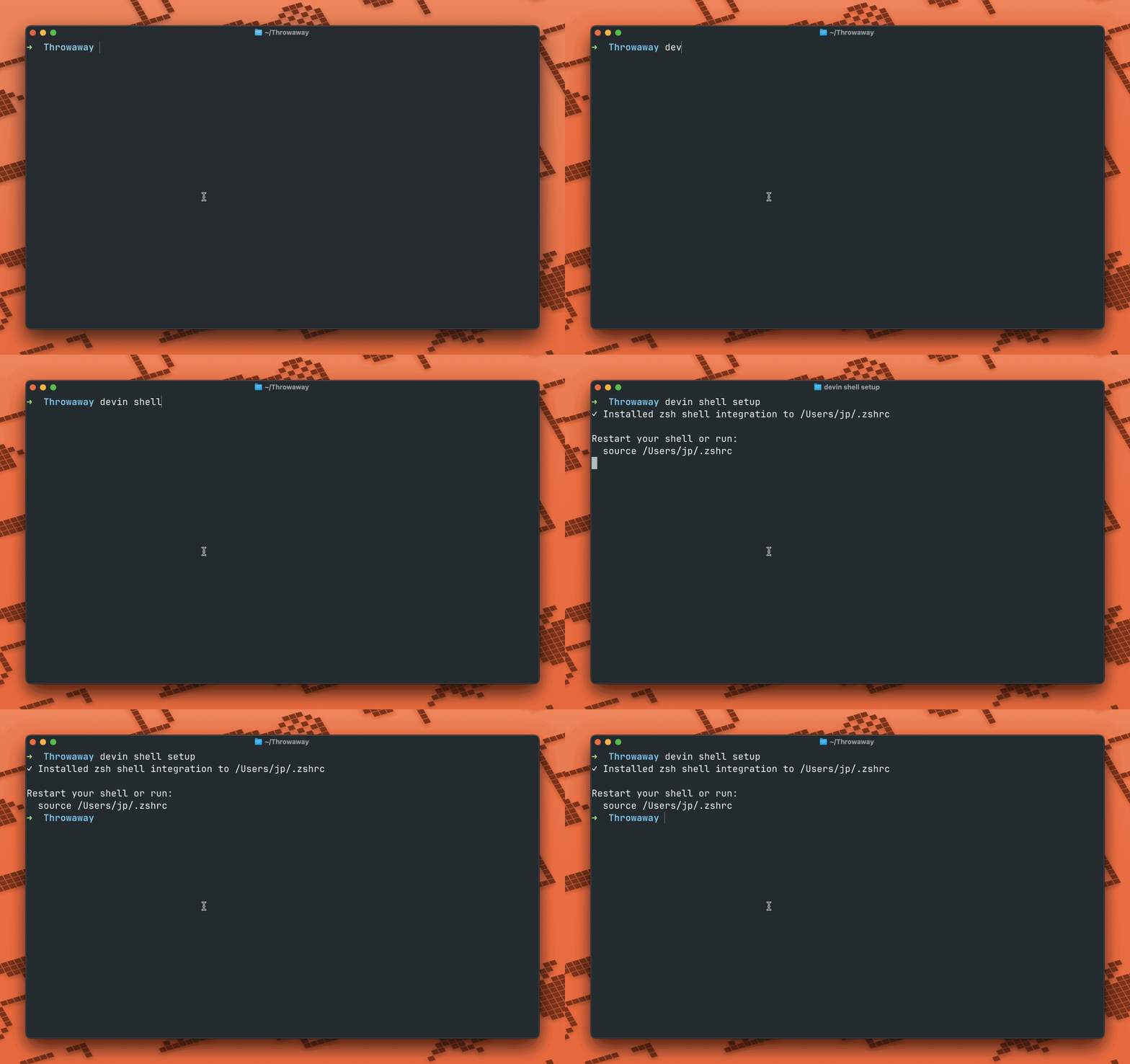
Easy as that.
Then restart your terminal or source your shell config:
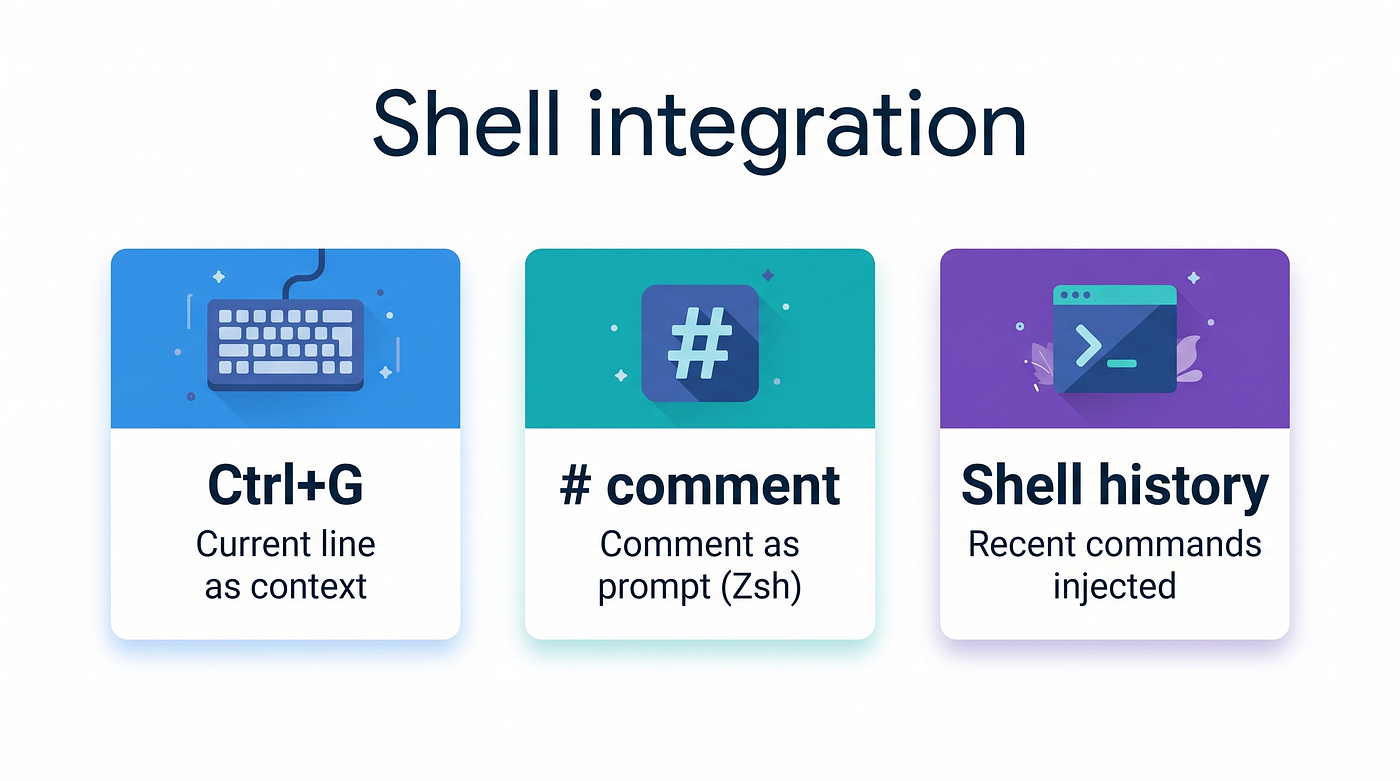
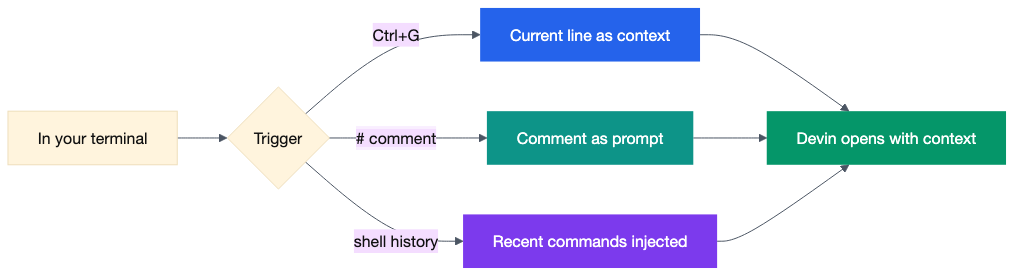
source ~/.zshrc # or ~/.bashrc, or ~/.config/fish/config.fishThree things become available after setup:
Ctrl+G opens Devin with whatever you have typed on the current line as context. Type git status, hit Ctrl+G instead of Enter, and the agent opens already knowing what you were about to run.
Comment syntax (Zsh only): type # your question here and press Enter. Devin receives the comment as its prompt. This is the lowest-friction way to ask the agent something while staying in your normal workflow.
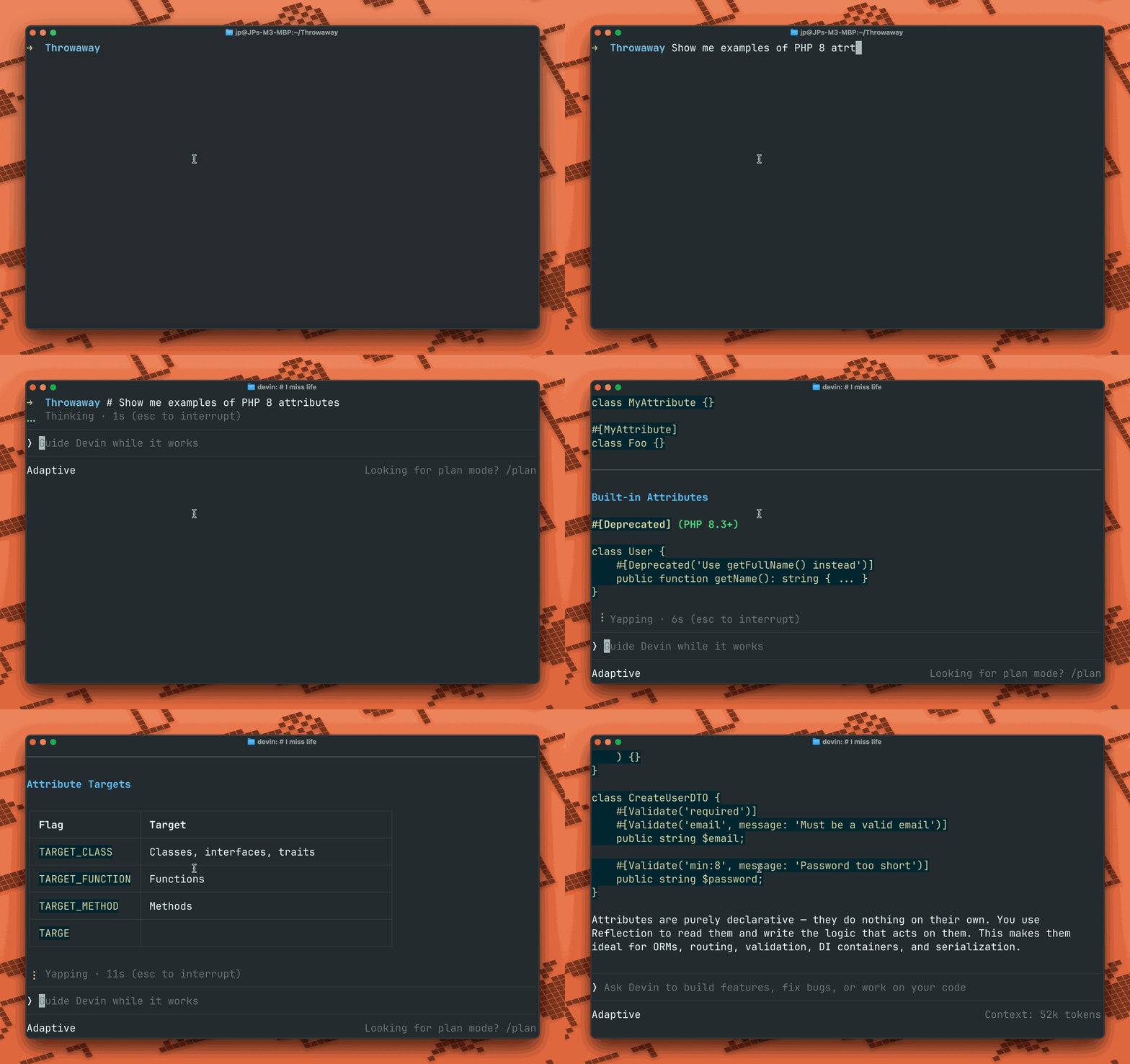
You don’t have to leave your terminal anymore.
Shell history context: when invoked via Ctrl+G or comment syntax, the agent can see your recent commands and their output. You don’t have to explain what you just tried.
The keybinding is configurable. To change it or disable comment syntax:
// ~/.config/devin/config.json
{
  "shell": {
    "keybinding_trigger": "C-g",
    "enable_comments": true
  }
}
Set keybinding_trigger to null to disable the shortcut entirely.
AGENTS.md and rules — always-on context
An AGENTS.md file at your project root is read at the start of every session and injected into the agent's context. Think of it as a persistent briefing document the agent always has open.
# My Project Rules

- Use TypeScript for all new files
- Run `npm run lint` before committing
- Use pnpm, not npm or yarn
- Write tests for all new utility functions
- Never edit migration files directly
The file is version-controlled, so your team shares the same rules. Devin CLI also reads AGENT.md and CLAUDE.md at the same level, all treated identically.
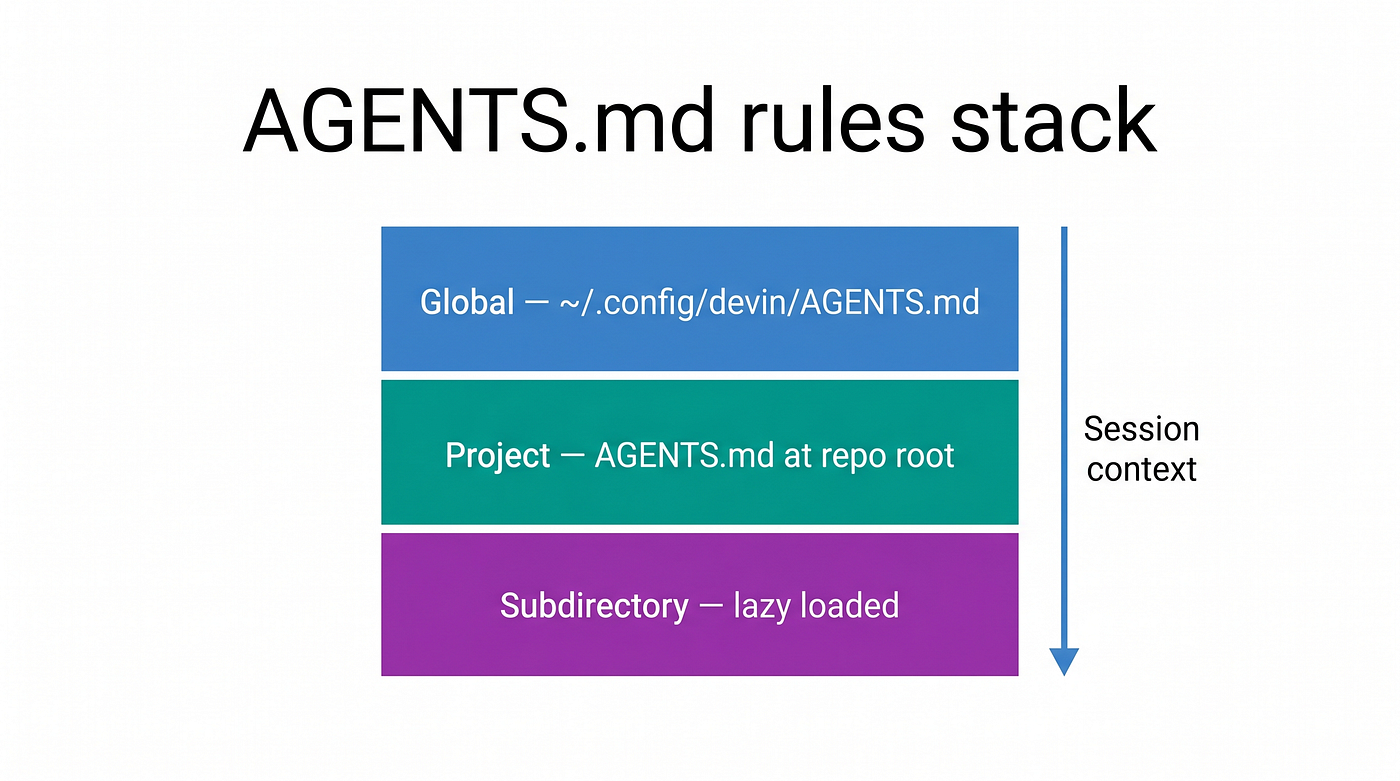
Rules stack at multiple levels:
- Project rules live at
AGENTS.mdat your repo root. - Global rules live at
~/.config/devin/AGENTS.mdand apply across all your projects. - Subdirectory rules can be placed inside directories: they are loaded lazily when the agent accesses files in that directory.
If you are moving from Cursor, Windsurf, or Claude Code, Devin CLI reads their config formats too:
{
  "read_config_from": {
    "cursor": false,
    "windsurf": true,
    "claude": true
  }
}
One tip the docs bury: keep AGENTS.md short. Long, verbose rule files dilute the agent's attention. If a rule applies to a specific workflow rather than every session, put it in a skill instead.
Skills — reusable commands you build yourself
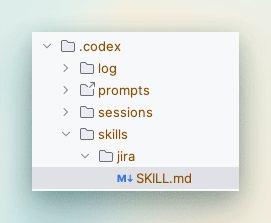
Skills are self-contained prompts stored as SKILL.md files. They can be invoked with /skill-name during a session, or triggered automatically when the agent decides they are relevant.
A minimal skill at .devin/skills/review/SKILL.md:
---
name: review
description: Review staged changes for issues
allowed-tools:
  - read
  - grep
  - glob
  - exec
permissions:
  allow:
    - Exec(git diff)
    - Exec(git log)
---

Review the current changes:

!`git diff --staged`

Check for:
1. Logic errors or edge cases
2. Security issues
3. Style inconsistencies with the rest of the codebase

Summarise findings with specific line references.
Type /review in any session to invoke it.
Frontmatter options worth knowing:
allowed-tools restricts which tools the skill can use. Omit it and the skill has access to everything. For safety-critical workflows, always restrict to the minimum needed: read, grep, glob, exec.
model overrides the model for this specific skill. Use a faster model for lightweight tasks:
model: sweUse a more capable model for anything requiring deep reasoning:
model: opus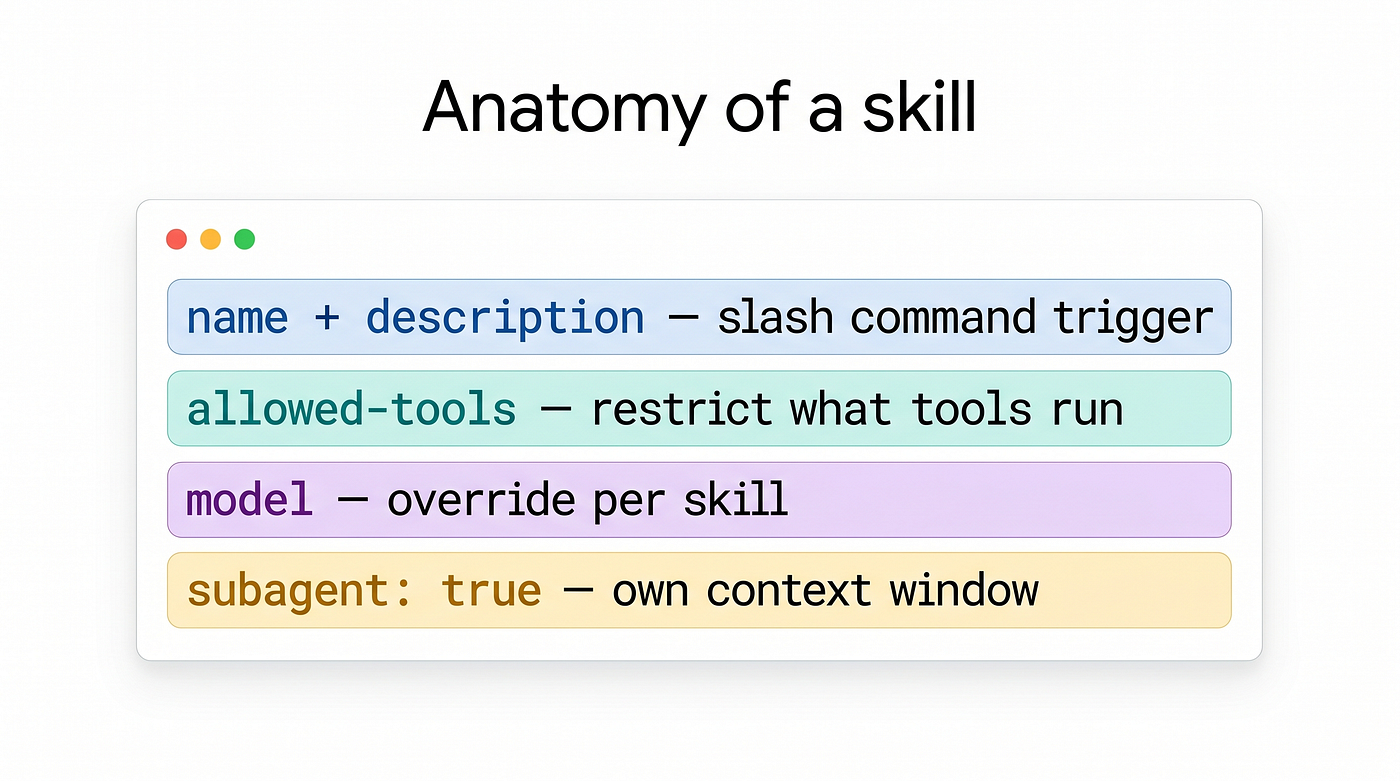
subagent: true runs the skill as an independent worker with its own context window instead of injecting it inline:
---
name: deep-research
description: Thorough codebase research on a topic
subagent: true
allowed-tools:
  - read
  - grep
  - glob
---

Research the following topic thoroughly: $ARGUMENTS

Search broadly, follow references, and trace call chains.
Report all findings with specific file paths and line numbers.
triggers controls whether the agent can invoke the skill on its own. Set triggers: [user] to prevent autonomous invocation.
Dynamic content in skill prompts:
Skills support three kinds of dynamic injection. Arguments from the slash command:
Please explain the code in $1 in detail.
All arguments as a single string: $ARGUMENTS
File inclusion (relative to the config directory):
Check the code against our style guide:
@style-guide.md
Live command output:
Review these changes:

!`git diff --staged`
Where skills live:
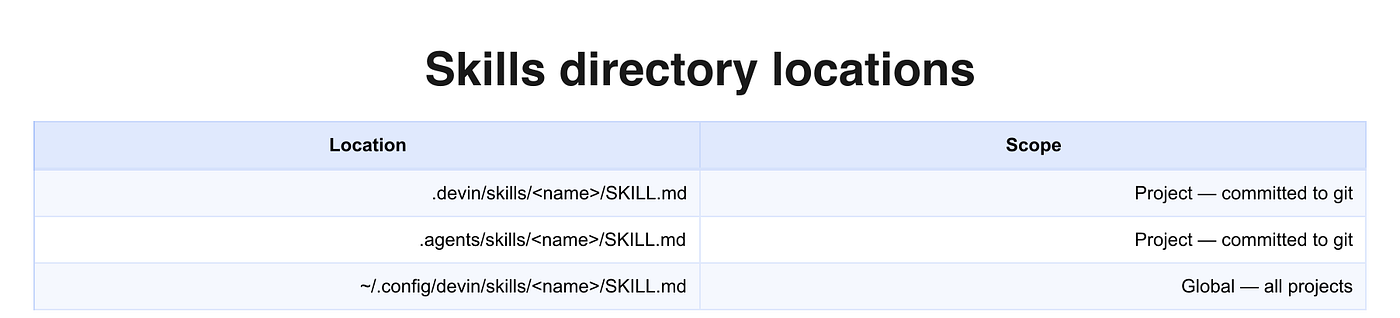
I personally store mine on .agents/skills because I sometimes work with a variety of harnesses.
The directory name is the skill identifier. A skill at .devin/skills/review/ is invoked with /review.
Hooks — the policy layer
Hooks run shell commands or LLM prompts at specific points in the agent’s lifecycle. They are the policy enforcement layer: block destructive commands, inject context before tool calls, log what the agent does, auto-approve safe operations without switching to Bypass mode.
The hook format is compatible with Claude Code hooks, so any hooks you already have written will work here.
Create .devin/hooks.v1.json at your project root. The file structure is the hook event name as the top-level key:
{
  "PreToolUse": [
    {
      "matcher": "exec",
      "hooks": [
        {
          "type": "command",
          "command": "./scripts/check-command.sh"
        }
      ]
    }
  ]
}
This runs check-command.sh before every shell command. The script receives the event data on stdin as JSON:
{
  "hook_event_name": "PreToolUse",
  "tool_name": "exec",
  "tool_input": {
    "command": "rm -rf /tmp/build"
  }
}
Exit codes control the outcome:
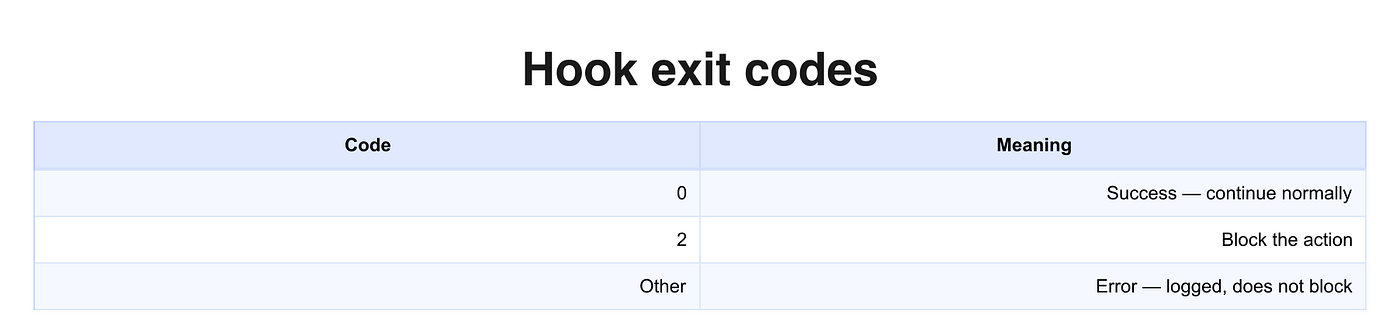
Exit code 2 is the most important number you’ll need to remember for agentic harnesses. Configured correctly, hooks prevent bad code from reaching production.
To return a reason to the agent, write JSON to stdout:
{
  "decision": "block",
  "reason": "Destructive command blocked by policy"
}
Hook events:
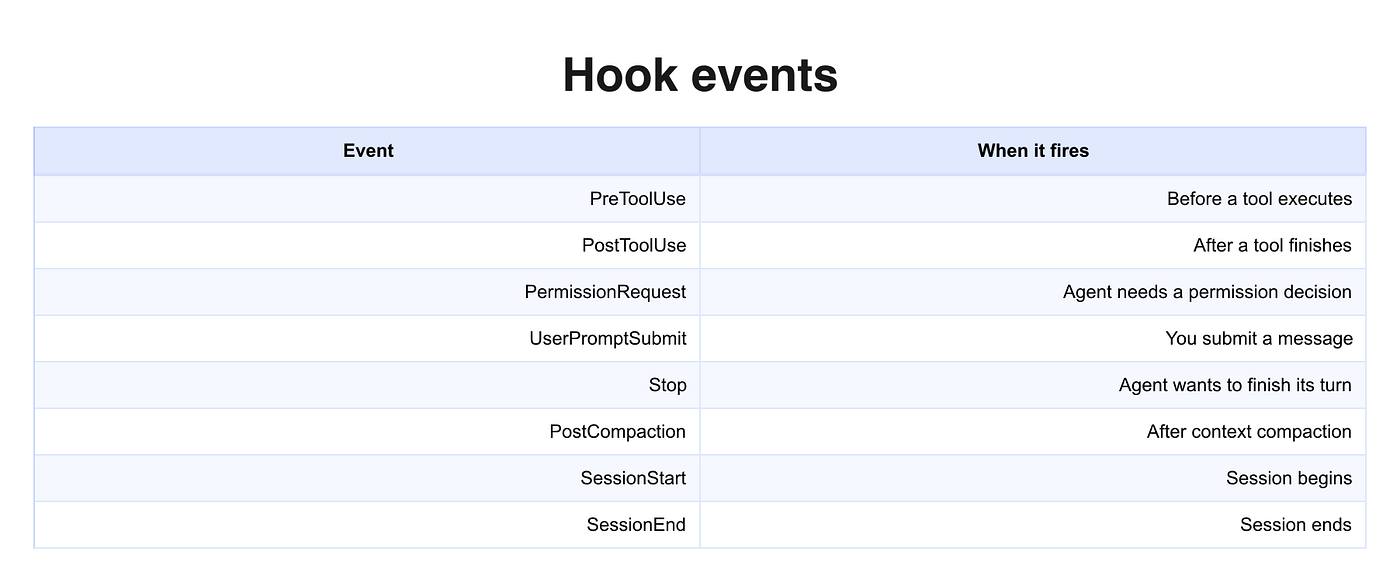
The matcher field is a regex, not a glob. "exec" matches any tool name containing "exec". "^exec$" matches only the exact exec tool. For MCP tools, use "^mcp__github__.*" to match all tools on the github server.
Practical hook examples:
Block rm -rf in one line:
{
  "PreToolUse": [
    {
      "matcher": "exec",
      "hooks": [
        {
          "type": "command",
          "command": "python3 -c \"import sys, json; data = json.load(sys.stdin); cmd = data.get('tool_input', {}).get('command', ''); sys.exit(2 if 'rm -rf' in cmd else 0)\""
        }
      ]
    }
  ]
}
Auto-approve git commands via PermissionRequest:
{
  "PermissionRequest": [
    {
      "matcher": "exec",
      "hooks": [
        {
          "type": "command",
          "command": "python3 -c \"import sys, json; data = json.load(sys.stdin); cmd = data.get('tool_input', {}).get('command', ''); print(json.dumps({'decision': 'approve'})) if cmd.startswith('git ') else sys.exit(0)\""
        }
      ]
    }
  ]
}
Remind the agent to run tests before stopping:
{
  "Stop": [
    {
      "matcher": "",
      "hooks": [
        {
          "type": "command",
          "command": "echo '{\"decision\": \"block\", \"reason\": \"Please run the test suite before stopping.\"}'"
        }
      ]
    }
  ]
}
Be careful with Stop hooks that always block. If the condition is never satisfied, the agent loops. (This causes token wastage and unnecessary costs.)
Prompt-type hooks pass the event data to an LLM and use its decision. Useful when the logic is too contextual for a script:
{
  "PreToolUse": [
    {
      "matcher": "exec",
      "hooks": [
        {
          "type": "prompt",
          "prompt": "The agent wants to run: {{tool_input.command}}. Is this safe for a production environment? Respond with {\"decision\": \"approve\"} or {\"decision\": \"block\", \"reason\": \"...\"}."
        }
      ]
    }
  ]
}
Where hooks are loaded from:
.devin/hooks.v1.json(recommended standalone file)- The
"hooks"key in.devin/config.jsonor.devin/config.local.json ~/.config/devin/config.jsonfor global hooks.claude/settings.jsonand related paths (imported whenread_config_from.claudeis enabled)
Hooks from multiple sources all run. They don’t override each other.
Use /hooks inside a session to see every loaded hook, its source file, and its event type.
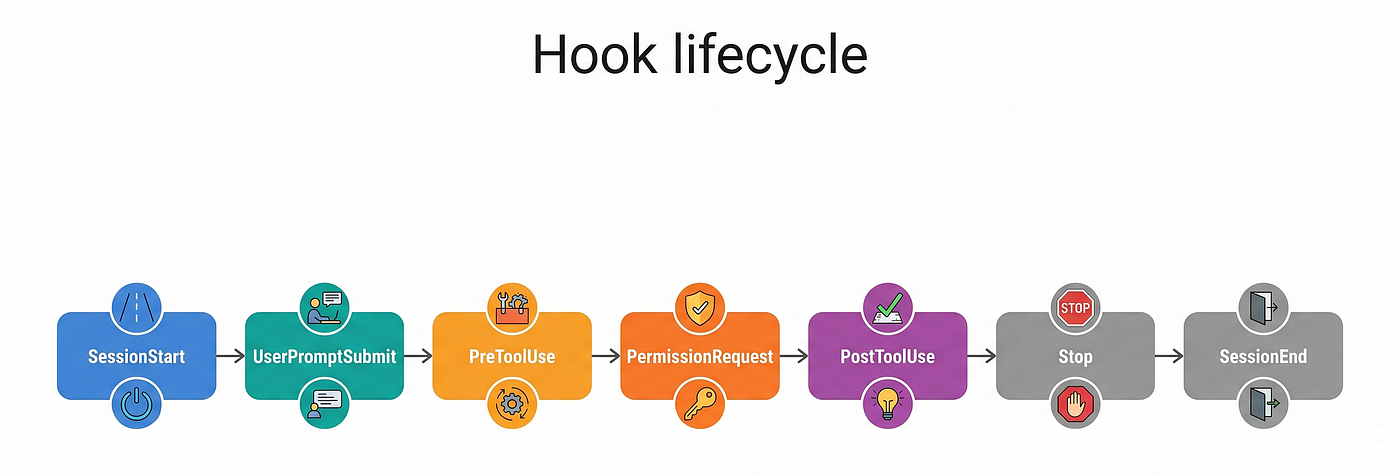
A hook for all occasions.
MCP servers — connecting real tooling
MCP (Model Context Protocol) lets you connect external tool servers. When you add an MCP server, its tools become available to the agent just like built-in tools, named as mcp__<server>__<tool>. A GitHub server with a create_issue tool appears as mcp__github__create_issue.
Adding servers via the command line:
# GitHub OAuth
devin mcp add github https://api.githubcopilot.com/mcp/

# HTTP server
devin mcp add notion https://mcp.notion.com/mcp

# Scoped to the project so teammates share it
devin mcp add -s project sentry https://mcp.sentry.dev/mcp
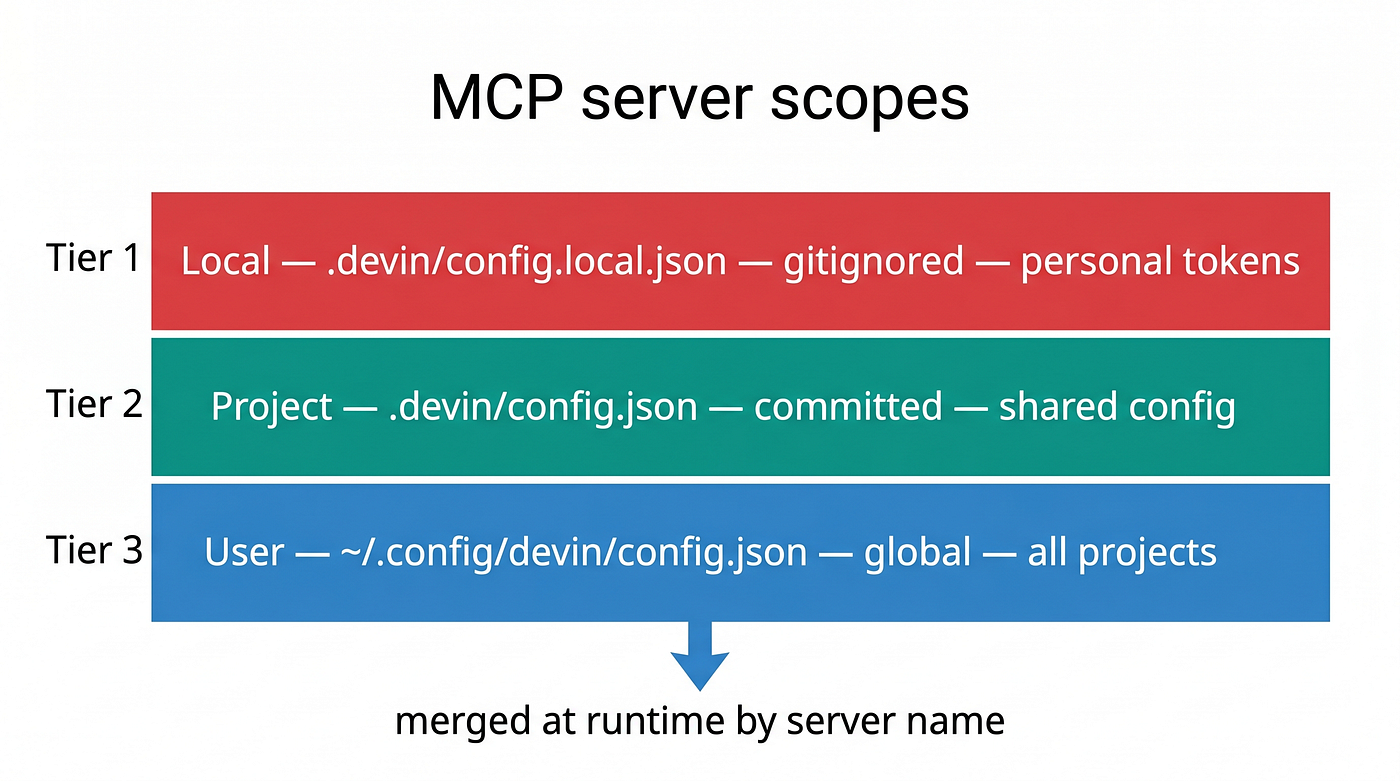
By default, devin mcp add saves to local scope (.devin/config.local.json, gitignored). Use -s project to commit the server to the shared .devin/config.json, and -s user to add it globally across all your projects.
Adding servers via the config file:
// .devin/config.json
{
  "mcpServers": {
    "github": {
      "url": "https://api.githubcopilot.com/mcp/"
    }
  }
}
For API keys that shouldn’t be committed, split the config: define the server in .devin/config.json, then add the secret in .devin/config.local.json:
// .devin/config.local.json
{
  "mcpServers": {
    "myMcpServer": {
      "env": { "MY_TOKEN": "my_personal_token" }
    }
  }
}
The local file is automatically gitignored and the configs merge by name.
OAuth-based remote servers (Notion, Linear, Atlassian) require authentication after adding:
devin mcp add linear https://mcp.linear.app/mcp
devin mcp login linear
devin mcp login opens a browser window for the OAuth flow. Tokens are stored locally and refreshed automatically. Each tool (Windsurf, Claude Code, Devin CLI) authenticates independently. A token from one does not carry over to another.
Controlling which MCP tools the agent can use:
{
  "permissions": {
    "allow": [
      "mcp__github__list_issues",
      "mcp__github__create_issue"
    ],
    "deny": [
      "mcp__github__delete_repo"
    ],
    "ask": [
      "mcp__linear__*"
    ]
  }
}
The pattern mcp__server__* matches all tools on a server. mcp__* matches every MCP tool. The permission system honours the same precedence as built-in tools: deny beats ask beats allow.
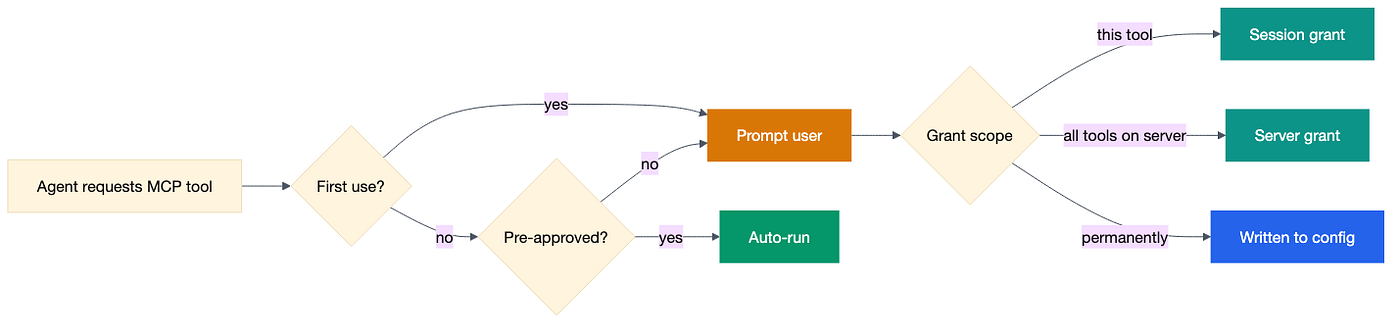
When prompted for an MCP tool during a session, you can choose to allow just that tool or all tools on the server, either for the session only or permanently. This is the fastest way to set up a trusted server without writing config by hand.
Subagents — delegating focused work
The agent can spawn independent workers called subagents. Each subagent has its own context window and does not inherit the parent conversation. You can ask for one explicitly (“research how the auth layer works in a subagent”) or let the agent decide when the task would benefit from independent focus.
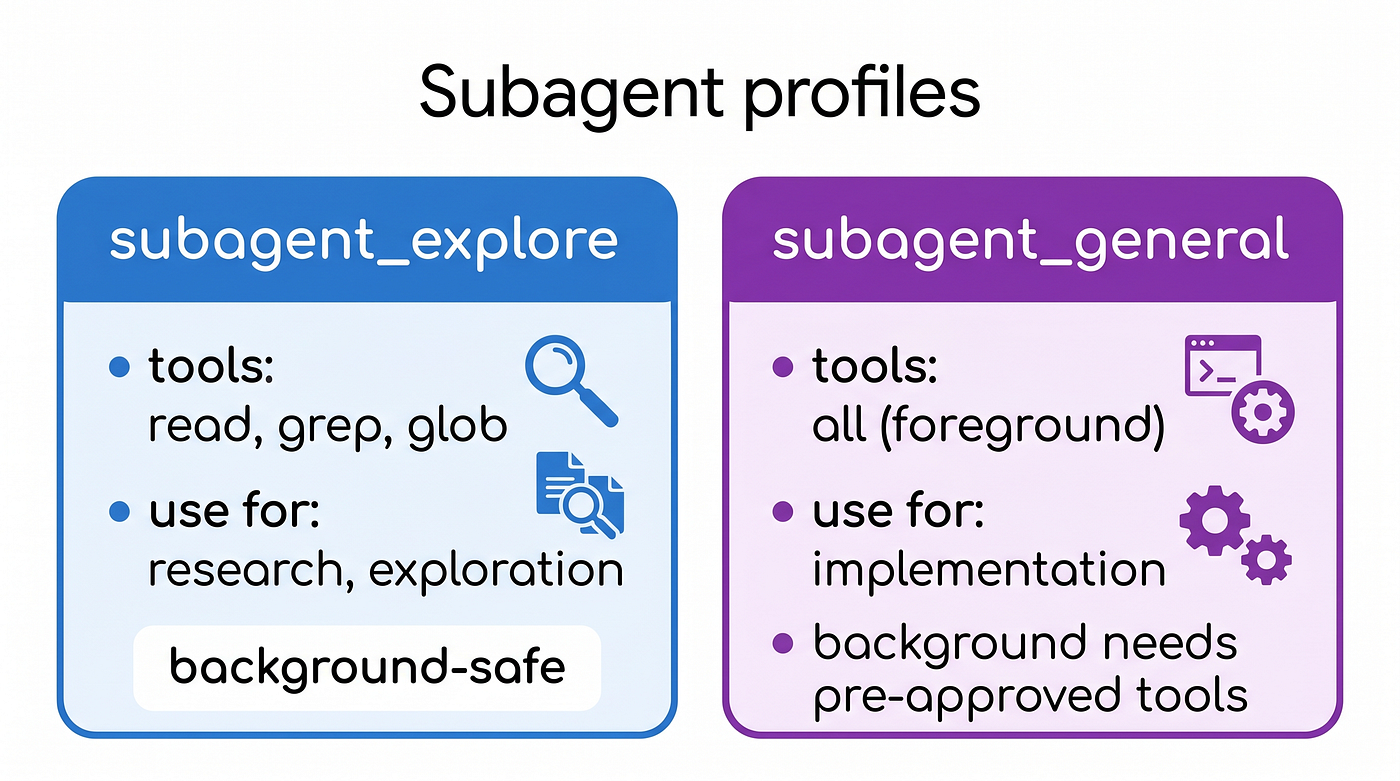
Two built-in profiles:
subagent_explore is read-only. It gets grep, glob, read, and web search. It cannot edit files regardless of whether it runs in the foreground or background. Use it for research, architecture questions, and codebase exploration.
subagent_general gets full tool access when running in the foreground. In the background, it inherits only the permissions you have already granted in the current session. Use it for bounded implementation tasks.
Foreground vs background:
A foreground subagent runs inline. The parent pauses, you see the spinner, and you can approve tool calls as usual. Press Ctrl+B to push it to the background. The subagent keeps working, the parent agent resumes.
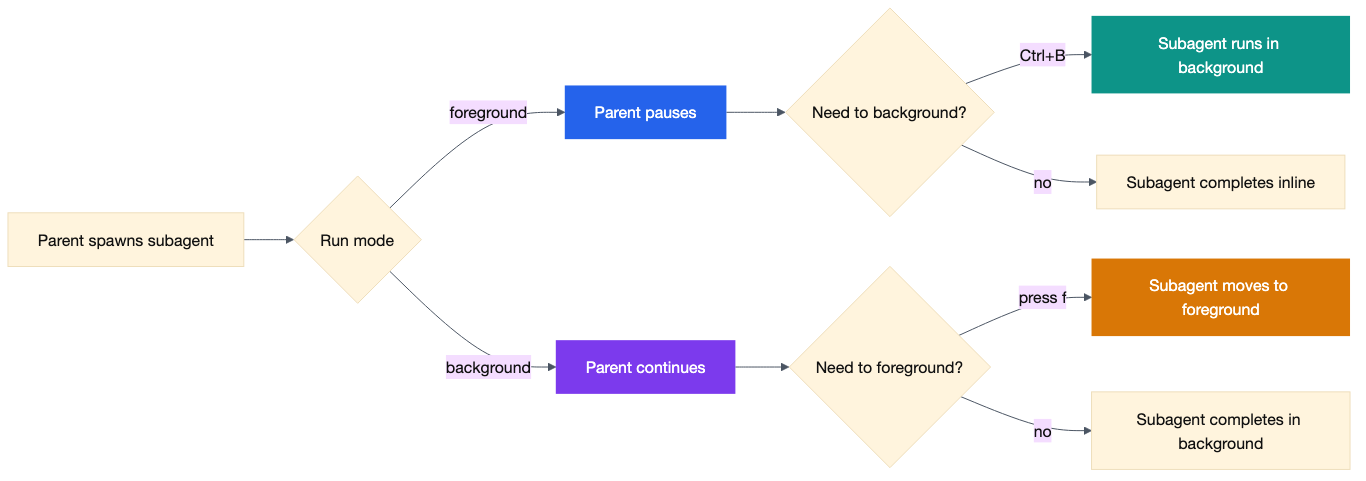
A background subagent runs in parallel. The parent continues while it works. Any tool call that wasn’t pre-approved is automatically denied. Open the subagent panel with the down arrow from the input area, then press f on a running background subagent to bring it to the foreground if you need to grant it new permissions.
Custom subagent profiles:
Define specialised workers at .devin/agents/<name>/AGENT.md:
---
name: reviewer
description: Reviews code changes for correctness and style
model: sonnet
allowed-tools:
  - read
  - grep
  - glob
  - exec
permissions:
  allow:
    - Exec(git diff)
    - Exec(git log)
  deny:
    - write
    - edit
---

You are a code review subagent. Review code changes thoroughly and report findings back to the parent agent.

Focus on:
1. Correctness: logic errors, edge cases, off-by-one mistakes
2. Security: potential vulnerabilities
3. Style: consistency with the rest of the codebase

Always cite specific file paths and line numbers in your findings.
Ask the agent to use it by name: “review this PR using the reviewer subagent.”
Custom subagents can also be imported from Claude Code’s .claude/agents/*.md format. Both tools and allowed-tools in frontmatter are supported.
By default, only the root agent can spawn subagents. If you need deeper nesting for an orchestration workflow, add max-nesting: 3 (or whatever depth you need) to the AGENT.md frontmatter. Use it deliberately, since each nesting level adds cost.
Power moves: the setup that holds up over time
Here is a reference configuration that combines everything above into a starting point for a development project.
**.devin/config.json** (team-shared, committed to git):
{
  "permissions": {
    "allow": [
      "Read(**)",
      "Exec(git)",
      "Exec(npm run)",
      "Exec(node)",
      "Exec(npx)"
    ],
    "deny": [
      "Exec(rm -rf)",
      "Exec(sudo)"
    ],
    "ask": [
      "Write(.env*)",
      "Write(*.lock)"
    ]
  },
  "mcpServers": {
    "github": {
      "url": "https://api.githubcopilot.com/mcp/"
    }
  }
}**.devin/config.local.json** (personal overrides, gitignored):
{
  "mcpServers": {
    "myMcpServer": {
      "env": { "MY_TOKEN": "my_personal_token" }
    }
  }
}**.devin/hooks.v1.json** (policy enforcement):
{
  "PreToolUse": [
    {
      "matcher": "exec",
      "hooks": [
        {
          "type": "command",
          "command": "python3 -c \"import sys, json; d = json.load(sys.stdin); cmd = d.get('tool_input', {}).get('command', ''); sys.exit(2 if any(p in cmd for p in ['rm -rf', 'DROP TABLE', 'git push --force']) else 0)\""
        }
      ]
    }
  ],
  "PostToolUse": [
    {
      "matcher": "exec",
      "hooks": [
        {
          "type": "command",
          "command": "sh -c 'cat >> ~/.devin-command-log'"
        }
      ]
    }
  ]
}**~/.config/devin/AGENTS.md** (global rules across all your projects):
# My global rules

- Always write commit messages in conventional commit format
- Prefer functional patterns over imperative code
- Run tests before suggesting a task is complete
- Use NZ English in all user-facing copyModel selection: try swe (fast and cheap for straightforward edits), opus (heavy reasoning and multi-file refactors), and gpt (a different architectural perspective for when the other two disagree with you). Short names like opus, sonnet, swe, and codex always resolve to the latest version in that family.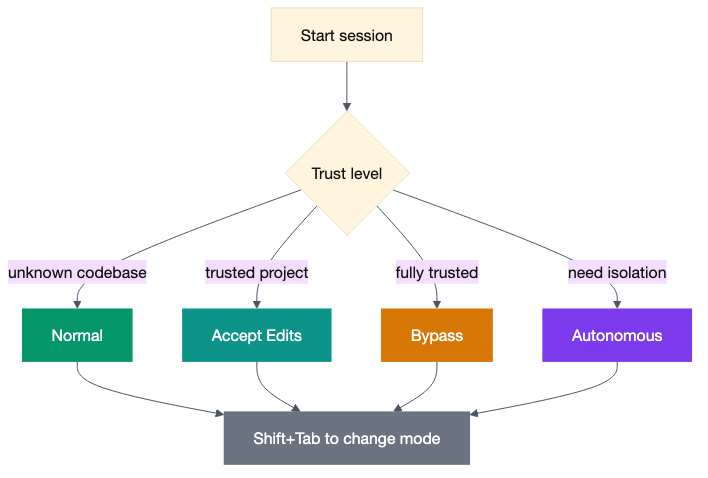
Switch mid-session with /model opus or bind a default in your user config:
// ~/.config/devin/config.json
{
  "agent": {
    "model": "sonnet"
  }
}
Useful keyboard shortcuts to internalise:
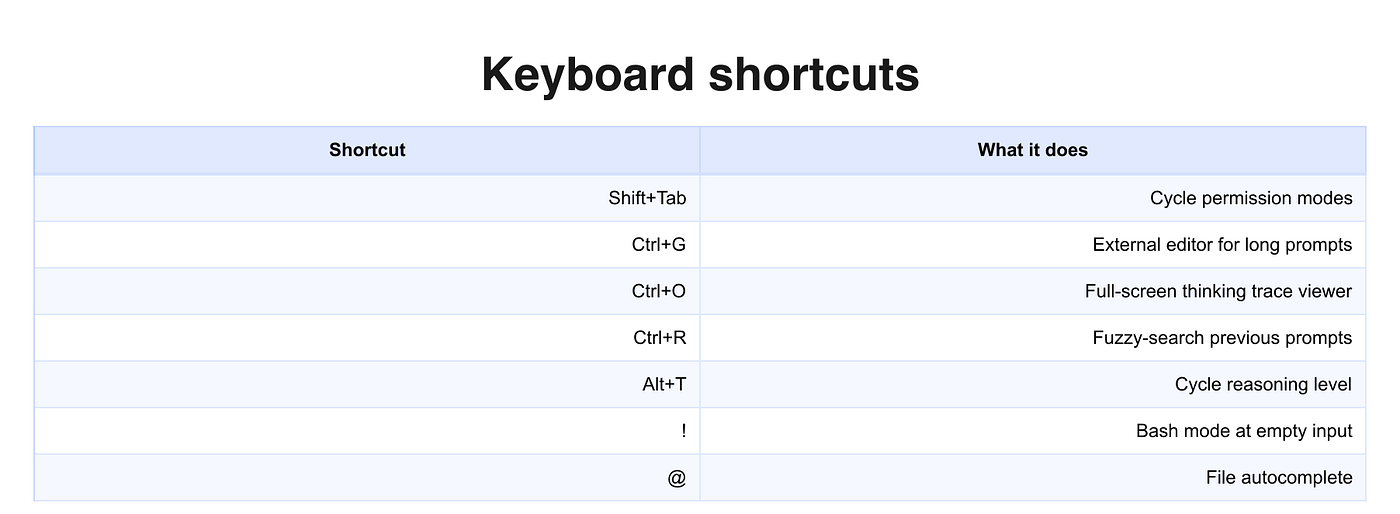
Honestly, these shortcuts are similar to what other harnesses already have, e.g. fuzzy search.
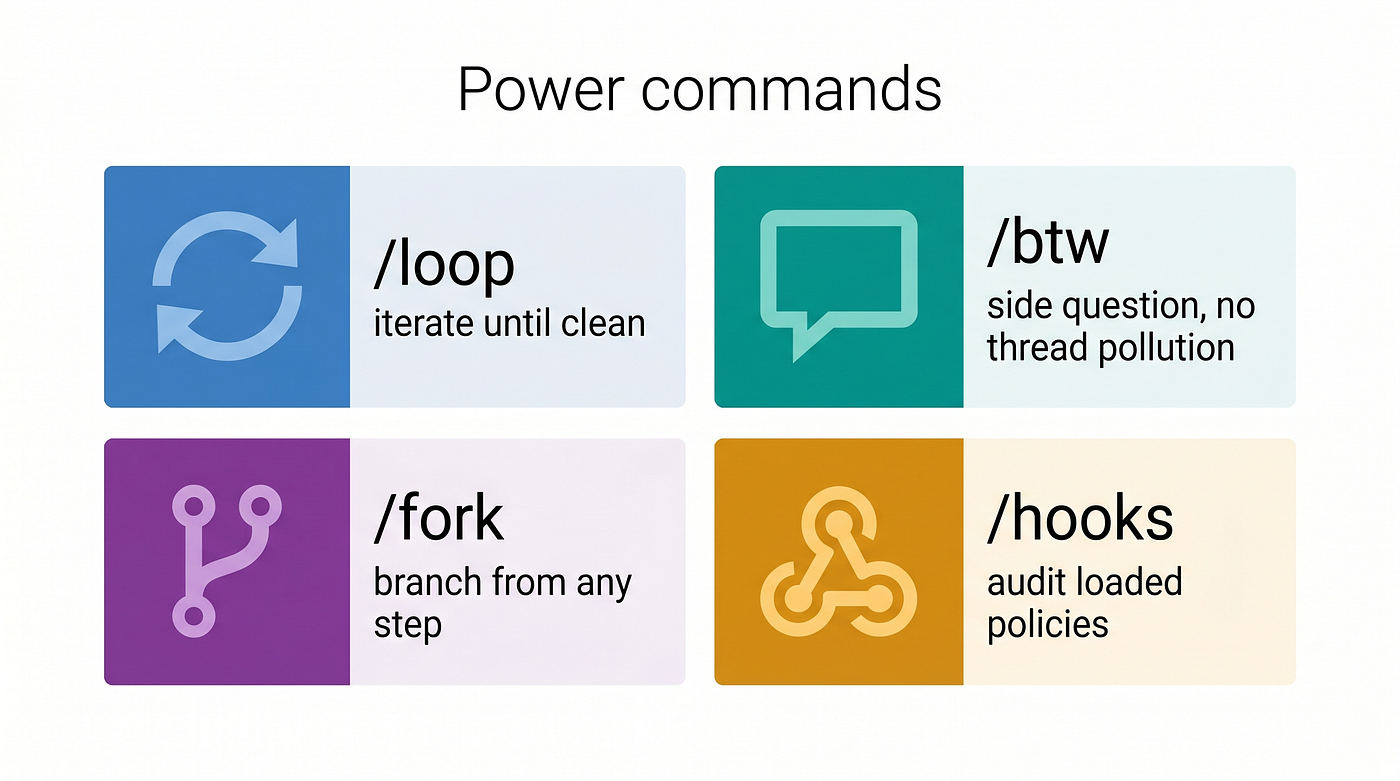
The /loop command deserves its own mention. Give it a prompt and it runs the task, then auto-reviews the diff, then loops. It requires a clean git state to start. Useful for lint-fix or test-fix cycles where you want the agent to keep iterating without you sitting there approving each step.
The /btw command runs a side question against the current conversation context and prints the answer in a box, without adding the question or the answer to the main conversation thread. Ask about a function signature, check a library version, or confirm a design decision without derailing the active task.
The /fork command creates a branch of the current session from any step in the conversation. If the agent took a wrong turn and you want to try a different approach from the same starting point, /steps shows the conversation steps, then /fork 12 forks from step 12. The original session is untouched.
Keep exploring Devin CLI’s capabilities
Try it in your own project:
- Create
.devin/config.jsonwith permissions that reflect how you work day to day. - Add an
AGENTS.mdwith three to five project-specific rules that would save the agent from asking you questions it should already know the answer to. - Write one skill for a workflow you run more than once a week: a code review, a component scaffold, a migration checker.
- Add a
PreToolUsehook that blocks at least one command you never want the agent running unattended.
Dig deeper:
- Devin CLI documentation, the official reference, now with better context for why each option exists
- The
/hooksslash command shows every loaded hook during a session, useful for debugging why a hook is or is not firing devin skills listanddevin rules listgive you an inventory of what the agent is currently loaded with
The configuration precedence order to keep in your head:
Organisation settings > session grants > project local > project config > user config
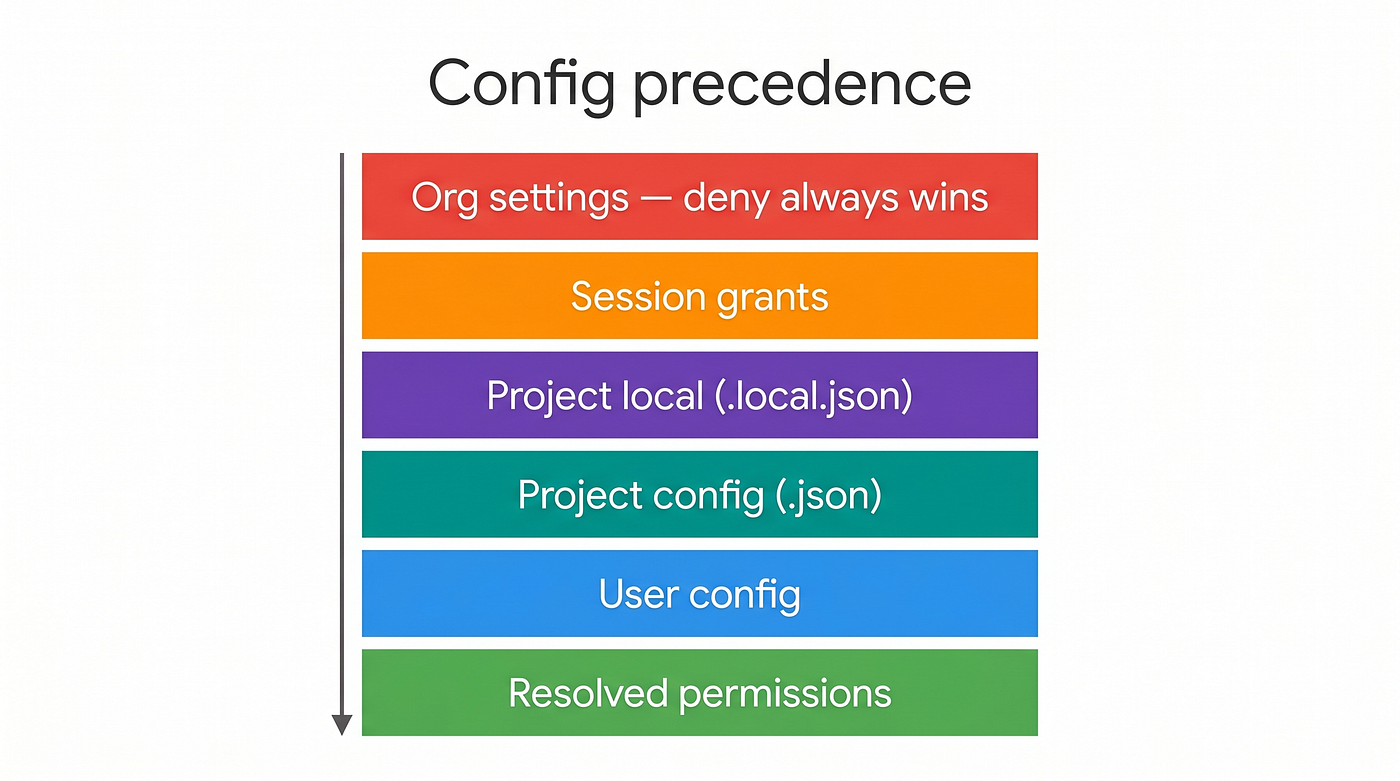
A deny at a higher level cannot be overridden at a lower level. If an enterprise admin has blocked a tool, no project config will turn it back on.
The agent gets more useful the more of this you fill in. The defaults are a starting point. The rest is yours to build.
If you work with AI coding tools daily, I write about the configuration patterns that make them genuinely reliable — subscribe to catch the next one.
메타데이터
- post_id
- 3487abea6596
- slug
- devin-cli-beyond-the-defaults-3487abea6596
- url
- https://ai.sulat.com/devin-cli-beyond-the-defaults-3487abea6596
- canonical_url
- https://ai.sulat.com/devin-cli-beyond-the-defaults-3487abea6596
- author_url
- https://medium.com/@jpcaparas
- status
- ok
- fetched_at
- 2026-06-17 08:20:12