Jetpack Compose Fundamentals: Understanding Text, Image, Button, TextField, and State Management
If you’re starting your Android development journey with Jetpack Compose, understanding composables and state management is the first major…
Jetpack Compose Fundamentals: Understanding Text, Image, Button, TextField, and State Management
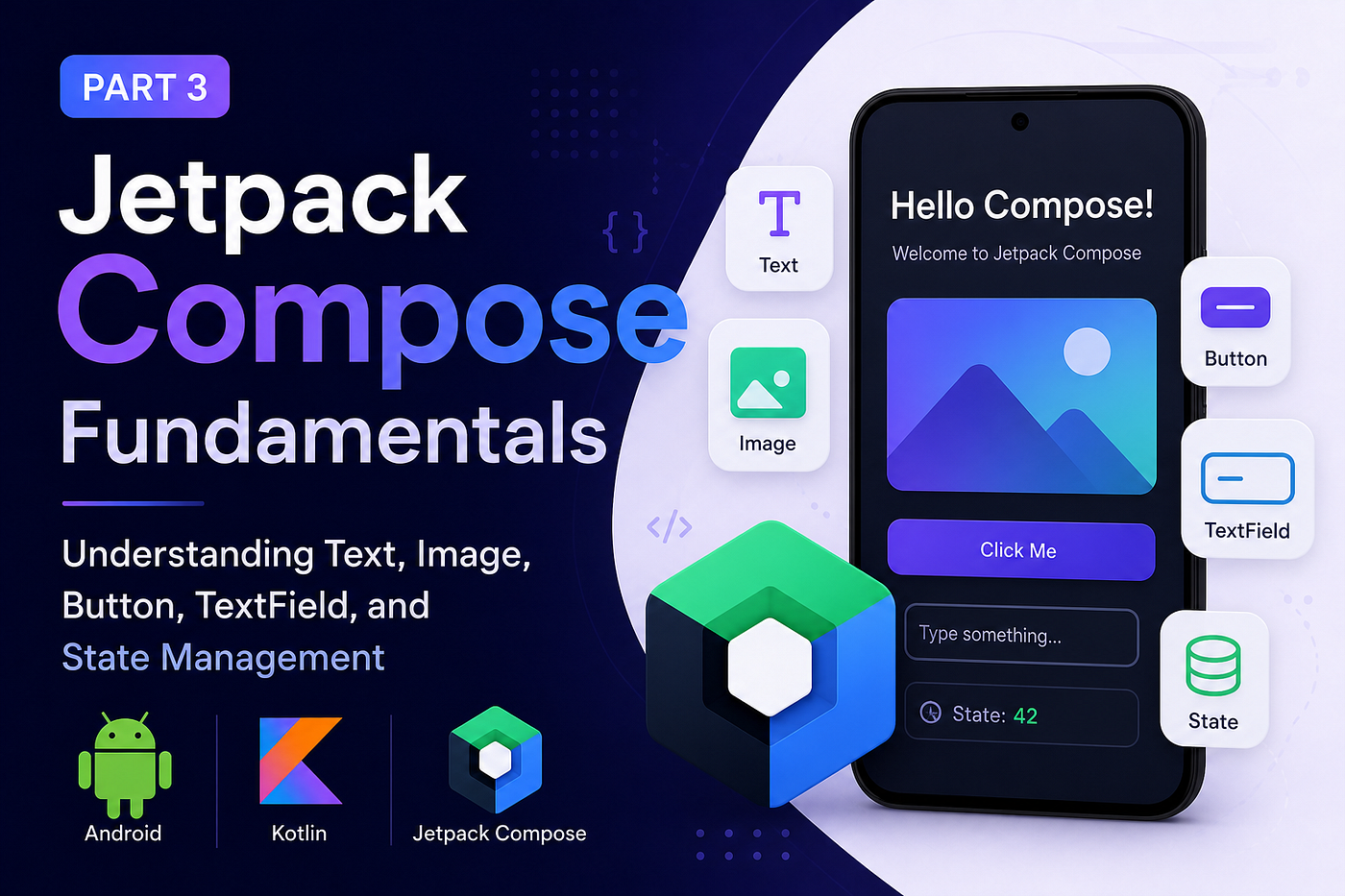
If you’re starting your Android development journey with Jetpack Compose, understanding composables and state management is the first major milestone. In this article, we’ll explore the most commonly used UI components and learn how Compose updates the UI automatically using state.
Why Jetpack Compose?
Jetpack Compose is Android’s modern UI toolkit that simplifies UI development by allowing developers to build interfaces using Kotlin functions instead of XML.
Unlike the traditional View system, Compose follows a declarative UI approach:
Describe what your UI should look like based on the current state, and Compose takes care of updating it automatically.
This significantly reduces boilerplate code and makes UI development faster, cleaner, and easier to maintain.
1. The Text Composable
The Text() composable is one of the most fundamental UI elements in Jetpack Compose. It is used to display text on the screen and offers a wide range of customization options.
Example:
Text(
    text = "Hello Developer"
)
Common Customization Options
You can easily style your text using parameters such as:
fontStylefontWeightcolorfontSizetextAlignmaxLinesfontFamily
Example:
Text(
    text = "Hello Developer",
    color = Color.Red,
    fontSize = 24.sp,
    fontWeight = FontWeight.Bold,
    fontStyle = FontStyle.Italic,
    textAlign = TextAlign.Center
)
DP vs SP
One common question beginners have is:
When should we use dp and when should we use sp?
Use:
- dp → Width, Height, Padding, Margin
- sp → Font Size
Using sp ensures text scales properly according to the user's accessibility settings.
2. Displaying Images
Images are displayed using the Image() composable.
Basic example:
Image(
    painter = painterResource(id = R.drawable.profile),
    contentDescription = "Profile Image"
)
The contentDescription is important because it improves accessibility for screen readers.
Useful Parameters
Compose also allows you to customize images using:
contentScalecolorFilteralignmentalpha
Example:
Image(
    painter = painterResource(R.drawable.logo),
    contentDescription = "Logo",
    contentScale = ContentScale.Crop,
    colorFilter = ColorFilter.tint(Color.Blue)
)
For loading images from URLs, developers typically use libraries such as Coil or Glide, which integrates seamlessly with Compose.
3. Working with Buttons
Buttons are interactive UI components used to trigger actions.
Basic example:
Button(
    onClick = {
        // Action
    }
) {
    Text("Submit")
}
Notice something interesting?
The content inside a Button isn’t limited to text.
You can compose multiple UI elements together.
Example:
Button(onClick = {}) {

    Icon(
        imageVector = Icons.Default.Email,
        contentDescription = null
    )

    Spacer(modifier = Modifier.width(8.dp))

    Text("Send")
}
This flexibility is one of the biggest strengths of Jetpack Compose.
Customizing Buttons
Compose provides several customization options:
Button(
    onClick = {},
    enabled = true,
    colors = ButtonDefaults.buttonColors(
        containerColor = Color.Black,
        contentColor = Color.White
    )
)
You can also customize:
- Border
- Shape
- Elevation
- Padding
without writing complex XML drawables.
4. TextField: Taking User Input
A TextField allows users to enter text.
Basic example:
TextField(
    value = "",
    onValueChange = {}
)
However, this doesn’t work as expected.
If you run this code, the text field won’t allow typing because its value never changes.
Understanding State
This is where Compose introduces one of its most important concepts:
State drives the UI.
Instead of manually updating the UI, Compose observes the state.
Whenever the state changes, the UI updates automatically.
Imagine this flow:
User Action
      ↓
State Changes
      ↓
Compose Recomposition
      ↓
Updated UI
This is the foundation of declarative UI programming.
Creating Mutable State
Here’s the correct way to create a working TextField.
var text by remember {
    mutableStateOf("")
}
TextField(
value = text,
onValueChange = {
text = it
}
)Now every time the user types:
onValueChangeis called.- State gets updated.
- Compose recomposes the UI.
- The new text appears automatically.
Notice that we never update the TextField directly.
We only update the state.
What is Recomposition?
Recomposition is one of the core concepts in Jetpack Compose.
Whenever a state value changes, Compose reruns only the composable functions affected by that state.
For example:
Text(
    text = username
)
If username changes:
username = "John"Compose doesn’t redraw the whole screen.
Instead, it intelligently updates only the UI that depends on username.
This makes Compose highly efficient.
Why Do We Need remember?
You may wonder:
Why can’t we simply write?
var text = mutableStateOf("")The reason is that composable functions can be called many times during recomposition.
Without remember, the state would be recreated every time, causing the user's input to reset.
remember stores the state across recompositions.
var text by remember {
    mutableStateOf("")
}
Now the value survives recomposition while the composable remains in the composition.
Think of it as Compose saying:
“I know this function is being called again, but don’t recreate this value. Reuse the existing one.”
The Compose Data Flow
Jetpack Compose follows a predictable data flow:
State
   ↓
Composable Functions
   ↓
UI
   ↓
User Interaction
   ↓
State Update
   ↓
Recomposition
This unidirectional data flow makes applications easier to debug, test, and maintain.
Key Takeaways
- Jetpack Compose uses a declarative UI approach.
Text,Image,Button, andTextFieldare fundamental composables.- Use sp for text size and dp for layouts and spacing.
- UI should always be driven by state.
mutableStateOf()creates observable state.rememberpreserves state during recomposition.- Compose automatically updates only the affected UI through recomposition.
- Focus on updating your application’s state instead of manipulating UI elements directly.
Conclusion
Jetpack Compose shifts Android development from manually managing views to simply describing your UI based on state. Once you understand concepts like State, remember, and Recomposition, building complex interfaces becomes significantly easier.
Mastering these fundamentals will prepare you for more advanced topics such as State Hoisting, ViewModel integration, Side Effects, Lazy Lists, Navigation, and Material 3, enabling you to build scalable and modern Android applications with confidence.
🚀 Jetpack Compose Mastery Series
This article is part of my Jetpack Compose Mastery Series, where I explain Jetpack Compose concepts from beginner to advanced with practical examples and clean code.
👉 Follow the complete series here: Jetpack Compose Mastery Series
💬 If this article helped you, consider following me on Medium so you don’t miss upcoming parts. Every article is designed to make Jetpack Compose easier to understand through real-world examples and visual explanations.
메타데이터
- post_id
- 36ad5f4ab92e
- slug
- jetpack-compose-fundamentals-understanding-text-image-button-textfield-and-state-management-36ad5f4ab92e
- url
- https://medium.com/@vaibhavi.rana99/jetpack-compose-fundamentals-understanding-text-image-button-textfield-and-state-management-36ad5f4ab92e
- canonical_url
- https://medium.com/@vaibhavi.rana99/jetpack-compose-fundamentals-understanding-text-image-button-textfield-and-state-management-36ad5f4ab92e
- author_url
- https://medium.com/@vaibhavi.rana99
- status
- ok
- fetched_at
- 2026-08-21 04:22:37