ChatGPT Mac App: A Fair Dinkum Review
Step-by-step installation guide, the good, the bad and the ugly.
ChatGPT | ChatGPT Mac App
ChatGPT Mac App: A Fair Dinkum Review
Step-by-step installation guide, the good, the bad and the ugly.

Image credit: Photo by the Author
As a regular ChatGPT user, I’m always keeping an eye on the profile menu for any new updates or features. This morning, I got a shiny new option: “Download the macOS app.” You bet I downloaded it straight away, with a wee bit of excitement, I must say.
The ChatGPT Mac App is only available to selected paid users at this moment, just in case you don’t see this option available.
Here is the step-by-step installation guide for you, what I liked, and what I didn’t like. And, will I use the Mac version or the Web version moving forward? I’ll let you guess for now.
By the way, in case you didn’t know, “fair dinkum” is Australian slang that means genuine, true, and honest :).
Step-by-Step Installation Guide (if the option is available for you)
Open the ChatGPT window in your web browser (as a logged-in user), and click on your profile icon in the top right corner.
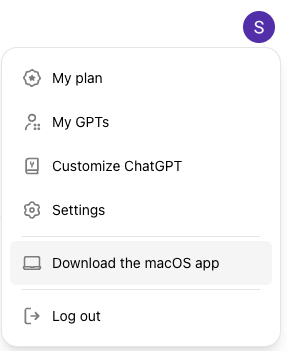
Image credit: Screenshot by the Author
From the dropdown menu, click “Download the macOS app”.
It’ll download the “ChatGPT_Desktop_public_latest.dmg” on your Mac (for me, it was in the Downloads folder).
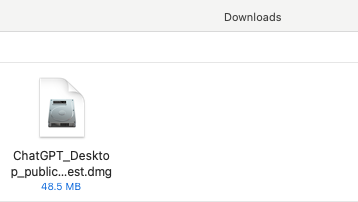
Image credit: Screenshot by the Author
Double-click on the downloaded file to start the ChatGPT installer.
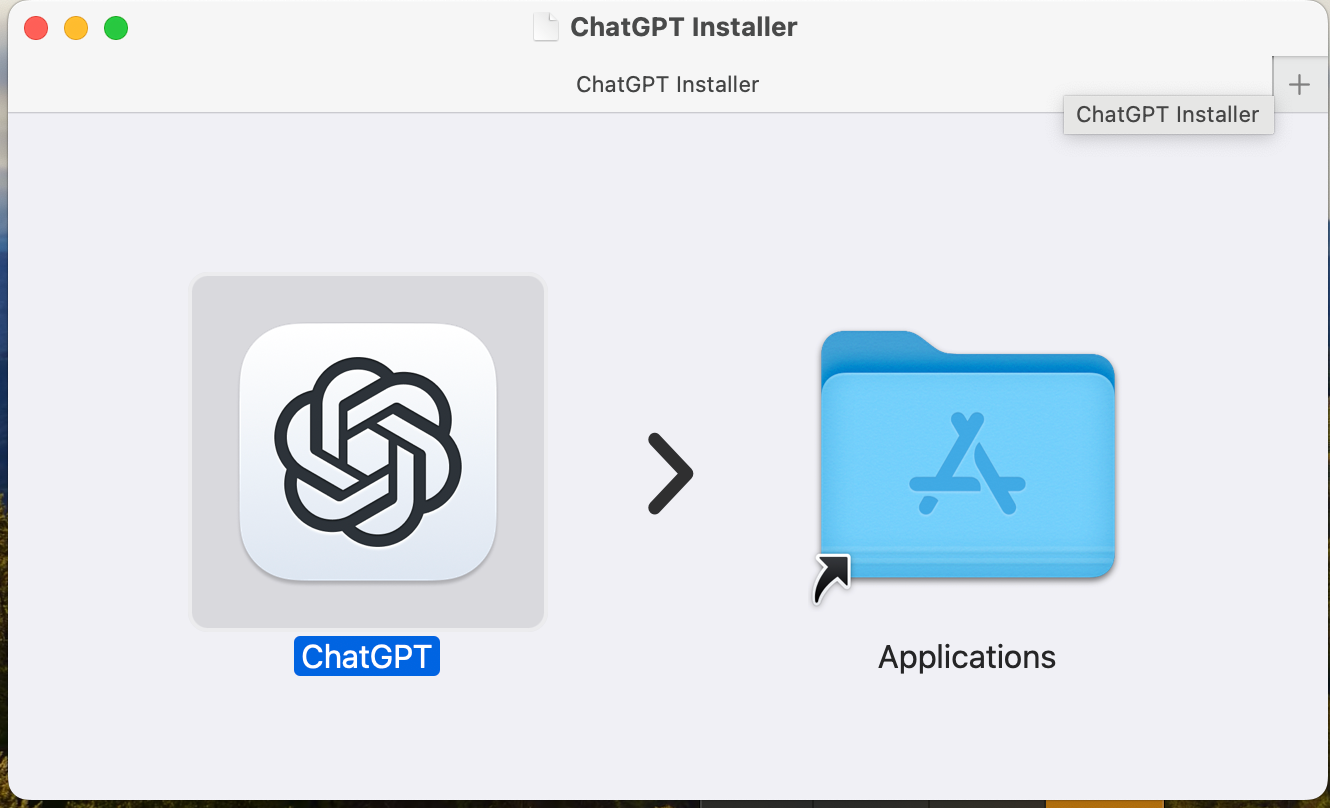
Image credit: Screenshot by the Author
Drag the ChatGPT icon to the Applications folder.

Image credit: Screenshot by the Author
Go to your “Launchpad” icon (the colorful dots one as displayed in the tiny screenshot above) and look for the ChatGPT icon/app.

Image credit: Screenshot by the Author
Click on the ChatGPT icon to open the app.
As Mac generally warns you when you run a downloaded file from the internet, you’ll see a warning popup.
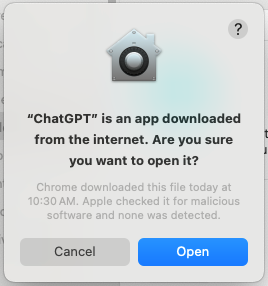
Image credit: Screenshot by the Author
In this case, let’s just trust this app :), and click “Open”.

Image credit: Screenshot by the Author
Log in using your usual method.
As soon as I logged in, I quickly checked the “Data Controls” to see if it synced with my web version (as I previously wrote about it, I didn’t want the model to be trained on my data). I knew it would be in sync, but I thought maybe OpenAI’s AI wasn’t paying that much attention!
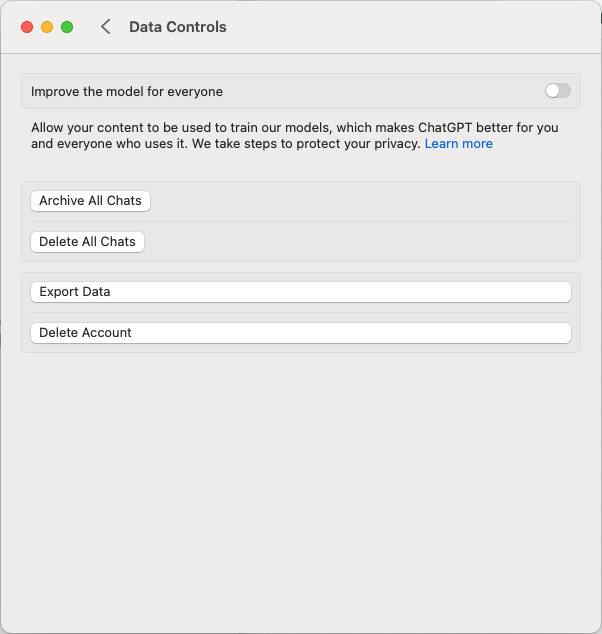
Image credit: Screenshot by the Author
Yep, it was in sync and the “Improve the model for everyone” was disabled.
And off I went, exploring the app.
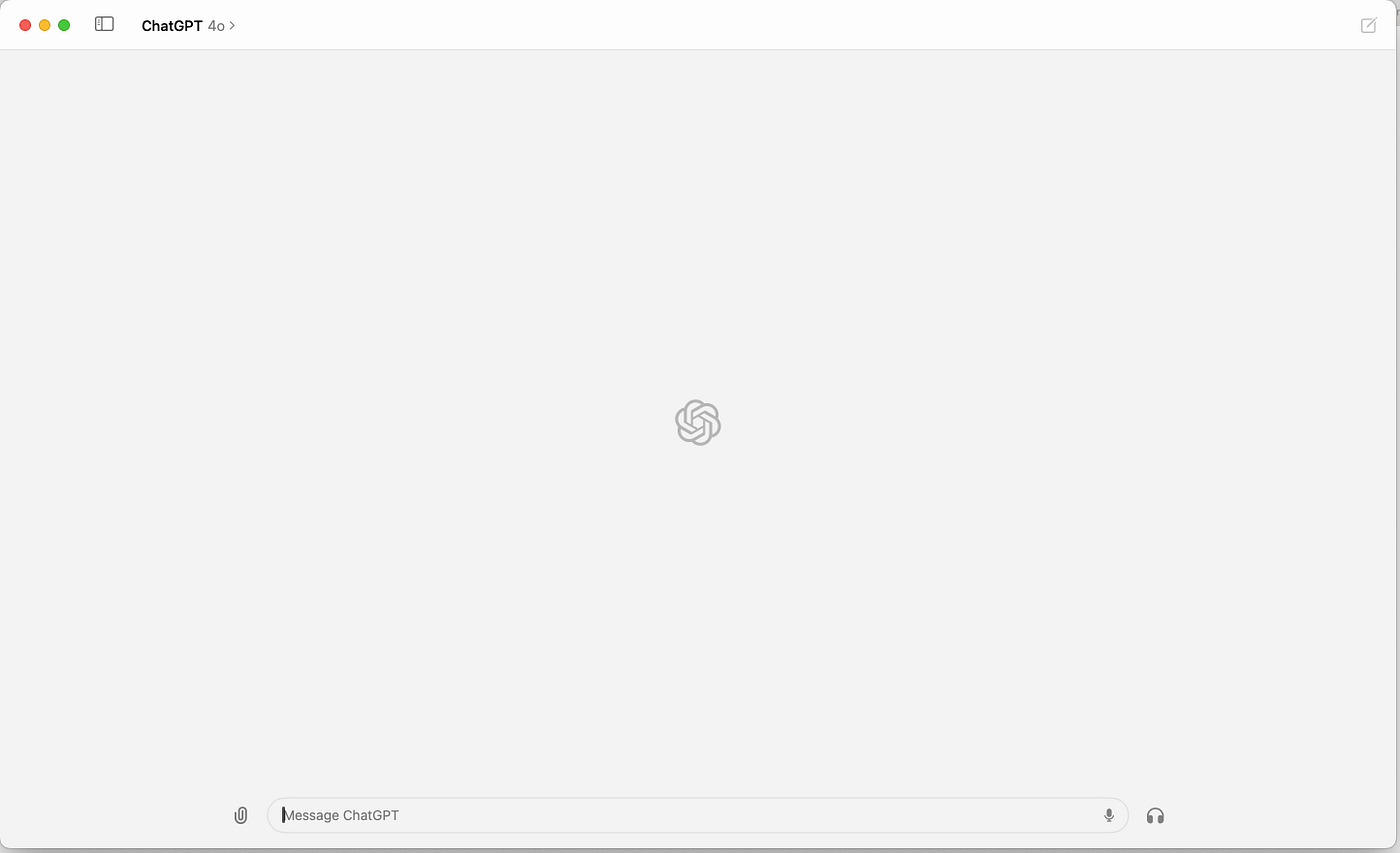
Image credit: Screenshot by the Author
Use the sidebar on the top left to make your chat history visible.
The Good
There are a few things that I liked about this app.
Convenience
Not sure about you, but I’d take a native Mac app over a web-based option any day. I don’t have to go hunting through browser tabs to find where I was using GPT and for what. It’s definitely convenient.
Interface
It has a neat clean, user-friendly interface. It’s easy to navigate and built for dummies.
Performance
For chatting, the app runs smoothly on my M1 Mac with 16 GB memory. Responses are almost as quick as I get on the web version.
Speech/Voice chatting
This is what I loved the most.
From the chat screen, you can start communicating through voice by clicking on the headphone button available in the bottom right section next to your text prompt area.

Image credit: Screenshot by the Author
It’ll load the voice assistant popup window. Start speaking, and it will pay attention. Visual signs on the screen will show if it’s listening, talking, or thinking. You can also interrupt it by clicking the link on the screen.
In short, it’s a great experience.
Additionally, your voice chat will be transcribed in the GPT window as if you’re text chatting with the tool.
You can choose a voice (Settings > Speech section >Voice) from the 4 given options: Breeze, Ember, Cove, and Juniper — 3 male voices and 1 female voice.
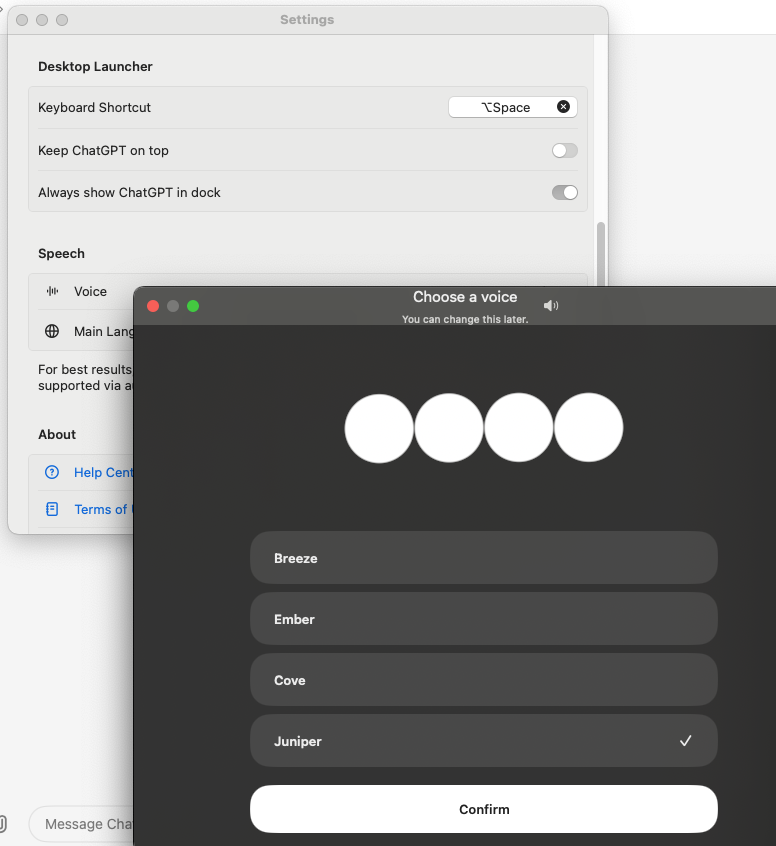
Image credit: Screenshot by the Author
The Bad & The Ugly
Well, not everything is hunky dory.
Glitchy voice chat feature
While I loved this feature, I abhorred it because of glitches. When I click on the GPT Mac app voice option, it should show the voice talking feature. However, it doesn’t work right away and always.
Sometimes it loads properly, but other times it just keeps loading and eventually the connection fails.
This connecting swirl/loading reminded me of the dial-up internet connection days!
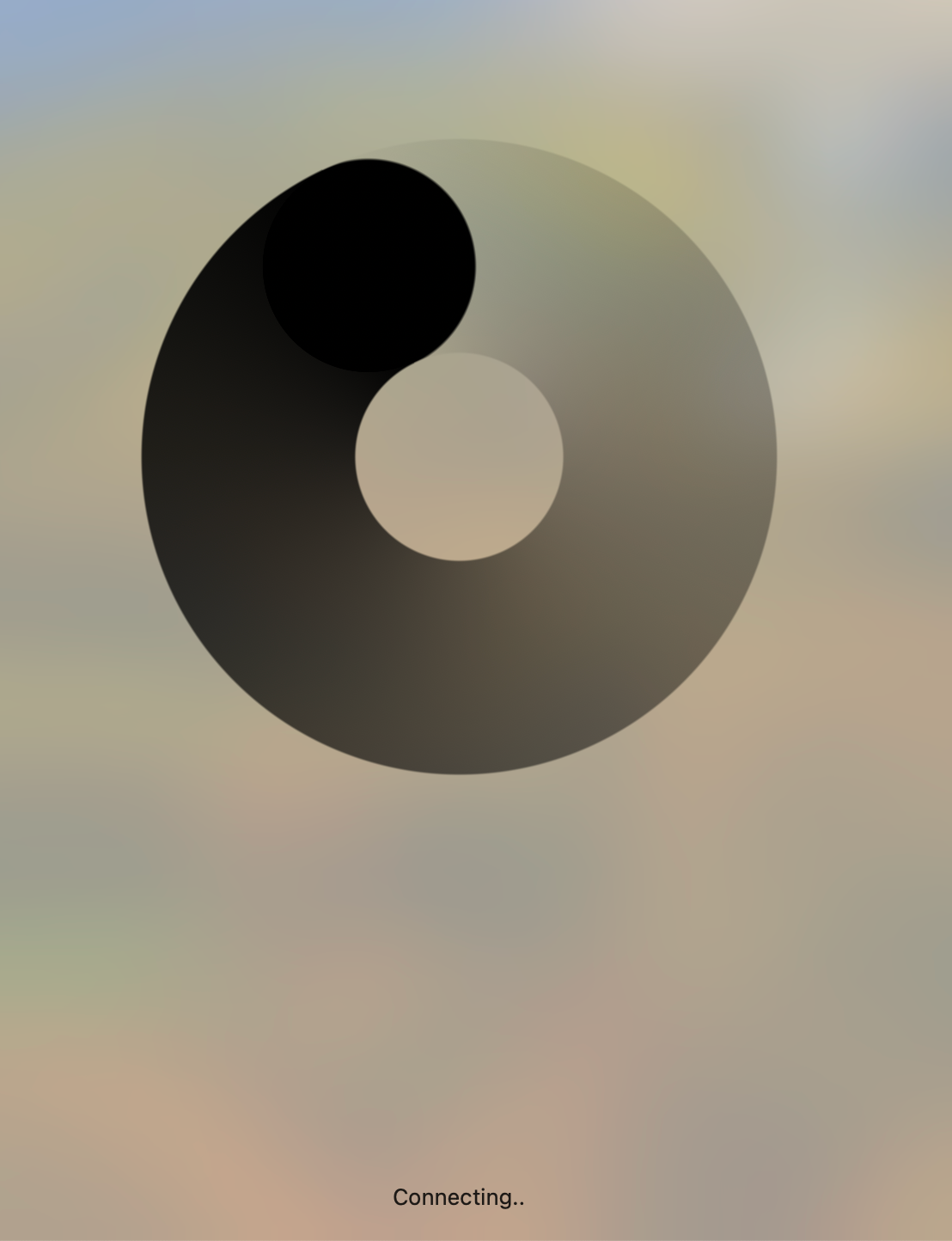
Image credit: Screenshot by the Author
And once I got lucky to get connected with it right away, I asked if it could speak to me in an Aussie accent. It tried. I told it, “You’re a fake,” and then (ironically and coincidentally) this happened — again :)
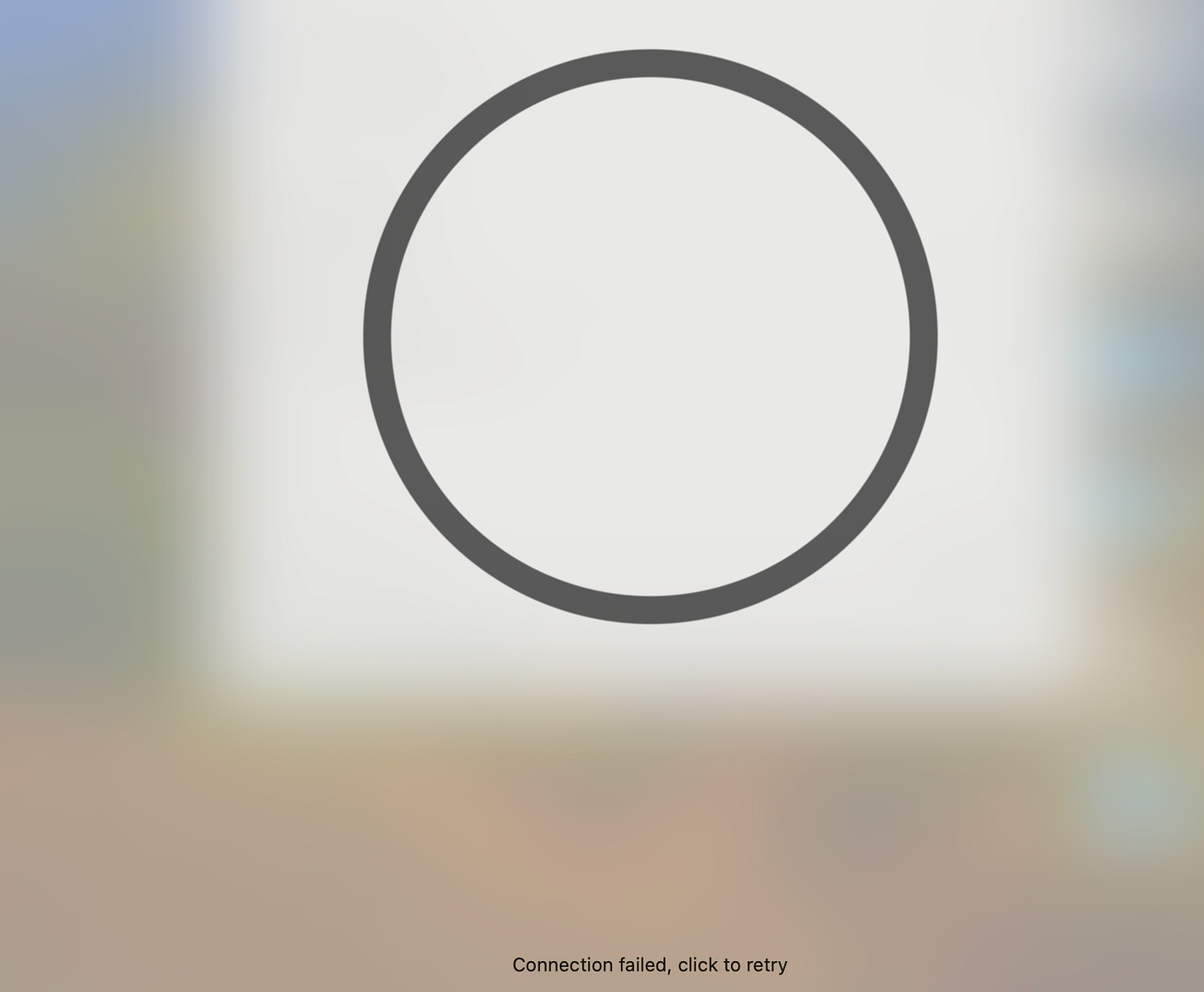
Image credit: Screenshot by the Author
After this, the app went half-unresponsive, like those passive-aggressive colleagues at work. It wouldn’t open the voice options or settings for me anymore, but it kept chatting!
Absence of Theme Customisation:
My eyesight is a bit different from the average reader’s, I reckon. At 30, I got my congenital cataracts removed and now I’m far-sighted and wear reading glasses. This means I prefer light themes with a white background and black text, which is very different from programmers who prefer dark themes. The lack of theme customization is a significant drawback for me. Its background is a bit greyish — something that irritates me.
When I asked it why it has a grey background colour, here is what I got as a response.
The background colour difference between the ChatGPT Mac app and the ChatGPT web version is due to design choices made by the developers. Here are a few reasons why this might be the case:
- Visual Comfort: A greyish background can be easier on the eyes compared to a stark white background, reducing eye strain during prolonged use.
- Aesthetic Consistency: The greyish background may be part of the app’s design language, intended to provide a consistent and polished look across different platforms.
- Focus on Content: A less bright background can help users focus more on the content and text, making the reading experience more pleasant.
- Platform Adaptation: The design of the Mac app might have been adapted to better align with macOS’s overall aesthetic and user interface guidelines, which often use softer and more muted colours.
These design choices are made to enhance user experience and provide a comfortable and consistent interface across different devices.
Below are two screenshots. There is a visible difference.
The Mac app version looks like this.
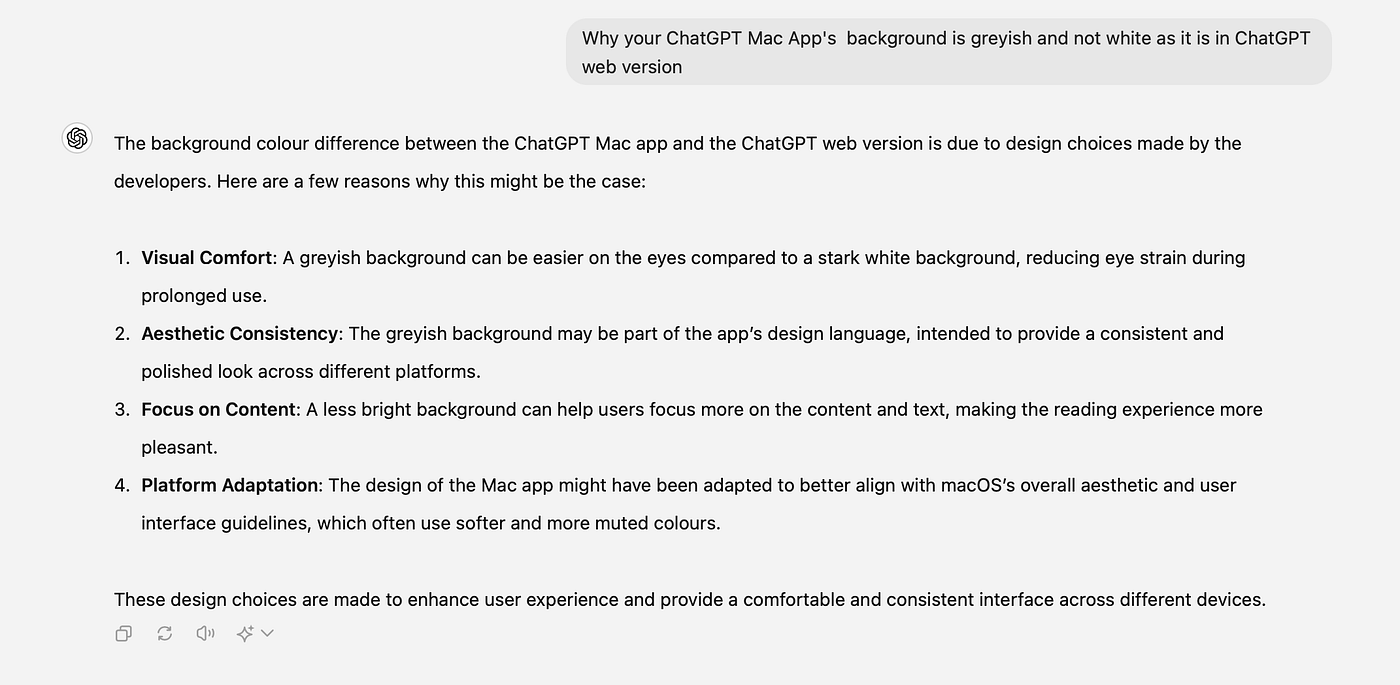
Image credit: Screenshot of the ChatGPT Mac App by the Author
And below is the Web version.
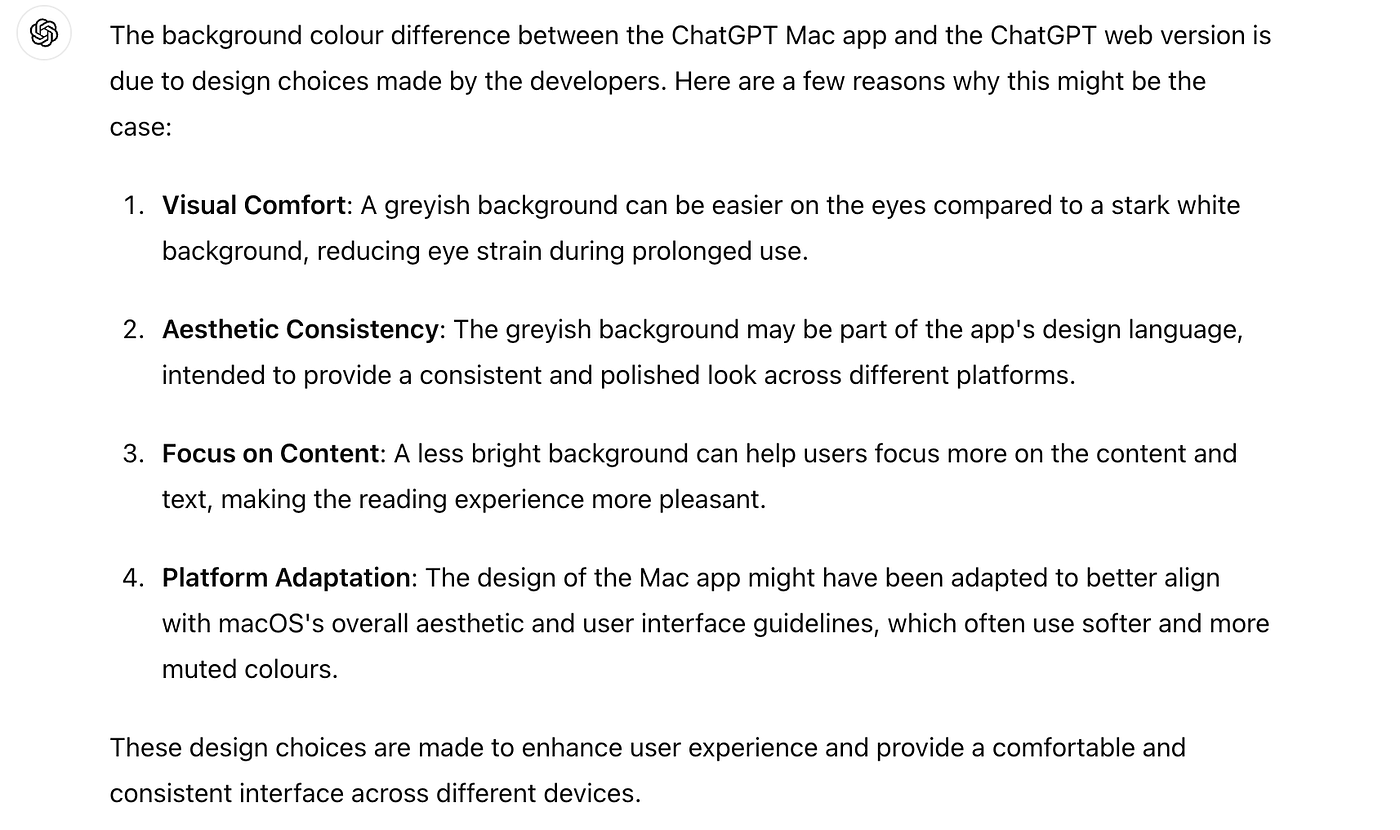
Image credit: Screenshot of the ChatGPT web version by the Author
It’s a personal choice — you might prefer the Mac app’s grey background, but for people like me who have had cataract surgery, OpenAI should do some more accessibility testing to ensure their app is inclusive.
It is less aware of its Mac App Version and gives me answer that’s factually incorrect!
I assumed that when this version came out, it would be trained about itself — the ChatGPT Mac app.
Here’s the ugly part: when I asked how to customize the theme, it guided me to an option that didn’t exist! Okay, we blame both the web version and the app for this.
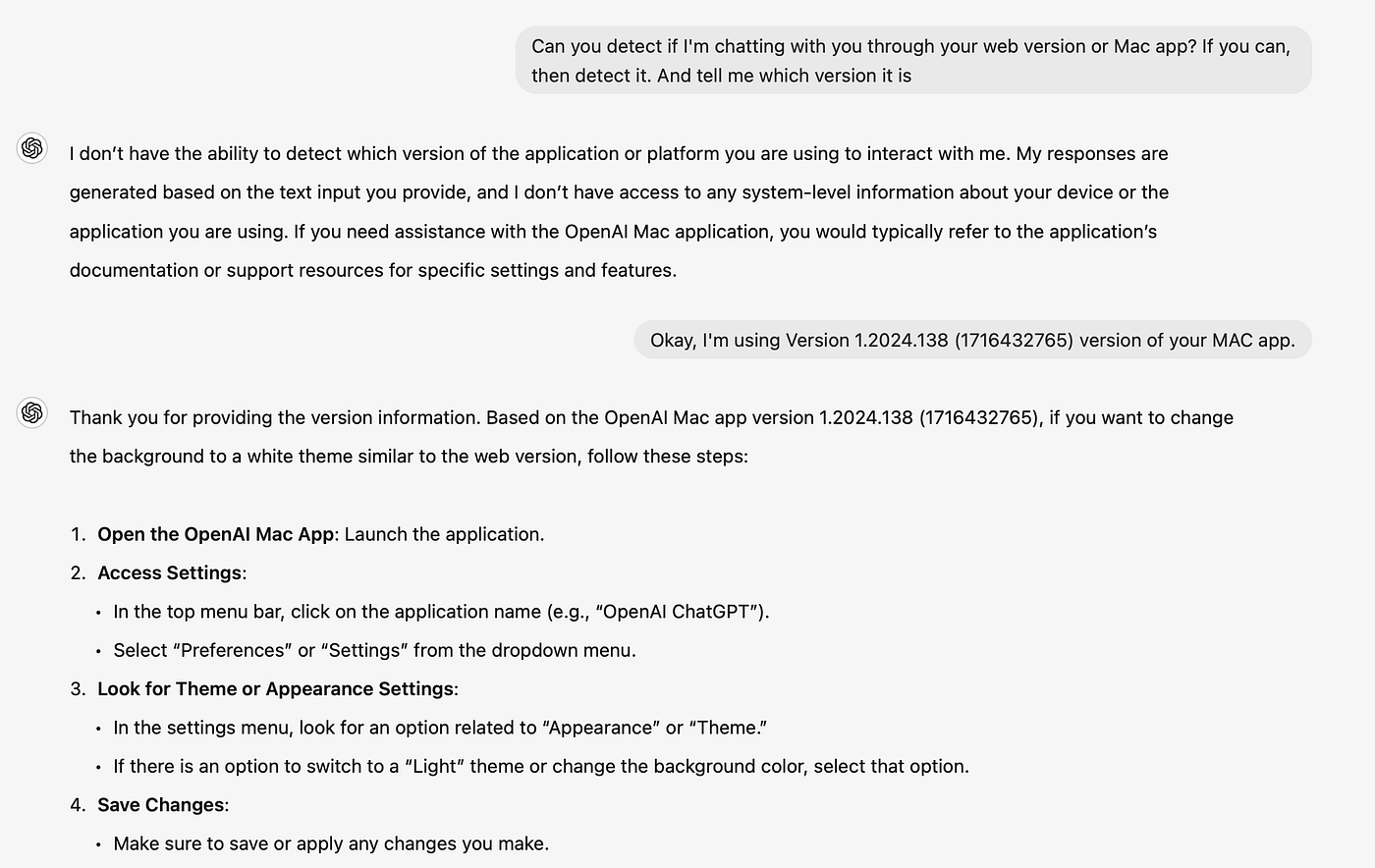
Image credit: Screenshot by the Author
This is what I see on the “Setting” popup. Theme or appearance Settings are non-existent as you can see!
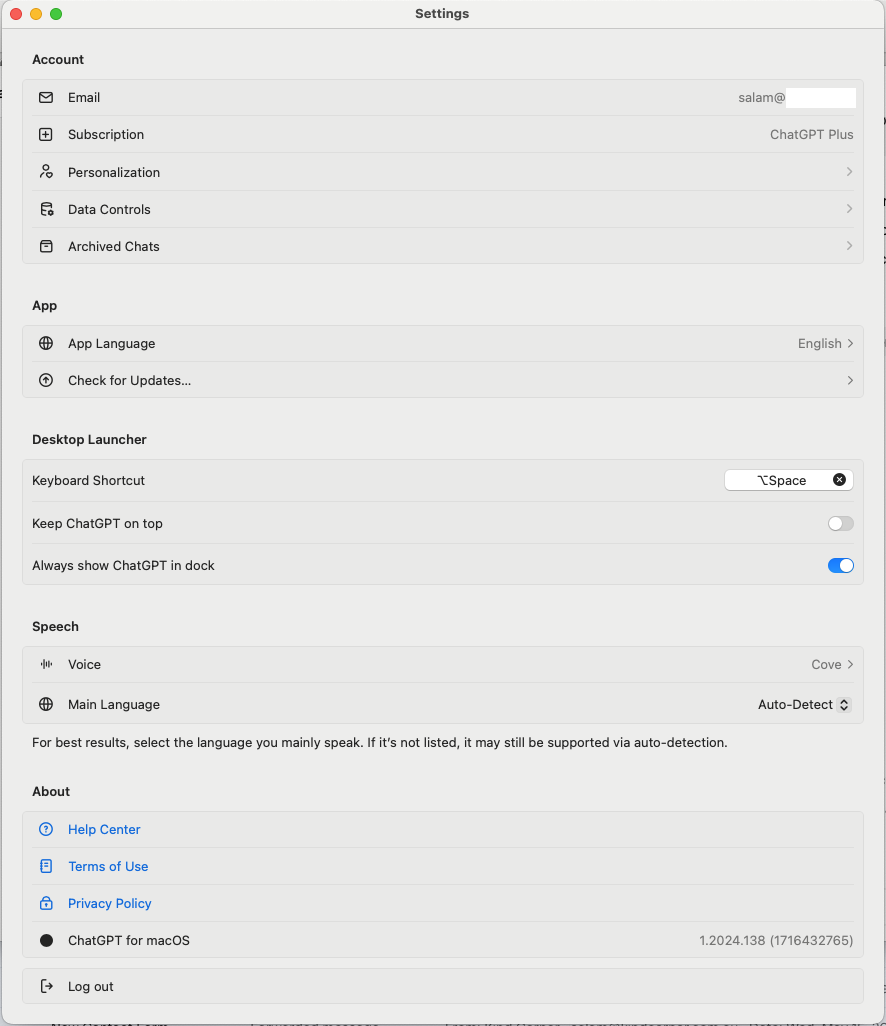
Image credit: Screenshot by the Author
The verdict
To be honest, I won’t use the app as regularly as I use the web version.
I’ll only use it when I want to voice-chat, but only until that feature is integrated into the web version too. Or until I get a white background theme customization option! For now, the web version remains my go-to choice.
How about you? Do you prefer the web version or the Mac app?

This story is published on Generative AI. Connect with us on LinkedIn and follow Zeniteq to stay in the loop with the latest AI stories.
Subscribe to our newsletter to stay updated with the latest news and updates on generative AI. Let’s shape the future of AI together!

메타데이터
- post_id
- 37fa816c0ab8
- slug
- chatgpt-mac-app-a-fair-dinkum-review-37fa816c0ab8
- url
- https://generativeai.pub/chatgpt-mac-app-a-fair-dinkum-review-37fa816c0ab8
- canonical_url
- https://generativeai.pub/chatgpt-mac-app-a-fair-dinkum-review-37fa816c0ab8
- author_url
- https://medium.com/@salamkhanau
- status
- ok
- fetched_at
- 2026-07-22 04:12:11