How to Use SillyTavern on iOS and Android Devices
Summary
How to Use SillyTavern on iOS and Android Devices
Summary
This article provides a detailed guide on how to use SillyTavern on iOS and Android, including accessing the web version via a mobile browser, installing the full version on Android via Termux, and using OMate Chat. Below is an in-depth analysis and step-by-step instructions based on the latest research and official documentation.
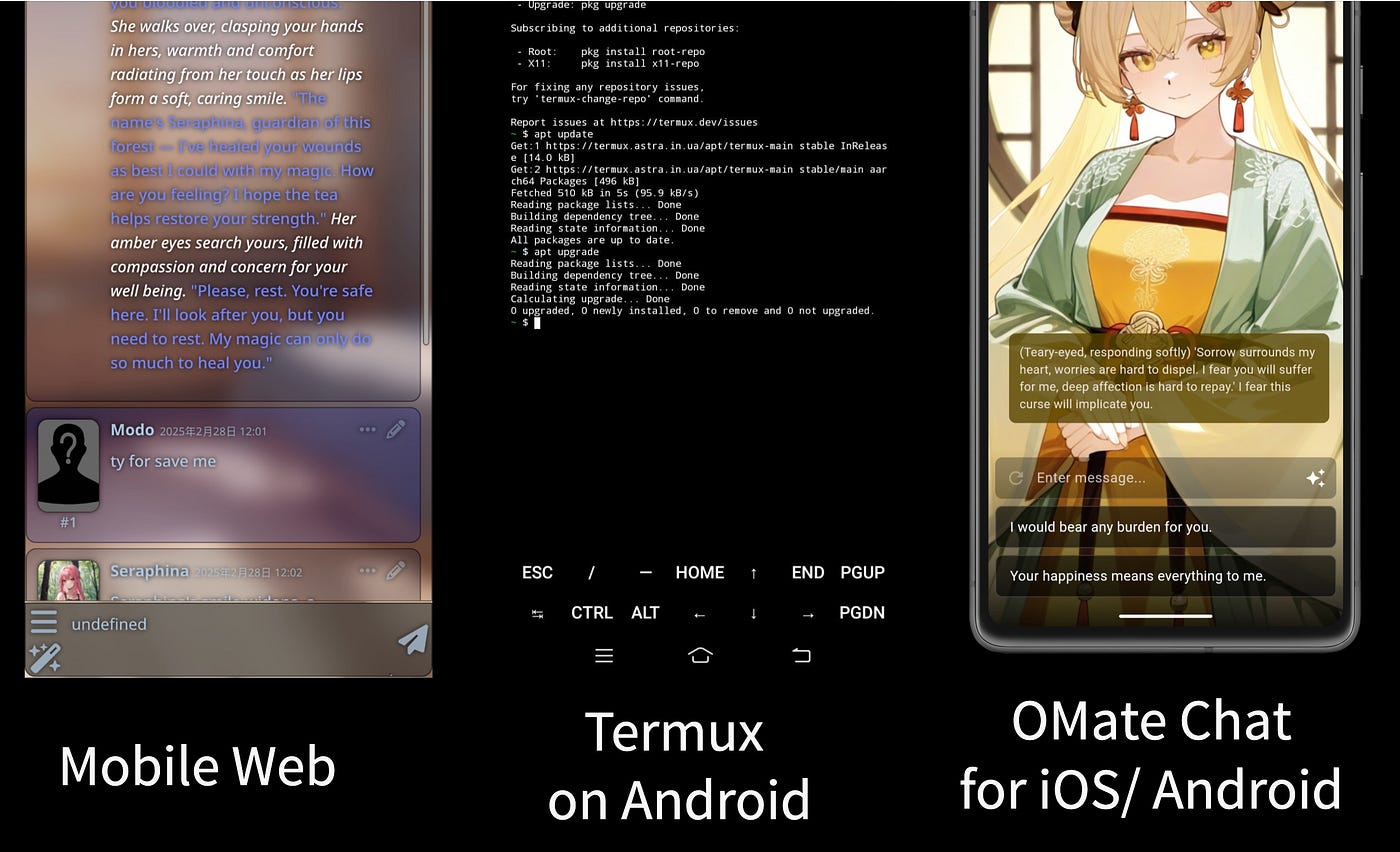
Method 1: Accessing SillyTavern Web Version via Mobile Browser
This method requires running SillyTavern on a computer and accessing it via a mobile browser. Here are the detailed steps:
- Install SillyTavern: Follow the official guide on the SillyTavern GitHub page to install SillyTavern on Windows, Linux, or Mac. Ensure the server starts correctly.
- Configure Remote Access:
- Locate the
config.yamlfile in the SillyTavern directory. - Edit the file and set
listen: trueto allow external device connections. - Optional: For security, set an IP whitelist or enable HTTP Basic Authentication (
basicAuthMode: trueand configure username and password). - Start the Server: Use the command line to start the SillyTavern server and verify that it runs on port 8000 (default).
- Find Your Computer’s IP Address:
- Windows: Open Command Prompt and enter
ipconfigto find the IPv4 address. - Linux/Mac: Open the terminal and enter
ifconfigorip addr showto find an address like192.168.x.x.
- Access from Mobile:
- Open a browser on iOS or Android (e.g., Safari or Chrome).
- Enter
http://<Computer_IP>:8000, e.g.,[http://192.168.1.100:8000.](http://192.168.1.100:8000.) - If authentication is enabled, enter the configured username and password.
- Using SillyTavern: Once inside, interact with AI characters, import character cards, and manage world information.
Pros:
- No need to install an app on mobile, ideal for users with a computer.
- Utilizes computer resources for complex tasks.
- Can be accessed from any device on the same network, offering flexibility.
Cons:
- Requires the computer to be always running, increasing power consumption.
- Mobile browser interface may not be optimal due to screen size constraints.
- Security risks if improperly configured, especially on open networks.
Method 2: Installing SillyTavern on Android via Termux
This method is for Android users without a computer. It installs and runs SillyTavern via Termux. The following steps are based on community guidelines:
- Install Termux: Download the Termux APK from F-Droid and install it. Avoid using the Google Play version due to potential compatibility issues.
- Update Termux: Run the following commands:
apt update
apt upgrade- If prompted, enter ‘y’ and press Enter.
- Install Git: Run:
pkg install git- Clone the SillyTavern Repository: Run:
git clone https://github.com/SillyTavern/SillyTavern- Optional: Use
git clone -b staging https://github.com/SillyTavern/SillyTavernfor the development branch. - Enter Directory and Install Node.js:
cd SillyTavern pkg install nodejs- Install Dependencies:
npm install- Start the Server:
./start.sh- or
bash start.sh- Confirm that the server runs on port 8000.
- Local Access:
Open a browser on the same Android device and go to
http://127.0.0.1:8000or[http://localhost:8000.](http://localhost:8000.) - Remote Access (Optional):
- Edit
config.yamland setlisten: true. - Find the Android device’s IP address (run
ip addr showin Termux). - Access from other devices using
http://<Android_IP>:8000, e.g.,[http://192.168.1.101:8000.](http://192.168.1.101:8000.)
Notes:
- This method is unofficial and may encounter compatibility issues.
- To improve background performance, see this YouTube guide.
- File management can be done using Material Files (see Termux File Management Guide).
Pros:
- No computer needed; runs independently on mobile.
- Can be configured for remote access, adding flexibility.
Cons:
- Technical setup is complex and may not suit beginners.
- Android device performance may be insufficient for heavy tasks.
- Security risks if remote access is improperly configured.
Comparison and Summary
MethodSuitable ForProsConsMobile Browser AccessUsers with a computer needing full functionalityNo mobile installation, utilizes computer resourcesRequires a running computer, UI may not be ideal, security concernsAndroid Termux InstallationUsers without a computer needing full functionalityRuns independently on mobile, remote access possibleComplex setup, limited performance, security risksOMate ChatSimple mobile use without world booksUser-friendly UI, easy character importsLimited features, uses knowledge base instead of world books
Final Recommendation:
- For full functionality, prioritize the first two methods.
- For ease of use and mobile convenience, OMate Chat is a good alternative.
- Choose based on device capabilities and personal needs.
References:
메타데이터
- post_id
- 381e5833abc2
- slug
- how-to-use-sillytavern-on-ios-and-android-devices-381e5833abc2
- url
- https://medium.com/@moodone/how-to-use-sillytavern-on-ios-and-android-devices-381e5833abc2
- canonical_url
- https://medium.com/@moodone/how-to-use-sillytavern-on-ios-and-android-devices-381e5833abc2
- author_url
- https://medium.com/@moodone
- status
- ok
- fetched_at
- 2026-06-13 07:35:29