Stop Guessing: The Ultimate Guide to Microsoft 365 Logs
How to quickly navigate Audit, Sign-In, Activity, and Diagnostic logs to solve tenant issues without losing your mind.
Audit — Governance — Compliance
Stop Guessing: The Ultimate Guide to Microsoft 365 Logs
How to quickly navigate Audit, Sign-In, Activity, and Diagnostic logs to solve tenant issues without losing your mind.
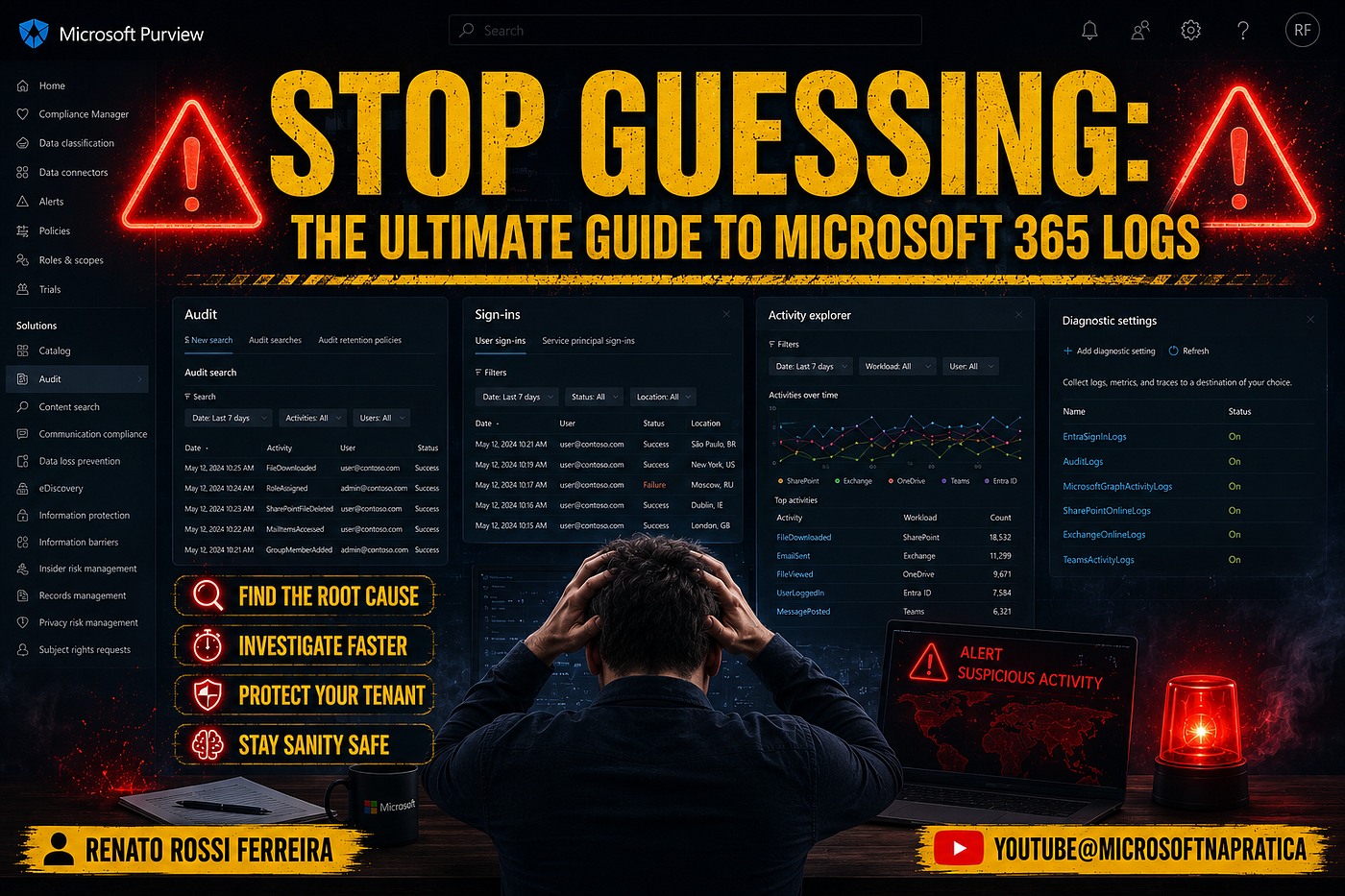
How to quickly navigate Audit, Sign-In, Activity, and Diagnostic logs to solve tenant issues without losing your mind.
One hour before the end of the day, a critical ticket hits the queue. “Oh my god, not now.” A VIP in the company is completely pissed off because they can’t access the work environment. He called the CEO directly to complain about the new Microsoft 365 solution. Now the ticket has landed on your desk straight from the boss, and time is your worst enemy.
What’s the best move here? Should you just jump into his profile and force a password reset? Or should you actually find out what is happening to his account behind the scenes? You need to know where to go, because the clock is ticking.
Is it a Sign-In log issue? Should you check the Audit trail? Or pull diagnostic data? Let’s map out the types of logs in Microsoft 365 so you can solve this crisis before things go sideways.
1. The Sign-In Logs: Your First Line of Defense

When a user — especially a VIP — complains that they cannot access the environment, never start with a password reset. That is just a temporary band-aid. Instead, your very first stop must be the Entra ID (formerly Azure AD) Sign-In Logs.
This log answers the ultimate question: What happened when the user tried to authenticate?
Within seconds, you can filter by the user’s UPN and identify the exact root cause. Is it a blocked connection due to a Conditional Access policy? Did they fail the MFA prompt? Or are they typing the wrong password? The Sign-In logs will give you the specific error code, saving you from guessing.
2. The Audit Logs: Tracking “Who Did What”

Let’s say the Sign-In logs show that the user’s authentication was successful, but they still can’t access their critical files or their account permissions look completely messed up. This is where you switch gears to the Unified Audit Log (UAL) in the Microsoft Purview compliance portal.
While Sign-In logs track access, Audit logs track actions.
This log is your evidence locker. It tracks activities across Exchange Online, SharePoint, OneDrive, and Microsoft Teams. If a junior admin accidentally changed the VIP’s group membership, or if a global policy was modified right before the crisis started, the Audit Log will show you the exact timestamp, the IP address, and the account responsible for the change.
3. Microsoft 365 Activity Logs: The Breadcrumbs of Everyday Operations

Sometimes the issue isn’t a security breach or a login failure, but a performance or sync issue within specific apps like Microsoft Loop, Teams, or Power Platform. This is where Activity Logs come into play.
Activity logs are the breadcrumbs left behind by everyday operational workloads. They help you understand how data flows within the tenant. If the VIP is complaining that a shared workspace in Loop is not updating or that a Power Automate flow broke their daily routine, analyzing the specific workload activity logs will point you directly to the broken link in the chain.
4. Diagnostic Logs: Connecting the Dots with Azure Monitor

What if the problem is intermittent, complex, or requires long-term analysis? Microsoft 365 admin centers only keep log history for a limited time (usually 30 to 90 days depending on your licensing). If you need to deeply investigate a persistent tenant issue, you need Diagnostic Logs.
Diagnostic logging allows you to stream your M365 and Entra ID telemetry data directly to a Log Analytics Workspace in Azure or a SIEM tool (like Microsoft Sentinel). By exporting diagnostic logs, you can run complex KQL (Kusto Query Language) queries to cross-reference sign-in data with system health metrics, giving you the ultimate bird’s-eye view of your tenant’s infrastructure.
Instead of panic-resetting his password, you opened the Sign-In Logs and saw a “Success” status. Then you switched to the Audit Logs and found the real culprit: a new Conditional Access policy had been deployed an hour earlier, requiring MFA from a specific named location — but the VIP’s dedicated office network IP hadn’t been whitelisted yet.
You fixed the policy exclusion, the VIP gained access immediately, and the CEO sent a thumbs-up emoji on Teams. Crisis averted. Laptop closed at 5:00 PM.
The lesson here is simple: in the Microsoft 365 cloud ecosystem, guessing is expensive, but logs are free. Knowing exactly whether to look at a Sign-In log, an Audit trail, or a Diagnostic stream is what separates a reactive IT support agent from a proactive M365 expert.
The next time a high-priority ticket lands in your queue, don’t panic. Take a deep breath, trust your telemetry, and let the logs tell you the story.
메타데이터
- post_id
- 3bc88d6e2f8d
- slug
- stop-guessing-the-ultimate-guide-to-microsoft-365-logs-3bc88d6e2f8d
- url
- https://medium.com/@renato.rossi.ferreira/stop-guessing-the-ultimate-guide-to-microsoft-365-logs-3bc88d6e2f8d
- canonical_url
- https://medium.com/@renato.rossi.ferreira/stop-guessing-the-ultimate-guide-to-microsoft-365-logs-3bc88d6e2f8d
- author_url
- https://medium.com/@renato.rossi.ferreira
- status
- ok
- fetched_at
- 2026-07-07 18:25:49