OverTheWire Bandit Walkthrough Level (0–13)
Introduction:
OverTheWire Bandit Walkthrough Level (0–13)

Introduction:
Bandit is a beginner friendly wargame from OverTheWire. It teaches you the basic of Linux, the command line, SSH, file manipulation and problem solving through 34+ levels of progressively challenging tasks, Bandit teaches you essential skills like navigating directories, reading files, using SSH, and understanding Linux permissions.
Given Information:
Host: bandit.labs.overthewire.org
Port: 2220
Username: bandit0
Password: bandit0
Format: ssh username@host -p port
Command Used: ssh bandit0@bandit.labs.overthewire.org -p 2220

Then we have to write the password bandit0 which was provided to us, remember one thing that while typing the password you will not be able to see what you are typing…
After writing the password bandit0 we will be logged in as user->Bandit0
OverTheWire Bandit level 0–1
We have given that the password for the next level is stored in a file called readme located in the home directory.
ls command: This command in Linux is used to list all the files and directories in the current directory or specified directory. It has various options most used options are -la, -a, -l etc.
cat command: This command is used to display, create, copy, and combine the contents of text files in Linux.
We can use the ls command. After running the ls command, we can see that there is a readme file. To read this file, we can use the cat command.

After reading the readme file, we found the password for Bandit1.
Password: 6y2kwnwK6gr****R
After writing the Password we will be logged in as user->Bandit1
OverTheWire Bandit level 1–2
We have given that the password for the next level is stored in a file called — located in the home directory.
Commands used: ls, cat
ls command: This command in Linux is used to list all the files and directories in the current directory or specified directory. It has various options most used options are -la, -a, -l etc.
cat command: This command is used to display, create, copy, and combine the contents of text files in Linux.
We can use the ls command. After running the ls command, we can see that there is a — file. To read this file, we can use the cat command like this cat ./- . By doing this we can get the content of the — file.

After reading the — file, we found the password for Bandit2.
Password: PK8fYLZg2hn****B
After writing the Password we will be logged in as user->Bandit2
OverTheWire Bandit level 2–3
We have given that the password for the next level is stored in a file called **--spaces in this filename--** located in the home directory.
Commands used: ls, cat
ls command: This command in Linux is used to list all the files and directories in the current directory or specified directory. It has various options most used options are -la, -a, -l etc.
cat command: This command is used to display, create, copy, and combine the contents of text files in Linux.
We can use the ls command. After running the ls command, we can see that there is a file--spaces in this filename--. To read this file, we can use the cat command like this cat “./ — spaces in this filename — “. By doing this we can get the content of the --spaces in this filename--.
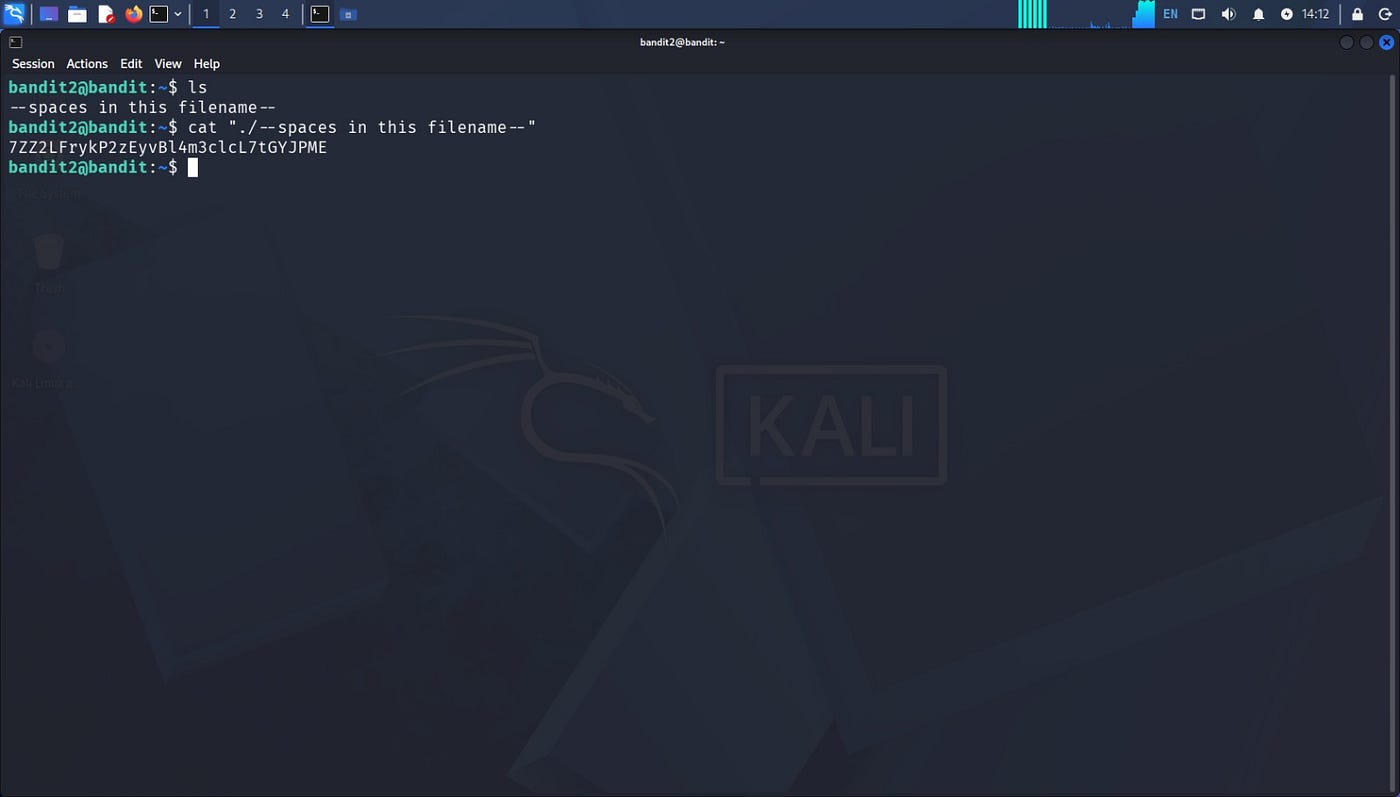
After reading the --spaces in this filename--, we found the password for Bandit3.
Password: 7ZZ2LFrykP2****E
After writing the Password we will be logged in as user->Bandit3
OverTheWire Bandit level 3–4
We have given that the password for the next level is stored in a hidden file in the inhere directory.
Commands used: ls, cd, (ls -la), cat
ls command: This command in Linux is used to list all the files and directories in the current directory or specified directory. It has various options most used options are -la, -a, -l etc. The -la option is used to see all files and directories including hidden files.
cat command: This command is used to display, create, copy, and combine the contents of text files in Linux.
cd command: This command is used to navigate between directories in Linux.
We can use the ls command. After running the ls command, we can see that there is a file…Hiding — From — You **(hidden file in the inhere directory). To read this file, we can use the cat command like this cat …Hiding — From — You. By doing this we can get the content of the …Hiding — From — You (hidden file in the inhere directory).**

After reading the …Hiding — From — You **(hidden file in the inhere directory), we found the password for Bandit4**.
Password: xzTXq1rDJQV****q
After writing the Password we will be logged in as user->Bandit4
OverTheWire Bandit level 4–5
We have given that the password for the next level is stored in the only human-readable file in the inhere directory.
Commands used: ls, cd, (ls -la), cat, file
ls command: This command in Linux is used to list all the files and directories in the current directory or specified directory. It has various options most used options are -la, -a, -l etc. The -la option is used to see all files and directories including hidden files.
cat command: This command is used to display, create, copy, and combine the contents of text files in Linux.
cd command: This command is used to navigate between directories in Linux.
file command: This command is used to identify the type of a file.
We can use the ls command. After running the ls command, we can see that there is a inhere directory and after doing one more ls we can see that there are 10 files and we have to read the human-readable file only. To find the type of files, we can use the command **file ./* after getting in inhere directory and then we can use the cat command cat ./-file07 to read the content of the file.**

After reading the file07, we found the password for Bandit5.
Password: 6C7h9GD8M6a****G
After writing the Password we will be logged in as user->Bandit5
OverTheWire Bandit level 5–6
We have given that the password for the next level is stored in a file somewhere under the inhere directory and has all of the following properties:
- human-readable
- 1033 bytes in size
- not executable.
Commands used: ls, cd, find, cat
ls command: This command in Linux is used to list all the files and directories in the current directory or specified directory. It has various options most used options are -la, -a, -l etc. The -la option is used to see all files and directories including hidden files.
cat command: This command is used to display, create, copy, and combine the contents of text files in Linux.
cd command: This command is used to navigate between directories in Linux.
find command: This command is used to **s**earch for files and directories based on different conditions such as name, type, size, permissions, owner, modification time, and much more.
We can use the ls command. After running the ls command, we can see that there is a inhere directory and after doing one more ls we can see that there are 20 directories and we have to find the file which is human-readable, not executable and 1033 bytes in size. So, here we will use the find command (find ./ -type f -size 1033c ! -executable) after this we will get the path where our desired file is (./maybehere07/.file2). Now we can read the desired file using cat command.

After reading the ./maybehere07/.file2, we found the password for Bandit6.
Password: pXa26xhMWaC****W
After writing the Password we will be logged in as user->Bandit6
OverTheWire Bandit level 6–7
We have given that the password for the next level is stored somewhere on the server and has all of the following properties:
- owned by user bandit7
- owned by group bandit6
- 33 bytes in size
Commands used: find, cat
cat command: This command is used to display, create, copy, and combine the contents of text files in Linux.
find command: This command is used to **s**earch for files and directories based on different conditions such as name, type, size, permissions, owner, modification time, and much more.
We have to use the find command (find / -type f -user bandit7 -group bandit6 -size 33c 2> /dev/null)
- /: It is for starting directory
- -type f: It is to consider regular files
- -user bandit7: keeps only file whose user is bandit7
- -group bandit6: every file in Linux belonging to a group
- -size 33c: keeps only file whole size is exactly 33 bytes
- 2> /dev/null: It sends all error messages to /dev/null
We get /var/lib/dpkg/info/bandit7.password from the find command we used. Now we can read it using the cat command.

After reading the /var/lib/dpkg/info/bandit7.password, we found the password for Bandit7.
Password: Bmnnvf82KzQ****3
After writing the Password we will be logged in as user->Bandit7
OverTheWire Bandit level 7–8
We have given that the password for the next level is stored in the file data.txt next to the word millionth.
Commands used: cat, grep, du
cat command: This command is used to display, create, copy, and combine the contents of text files in Linux.
du command: du stands for Disk Usage. It is used to check how much disk space a file or directory uses.
grep command: This command is used to search for specific text in the files.
We used the ls command to see if there were any files. We found data.txt, then we checked how much space or size it was using with the command:
du -b data.txtWe found that its size was 4184396 bytes. We had to find the word “millionth” in data.txt, so we used the grep command while reading data.txt:
cat data.txt | grep "millionth"
After reading the data.txt | grep “millionth”, we found the password for Bandit8.
Password: VR1ljMayciF****b
After writing the Password we will be logged in as user->Bandit8
OverTheWire Bandit level 8–9
We have given that the password for the next level is stored in the file data.txt and is the only line of text that occurs only once.
Commands used: sort, uniq
sort command: This command is used to arrange the lines of a text file in a specific order.
uniq command: The uniq command is used to find or remove duplicate adjacent lines in a text file.
It only works correctly when duplicate lines are next to each other. That’s why it is usually used with sort commands.
Understanding uniq options:
uniq -u- Shows only unique lines (appears once)uniq -d- Shows only duplicate lines (appears more than once)uniq -c- Counts occurrences of each line
I have used a combination of sort and uniq commands:

After using the combination of sort and uniq we have found the password for Bandit9.
Password: EjmOSvuAu7s****l
After writing the Password we will be logged in as user->Bandit9
OverTheWire Bandit level 9–10
We have given that the password for the next level is stored in the file data.txt in one of the few human-readable strings, preceded by several ‘=’ characters.
Commands used: ls, strings, grep
ls command: This command in Linux is used to list all the files and directories in the current directory or specified directory. It has various options most used options are -la, -a, -l etc. The -la option is used to see all files and directories including hidden files.
strings command: This command is used to extract human-readable text from binary files, executables, object files, memory dumps, and other non-text files.
grep command: This command is used to search for specific text in the files.
We used the ls command and found that there is a text file “data.txt” and as the situation given to us is(the password for the next level is stored in the file data.txt in one of the few human-readable strings, preceded by several ‘=’ characters) we will use the command (strings data.txt | grep ======) to get our password.

After using the command (strings data.txt | grep ======), we found the password for Bandit10.
Password: B0s2khmbT9****G
After writing the Password we will be logged in as user->Bandit10
OverTheWire Bandit level 10–11
We have given that the password for the next level is stored in the file data.txt, which contains base64 encoded data.
Commands used: ls, cat, base64
ls command: This command in Linux is used to list all the files and directories in the current directory or specified directory. It has various options most used options are -la, -a, -l etc. The -la option is used to see all files and directories including hidden files.
base64 command: This command is used to encode binary data or text data into base64 or decode base64 data back to its original form.
-d: used to decode Base64 encoded data
cat command: This command is used to read contents of a file.
We used the ls command and found that there is a text file “data.txt” and we read the file (cat data.txt) and found that the data is encoded in base64 so to decode it we will use the base64 command along with its option -d (base64 -d data.txt).

After using the command (base64 -d data.txt), we found the password for Bandit11.
Password: pYfOY6HwUsD****o
After writing the Password we will be logged in as user->Bandit11
OverTheWire Bandit level 11–12
We have given that the password for the next level is stored in the file data.txt, where all lowercase (a-z) and uppercase (A-Z) letters have been rotated by 13 positions.
Commands used: ls, cat, tr
ls command: This command in Linux is used to list all the files and directories in the current directory or specified directory. It has various options most used options are -la, -a, -l etc. The -la option is used to see all files and directories including hidden files.
cat command: This command is used to read contents of a file.
tr command: This command is used to replace, delete, or squeeze characters from the input. It reads from standard input (stdin) and writes the result to standard output (stdout).
We used the ls command and found that there is a text file “data.txt” and we read the file (cat data.txt) and found that the data has gone through ROT13, ROT13 means every letter is shifted 13 positions.

After using the command (cat data.txt | tr ‘A-Za-z’ ‘N-ZA-Mn-za-m’), we found the password for Bandit12.
Password: GROozWPO8Qy****N
After writing the Password we will be logged in as user->Bandit12
OverTheWire Bandit level 12–13
We have given that the password for the next level is stored in the file data.txt, which is a hex dump of a file that has been repeatedly compressed. For this level it may be useful to create a directory under /tmp in which you can work. Use mkdir with a hard to guess directory name. Or better, use the command “mktemp -d”. Then copy the datafile using cp and rename it using mv (read the manpages!).
We will log in using the password which we gain after solving bandit level 11 → 12 (pYfOY6HwUsDj****o).
Commands used: ls, cat, mkdir, cd, cp, xxd, file, mv, gunzip, bunzip2, tar
ls: Lists the files and directories in the current location. Helps you see what’s available before acting on it.
cat: Prints the entire contents of a file to the terminal. Commonly used to quickly read short text files.
mkdir: Creates a new, empty directory. Used to organize files into a fresh folder.
cd: Changes your current working directory. Let's you navigate into or out of folders.
cp: Copies a file or directory to a new location. The original file remains untouched after copying.
mv: Moves a file to a new location or renames it. Unlike cp, the original file is replaced/relocated.
xxd: Converts a file into a hexadecimal (hex) dump.
With -r, it reverses a hex dump back into binary.
file: Inspects a file’s actual content to determine its type. Useful when a file’s extension doesn’t match its real format.
gunzip: Decompresses files that were compressed with gzip (.gz). It restores the file to its original, uncompressed form.
bunzip2: Decompresses files that were compressed with bzip2 (.bz2). It restores the file to its original, uncompressed form.
tar: Bundles multiple files/folders into a single archive (.tar).
With -x, it extracts files back out of that archive.

After logging in bandit12 we use the command ls to see the if there are any files. We found a file (data.txt) so we use the cat command to check the content of the file, and we found that it is containing hex dump.

Here we made a directory so that we can do our work as we don't have the write permission here (mkdir /tmp/bandit12) and then we change from our current directory to the directory we have made (*cd** /tmp/bandit12**). After we change our directory to /tmp/bandit12 we copy the content of the current directory to the directory we made (cp ~/data.txt /tmp/bandit12***).

We have reversed the hex dump into binary.

Now using the file command, we will find out what kind of file we actually have:

We found that the file is of gzip compressed data so we will firstly rename it (mv data data.gz) then we will decompress it (gunzip data.gz).

Then again, we will check the type of file we are actually having, we found that the file is of bzip2 compressed data so we will firstly rename it (mv data data.bz2) then we will decompress it (bunzip2 data.bz2).

Then again, we will check the type of file we are actually having, we found that the file is of gzip compressed data so we will firstly rename it (mv data data.gz) then we will decompress it (gunzip data.gz).

Then again, we will check the type of file we are actually having (file data), we found that the file is of POSIX tar archive (GNU) so we will firstly rename it (mv data data.tar) then we will decompress it (tar -xf data.tar).

Now we found a new file data5.bin then again, we will check the type of file we are actually having (file data5.bin), we found that the file is of POSIX tar archive (GNU).

So, we will firstly rename it (mv data5.bin data.tar) then we will decompress it (tar -xf data.tar) and we found a new file data6.bin.

Now we found a new file data6.bin then again, we will check the type of file we are actually having (file data6.bin), we found that the file is of bzip2 compressed data so we will firstly rename it (mv data6.bin data.bz2) then we will decompress it (bunzip2 data.bz2). Now after ls we get to see there is a data file.

Now we found a new file data then again, we will check the type of file we are actually having (file data), we found that the file is of POSIX tar archive (GNU). So, we will firstly rename it (mv data data.tar) then we will decompress it (tar -xf data.tar) and we found a new file data8.bin.

We will check the type of file we are actually having (file data8.bin), we found that the file is of gzip compressed data so we will firstly rename it (mv data8.bin data.gz) then we will decompress it (gunzip data.gz). Now we found the file data let's check it's filetype.

We finally found the human-readable file (data). Let's read the file using the cat command.

After using the cat command (cat data), we found the password for the next level Bandit13.
Password: qQYQiHOBPR8**k
After writing the Password we will be logged in as user->Bandit13
메타데이터
- post_id
- 3bf7f7c8792c
- slug
- overthewire-bandit-level-0-3bf7f7c8792c
- url
- https://medium.com/@mohaksaxena38/overthewire-bandit-level-0-3bf7f7c8792c
- canonical_url
- https://medium.com/@mohaksaxena38/overthewire-bandit-level-0-3bf7f7c8792c
- author_url
- https://medium.com/@mohaksaxena38
- status
- ok
- fetched_at
- 2026-07-16 12:50:01