Secure Home Office Solution with Microsoft Azure VPN Gateway
Context and Challenge
Secure Home Office Solution with Microsoft Azure VPN Gateway
Context and Challenge
During a real-world transition to remote work, I was responsible, as a Cloud Specialist, for designing and implementing a solution that enabled employees of a technology company to move from the physical office environment to home office, without compromising the security and integrity of corporate systems hosted on Microsoft Azure.
The main challenge was to ensure that employees could securely access internal company resources without exposing the corporate environment directly to the public internet. It was essential to maintain data confidentiality and operational continuity, even with the team working remotely.
Solution Architecture

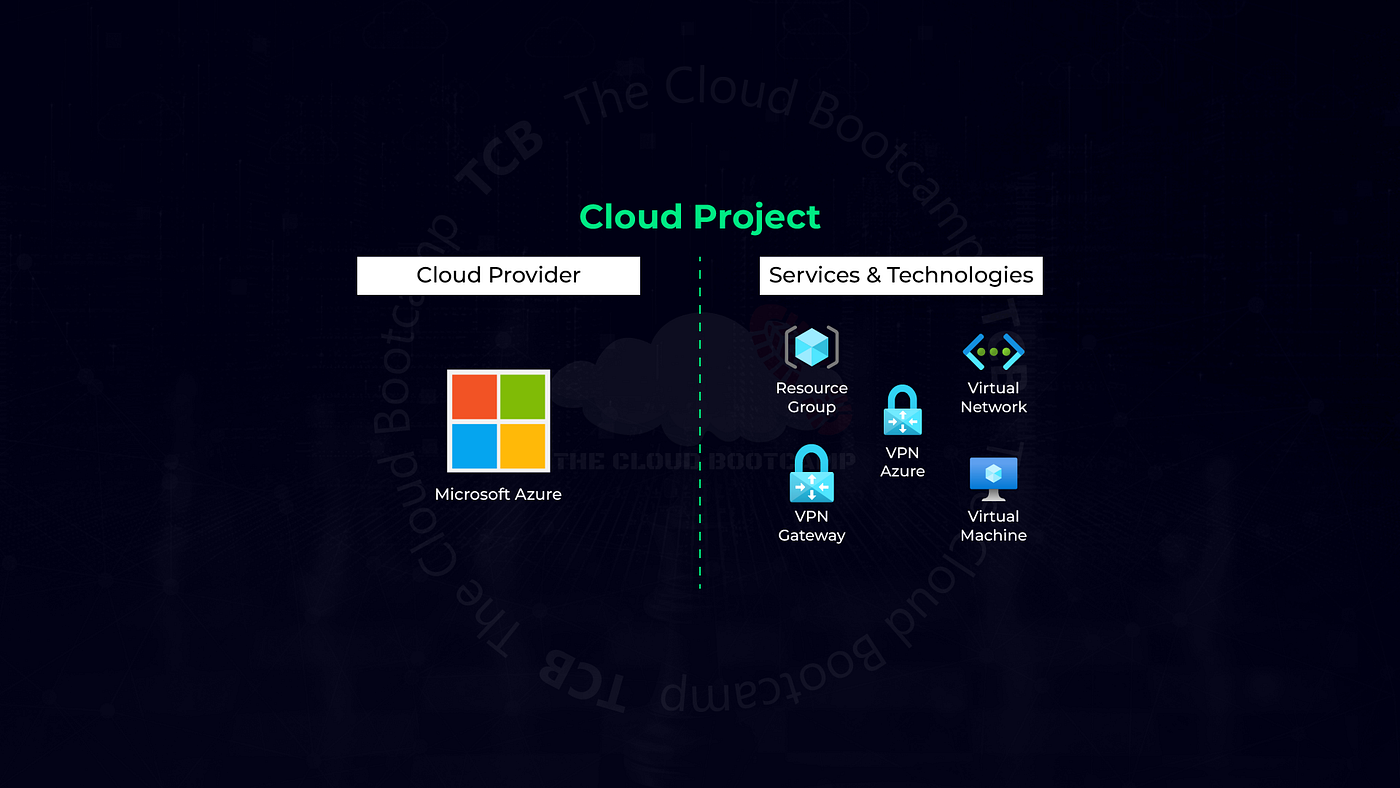
After analyzing the business requirements and security needs, I determined that the most suitable approach would be to implement Point-to-Site (P2S) VPN connections using Microsoft Azure VPN Gateway. This architecture allows each employee, from their home, to establish an encrypted tunnel directly between their device and the company’s infrastructure on Azure, ensuring secure access to internal systems.
The choice of P2S VPN was due to its flexibility and scalability, as it does not require a dedicated physical device at each employee’s home, and access can be granted in a controlled, individualized, and auditable manner.
Technical Benefits
The adopted solution offers several advantages, such as:
- Enhanced security: Traffic between the employee’s device and the Azure environment is protected by end-to-end encryption, reducing interception risks.
- Ease of implementation: The VPN Gateway configuration in Azure is straightforward and can be centrally managed, simplifying the onboarding of new users.
- Scalability: New employees can be quickly integrated into the remote environment without major infrastructure changes.
- Access control: It is possible to define granular access policies, ensuring each user has permission only to the resources necessary for their role.
Practical Implementation
Initial Note
Cloud provider documentation is constantly evolving, which can directly impact deployment procedures. I strongly recommend always consulting Microsoft’s official and up-to-date documentation during project execution to ensure all commands and steps comply with the latest service versions.
1. Creating the Virtual Network (VNET)
The first step is to create a Virtual Network, which will serve as the foundation for communication between internal resources.
- Resource Group: tcb-mod4
- VNET Name: VNetBootcamp
- Region: East US

During configuration, keep the default IP address range and subnet suggested by the wizard. After reviewing the settings, complete the creation of the virtual network.

2. Provisioning the Virtual Machine (VM)
Next, create a virtual machine to be used for connectivity and remote access tests.
- Resource Group: tcb-mod4
- VM Name: app01
- Region: East US
- Image: Ubuntu Server 22.04 LTS
- Size: Standard_B1s
- SSH Key: app01_key
- Public inbound ports: None
In the networking step, do not assign a public IP to the VM. After creation, download the private key for SSH access.


3. Configuring the Virtual Network Gateway
Now, create the virtual network gateway, which will manage the VPN connections.
- Name: vpnbootcamp
- SKU: VpnGw1
- Generation: Generation1
- Associated VNET: VNetBootcamp
- Public IP address: vpnbootcamp-ip
- Active-active mode: Disabled
- BGP: Disabled


Note: It may take a few minutes for the VNET to become available for association with the gateway. Gateway provisioning can take around 20 minutes.
4. Generating and Installing Certificates
To ensure connection security, it is essential to use digital certificates on both the client and gateway sides. The certificates have already been generated and are available for download.
- I recommend creating a folder, such as
C:\azure\mod4, to store and extract the certificate files. - Download the package
tcb-azure-mod4-certs-PT.zipand extract its contents.
For more details on certificate generation, refer to the official Microsoft documentation.
5. Configuring the Point-to-Site (P2S) VPN
In the Azure portal, access the Virtual Network Gateway and start configuring the P2S VPN:
- Address pool: 172.16.0.0/24
- Tunnel types: IKEv2 and SSTP (SSL)
- Authentication type: Azure certificate
- Root certificate:
- Name: P2SRootCert
- Public certificate data: (insert the provided content)
Save the settings and wait for the changes to apply.
6. Downloading and Installing the VPN Client
After configuration, download the VPN client package (vpnbootcamp.zip). If you are using a non-Windows operating system, consider creating a Windows 10/11 VM for testing.
- Install the client certificate (
clientcert.pfx) for the current user profile. - Certificate password:
azurebootcamp
Extract the contents of vpnbootcamp.zip and run the installer appropriate for your system (e.g., VpnClientSetupAmd64.exe for Windows 64-bit).
7. Establishing the VPN Connection
After installation, go to Windows network connections and connect to the VNetBootcamp VPN.

8. Testing the Private Connection
Open the Windows command prompt and run a ping test to the private IP of the created VM:
ping 10.0.0.4
9. Installing Apache on VM app01
Access the VM via SSH using the private key:
ssh -i app01_key.pem azureuser@<VM-private-IP>
If you receive a warning about key permissions, adjust them with the following commands:
icacls "app01_key.pem" /Inheritance:r
icacls "app01_key.pem" /Grant:r "%Username%":"(R)"
Then, run the commands to install and start Apache:
sudo apt update
sudo apt install apache2 -y
sudo systemctl restart apache2.service
10. Validating Apache Access
In your browser, access the VM’s private IP address to verify that Apache is running:
http://<VM-private-IP>
11. Monitoring VPN Sessions
In the Azure portal, use the Virtual Network Gateway monitoring panel to track active Point-to-Site sessions.

12. Resource Cleanup
After testing, delete the tcb-mod4 Resource Group to remove all created resources, including the VPN. In Windows, remove the VPN connection from "Network Connections."
The deletion process may take some time due to the removal of the Virtual Network Gateway.


Results and Lessons Learned
Implementing this home office solution using Azure VPN Gateway proved effective in ensuring secure remote access to corporate resources without exposing the environment to the public internet. The use of Point-to-Site VPN, combined with certificate-based authentication, provided a high level of security and flexibility for the team.
Key takeaways include:
- The importance of detailed planning for network and security architecture.
- The value of automating and documenting each step, facilitating future maintenance and audits.
- The need to keep up with constant updates to cloud services, ensuring adherence to best practices.
Conclusion
This project reinforces my ability to design, implement, and document robust solutions in cloud environments, aligning business and security requirements. The hands-on experience with Azure VPN Gateway and the delivery of a secure home office environment are differentiators that add value to any organization seeking to modernize its infrastructure and protect its digital assets.
메타데이터
- post_id
- 3c0a8df07bae
- slug
- secure-home-office-solution-with-microsoft-azure-vpn-gateway-3c0a8df07bae
- url
- https://medium.com/@fabio.pettian/secure-home-office-solution-with-microsoft-azure-vpn-gateway-3c0a8df07bae
- canonical_url
- https://medium.com/@fabio.pettian/secure-home-office-solution-with-microsoft-azure-vpn-gateway-3c0a8df07bae
- author_url
- https://medium.com/@fabio.pettian
- status
- ok
- fetched_at
- 2026-07-17 21:46:37