Cost Attribution and Categorization on EKS Clusters: Split Cost Allocation Data
In the current era of micro services and collaboration, resources may not be neatly split across services and teams. However, it is…
Cost Attribution and Categorization on EKS Clusters: Split Cost Allocation Data

Generated with Gemini
In the current era of micro services and collaboration, resources may not be neatly split across services and teams. However, it is important to identify cost drivers to further inform optimization steps.
This begs the question of how we identify the services and teams that contribute the most to the cost, and how to consolidate the cost that cannot be split under manageable and visible teams/services.
- Creating a CI/CD Pipeline the Deploys to EKS
- Configuring the EKS deployment Environment
- Configuring Split Cost Data Allocation
- Configuring Cost Categories for Shared Resources
- Creating an A record on Route 53 to display the website.
CI/CD Pipeline Configuration
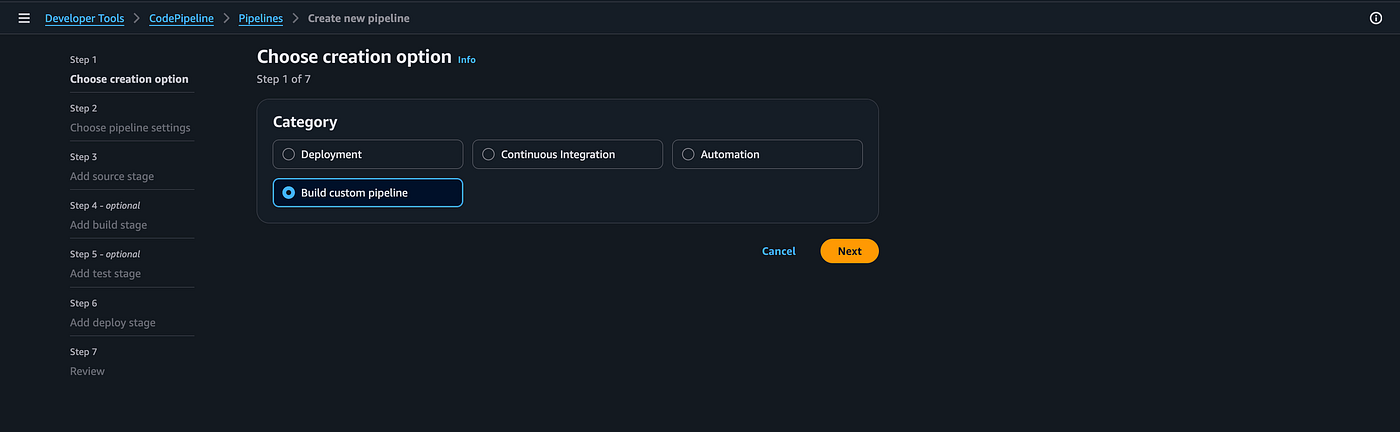
Step 1: Navigate to the Code Pipeline Console
- Click on “Create Pipeline”

Step 2 … n
- Follow the pages subsequently to complete the setup process
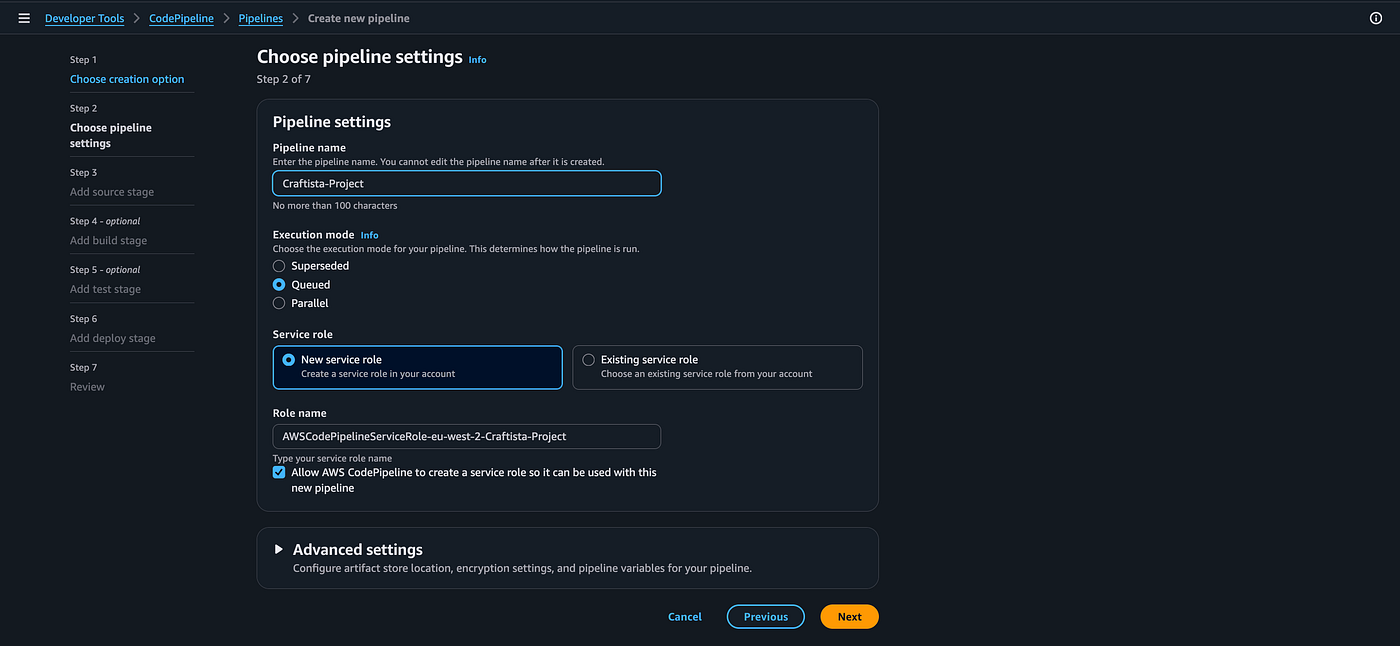
Explanation of the execution modes:
- SUPERSEDED (Default): Only the latest execution in the queue moves forward. Older waiting executions are discarded.
- QUEUED: Executions wait their turn in a first-in, first-out (FIFO) line. Every single change is processed in order.
- PARALLEL: Executions run simultaneously in the same stage (useful for isolated testing, but dangerous for production deployments).
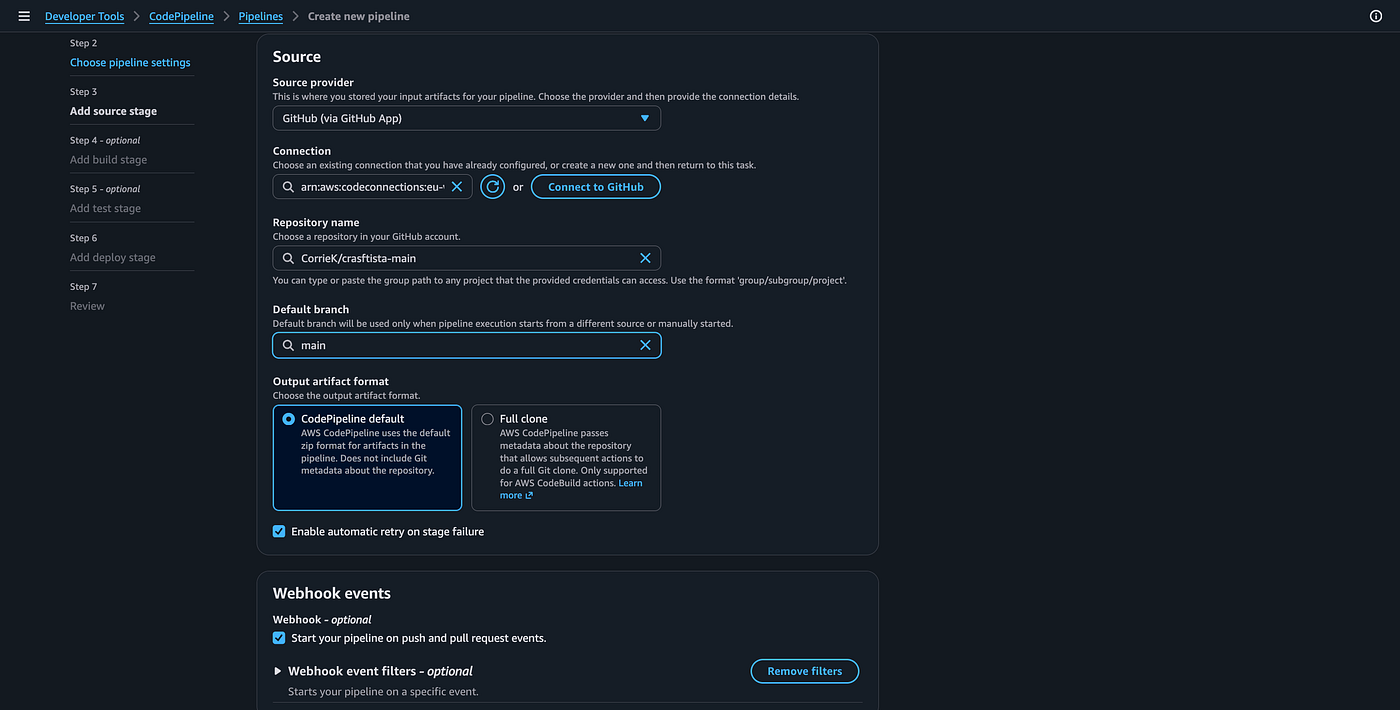
At this point, if you do not have an existing Github connection, you will need it to click on “Connect to Github” and install the “AWS Connector for Github” as shown below.
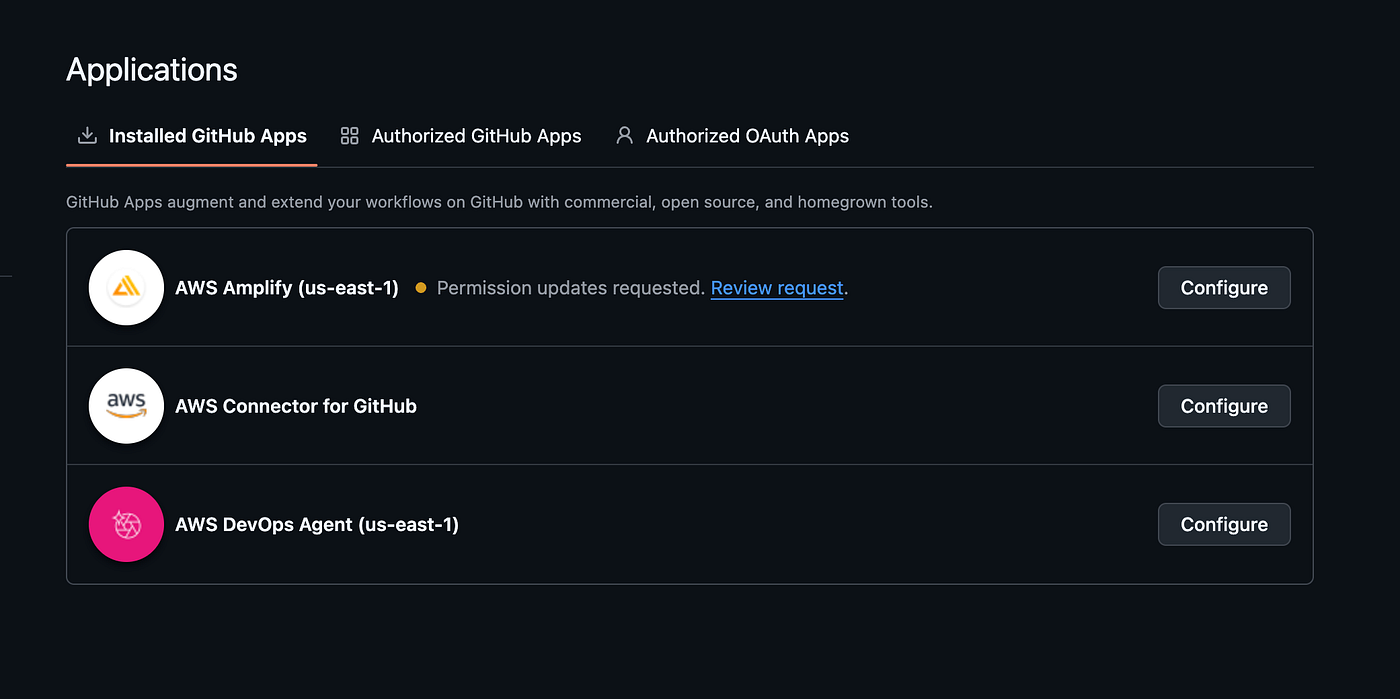
At this point, after creating the connection, you will be redirected back to the pipeline or you can alternatively open the github connection process in another tab and click on refresh to select the created connection.
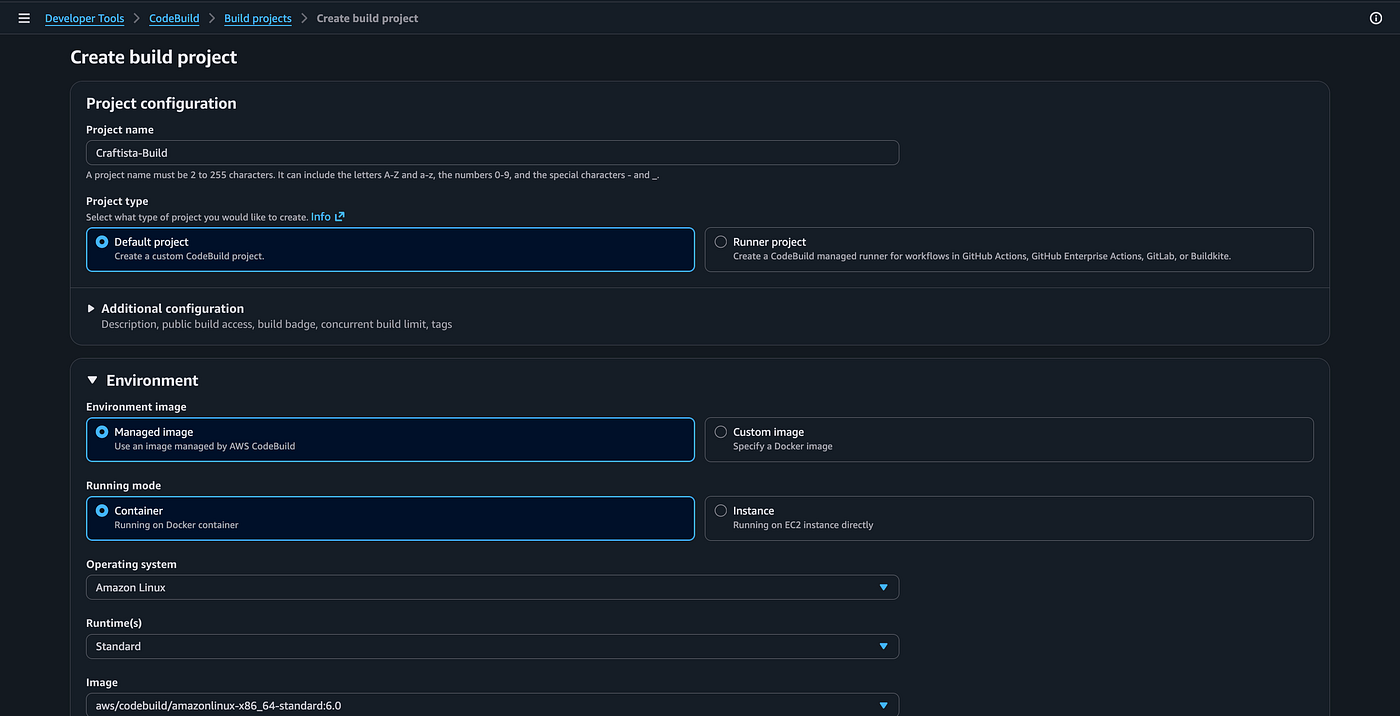
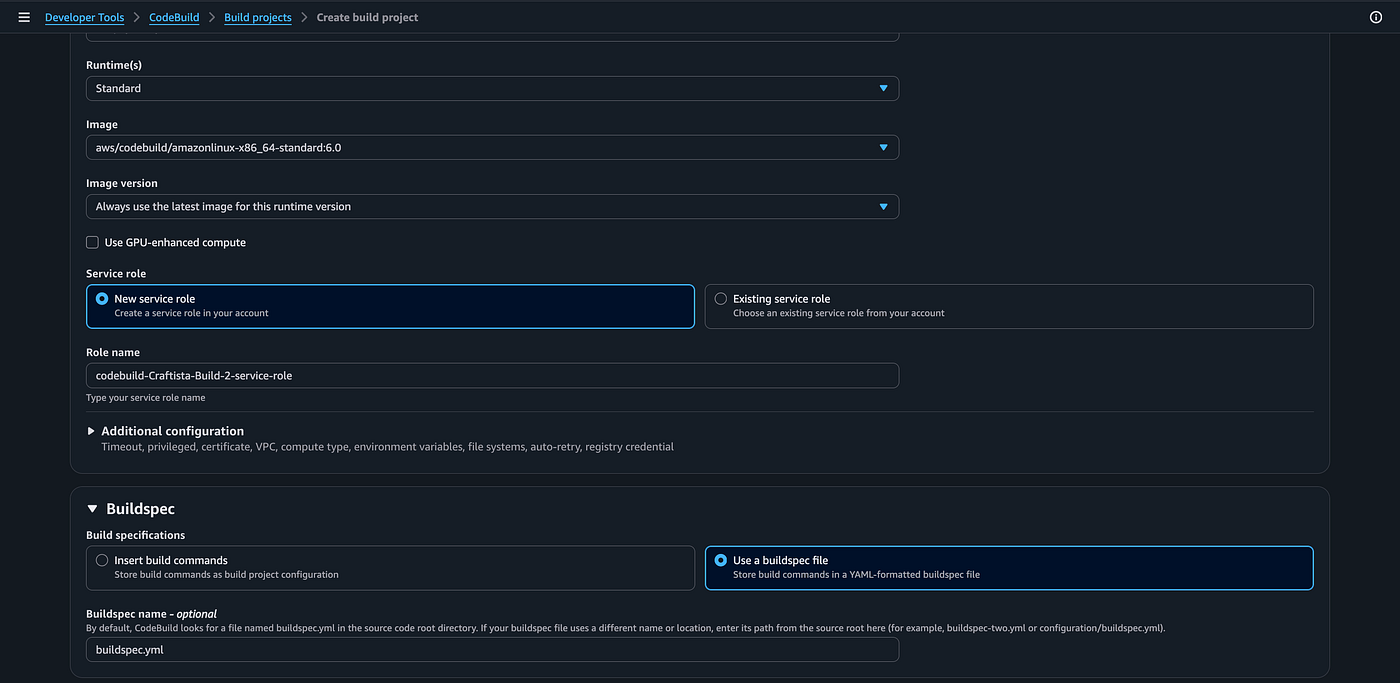
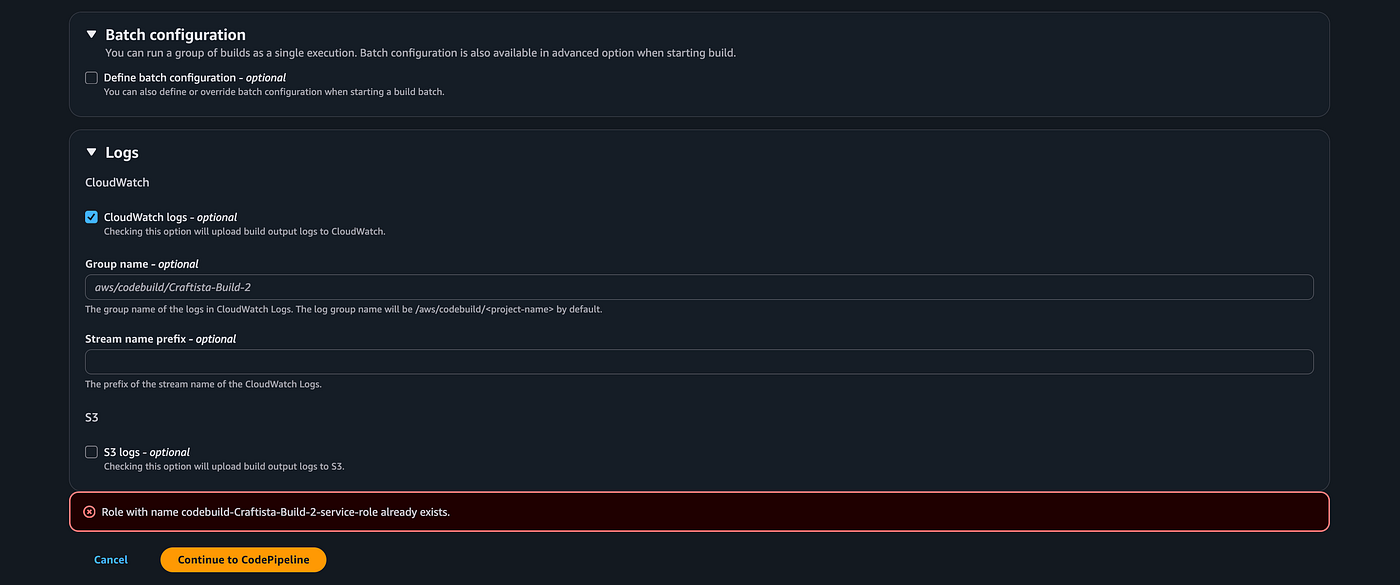
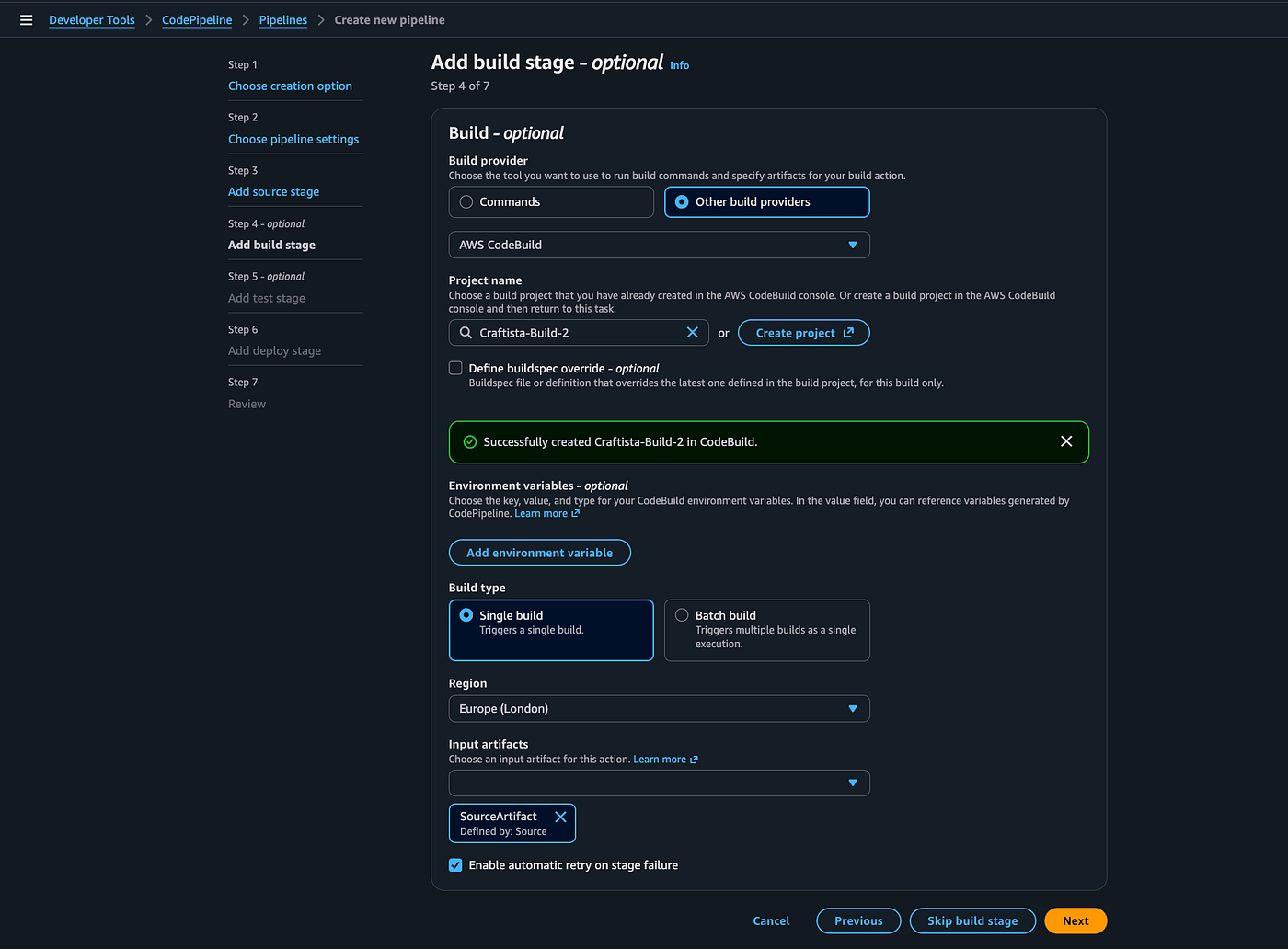
You will need to create project if you do not have one by clicking “Create project” I created mine with a buildspec file
Skipping the test stage *
Configuring the Deployment Environment — EKS Cluster
Step 1: … n
- Navigate to the EKS console.
- Follow through with the subsequent pages after clicking “Create cluster”


It is recommended to have the clusters in private subnets to safeguard the clusters from internet access.
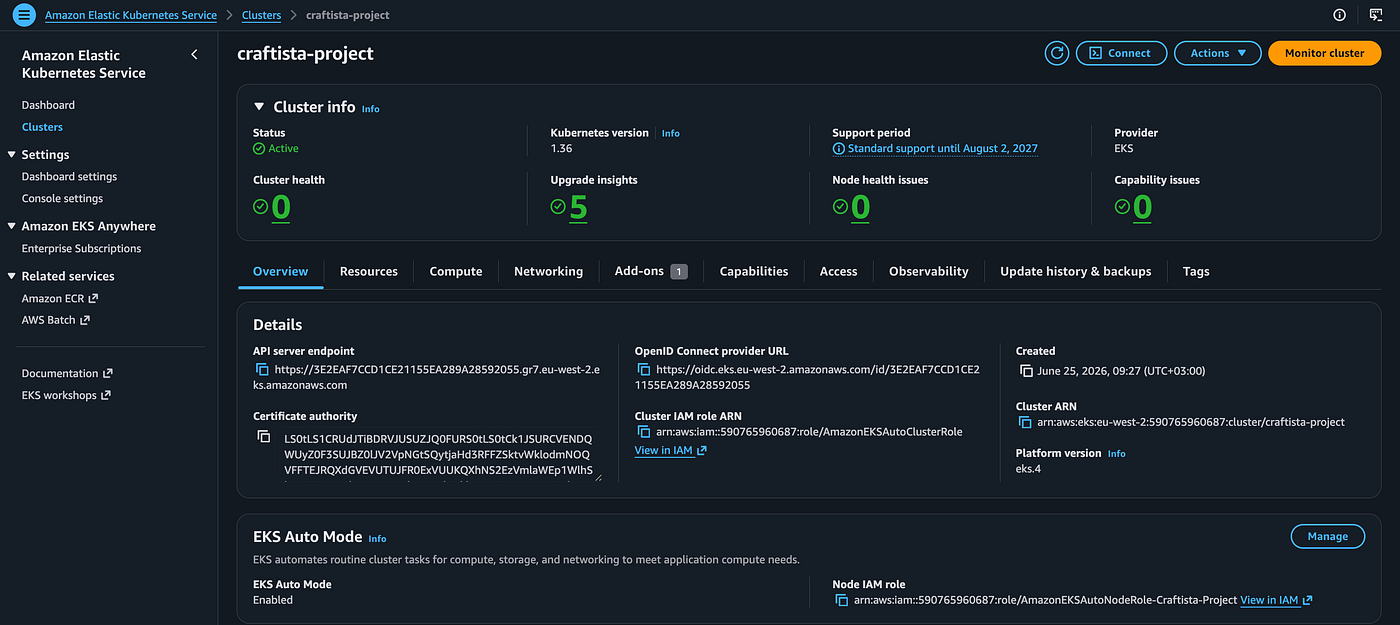
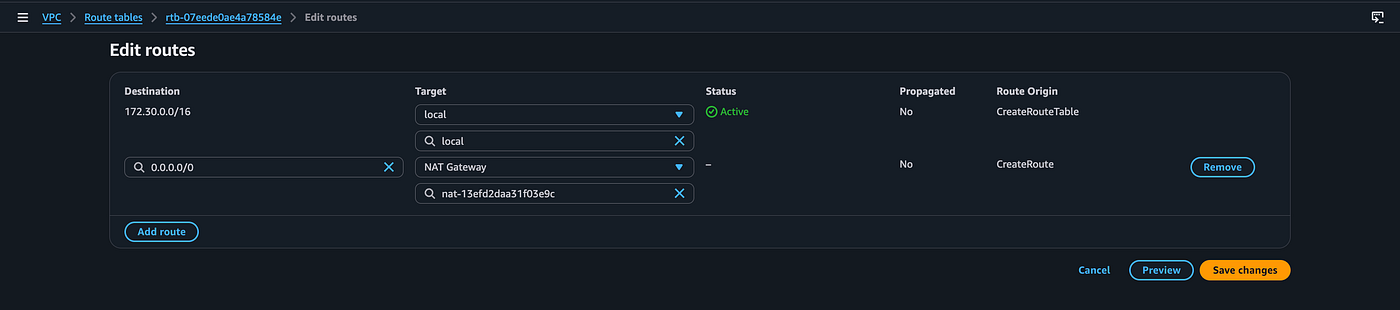
Since the clusters need to communicate with the EKS control plane via the internet, we need to create a NAT gateway in the public subnet of the VPC to allow outbound access to the internet for the EKS clusters.
- Navigate to the NAT Gateway console and click on “Create NAT Gateway”
- Follow the subsequent to create the NAT Gateway
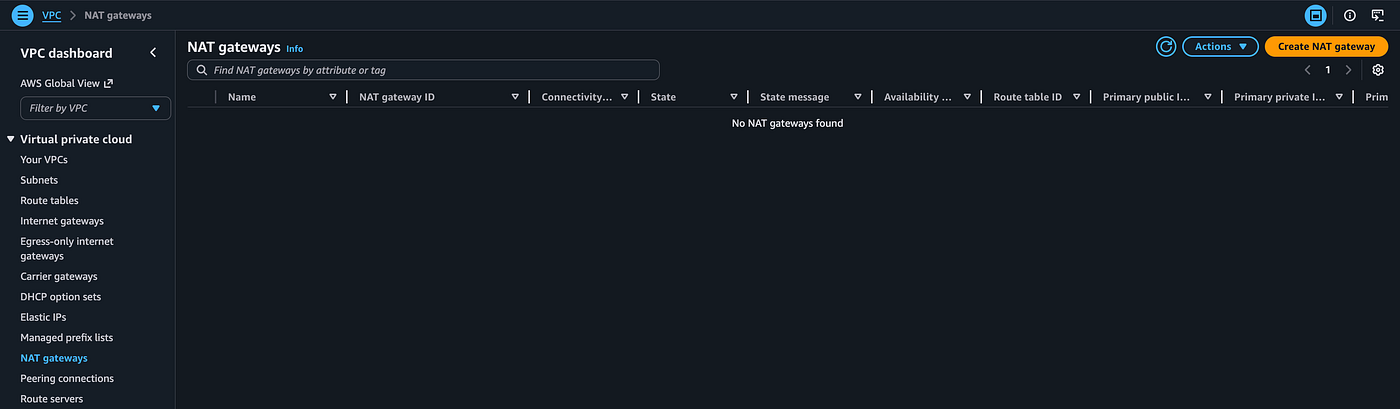

Update the route table to create a route to the internet “0.0.0.0/0” via the created NAT Gateway for the private subnet(s)

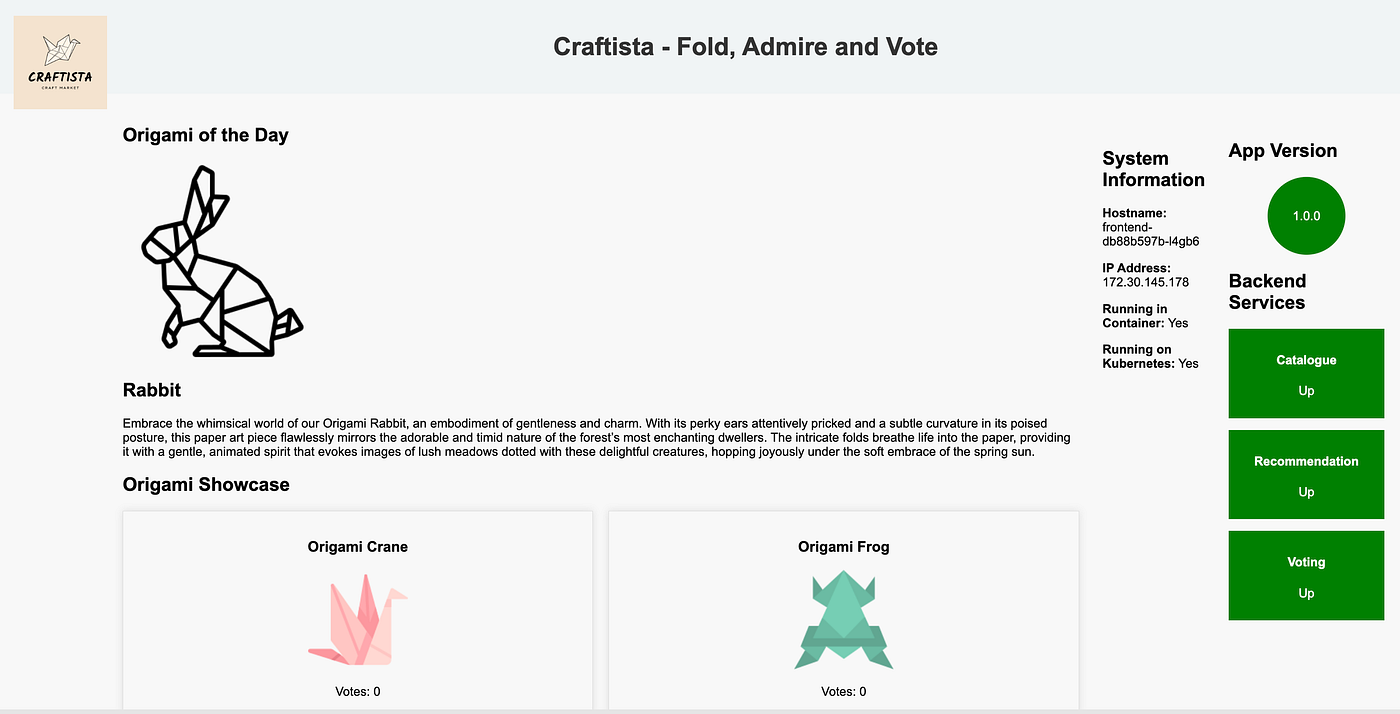
Configure the ingress via the manifest file, and the website should display as below using the frontend service URL (AWS ALB)
Enabling split cost allocation
Step 1: Log in to the root account and navigate to the Billing and Cost Management Console.
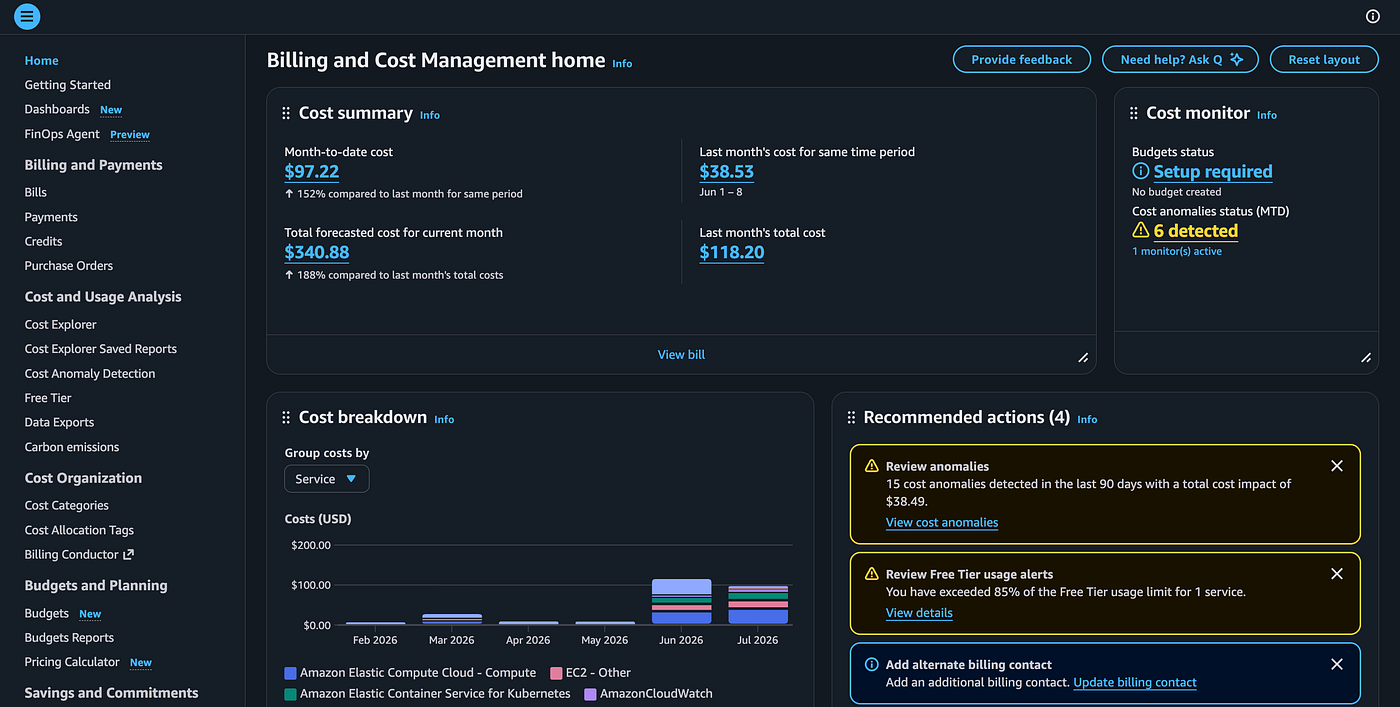
Step 2: Click on “Cost Categories” and create one

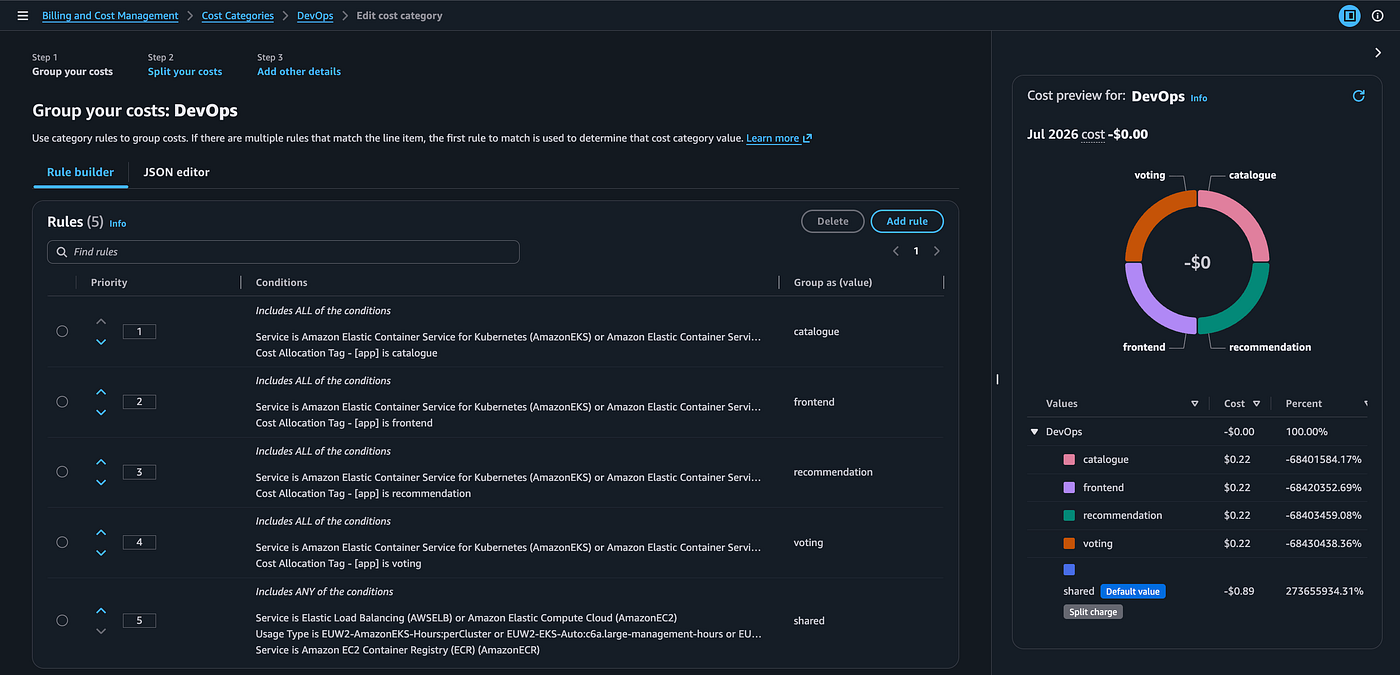
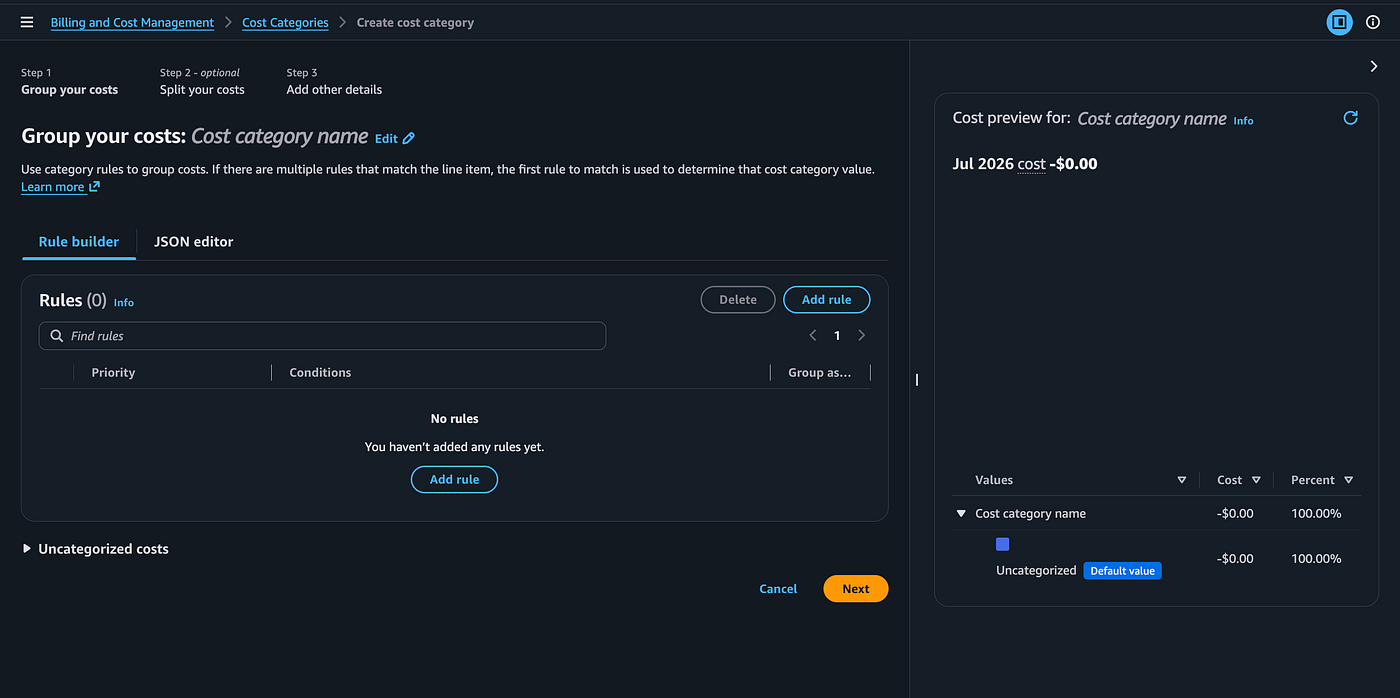
Step 3: Click on “Add rule” in the subsequent page.
In my case I chose to target the cost allocations by microservices.
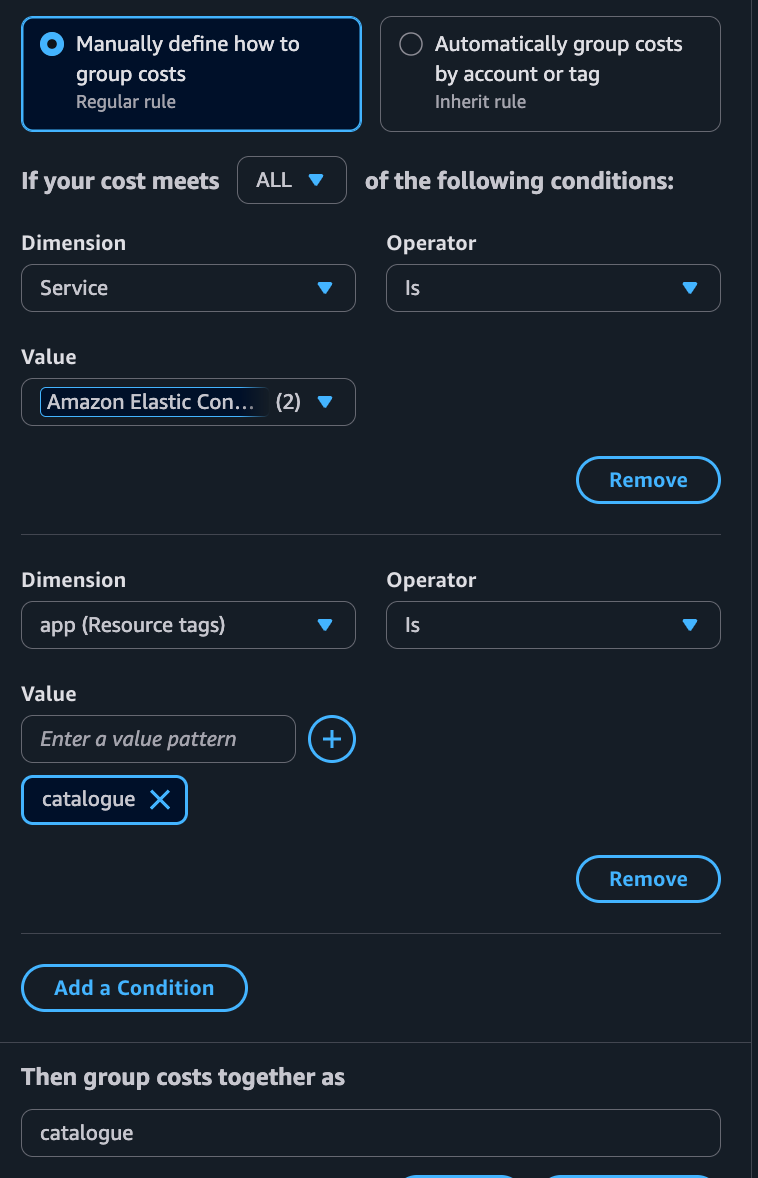
Step 4: Give the rule a name and click “next” after clicking “create rule”
Create a split cost in the next step
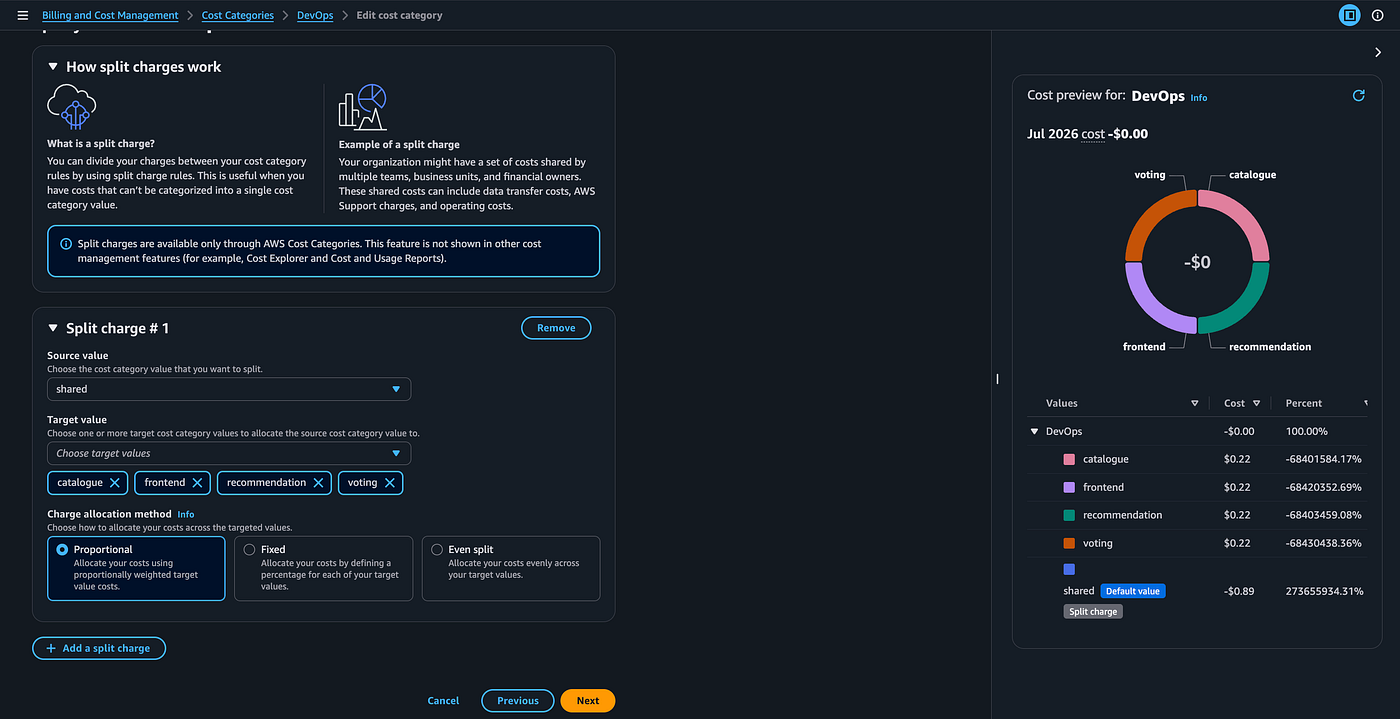
Define how you want to split your costs and click next.

Create your cost category and wait for it to get populated. It can take up to 24 hours
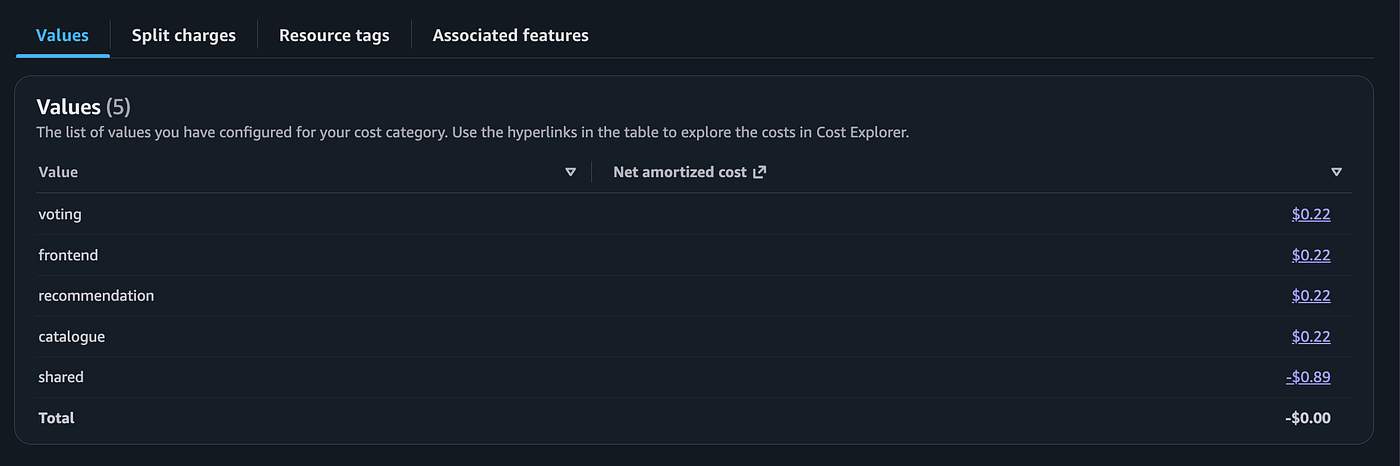
Once, this is done you can view your split costs on the second tab
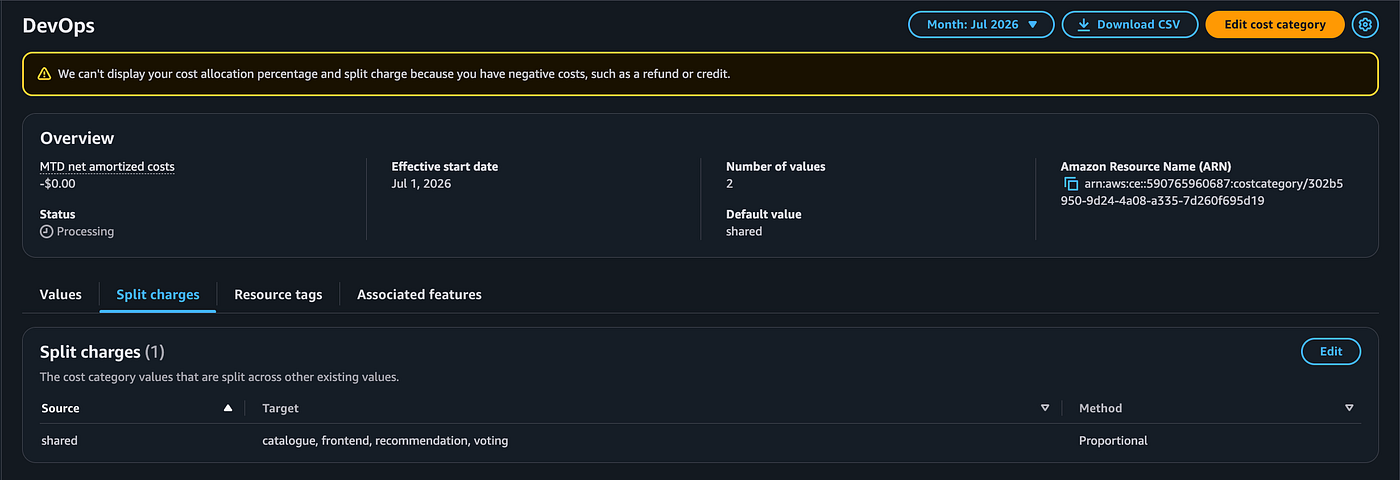
Note, while set-up is completed on the root account, you can access the created cost category as an IAM user (as shown below) within the account although the user will need the right IAM permissions to view the category.
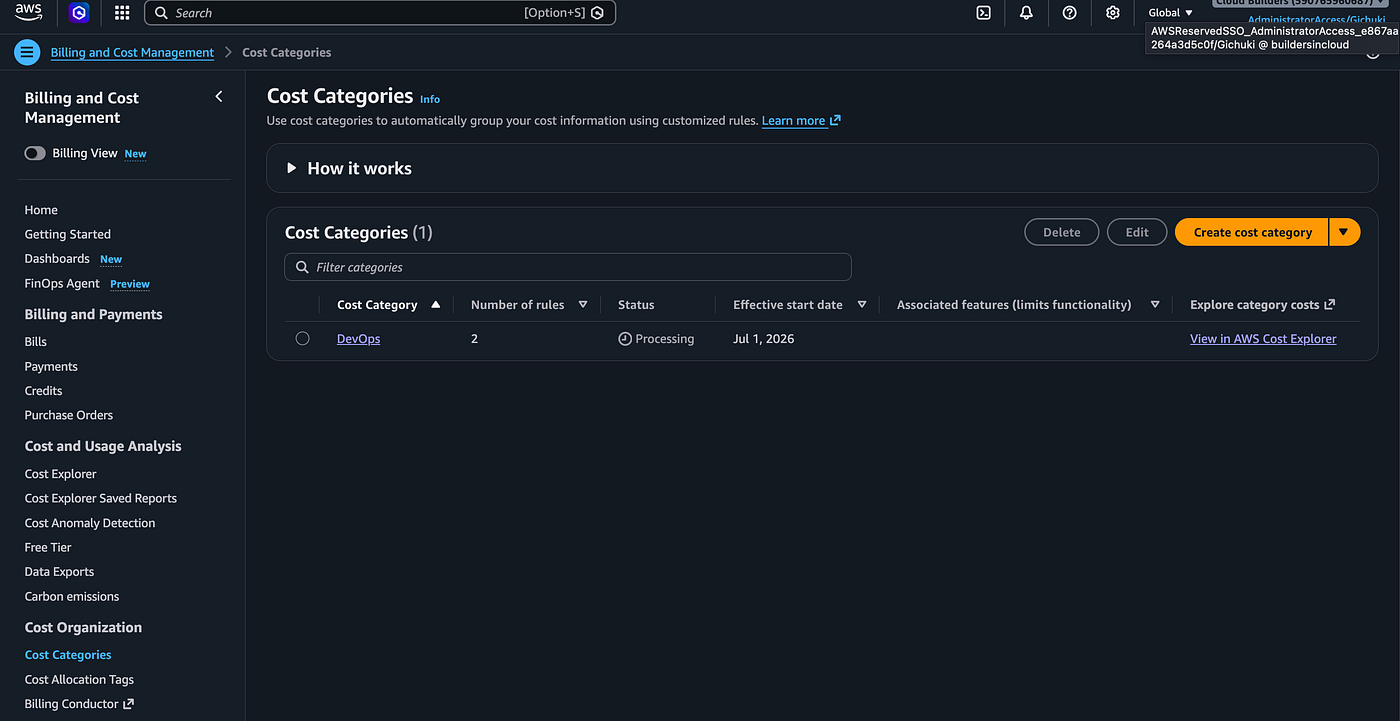
Additionally, you can create the category rules based on the labels you have for the different microservices on the manifest file which can offer a cleaner way to group your costs although the services need to have labels.

After 24 hours, here is how the output would look like on the console
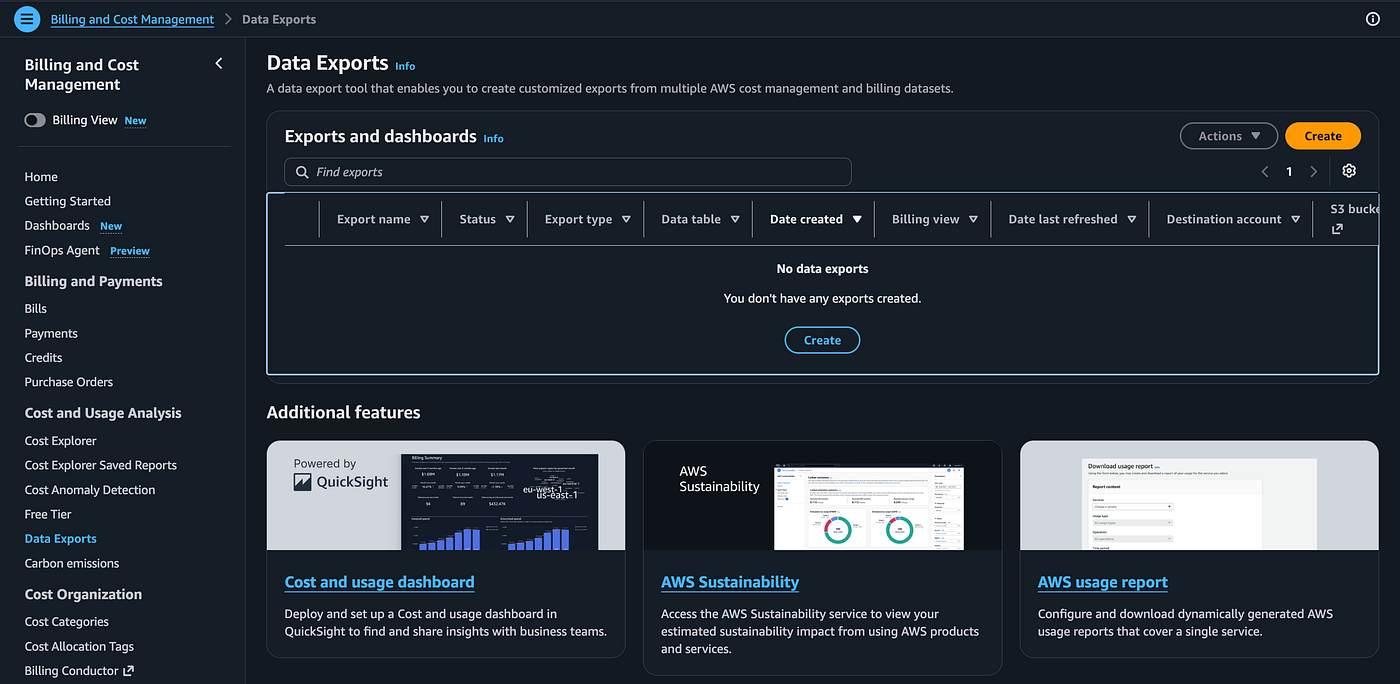
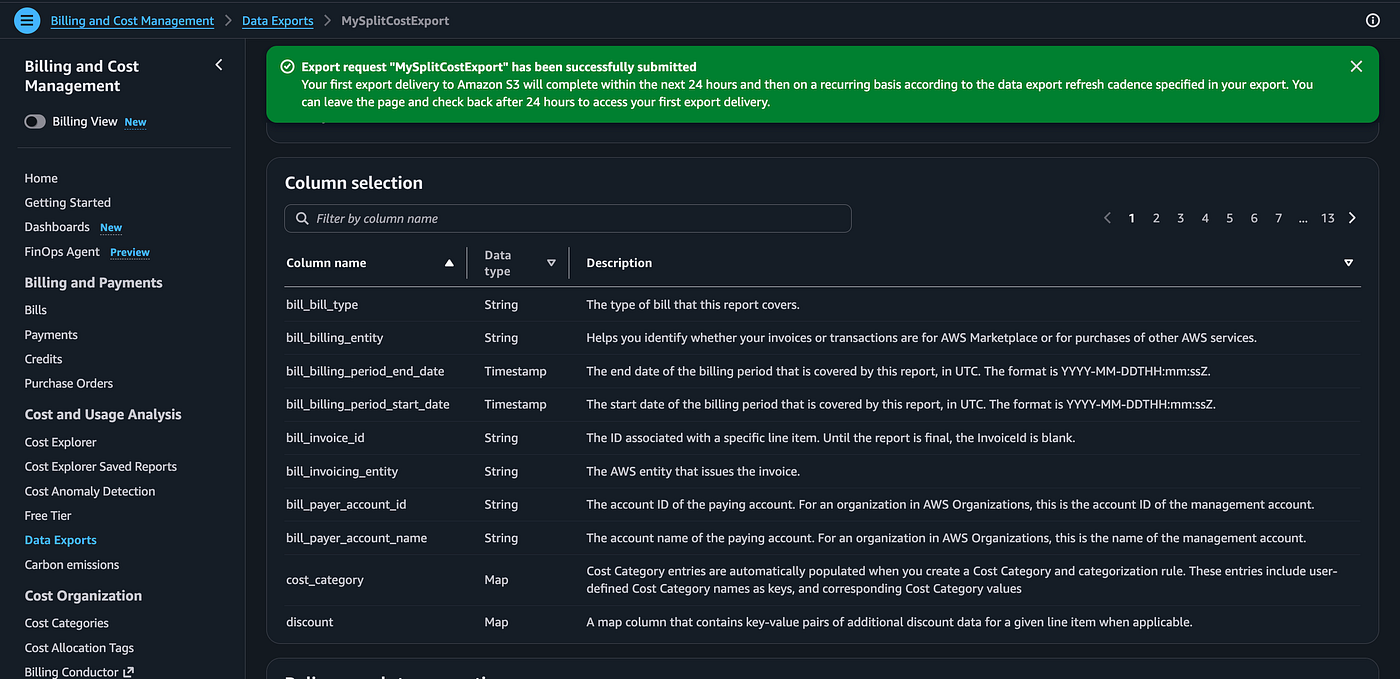
Create Data Exports
This step is important if you want to generate reports in various formats e.g. Parquet, CSV … that you would like to analyze with other software both within and without the AWS ecosystem.
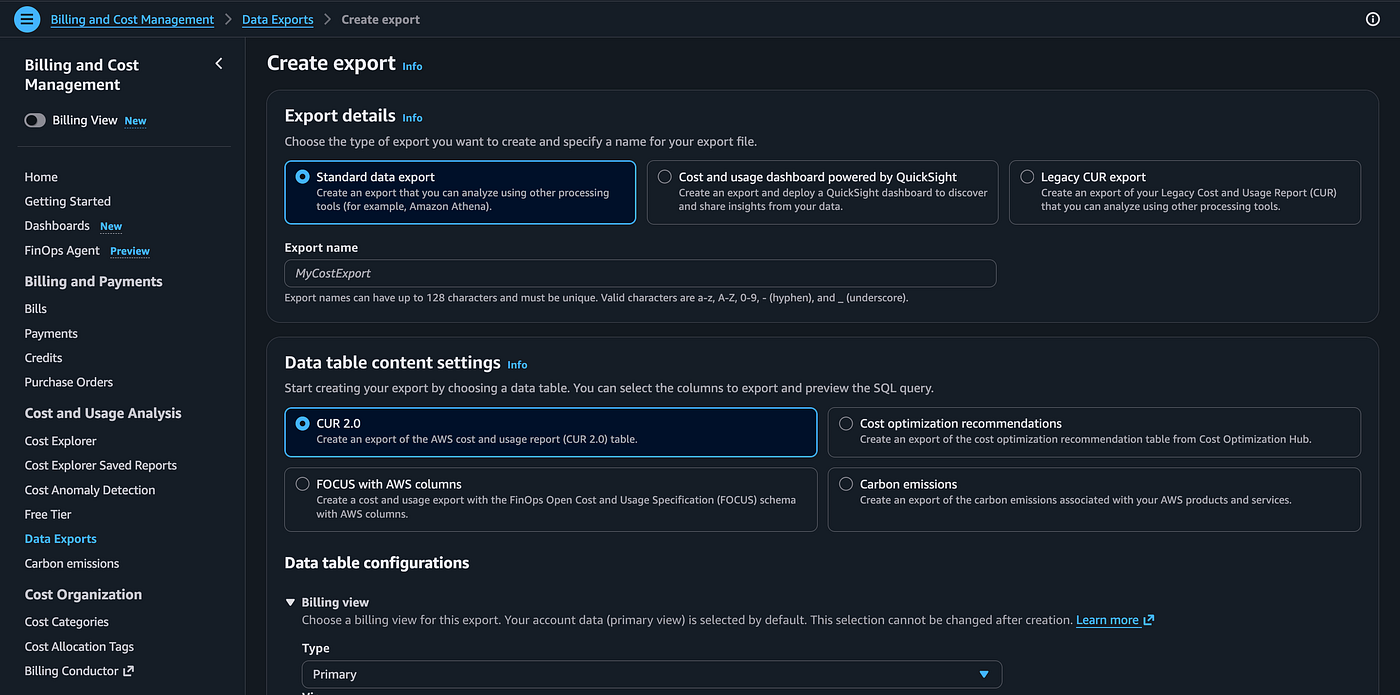


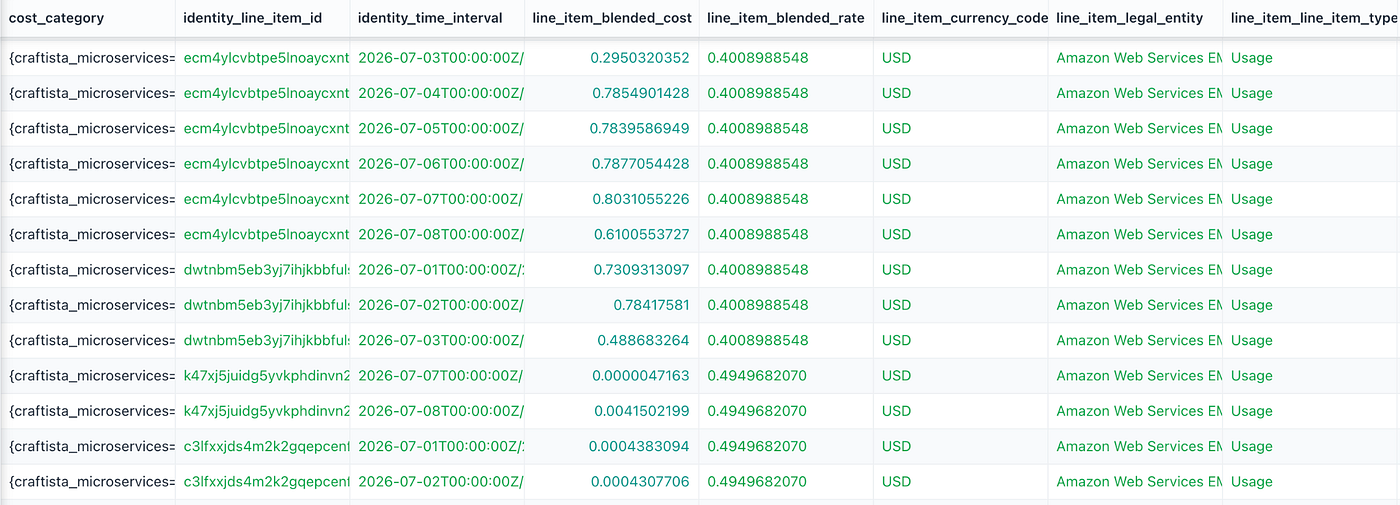
Here is a snippet of the output after 24 hours:
Bonus points: Using Route 53 to serve the website using a memorable URL
Currently, to access the “Craftista” website you would need to use the URL of the attached ALB which is not memorable to us as humans: http://k8s-default-frontend-1e03da1268-794339028.eu-west-2.elb.amazonaws.com/
To change this to something shorter, we need to create a record on Route 53 that points to this address with a shorter URL such as craftista.korigichuki.me
Key prerequisites:
- Create a public hosted zone on Route 53.
- Have a registered domain e.g. what I have … korigichuki.me
- If you want to serve traffic via HTTPS and not HTTP, you will need a TLS/SSL certificate that you can get from the Amazon Certificate Manager Service.
Step 1: Navigate to the Route 53 Console

Step 2: Locate your public hosted zone
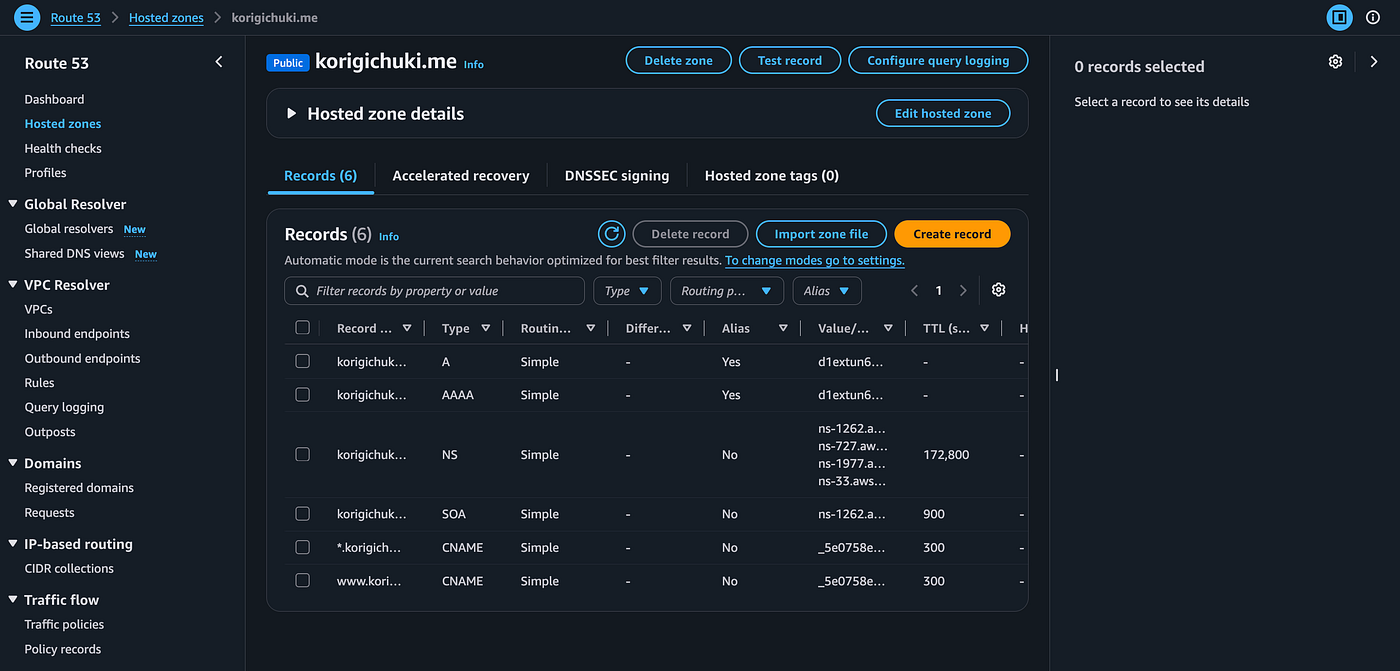
Step 3: Add an “A” record toggling to create an Alias record so that we can point to the ALB

Here is the site served via a custom URL: craftista.korigichuki.me

Link to Github Repo: https://github.com/CorrieK/crasftista-main/tree/main
At this point, you should have a working:
- CI/CD Pipeline
- EKS Cluster
- Split allocation data for cost attribution and allocation
- An S3 bucket with report(s) that you can use for further analysis
- Experience working with a polyglot application
- An AWS Bill 😁
- Bragging rights
메타데이터
- post_id
- 3d74d9e88b7d
- slug
- cost-attribution-and-categorization-on-eks-clusters-split-cost-allocation-data-3d74d9e88b7d
- url
- https://blog.devops.dev/cost-attribution-and-categorization-on-eks-clusters-split-cost-allocation-data-3d74d9e88b7d
- canonical_url
- https://blog.devops.dev/cost-attribution-and-categorization-on-eks-clusters-split-cost-allocation-data-3d74d9e88b7d
- author_url
- https://medium.com/@korigichuki
- status
- ok
- fetched_at
- 2026-07-13 06:23:13