Mastering Advanced Excel: The Complete Guide to Lookup, Reference, Dynamic Arrays, and Productivity…
Introduction
Mastering Advanced Excel: The Complete Guide to Lookup, Reference, Dynamic Arrays, and Productivity Functions
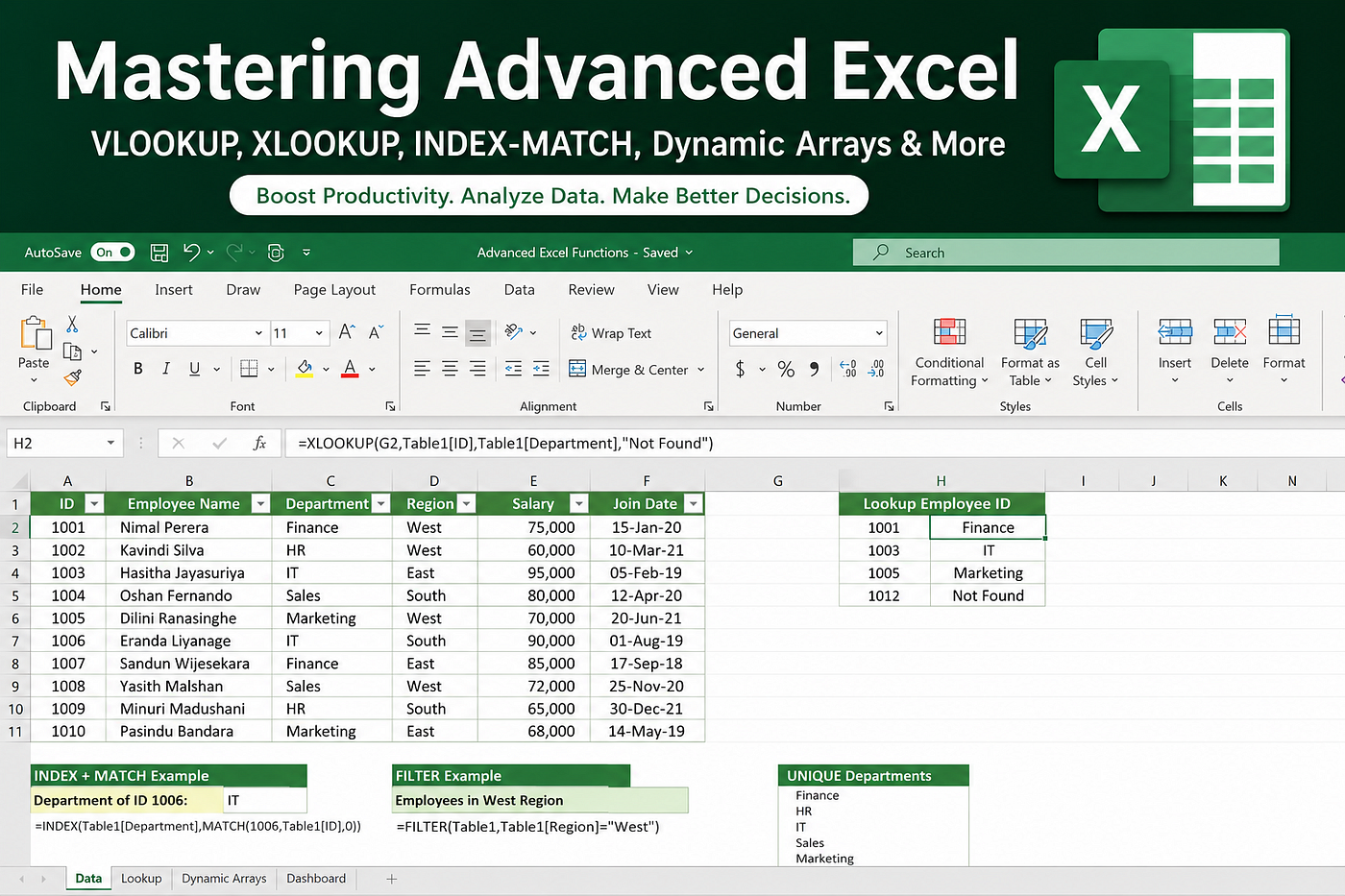
Introduction
Microsoft Excel is much more than a spreadsheet application — it is one of the most powerful tools for data analysis, reporting, automation, and decision-making. Whether you work in finance, business analysis, accounting, data science, human resources, or project management, mastering Excel’s advanced functions can dramatically improve your productivity.
Many professionals spend hours manually searching, cleaning, and organizing data. However, by learning a handful of advanced Excel functions, you can automate repetitive tasks, reduce human errors, and analyze large datasets in seconds.
In this comprehensive guide, you’ll learn the most valuable advanced Excel functions with practical examples and best practices that you can immediately apply in your daily work.
Table of Contents
- Why Learn Advanced Excel?
- Lookup & Reference Functions
- Logical Functions
- Text Functions
- Date & Time Functions
- Mathematical Functions
- Dynamic Array Functions
- Conditional Calculations
- Error Handling Functions
- Data Cleaning Functions
- Financial Functions
- Statistical Functions
- Productivity Tips
- Best Practices
- Conclusion
1. Why Learn Advanced Excel?
Advanced Excel skills help you:
- Automate repetitive tasks
- Analyze thousands of rows instantly
- Build professional dashboards
- Create dynamic reports
- Reduce manual errors
- Save hours every week
- Improve decision making
2. Lookup & Reference Functions
These functions help retrieve information from large datasets.
VLOOKUP
Purpose
Searches vertically for a value in the first column and returns data from another column.
Syntax
=VLOOKUP(lookup_value, table_array, column_index, FALSE)Example
=VLOOKUP(A2, Employees!A:F, 4, FALSE)Returns the employee’s department.
Best Use Cases
- Employee databases
- Inventory systems
- Student records
- Sales reports
Common Mistakes
- Lookup column must be the first column.
- Forgetting FALSE for exact matching.
- Hardcoded column numbers.
HLOOKUP
Searches horizontally across rows.
Example:
=HLOOKUP("Jan", A1:M5, 4, FALSE)XLOOKUP (Recommended)
The modern replacement for VLOOKUP.
Advantages
- Searches left and right
- Handles errors
- Supports exact and approximate matches
- More readable formulas
Example
=XLOOKUP(A2, EmployeeID, EmployeeName)INDEX + MATCH
A powerful alternative to VLOOKUP.
Example
=INDEX(C:C, MATCH(A2, A:A, 0))Advantages:
- Faster
- Flexible
- More scalable
- Works with columns in any order
3. Logical Functions
IF
=IF(B2>=50,"Pass","Fail")IFS
=IFS(
A2>=90,"A",
A2>=80,"B",
A2>=70,"C",
TRUE,"Fail")
AND
=AND(A2>50,B2="Yes")OR
=OR(A2>90,B2="Manager")SWITCH
=SWITCH(A2,
1,"January",
2,"February",
3,"March")
4. Text Functions
TEXTJOIN
=TEXTJOIN(", ",TRUE,A2:A10)CONCAT
=CONCAT(A2,B2,C2)LEFT
=LEFT(A2,5)RIGHT
=RIGHT(A2,4)MID
=MID(A2,4,6)TRIM
Removes extra spaces.
=TRIM(A2)SUBSTITUTE
=SUBSTITUTE(A2,"Old","New")5. Date & Time Functions
TODAY
=TODAY()NOW
=NOW()NETWORKDAYS
Calculate working days.
=NETWORKDAYS(A2,B2)EDATE
=EDATE(A2,6)6. Mathematical Functions
SUMIFS
=SUMIFS(C:C,A:A,"Laptop")COUNTIFS
=COUNTIFS(A:A,"East",B:B,">100")AVERAGEIFS
=AVERAGEIFS(C:C,A:A,"Sales")7. Dynamic Array Functions (Excel 365)
FILTER
=FILTER(A2:D100,C2:C100="Sales")SORT
=SORT(A2:D100,2,1)UNIQUE
=UNIQUE(A2:A100)SEQUENCE
=SEQUENCE(100)RANDARRAY
=RANDARRAY(20)8. Error Handling
IFERROR
=IFERROR(VLOOKUP(A2,D:F,2,FALSE),"Not Found")ISBLANK
=ISBLANK(A2)ISNUMBER
=ISNUMBER(A2)9. Data Cleaning Functions
- TRIM
- CLEAN
- PROPER
- UPPER
- LOWER
- VALUE
- TEXT
These are essential when working with imported CSV or ERP data.
10. Financial Functions
- PMT
- FV
- PV
- NPV
- IRR
Useful for budgeting, investments, and loan calculations.
11. Statistical Functions
- MAX
- MIN
- MEDIAN
- STDEV
- PERCENTILE
- RANK
- LARGE
- SMALL
12. Real-World Business Scenarios
HR
- Employee lookup
- Salary reports
- Attendance tracking
Finance
- Budget analysis
- Expense reports
- Loan calculations
Sales
- Commission calculations
- Sales dashboards
- Customer analysis
Inventory
- Stock monitoring
- Product lookup
- Warehouse reporting
Data Analysis
- Duplicate detection
- Data validation
- Dashboard creation
13. Excel Productivity Tips
✔ Convert data into Excel Tables (Ctrl + T)
✔ Use Named Ranges for cleaner formulas
✔ Avoid merged cells
✔ Use keyboard shortcuts instead of the mouse
✔ Replace VLOOKUP with XLOOKUP whenever possible
✔ Use structured references in tables
✔ Keep raw data separate from reports
✔ Use Pivot Tables for quick summaries
✔ Format data consistently
✔ Document complex formulas with comments
14. Best Practices
- Use absolute references (
$A$1) when needed. - Break complex formulas into smaller steps.
- Validate imported data before analysis.
- Keep formulas readable.
- Test formulas on sample data.
- Use IFERROR to avoid displaying unnecessary errors.
- Prefer dynamic arrays over manual filtering.
- Regularly audit formulas for accuracy.
Conclusion
Advanced Excel is not about memorizing hundreds of formulas — it’s about understanding which function solves a specific problem efficiently. By mastering lookup, logical, text, dynamic array, and data-cleaning functions, you can automate repetitive work, improve data accuracy, and build reports that are both powerful and easy to maintain.
Start by practicing one function each day, combine multiple functions to solve real-world problems, and gradually build your own library of reusable formulas. With consistent practice, Excel can become one of the most valuable productivity tools in your professional toolkit.
The best Excel users aren’t the ones who know every formula — they’re the ones who know exactly which formula to use at the right time.
메타데이터
- post_id
- 3deeca5fa5cc
- slug
- mastering-advanced-excel-the-complete-guide-to-lookup-reference-dynamic-arrays-and-productivity-3deeca5fa5cc
- url
- https://medium.com/@lakshitha1629/mastering-advanced-excel-the-complete-guide-to-lookup-reference-dynamic-arrays-and-productivity-3deeca5fa5cc
- canonical_url
- https://medium.com/@lakshitha1629/mastering-advanced-excel-the-complete-guide-to-lookup-reference-dynamic-arrays-and-productivity-3deeca5fa5cc
- author_url
- https://medium.com/@lakshitha1629
- status
- ok
- fetched_at
- 2026-07-09 13:13:48




