I Tried Topview’s 3D Shot Composer for More Precise AI Images
A practical way to stage characters, props, and camera framing before generating the final shot.
I Tried Topview’s 3D Shot Composer for More Precise AI Images
A practical way to stage characters, props, and camera framing before generating the final shot.
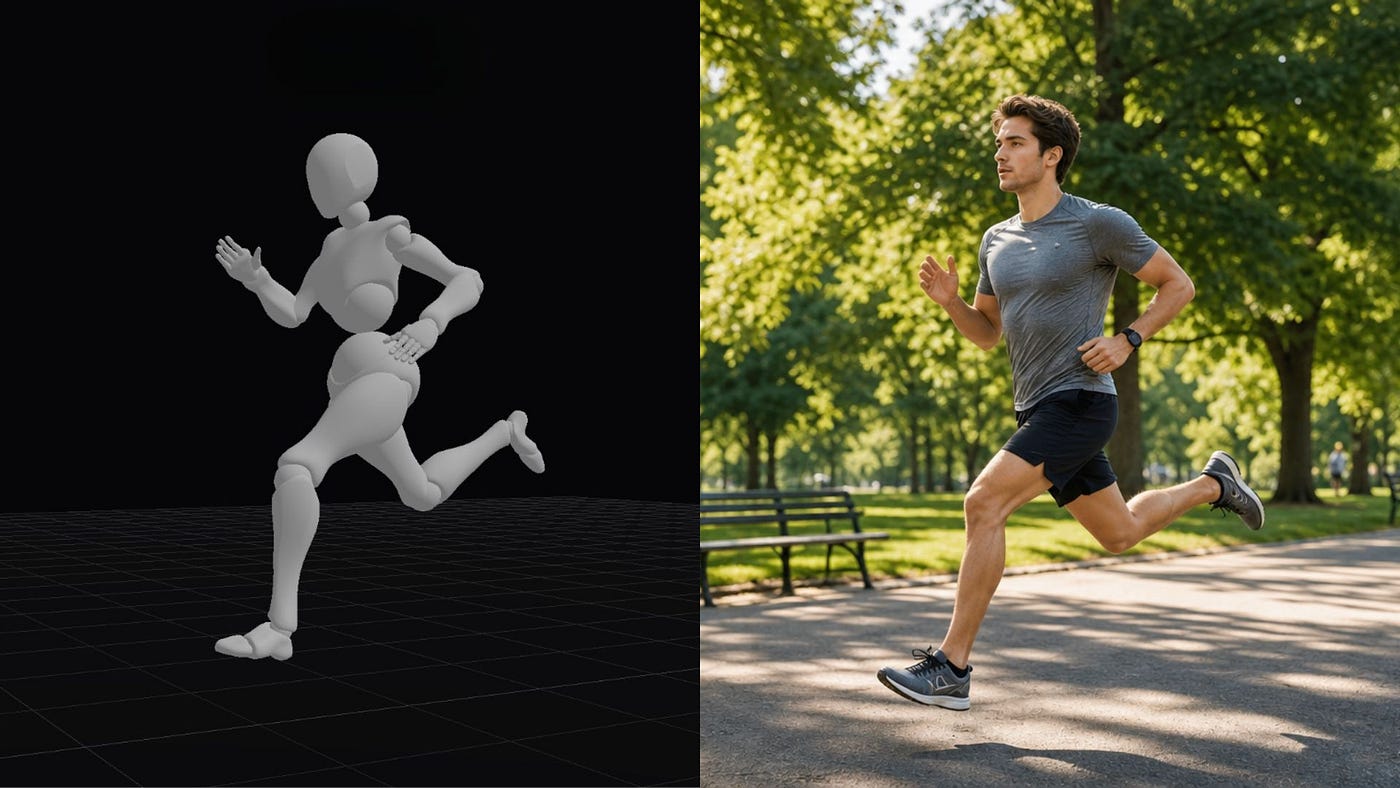
3D scene translated into a detailed image using Topview
Getting a good AI-generated image is easy when I do not care much about the exact composition.
I can describe a character, setting, mood, and visual style, then let the model decide how everything should appear. The result might look impressive, but it is often not the image I originally had in mind.
The problem becomes more obvious when I need a specific shot.
Maybe the character should stand on the left side of the frame while looking toward a product on the right. The camera might need to sit slightly below eye level. The subject should fill only half of the image, leaving enough negative space for text or another character.
Prompts can describe all of this, but they do not always translate into accurate composition.
I usually end up rewriting the prompt several times. Each failed attempt costs time and credits, and there is no guarantee that the next result will be any closer to the composition I had in mind.
A better approach is to give the model a visual reference that shows the layout of the scene. Instead of describing every position through text, I can show where the character, props, and camera should be placed.
Topview’s Canvas dashboard, powered by the Seedance 2.5 video model, now includes a 3D Shot Composer tool that lets creators stage scenes in 3D before generating the final image or video. It lets creators stage a scene in 3D, choose the camera angle, and use that setup as a visual guide before generating the final image or video.
How 3D References Improve Scene Composition
A 3D reference lets me compose the shot before generating it. Instead of asking the model to interpret character positions, prop placement, depth, and camera framing from a prompt, I can arrange those elements directly inside the scene.
This gives me more control over blocking and perspective.
For example, I can place a little boy sitting on top of a wall, set the camera slightly below him, and control how far he appears from the viewer. I can also adjust how much of the wall stays in frame, where his body sits in the composition, and how much background space surrounds him.
Topview’s 3D shot composer. Image by Jim Clyde Monge
Bring in that 3D scene into the Canvas, use it as a reference, add some specific instructions on what the final output should look like, and generate the final image.
Topview’s 3D shot composer example. Image by Jim Clyde Monge
That gives me far more control than writing something like “a low-angle shot of a boy sitting on a wall.” The prompt describes the idea, but the 3D reference defines the actual shot.
What I like about this technique is how visual the process feels. I can move the camera, change the distance, reposition the character, and immediately see how each adjustment affects the composition before generating anything.
It is especially useful for cinematic videos, multi-scene stories, character interactions, short films, skits, and any shot where the exact blocking or camera angle matters. The prompt can focus on the final visual style, while the 3D reference handles how the scene is staged.
Topview’s New 3D Shot Composer in Canvas
Topview Canvas is a visual workspace for planning, generating, organizing, and reusing AI video workflows. Its new 3D Shot Composer adds more control over individual shots by letting me stage the scene before generating it.
You can find the new 3D Shot Composer in the Examples menu inside Canvas. Click it to open the media generation workspace and load the example workflow.
Topview’s 3D shot composer menu. Image by Jim Clyde Monge
From the Canvas dashboard, select the 3D Shot Composer tab. This opens the 3D scene editor, where I can add characters and basic shapes to the scene.
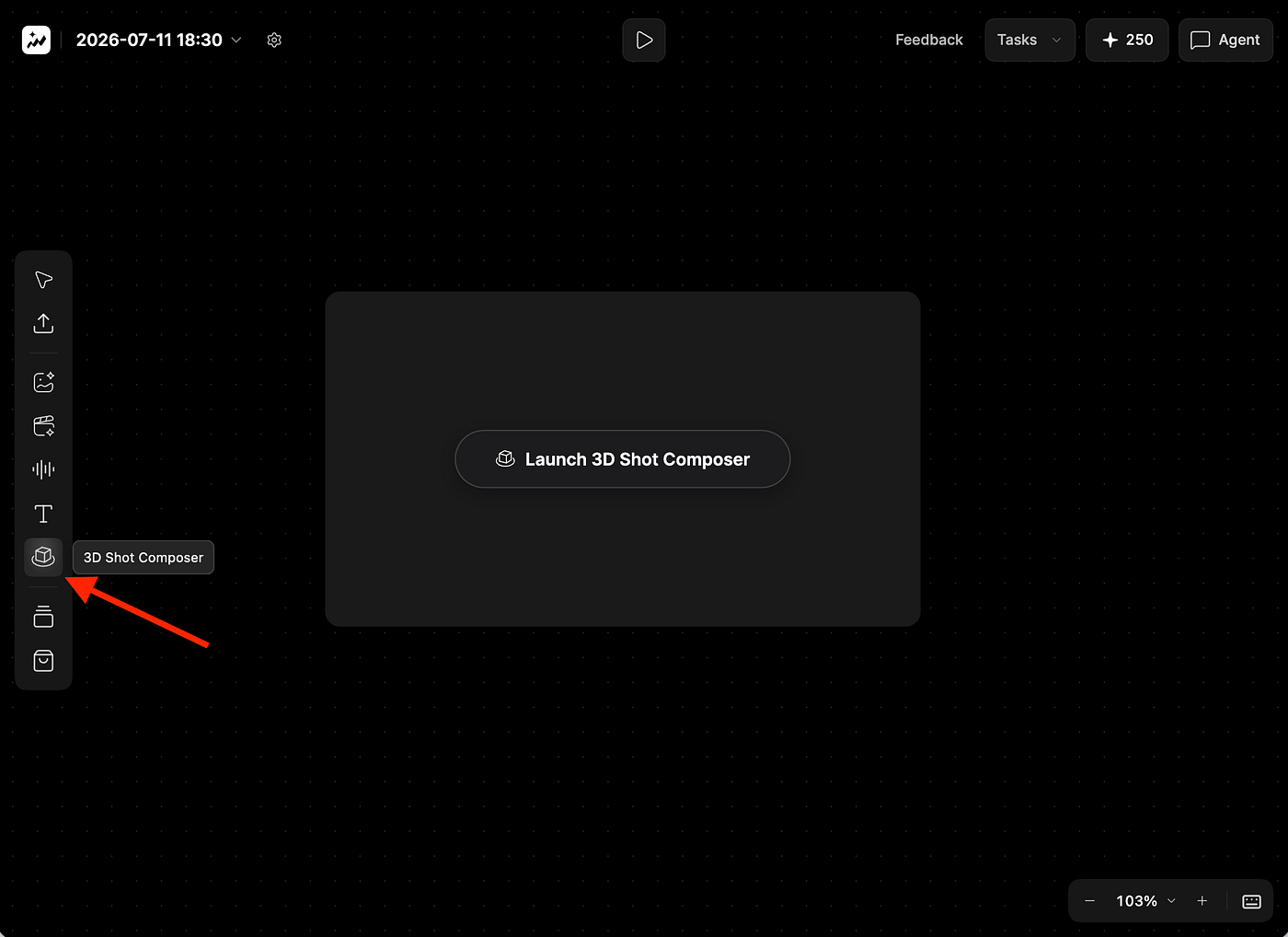
Topview’s 3D shot composer menu. Image by Jim Clyde Monge
I can then adjust the character’s position, camera angle, zoom level, and aspect ratio. The tool also includes several preset poses, which makes it easier to position the character without manually adjusting every part of the body.
For this example, I wanted to generate an image of a man running in a park. I selected a running pose, adjusted the camera distance and angle, and positioned the character where I wanted him to appear in the final frame.
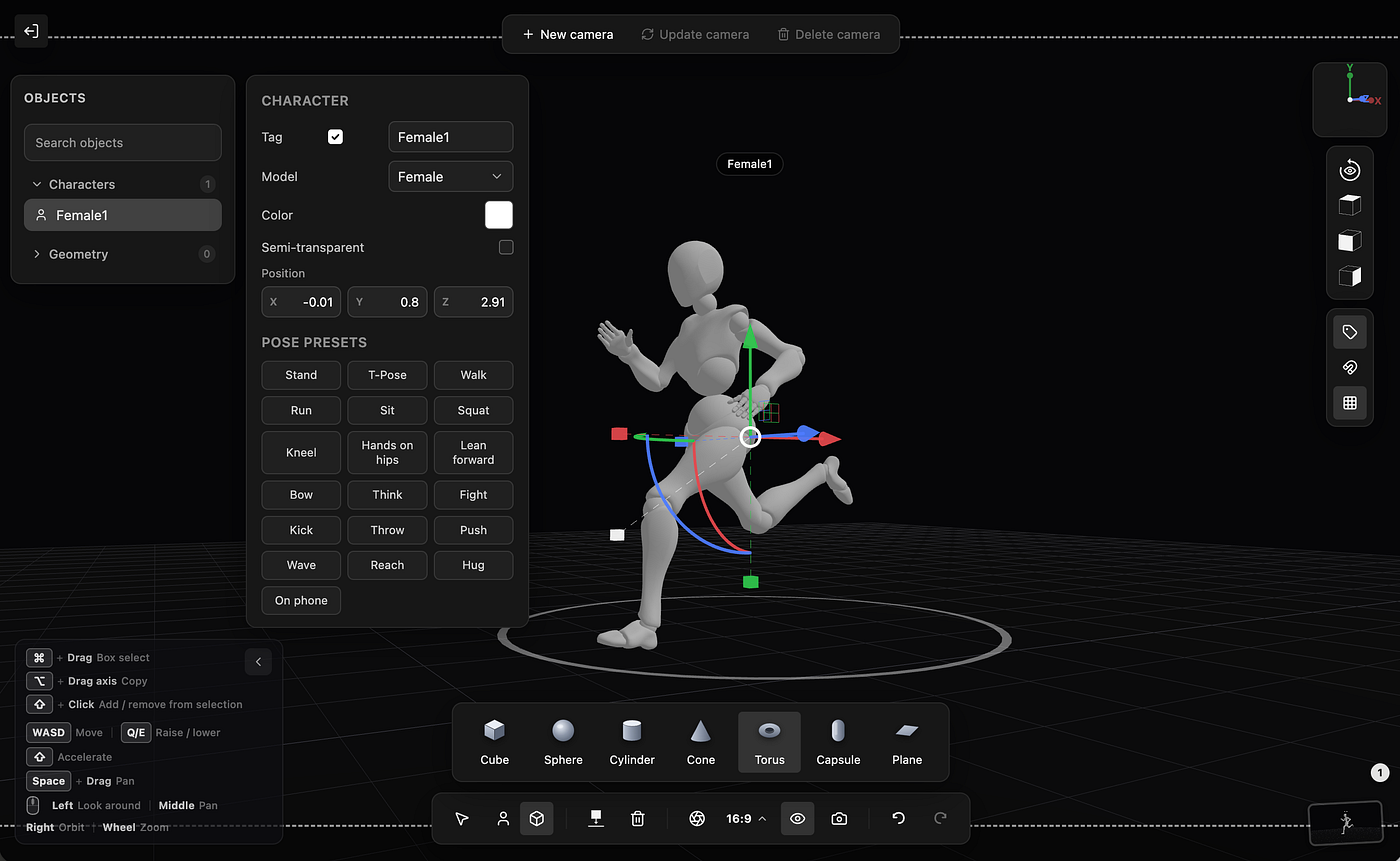
Topview’s 3D shot composer example. Image by Jim Clyde Monge
Once the composition looked right, I took a screenshot of the 3D scene and saved it to my computer. This screenshot serves as the visual reference for the final generation.

Topview’s 3D shot composer example. Image by Jim Clyde Monge
Next, I returned to the Canvas workspace, uploaded the reference image, and described how I wanted the finished scene to look. This is also where I selected the image model, aspect ratio, resolution, and other generation settings.
Here is the prompt I used:
Prompt: Aman running through a park on a clear morning, captured mid-stride on a paved path lined with green trees and soft sunlight filtering through the leaves. He is wearing modern athletic clothing, including a fitted running shirt, shorts, and running shoes, with a focused but natural expression. The scene should feel active and fresh, with a sense of motion in his posture and slight background depth, while the park looks clean, open, and calm with grass, benches, and a few distant people or joggers in the background.
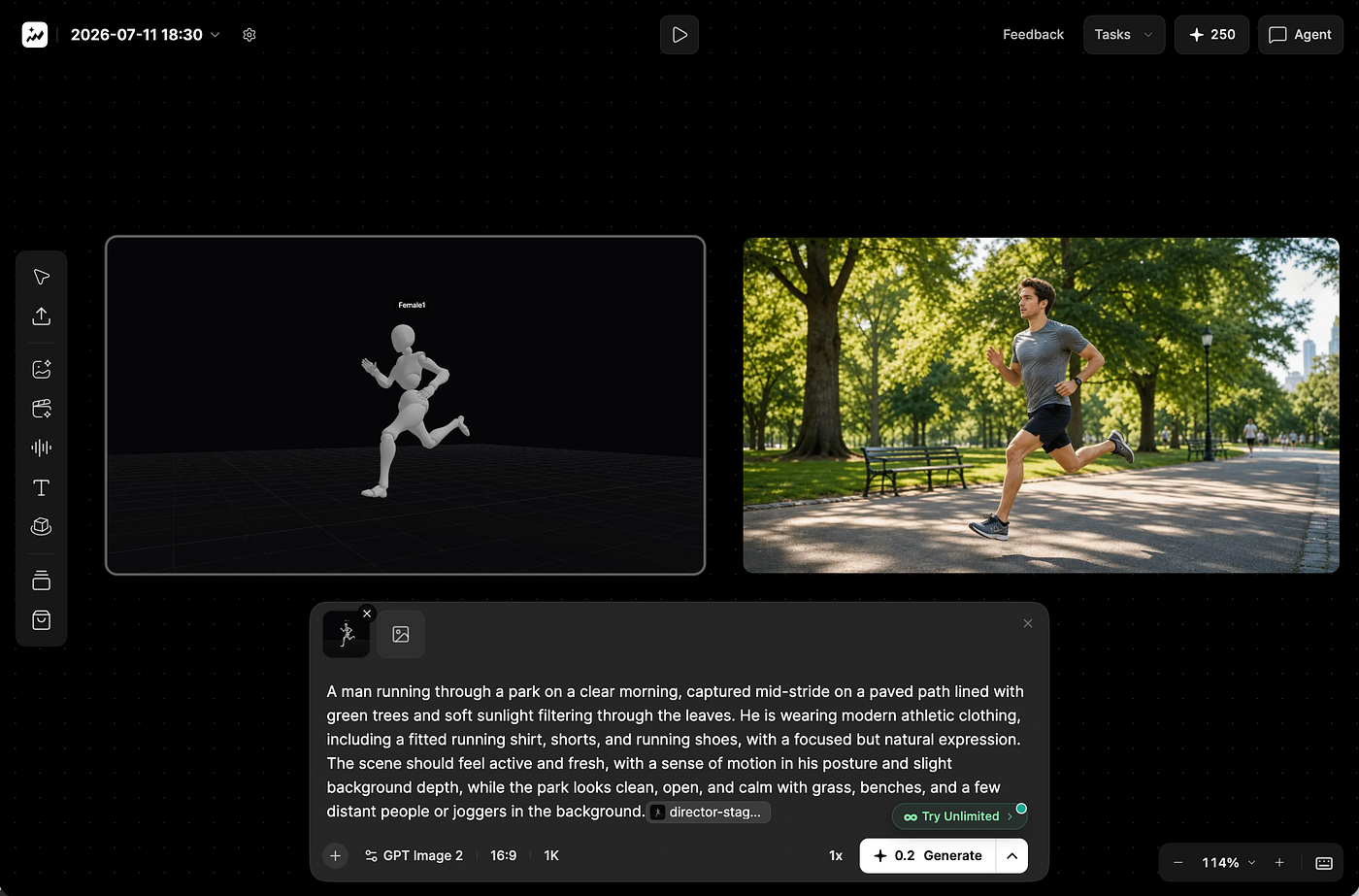
Topview’s Canvas dashboard example. Image by Jim Clyde Monge
The uploaded 3D scene guides the model on the character’s pose, position, scale, and camera framing, while the prompt defines the setting, clothing, lighting, and overall appearance.
If the result still needs adjustments, I can return to the 3D Shot Composer, reposition the character, change the camera angle, or modify the distance before generating another version. I do not need to rebuild the entire scene from the beginning.
One advantage of working inside Canvas is that the generated image remains part of the wider workflow. I can select it and continue editing it with tools such as relighting, inpainting, and upscaling, or use it as the starting point for an image-to-video generation.
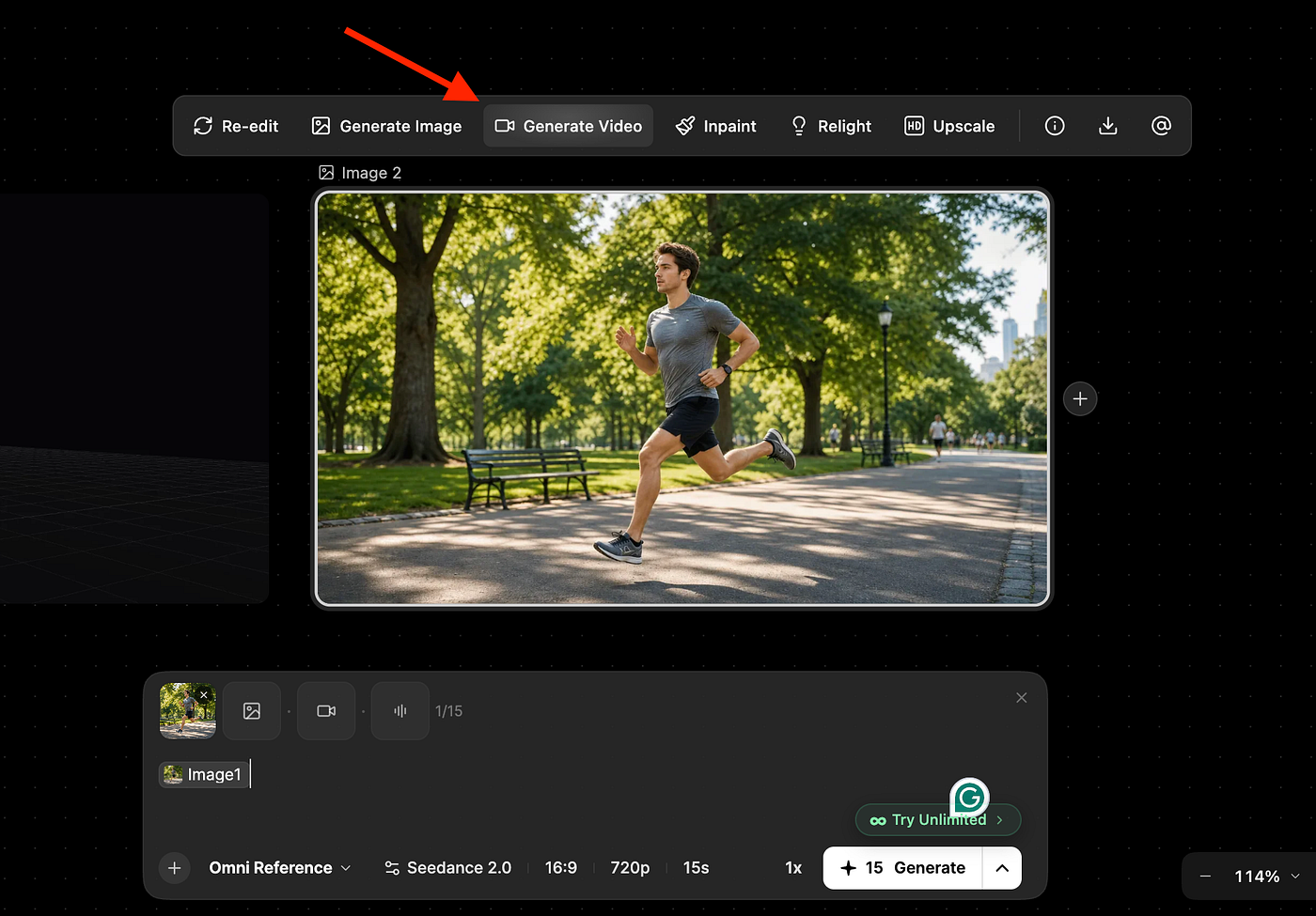
Topview’s Canvas image menu. Image by Jim Clyde Monge
For the video generation, I kept the prompt focused on movement rather than repeating the visual details already present in the image. I asked Topview to animate the man running naturally along the path, add subtle camera tracking, and introduce small environmental movements such as swaying trees and shifting morning light.
Prompt: Animate the man running naturally along the park path, with realistic arm and leg movement, subtle camera tracking, gentle motion in the trees, and soft morning light shifting across the scene.
Here’s the final result:
[embed]
Looks pretty cool to me. The running motion feels natural, and the subtle camera movement adds energy without messing up the framing I planned with the 3D reference. It still feels like the same shot, just brought to life.
For projects with several scenes, I can create separate compositions for wide shots, close-ups, product shots, and character interactions. Since everything remains inside Canvas, the assets and setups are easier to organize, refine, and reuse throughout the rest of the video workflow.
Why This Matters
The biggest advantage of the 3D Shot Composer is that I can solve composition problems before spending credits on generation. I can check the subject scale, spacing, depth, and camera angle instead of repeatedly rewriting the prompt.
I previously used rough 2D doodles to plan difficult scenes, but they could not represent perspective very well. A 3D setup gives me a much clearer view of how the final shot will look from the camera.
The feature can be useful across several creative workflows:
- Cinematic AI videos: Creators can plan wide shots, close-ups, and transitions before generating each scene, which is helpful for short films, skits, trailers, and multi-scene stories.
- Character-led scenes: The 3D setup makes it easier to control where characters stand, which direction they face, and how they interact inside the frame.
- Product marketing: Products can be positioned where they remain visible and large enough to become the focus, while leaving space for headlines, prices, logos, or calls to action.
- Animation and 3D work: Animators and 3D artists can use the composer for quick blocking and previsualization before spending time on detailed models, environments, or final renders.
- Social media content: Teams can reuse one scene and reposition the camera for landscape, square, and vertical formats without rebuilding the composition from scratch.
The 3D Shot Composer does not remove every inconsistency from AI generation, but it gives creators more control over the decisions that prompts often struggle to communicate.
Final Thoughts
I honestly had a great time generating scenes using 3D scenes as references. It lets creators position characters, props, and cameras in 3D, then use that scene as a visual guide for image or video generation.
In the past, I would usually use flat doodles for difficult scenes. It gives me a better sense of scale, depth, spacing, and perspective before I spend credits on the final output. Props to Topview for adding a tool that solves a real production problem and gives Canvas users more control over how each shot is built.
Creators working on product ads, character scenes, short films, animations, or multi-shot videos should find this feature helpful.
Alright, that’s about it for now. I highly encourage you to try this new image/video generation approach and let me know what you think in the comments.

This story is published on Generative AI. Connect with us on LinkedIn and follow Zeniteq to stay in the loop with the latest AI stories.
Subscribe to our newsletter and YouTube channel to stay updated with the latest news and updates on generative AI. Let’s shape the future of AI together!

메타데이터
- post_id
- 3e458a7c76e9
- slug
- i-tried-topviews-3d-shot-composer-for-more-precise-ai-images-3e458a7c76e9
- url
- https://generativeai.pub/i-tried-topviews-3d-shot-composer-for-more-precise-ai-images-3e458a7c76e9
- canonical_url
- https://generativeai.pub/i-tried-topviews-3d-shot-composer-for-more-precise-ai-images-3e458a7c76e9
- author_url
- https://medium.com/@jimclydemonge
- status
- ok
- fetched_at
- 2026-07-13 14:44:14