Setting Up Your PX4 ROS 2 microXRCE Environment on a MacBook or Windows Effortlessly with Docker…
This is for Linux users who find their desktop or current laptop too heavy or cumbersome to carry around, and who want to work using a…
Setting Up Your PX4 ROS 2 microXRCE Environment on a MacBook or Windows Effortlessly with Docker and NoVNC
This is for Linux users who find their desktop or current laptop too heavy or cumbersome to carry around, and who want to work using a lightweight MacBook or Windows laptop instead.
- Use with Docker
docker pull holytorch/px4_ros2_mavsdkIt may take about 20 minutes.
- Run with Docker
docker run -e RESOLUTION=1440x900 -p 6080:6080 holytorch/px4_ros2_mavsdkRESOLUTION: You can set it to your desired resolution (e.g., 1920x1080). -p 6080:6080: This maps the port so you can access it via a web browser.
Docker Desktop is highly recommended because it provides a much more convenient way to manage Docker images. It also makes starting and stopping Docker (containers/services) incredibly easy.
3.Access via noVNC
http://localhost:6080/vnc.html⚠️ If you are unable to connect, please try using a different web browser (e.g., Chrome, Firefox, Safari).
If successful, you will see a screen like this.
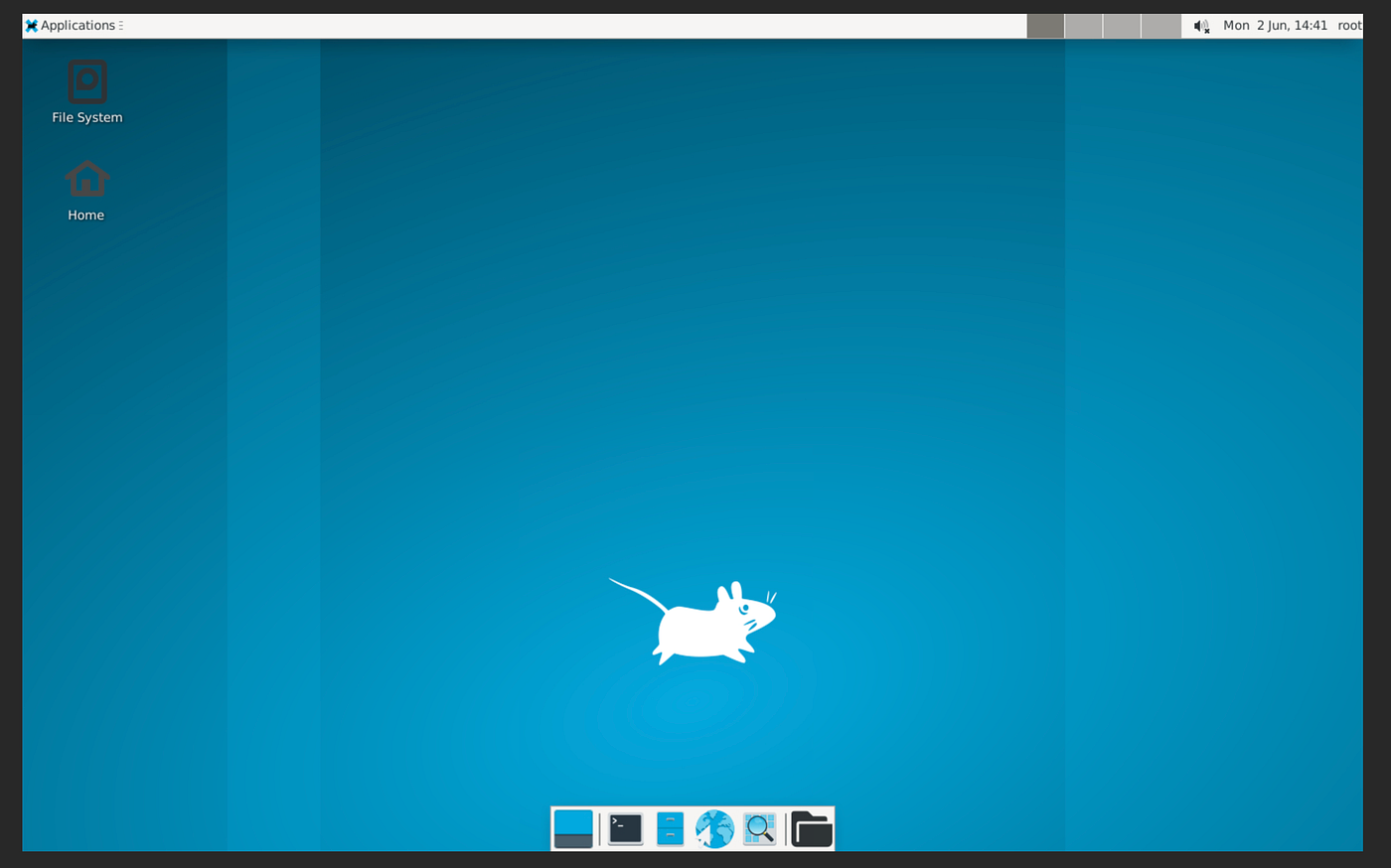
Let’s test if the Docker environment is working correctly!
Click the second icon (Terminal) on the bottom panel of the screen.
cd ~
git clone https://github.com/wlghks5759/mavsdk_with_ros2_takeoff_n_land.git
cd ~/mavsdk_with_ros2_takeoff_n_land
colcon build
click.
Once completed, execute the following commands in four separate terminals:
- First Terminal (PX4 Simulator)
cd ~/PX4-Autopilot
make px4_sitl gz_x500
and open new tab,
- Second Terminal (Micro-XRCE-DDS Agent)
cd ~/Micro-XRCE-DDS-Agent
MicroXRCEAgent udp4 -p 8888
and open new tab,
- Third Terminal (ROS 2 Node)
cd ~/mavsdk_with_ros2_takeoff_n_land
source install/setup.bash
ros2 launch takeoff_and_land_ros2 takeoff_land.launch.py
- Fourth Terminal (Service Call)
cd ~/mavsdk_with_ros2_takeoff_n_land
source install/setup.bash
With PX4 SITL running, enter the following ROS 2 service call commands sequentially in the fourth terminal:
Step 1: Arm the drone
ros2 service call /arm_vehicle std_srvs/srv/Trigger "{}"
Executing this command will display a message like “Arming…” in the first terminal (where the node logs are displayed). Upon success, you should see success: true in the service response. The drone’s status in the simulator should also change to ‘Armed’.
Step 2: Take off the drone
Execute the following command after arming is successfully completed.
ros2 service call /takeoff_vehicle std_srvs/srv/Trigger "{}"
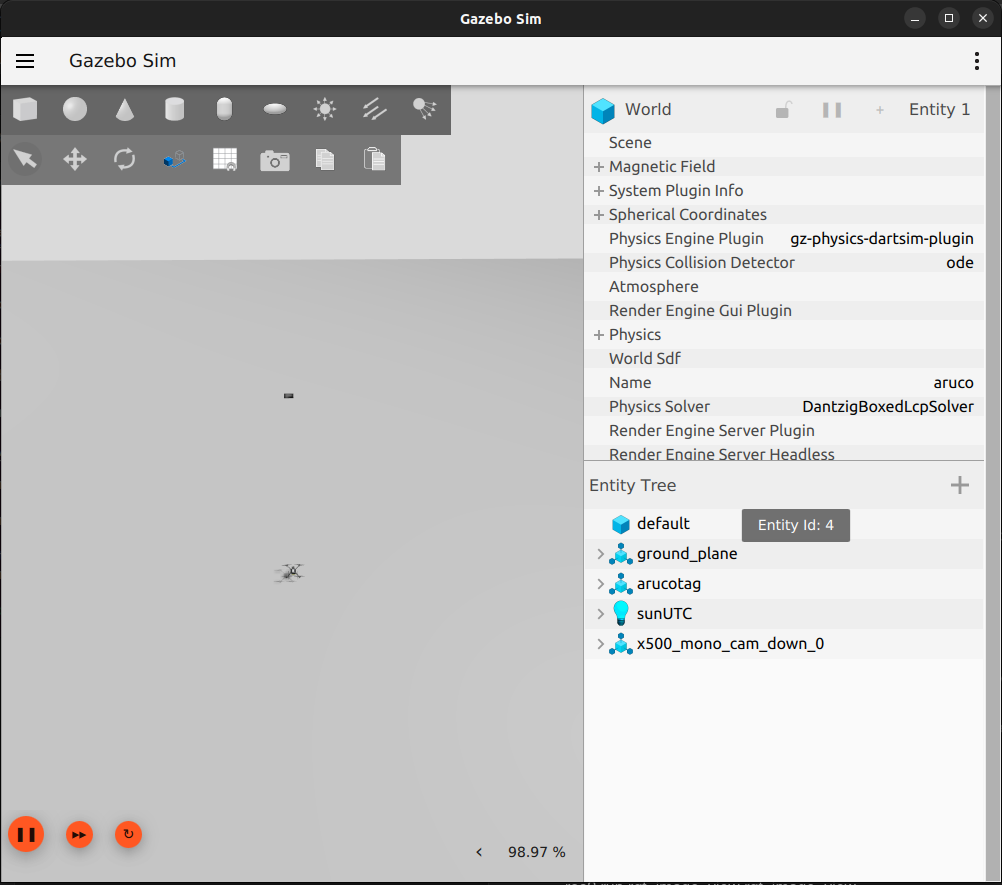
The first terminal should display a “Taking off…” message, and the simulated drone should begin to ascend. To monitor altitude information, you can run the following in yet another new terminal:
Step 3: (Optional) Hovering The service does not directly include logic for automatic hovering and subsequent landing. After takeoff, wait for a short period before executing the next command.
ros2 topic echo /altitudeStep 4: Land the drone
ros2 service call /land_vehicle std_srvs/srv/Trigger "{}"
“You can clone and run a project that involves PX4, ROS 2, and Micro-XRCE. However, it may not run as smoothly as it would on a native Linux environment.”
“Of course, if you want to modify or fix your cloned files, you can do so by installing the VS Code Dev Containers extension and connecting it to your running container for code editing.”

Please excuse the Korean.


Finally, by utilizing noVNC with Docker, you can easily use your environment across different operating systems. Instead of struggling with native installations on other OS, just use Docker. If you have a specific environment in mind, you can tailor it to your needs using a Dockerfile.
메타데이터
- post_id
- 3e84b2be28db
- slug
- setting-up-your-px4-ros-2-microxrce-environment-on-a-macbook-or-windows-effortlessly-with-docker-3e84b2be28db
- url
- https://medium.com/@wlghks3939/setting-up-your-px4-ros-2-microxrce-environment-on-a-macbook-or-windows-effortlessly-with-docker-3e84b2be28db
- canonical_url
- https://medium.com/@wlghks3939/setting-up-your-px4-ros-2-microxrce-environment-on-a-macbook-or-windows-effortlessly-with-docker-3e84b2be28db
- author_url
- https://medium.com/@wlghks3939
- status
- ok
- fetched_at
- 2026-06-21 07:44:09