AWS Aurora Serverless upgrade path for us running the Data-API
TL;DR: How to upgrade from Aurora Serverless v1 to v2 if you have the Data-API enabled on Serverless v1, as AWS documentation and blogs…
AWS Aurora Serverless upgrade path for us running the Data-API
TL;DR: How to upgrade from Aurora Serverless v1 to v2 if you have the Data-API enabled on Serverless v1, as AWS documentation and blogs aren’t very helpful… Forget the swanky Blue/Green minimal downtime approach and go for a regular PostgreSQL upgrade instead, as your Data-API downtime will be way shorter! You’ll thank me later…
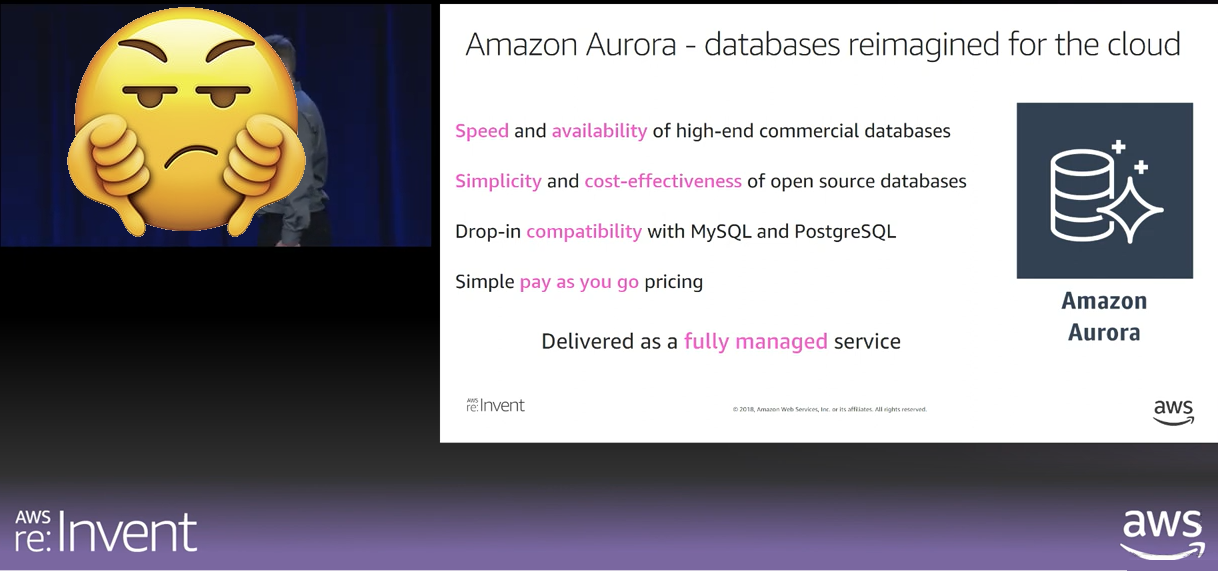
Aurora Serverless v1 announcement at re:Invent 2018
We, as many others, jumped aboard the Aurora Serverless train 2018 when AWS launched it as the savior to all your DB problems, along with the nifty little Data-API connection which allowed us to use a RDS resolver in AppSync.
As a CTO I couldn’t have been happier, imagine having a better DB connection pool handling, query a database directly in the GraphQL layer, and to top it off, with the Serverless scaling up and down seamlessly, we would save money as well…
After a few years struggling with Aurora Serverless v1 (PostgreSQL) we could conclude that it was very far from a savior, and even farther from a money saver… The scaling was horrible and it forced us to bump up the minimum ACU’s, which is of course what you are charged for, to ridiculous levels.
Scaling of v1 only happens when there are no open transactions, something AWS was not very clear on at launch, and with a platform handling about 50/50 mutations/select we constantly have open transactions which means scaling either doesn’t happen, or we have to force scaling causing an interruption in services and dropped connections.
Starting our migration to AppSync (GraphQL) 2018 and using the Data-API we were wedged solid on Aurora Serverless v1 with no option to back out to a Provisioned instance again, as we then would have to rebuild a lot of our services, so our only option was to keep bumping up that minimum ACU’s to avoid forced scaling events driving our DB costs to be about three times as high as they were before we added Aurora Serverless…
But to AWS credit, they listened to the community and promised a new much better Aurora Serverless and launched the v2, which is, in fact, much, much better, but was missing the Data-API, making it useless for us. But they listened to us once more, and only six years later we got the Data-API for Aurora Serverless v2!
First the Data-API was introduced in some few regions this spring and most other regions added now in July 2024!
So, six years of waiting (and nagging) is over and we can finally upgrade to Aurora Serverless v2 and maintain the AppSync RDS connectivity through the Data-API!
The only thing that remained was to do the actual upgrade…
The actual upgrade…
There’s very few articles and information about the upgrade from Aurora Serverless v1 to v2, but AWS writes it’s a seamless process and can be done with minimal downtime… which might be true if you are not using the Data-API…
I found this blog, which is for MySQL and not PostgreSQL (which we use), but claims the same process can be followed for Postgres:
The official documentation is very thin and misses a few things, most importantly information about the Data-API:
Being dependent on the Data-API is something none of the articles or documentation takes into account, meaning following these guides you’ll essentially be “down” after the first step, as you have then killed off the Data-API…
Further, the Blue/Green deployment does not support the Data-API it seems, as trying to add a Green instance with the Data-API active always fails with an “incompatible” error for the new instance.
The documentation doesn’t really reflect the fact that you must create new Parameter Groups and enable rds.logical_replication both for your source and target versions which can be rather confusing, and most likely will cause your first attempt at the Blue/Green deployment to fail…
Also, if we disregard from the Data-API lacking, trying to follow the documentation and do the Blue/Green upgrade from Postgres v13.12 (the latest for Serverless v1) to 16.2 (the latest for v2) in the Blue/Green deployment also fails with the “incompatible-create” error.
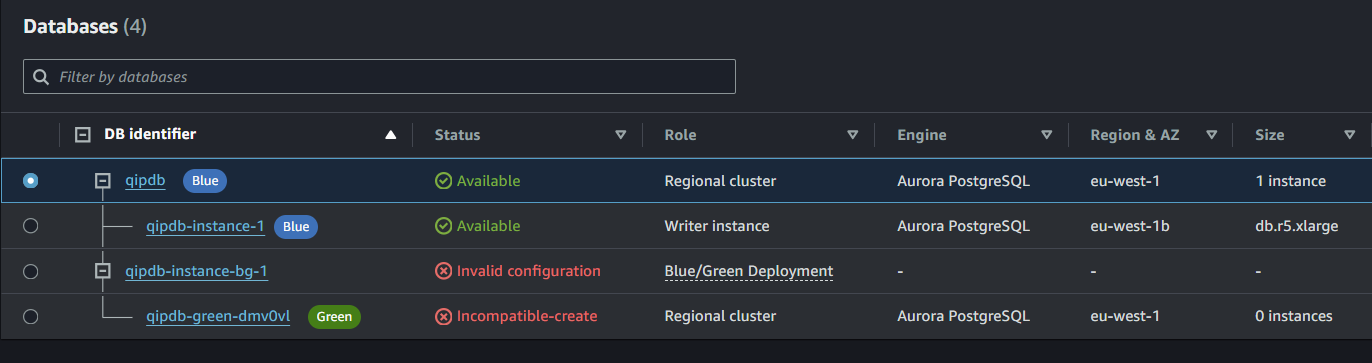
If you run into the “incompatible” error you can try with these settings for both the parameter groups, and make sure they are identical:
max_replication_slots: 25
max_wal_senders: 20
max_logical_replication_workers: 25
max_worker_processes: 50
rds.logical_replication: 1
What I found working, but of course not practical because of Data-API missing, is to create the Blue/Green deployment as Postgres 13->13, and then run the upgrade from 13.12 to 16.2 on the Green instance.
However, as we don’t have the Data-API active during that time we are essentially down so the Blue/Green solution is out the window…
What we, Data-API users, instead need to do is to live with the down-time we’ll suffer during the Postgres upgrade, so start by migrating the Serverless v1 Cluster to a Provisioned Cluster.
This assumes that your Aurora Serverless v1 cluster is upgraded to PostgreSQL 13.12 already!
If not, then run the upgrade to 13.12 first!
You need to make sure you chose a big enough instance class to support your highest DB load. AWS have supplied a conversion table for us as a guideline:
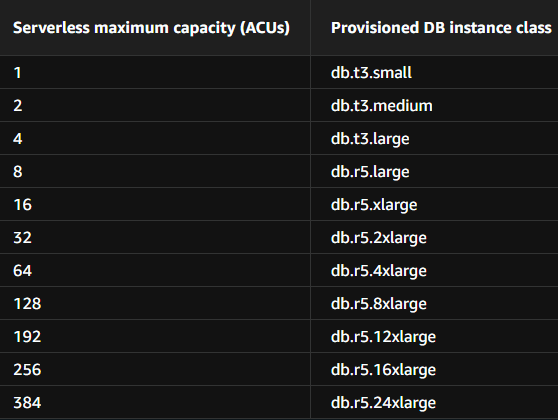
The instance will be running for a short period of hours only (normally) so better to aim a bit too high than suffer a crippled environment during the migration!
Even though the migration action itself takes a snapshot, you should start by grabbing one yourself!
So, make a Cluster snapshot and wait for it to finish.
Next you need to use AWS CLI (and make sure it is up to date!) and have your AWS environment keys applied for the account you are going to upgrade.
If something fails and you need to rollback, or restore your environment back to Serverless v1, you can find the guide here:
You should take note though, that if you need to restore you will get a new host DNS (Endpoint) meaning that any services, e.g. AppSync, Lambda or others that are connecting to your database must have updated parameters to be able to connect to the new, restored, database cluster!
If you are using AppSync or the Data-API for anything else you have to generate a new AWS Secret as well after a restore, and set the new secret to any service using the Data-API.
You should find all instances of DB connections and map them out, and also create recovery scripts, to be able to rollback within as short a timeframe as possible, prior to starting the migration.
Once you are ready, and have your snapshot, execute the following in a terminal:
aws rds modify-db-cluster --db-cluster-identifier {YOUR CLUSTER NAME} --engine-mode provisioned --allow-engine-mode-chang
e --db-cluster-instance-class {INSTANCE CALSS, e.g. db.r5.xlarge} --apply-immediately
Now we need to be alert for when the cluster is ready, so after a few seconds (10–15), execute the following in the same terminal:
aws rds wait db-cluster-available --db-cluster-identifier {YOUR CLUSTER NAME}This will “hang” the terminal prompt waiting for the response when the cluster is ready, and immediately when the Cluster is ready we have to enable the Data-API on it.
During the cluster migration the database, and Data-API, will be available most of the time, but expect some cut-offs and a few minutes downtime in total during this process, mostly because we have to re-enable the Data-API.
Prepare to enable the Data-API by opening the RDS Console and go to the Cluster view and as soon as the instance and cluster is available. scroll to the bottom and enable Data-API by clicking the button.
It will seem as if nothing happens, but if you scroll to the top you’ll see the status indicator spinning there:
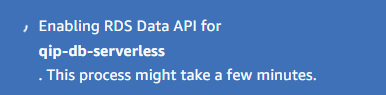
Once the Data-API is enabled, after a few minutes, you are back in action and everything should work normally. Take some time to make sure everything works and that all services can reconnect.
You now have an Aurora RDS Provisioned PostgreSQL 13.12 running with the Data-API enabled!
The next step is to upgrade the Postgres version which we’ll do by choosing the “Modify” Cluster option in the console and selecting Postgres 16.2 for the DB engine version (check which is the latest for Serverless v2 when you do the upgrade”).
A note of caution here as we are jumping from Postgres 13 to 16!
In Postgres 14, they changed the cipher for storing root passwords so if you have older software running, make sure it can handle “scram-sha-256” cipher prior to upgrading to Postgres 16, else you’ll end up not being able to connect to the database from those services!
NB! In the Modify cluster page, make sure you also set the master password anew (and use the same as you previously had) as the Data-API will otherwise get a new (for some unknown reason) after you have run the upgrade to Postgres 16 (as you can’t change the password and do a major upgrade at the same time)!
Hit [Continue] and the [Apply immediately] to start the upgrade process.
The update will run for a while (up to 30–40 minutes) while the DB will be offline/down for 10–15 minutes of that time. Note that the DB being available does not mean that the Data-API is available, so you will have to keep track on when the Data-API pops back up as well.
You can use the aws rds wait db-cluster-available to see when the cluster is back up, although the database will be available prior to the cluster becoming available.
Now the hard parts are done and you are out of the woods!
From now on you won’t have any more downtime (well, apart from a DB reconnect, but that should happen seamlessly)!
Next part is to add a new Serverless v2 Reader instance to your cluster by simply selecting the cluster in the console and under Actions chose to add a new Reader.
Important to note is that, when you add your first DB instance class as Serverless v2, you also set the scaling ACU’s (min. and max.) for your cluster so take into account what you want as min./max.
So, give it a name, select Serverless v2 as the DB instance class, and set the min/max scaling and hit “add”.
You’ll now see it adding a Reader to your cluster as “size” Serverless v2:
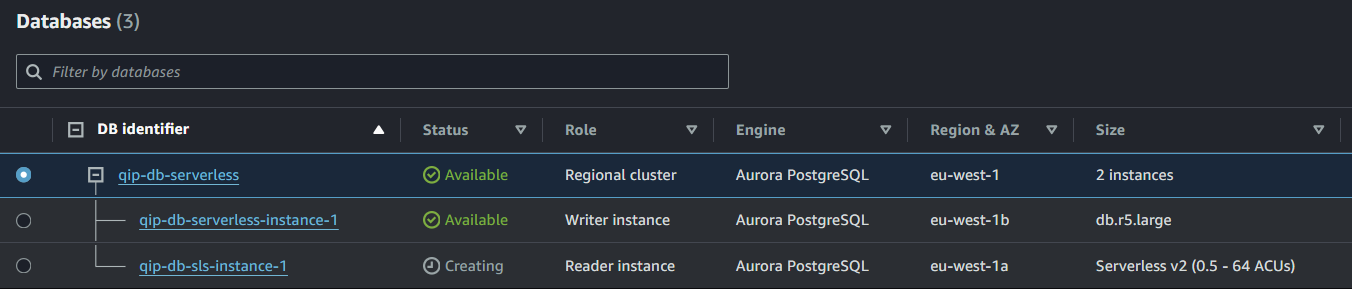
Worth noting is that you now have two Endpoints for your Cluster:
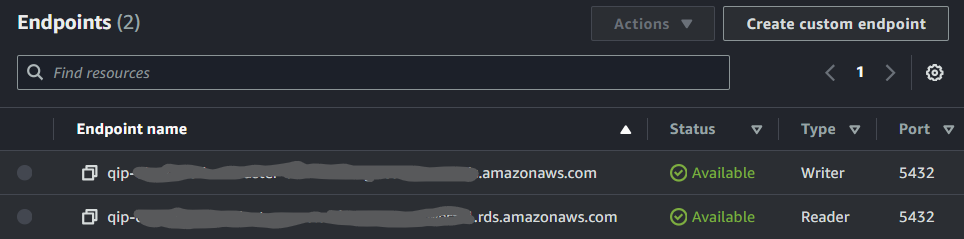
One endpoint for your Writer and one for your Reader, now we still have our writer as a provisioned instance, which we don’t want, but with this you can use a separate endpoint for any SELECT SQL queries and only use the Writer for mutations. However, the Data-API will always utilize the Writer only!
When your Serverless Reader is created (after some minutes) we need to failover the cluster to make the Reader the Writer, but first make sure your Data-API endpoint has “switched” over as well by refreshing some service utilizing the Data-API.
If you happen to see an error as below when checking on the Data-API, you need to go to the cluster and set the master password again!
RDSHttp: "message": "ERROR: password authentication failed for user; SQLState: 28P01"Failing over is not as dramatic as it sounds, so just click one of the instances, and from the Actions menu chose “Failover”.
The status for failover is a bit slow, so just be patient and after a minute or two you should see the status of the cluster changing to “failing over”, and shortly after that you will see that your Serverless instance has become the Writer.
Note that some connections might linger on the Reader (your provisioned instance) so select it in the console and chose to “reboot” from the Actions menu. This will force any connections to it to be dropped and moved to the new Writer.
I’d recommend to leave the Reader instance (the provisioned one) for some time to verify the functionality, whereafter you have two choices:
- Migrate the Reader from Provisioned to Serverless v2
- Delete the Reader
The Reader won’t service any traffic unless you use the Reader Endpoint to connect to it, also the Data-API won’t access the Reader ever, so it’s not really needed from that aspect.
For now it serves the purpose of being able to move back to a Provisioned instance, in case you’d run into some issues with the Serverless v2 solution, but after that, if you are not going to use it as a “true” Reader, just go ahead and delete it…
If you want to migrate the Reader to Serverless, just chose to Modify it and set the DB instance class to “Serverless v2” and apply.
That’s it!
메타데이터
- post_id
- 3f4e1c859e41
- slug
- aws-aurora-serverless-upgrade-path-for-us-running-the-data-api-3f4e1c859e41
- url
- https://awstip.com/aws-aurora-serverless-upgrade-path-for-us-running-the-data-api-3f4e1c859e41
- canonical_url
- https://awstip.com/aws-aurora-serverless-upgrade-path-for-us-running-the-data-api-3f4e1c859e41
- author_url
- https://medium.com/@anders_7607
- status
- ok
- fetched_at
- 2026-07-07 18:25:49