Convert TXT to Excel: Everything You Need to Know
Converting a plain .txt file into a structured Excel spreadsheet sounds simple—but in practice, it can get surprisingly tricky. The biggest…
Convert TXT to Excel: Everything You Need to Know
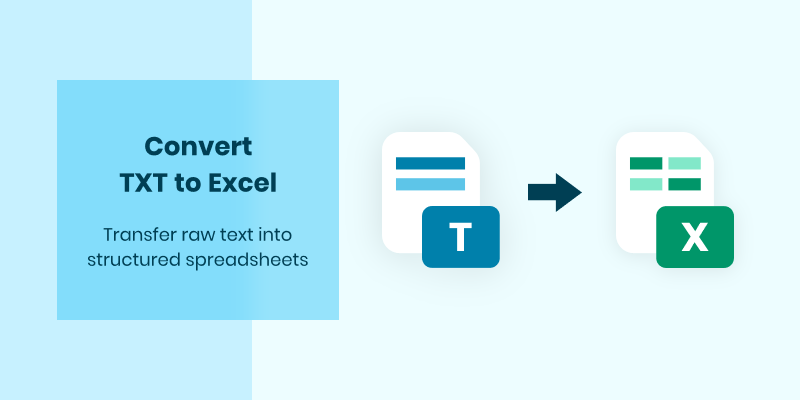
Converting a plain .txt file into a structured Excel spreadsheet sounds simple—but in practice, it can get surprisingly tricky. The biggest challenge isn’t writing data into Excel—it’s understanding the structure of your text data.
In this guide, you’ll learn not just how to convert TXT to Excel using a Free Excel library, but also the fundamentals of text parsing, including delimiters, data consistency, and common pitfalls that can break your output.
- Why Convert TXT to Excel?
- What Kind of Text Data Can Be Converted?
- Understanding Delimiters (Critical!)
- Python Implementation with Spire.XLS
- Handling Different Delimiters (Flexible Approach)
- Complete Code Example
- Advanced Tips & Insights
- Final Thoughts
Why Convert TXT to Excel?
TXT files are lightweight and universal, but they lack structure. Excel, on the other hand, gives you:
- Clear tabular organization
- Sorting and filtering
- Data analysis tools
- Better readability
The goal of conversion is simple: transform raw text into structured rows and columns.
What Kind of Text Data Can Be Converted?
Not all TXT files are created equal. For a smooth conversion, your text file should follow a consistent structure.
✅ Ideal TXT Format
Your data should look something like this:
Name    Age    City    Salary
John    28     NYC     65000
Sarah   34     Boston  72000
Mike    41     Chicago 83000
Each line represents a row, and each value is separated by a delimiter (more on this soon).
❌ Problematic TXT Format
Apple Fruit 1.2 50
Milk, Dairy, 2.5, 30
Random unstructured text here
Issues:
- Mixed delimiters (space vs comma)
- Inconsistent formatting
- Missing structure
👉 Key rule: Every row must follow the same pattern, or your Excel output will be messy.
Understanding Delimiters (Critical!)
A delimiter is simply the character that separates columns. Think of it as the glue between your data values.
Common Delimiters at a Glance

The Hidden Challenge: Tab Delimiters
Here’s what trips up most beginners: Tab characters are invisible in most text editors such as Notepad and TextEdit.
Open a tab-delimited file in Notepad:
John    28    NYC    65000
Sarah   34    Boston    72000
Those gaps look like multiple spaces — but they’re actually single tab characters. How can you tell?
Here are a few practical ways:
1. Use a Code Editor
Open your file in tools like:
- VS Code
- Notepad++
They often display tabs as arrows (→) or spacing markers.
2. Print Raw Content in Python
with open("Data.txt", "r") as f:
    print(repr(f.readline()))
If you see:
'Product\tName\tUnit Price\tQuantity\n'👉 That confirms tab-separated data.
3. Count Splits
line = "Apple\tFruit\t1.2\t50"
print(line.split("\t"))
If it splits cleanly into multiple fields, you’ve got the right delimiter.
Why Delimiter Choice Matters
Consider this data:
Product Unit Price QuantityIf your delimiter is:
- ✅ Correct →
"Unit Price"stays in one cell - ❌ Wrong →
"Unit"and"Price"split into two cells
👉 This directly impacts your Excel structure.
Python Implementation with Spire.XLS
There are several ways to create Excel files in Python. You’ve got openpyxl (great for .xlsx), xlsxwriter (fantastic for formatting), and pandas (the data scientist's best friend).
But Free Spire.XLS for Python offers something special: it handles both old .xls (Excel 97-2003) and modern .xlsx formats seamlessly, with enterprise-grade features like charts, pivot tables, and rich formatting.
Now let’s convert TXT to Excel using Free Spire.XLS.
Basic Eaxmple
from spire.xls import *
from spire.xls.common import *

# Read TXT data
with open("Data.txt", "r") as file:
    lines = file.readlines()

# Split data by delimiter
data = [line.strip().split("\t") for line in lines]

# Create an Excel workbook
workbook = Workbook()

# Get the first worksheet
sheet = workbook.Worksheets[0]

# Iterate through each row and column in the list
for row_num, row_data in enumerate(data):
    for col_num, cell_data in enumerate(row_data):

        # Write the data into the corresponding Excel cells
        sheet.Range[row_num + 1, col_num + 1].Value = cell_data

        # Set the header row to bold
        sheet.Range[1, col_num + 1].Style.Font.IsBold = True

# Autofit column width
sheet.AllocatedRange.AutoFitColumns()

# Save as Excel file
workbook.SaveToFile("TXTtoExcel.xlsx", ExcelVersion.Version2016)
workbook.Dispose()
Handling Different Delimiters (Flexible Approach)
Hardcoding "\t" works only if you’re sure your file uses tabs. In real-world scenarios, you should adapt dynamically.
Example: Auto-Detect the Delimiter
def detect_delimiter(file_path, sample_lines=5):
    """Automatically detect the most likely delimiter in a text file."""
    common_delimiters = ["\t", ",", "|", ";", " "]

    with open(file_path, "r") as file:
        sample = [file.readline() for _ in range(sample_lines)]

    delimiter_counts = {}

    for delim in common_delimiters:
        count = sum(line.count(delim) for line in sample)
        if count > 0:
            delimiter_counts[delim] = count

    if not delimiter_counts:
        return None  # No delimiter found

    # Return the most frequent delimiter
    return max(delimiter_counts, key=delimiter_counts.get)

# Use it!
delimiter = detect_delimiter("Data.txt")
print(f"Detected delimiter: {repr(delimiter)}")

with open("Data.txt", "r") as file:
    lines = file.readlines()
    data = [line.strip().split(delimiter) for line in lines]
👉 This simple logic can prevent many formatting issues.
Complete Code Example
from spire.xls import *
from spire.xls.common import *

def detect_delimiter(file_path, sample_lines=5):
    """Automatically detect the most likely delimiter in a text file."""
    common_delimiters = ["\t", ",", "|", ";", " "]

    with open(file_path, "r") as file:
        sample = [file.readline() for _ in range(sample_lines)]

    delimiter_counts = {}

    for delim in common_delimiters:
        count = sum(line.count(delim) for line in sample)
        if count > 0:
            delimiter_counts[delim] = count

    if not delimiter_counts:
        return None  # No delimiter found

    # Return the most frequent delimiter
    return max(delimiter_counts, key=delimiter_counts.get)

# File path
file_path = "Data.txt"

# Detect delimiter automatically
delimiter = detect_delimiter(file_path)
print(f"Detected delimiter: {repr(delimiter)}")

# Check if delimiter was found
if delimiter is None:
    print("No delimiter detected. Using tab as default.")
    delimiter = "\t"

# Read TXT data and split by detected delimiter
with open(file_path, "r") as file:
    lines = file.readlines()

# Split data by detected delimiter
data = [line.strip().split(delimiter) for line in lines]

# Create an Excel workbook
workbook = Workbook()

# Get the first worksheet
sheet = workbook.Worksheets[0]

# Iterate through each row and column in the list
for row_num, row_data in enumerate(data):
    for col_num, cell_data in enumerate(row_data):
        # Write the data into the corresponding Excel cells
        sheet.Range[row_num + 1, col_num + 1].Value = cell_data

        # Set the header row to bold (only once, not in every loop)
        sheet.Range[1, col_num + 1].Style.Font.IsBold = True

# Autofit column width
sheet.AllocatedRange.AutoFitColumns()

# Save as Excel file
workbook.SaveToFile("TXTtoExcel.xlsx", ExcelVersion.Version2016)
workbook.Dispose()

print(f"Successfully converted {file_path} to TXTtoExcel.xlsx")
Advanced Tips & Insights
1. Trim Whitespace
Always clean your data:
cell_data.strip()2. Handle Empty Rows
data = [line.strip().split("\t") for line in lines if line.strip()]3. Convert Data Types
Everything from TXT is a string by default.
You can improve Excel usability:
try:
    value = float(cell_data)
except:
    value = cell_data
4. Header Detection
Instead of assuming the first row is a header:
- Check if it contains text vs numbers
- Apply formatting conditionally
5. Large File Considerations
For big TXT files:
- Avoid loading everything into memory
- Process line by line
Final Thoughts
TXT to Excel conversion is less about Excel — and more about data structure awareness.
Once you understand:
- How your text is formatted
- What delimiter it uses
- How consistent the data is
…the actual conversion becomes straightforward with tools like Free Spire.XLS for Python.
메타데이터
- post_id
- 3f9c8ec760ff
- slug
- python-txt-to-excel-everything-you-need-to-know-3f9c8ec760ff
- url
- https://medium.com/@alexaae9/python-txt-to-excel-everything-you-need-to-know-3f9c8ec760ff
- canonical_url
- https://medium.com/@alexaae9/python-txt-to-excel-everything-you-need-to-know-3f9c8ec760ff
- author_url
- https://medium.com/@alexaae9
- status
- ok
- fetched_at
- 2026-06-17 19:05:49