Rename PDFs Dynamically in Power Automate Using Parsed Data
Tired of files landing as invoice (1).pdf or document.pdf? This Power Automate flow pulls the invoice number, customer name, or any field…
Rename PDFs Dynamically in Power Automate Using Parsed Data
Tired of files landing as invoice (1).pdf or document.pdf? This Power Automate flow pulls the invoice number, customer name, or any field directly from inside the PDF and uses it as the filename — no code, no manual work.
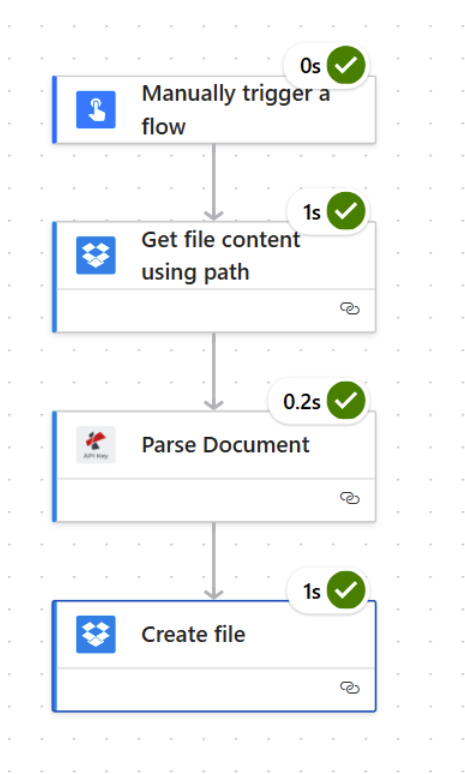
The flow: Trigger → Get file content using path → Parse Document → Create file
What You Need
- A Power Automate account (Microsoft 365 / Power Platform) with a new cloud flow ready
- A **PDF4me API key** (free to start) — needed when connecting the Parse Document action. First time? Follow the “Connect PDF4me to Power Automate” guide.
- File storage — this guide uses Dropbox, but SharePoint, OneDrive, and Google Drive all work the same way. Just swap in the equivalent get/create file actions.
Step 1: Create a Parse Template in PDF4me Dashboard
Before touching Power Automate, you need to tell PDF4me which field to extract from your documents.
- Sign in at the **PDF4me Dashboard**
- Go to Parse Document
- Upload a sample PDF that matches the files you’ll be processing
- Add a key for the field you want (e.g.
Invoice No,customerName,orderNumber) and draw a capture area around it on the document - Click Test Parse to verify the extracted value, then Save Changes
- Copy the Template Name (e.g.
Blog-test) — you'll need it in the next step

Step 2: Get the File and Parse It in Power Automate
Pull the PDF into the flow and extract the naming value using PDF4me.
Important: Parse Document returns JSON only (
parseInfowith your keys) — it does not carry the file content forward. The file stays on the Get file content step. You'll useBodyfrom that step for the actual file content in Step 3.
Add the trigger:
- Add Manually trigger a flow for testing, or When a file is created (Dropbox) for automation
Add Get file content using path (Dropbox):
- File Path → path to your PDF, e.g.
/blog data/invoice_pdf4me.pdf - Advanced parameters → set Infer Content Type to
Yes - This action outputs Body (the PDF content) — you’ll pass this to both Parse Document and Create file

Add Parse Document (PDF4me):
- File Content → Add dynamic content → select Body from Get file content
- File Name → e.g.
Test.pdf(or a dynamic value from the trigger) - Template Name → enter the name you copied in Step 1 (e.g.
Blog-test) - Make sure you’re Connected to PDF4me Connect using your API key
The action returns body.parseInfo containing your extracted keys (e.g. body.parseInfo['Invoice No']).

Step 3: Create the File with the New Name
Now save the same PDF back to storage with the parsed value as its filename. Unlike n8n, Power Automate doesn’t need a separate merge step — you just map both inputs directly in the Create file action.
- Add Dropbox → Create file
- Folder Path → your output folder, e.g.
/blog data - File Name → click the fx (expression) icon and paste:
concat(outputs('Parse_Document')?['body']?['parseInfo']?['Invoice No'], '.pdf')Replace 'Invoice No' with your own template key. For keys without spaces, dot notation works too: outputs('Parse_Document')?['body']?['parseInfo']?.invoiceNr
- File Content → Add dynamic content → select Body from Get file content using path. Do NOT use Parse Document’s output here — that’s JSON, not the file.
- Confirm you’re Connected to Dropbox
The flow saves a new file with the parsed value as the name. The original file stays in place unless you add a separate delete or move step.
Gotcha: If the file comes out empty or misnamed, double-check that File Content is mapped from
Get file content using path (Body)— not from Parse Document.

Quick FAQ
Multiple keys in the filename? Combine them in the expression:
concat(outputs('Parse_Document')?['body']?['parseInfo']?['customerName'], '_', outputs('Parse_Document')?['body']?['parseInfo']?['invoiceNr'], '.pdf')Using SharePoint or Google Drive instead of Dropbox? Yes — use the equivalent get file and create file actions for your storage. The flow pattern stays exactly the same.
Template key has a space? Use bracket notation: ?['Invoice No']. No spaces? Dot notation works: ?.invoiceNr.
Next Steps
- Get your API key — PDF4me API key dashboard (free to start). Use the same account for the dashboard and for the Parse Document connection in Power Automate.
- Create your parse template — Define the field(s) you want in the filename (invoice number, customer name, etc.) in the Parse Document dashboard and copy the Template Name.
- Build your flow — Trigger → Get file content using path → Parse Document → Create file with dynamic filename expression.
- Read the full docs — Parse Document (Power Automate), Prepare Parse Info.
메타데이터
- post_id
- 4000d68f5676
- slug
- rename-pdfs-dynamically-in-power-automate-using-parsed-data-4000d68f5676
- url
- https://medium.com/@pdf4me.ani/rename-pdfs-dynamically-in-power-automate-using-parsed-data-4000d68f5676
- canonical_url
- https://medium.com/@pdf4me.ani/rename-pdfs-dynamically-in-power-automate-using-parsed-data-4000d68f5676
- author_url
- https://medium.com/@pdf4me.ani
- status
- ok
- fetched_at
- 2026-06-27 18:20:27