SQL Server Instant File Initialization: Everything You Need to Know
Introduction
SQL Server Instant File Initialization: Everything You Need to Know
Introduction
One of the most impactful yet often overlooked performance optimizations in SQL Server administration is Instant File Initialization (IFI). Whether you’re provisioning new databases, expanding data files, or performing maintenance operations, understanding IFI can dramatically reduce initialization times and improve overall database performance.
In this article, we’ll explore what IFI is, how it works, and why every SQL Server DBA should have it enabled.
What is Instant File Initialization?
Instant File Initialization is a SQL Server feature that allows data files to be allocated without writing zeros to the allocated space. When disabled, SQL Server performs a “zeroing” operation — writing zeros to every byte of newly allocated space before the space can be used. This process can be time-consuming, especially for large file allocations.
The Problem Without IFI
Without IFI, when you:
- Create a new database
- Expand a data file (through autogrowth or manual alteration)
- Restore a database backup
- Perform
DBCCoperations
SQL Server must zero-initialize the new space, potentially taking minutes or even hours for large allocations.
Real-world example: Expanding a 50GB data file without IFI can take 10–15 minutes. With IFI, the same operation completes in seconds.
How IFI Works
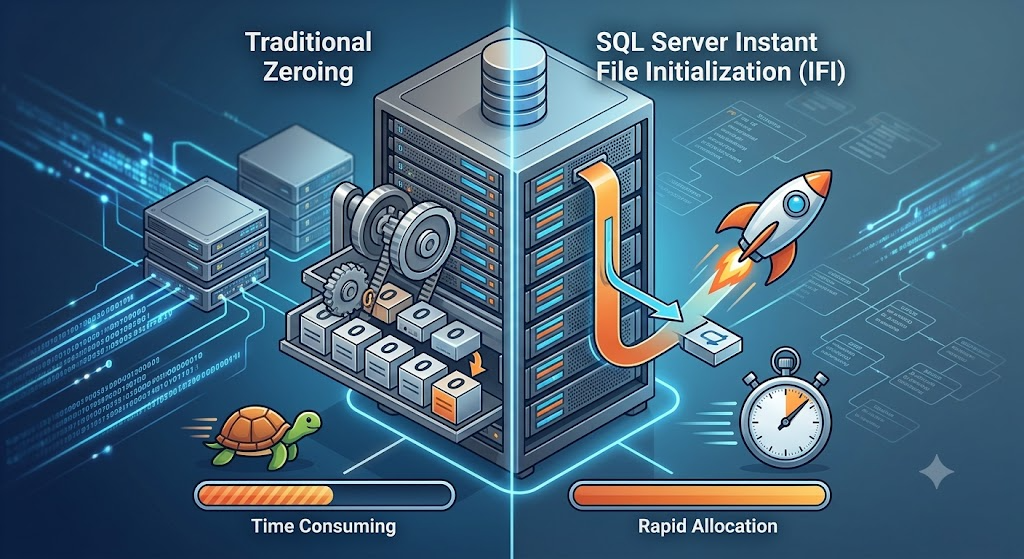
IFI leverages the NTFS SparseFile capability (Windows NTFS only). Instead of physically writing zeros, SQL Server:
- Allocates the space on disk
- Marks it as sparse
- Trusts the operating system to return zeros when reading uninitialized space
- Proceeds immediately with allocating the space to the database
This dramatically accelerates the file allocation process while maintaining data integrity.
Prerequisites and Requirements
Platform Requirements
- Operating System: Windows Server or Windows (NTFS required)
- SQL Server: All modern versions (2012 and later)
- File System: NTFS only — ReFS and other file systems don’t support sparse files
Permission Requirements
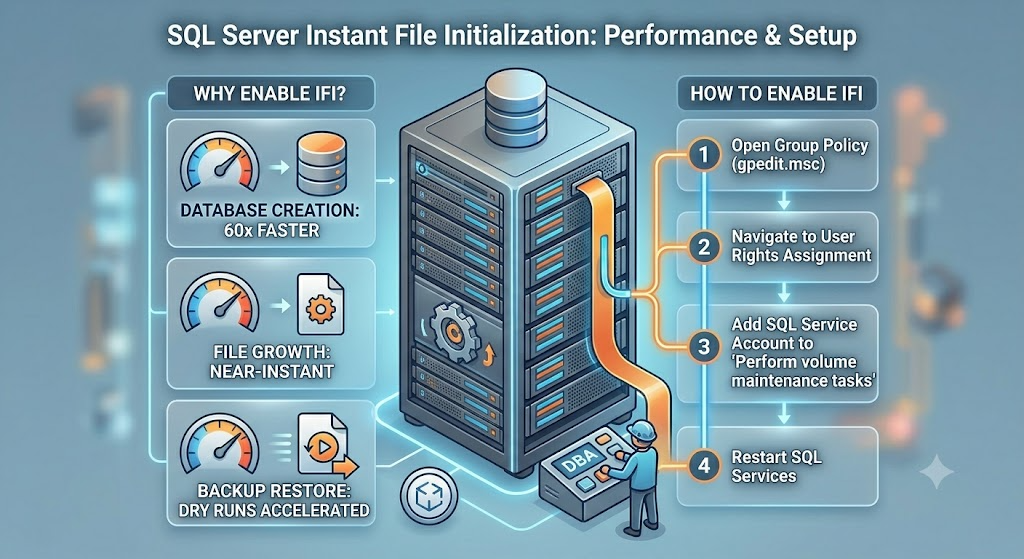
To enable IFI, the SQL Server service account must have the “Perform volume maintenance tasks” privilege. This is a local machine right, not a database permission.
Step 1: Open Local Group Policy Editor
Press Windows + R
Type: gpedit.msc
Navigate to: Computer Configuration > Windows Settings > Security Settings > Local Policies > User Rights Assignment
Step 2: Find “Perform volume maintenance tasks”
Step 3: Add SQL Server service account
- Right-click “Perform volume maintenance tasks”
- Click “Properties”
- Add the SQL Server service account (e.g.,
DOMAIN\sqlserver_svc)
Step 4: Restart SQL Server Service For the changes to take effect, restart the SQL Server service.
Enabling IFI: Step-by-Step
Method 1: Local Group Policy Editor (Recommended)
- Launch
gpedit.msc - Navigate to Computer Configuration > Windows Settings > Security Settings > Local Policies > User Rights Assignment
- Double-click “Perform volume maintenance tasks”
- Add your SQL Server service account
- Apply and restart the service
Method 2: PowerShell Script
# Add SQL Server service account to "Perform volume maintenance tasks"
$privilege = "SeManageVolumePrivilege"
$account = "DOMAIN\sqlserver_svc"
# This requires the Carbon module or manual registry editing
# (Recommended: use Group Policy Editor for simplicity)Method 3: Active Directory Group Policy (Domain Environment)
For enterprise environments with multiple servers:
- Open Group Policy Management Console (gpmc.msc)
- Create or edit a Group Policy Object (GPO)
- Navigate to: Computer Configuration > Policies > Windows Settings > Security Settings > Local Policies > User Rights Assignment
- Add your SQL Server service account to “Perform volume maintenance tasks”
- Apply the GPO to your SQL Server OUs
- Restart SQL Server services
Verifying IFI is Enabled
You can verify IFI is enabled using this T-SQL query:
-- Check if Instant File Initialization is enabled
-- This works by checking file initialization behavior
SELECT
    'IFI Status' AS Check_Type,
    CASE
        WHEN SERVERPROPERTY('IFIEnabled') = 1 THEN 'Enabled'
        WHEN SERVERPROPERTY('IFIEnabled') = 0 THEN 'Disabled'
        ELSE 'Unknown'
    END AS Status;
Note: The SERVERPROPERTY('IFIEnabled') function is available in SQL Server 2016 SP1 and later. For earlier versions, you can verify by checking the permissions directly in Windows or by monitoring file allocation times.
Alternative Verification Method
Create a small test database and monitor file growth:
-- Create a test database with a 1GB data file
CREATE DATABASE TestIFI
ON PRIMARY
(
    NAME = TestIFI_Data,
    FILENAME = 'C:\SQLData\TestIFI.mdf',
    SIZE = 1GB,
    FILEGROWTH = 0
);
GO
-- Monitor the time this takes. With IFI, it should be near-instant.
-- Without IFI, expect several seconds to minutes.DROP DATABASE TestIFI;Security Considerations
Is IFI a Security Risk?
Short answer: No, not when properly configured.
Why some people worry: The fear is that without zeroing, previous data in that disk location might be readable. However:
- At the operating system level: NTFS tracks sparse files and returns zeros when reading uninitialized space
- At the SQL Server level: SQL Server only initializes pages when actually writing data
- For backups: Backups only contain actual data, not uninitialized space
- For multitenant scenarios: If you’re running multiple isolated SQL Server instances, IFI is safe as long as each service account has separate disk permissions
Best Practices for Security
- Ensure only SQL Server service accounts have “Perform volume maintenance tasks” privilege
- Use separate service accounts per instance in critical environments
- Regularly audit who has this privilege
- Document your IFI configuration as part of your security baseline
Performance Impact
Real-world Performance Gains
Operation Without IFI With IFI Improvement Create 100GB database 5–8 minutes 2–5 seconds 60–240x faster Expand data file by 50GB 8–12 minutes 1–3 seconds 160–480x faster Restore large backup +10 minutes Negligible Significant reduction Autogrowth events +2–5 seconds Near-instant Eliminates stalls
When IFI Matters Most
- Frequent file growth — Databases with aggressive autogrowth
- Large allocations — Adding or creating large data files
- High-availability scenarios — Reducing initialization time during failovers
- Development/test environments — Faster database provisioning
- Backup restoration — Accelerates disaster recovery procedures
Common Misconceptions
Myth 1: IFI Reduces Data Integrity
Reality: IFI has no impact on data integrity. The file is still properly allocated; it’s just initialized differently.
Myth 2: IFI Only Works on the Primary Data File
Reality: IFI works for all data files and log files (though log file initialization is less impactful since logs are sequentially written).
Myth 3: IFI Requires SQL Server Enterprise Edition
Reality: IFI is available in all SQL Server editions (Developer, Express, Standard, Enterprise).
Myth 4: IFI is Dangerous in Multitenant Environments
Reality: When properly configured with separate service accounts and disk permissions, IFI is safe. The OS-level sparse file handling prevents data leakage.
Troubleshooting IFI Issues
Problem: IFI Still Appears Disabled After Enabling the Right
Solution:
- Verify the service account is correctly added to “Perform volume maintenance tasks”
- Restart the SQL Server service (not just the engine)
- Use
gpresult /h report.htmlto verify policy application (domain environments) - Check Event Viewer for security-related warnings
Problem: IFI Works for Some Databases But Not Others
Solution:
- Verify all data files are on NTFS volumes
- Check that the SQL Server service account has full control of the file/folder
- Ensure the volume isn’t encrypted (EFS) or compressed
Problem: File Allocation Still Takes Time with IFI Enabled
Solution:
- Verify IFI is truly enabled using the validation query above
- Check disk I/O performance (slow disks limit allocation speed)
- Monitor SQL Server error logs for related warnings
Best Practices Summary
- Enable IFI — It’s a low-risk, high-reward optimization
- Plan ahead — Pre-allocate database files rather than relying on autogrowth
- Monitor file growth — Set appropriate file growth increments to minimize autogrowth events
- Document your setup — Record IFI status in your server baseline documentation
- Test in dev first — Verify IFI works in your environment before enabling on production
- Use proper service accounts — Separate accounts per instance in high-security environments
Conclusion
Instant File Initialization is one of the most straightforward performance improvements available to SQL Server administrators. With minimal configuration overhead and significant performance gains, there’s rarely a good reason not to enable it.
In our next articles, we’ll explore the technical differences between IFI and zeroing operations, and how to monitor IFI performance impact in your production environments.
Quick Reference: IFI Checklist
- SQL Server version 2012 or later
- Running on Windows Server with NTFS
- SQL Server service account identified
- “Perform volume maintenance tasks” privilege granted
- SQL Server service restarted
- IFI status verified with T-SQL query
- Tested in development environment
- Documented in server baseline configuration
메타데이터
- post_id
- 401d0c191224
- slug
- sql-server-instant-file-initialization-everything-you-need-to-know-401d0c191224
- url
- https://medium.com/@sreenidhikulkarni269/sql-server-instant-file-initialization-everything-you-need-to-know-401d0c191224
- canonical_url
- https://medium.com/@sreenidhikulkarni269/sql-server-instant-file-initialization-everything-you-need-to-know-401d0c191224
- author_url
- https://medium.com/@sreenidhikulkarni269
- status
- ok
- fetched_at
- 2026-06-26 08:21:59