Image Compression API: Compress JPGs in Postman for Faster, SEO-Friendly Delivery
Large images can quietly slow down your website, increase storage costs, and affect Core Web Vitals — especially Largest Contentful Paint…
Image Compression API: Compress JPGs in Postman for Faster, SEO-Friendly Delivery
Large images can quietly slow down your website, increase storage costs, and affect Core Web Vitals — especially Largest Contentful Paint (LCP).
An image compression API helps solve this automatically by reducing image size during uploads, CMS imports, or workflow automation instead of manually optimizing files one by one.
In this guide, you’ll learn how to test the PDF4me **Compress Image API** in Postman and reduce JPG sizes in just a few steps.
Why Use an Image Compression API?
Teams commonly use image compression APIs to:
- Improve page load speed
- Reduce bandwidth and storage usage
- Deliver lighter images on mobile
- Improve SEO and user experience
- Automate image optimization workflows
Smaller images load faster, especially for hero banners and product visuals where performance matters most.
What You’ll Need Before Starting
Before sending your first request, keep these ready:
- A valid PDF4me API key
- A JPG or PNG image
- Postman installed
- Your image converted to Base64 format
Important: Remove the
data:image/jpeg;base64,prefix before adding the Base64 string to the request body.
Step 1: Prepare Your Input File
Start with a reasonably large image so the compression difference is visible.

In the reference example from the original walkthrough, the source image was approximately 4.5 MB.
Step 2: Configure the Postman Request
Use the following API endpoint:

POST https://api.pdf4me.com/api/v2/CompressImageAdd these headers:
Header Value Content-Type application/json Authorization Your PDF4me API Key
Step 3: Add the JSON Request Body
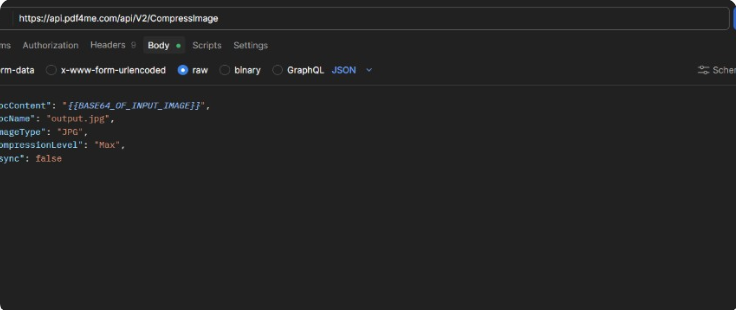
In Postman, select:

Body → raw → JSON
Then paste the following:
{
  "docContent": "PASTE_BASE64_HERE",
  "docName": "output.jpg",
  "imageType": "JPG",
  "compressionLevel": "Max",
  "async": false
}
Understanding the Parameters
ParameterPurposedocContentBase64 version of the imagedocNameOutput file nameimageTypeJPG or PNGcompressionLevelMax, Medium, or LowasyncSet true for large files
Step 4: Send the Request
Click Send in Postman.
If successful, you’ll receive:
200 OKDepending on your Postman view, the response may appear as:
- Base64 output

- Raw binary data

If Base64 is shown, decode it into a .jpg file.
If binary appears, simply save the response as output.jpg.
Step 5: Compare File Sizes
After saving the compressed image, compare it with the original file.

In the sample run:
- Original image: ~4.5 MB
- Compressed image: ~2.6 MB
Actual compression results will vary depending on:
- image dimensions
- image quality
- selected compression level
If Max compression affects quality too much, try:
MediumLow
Quick Troubleshooting
401 or Authorization Errors
Double-check:
Slow Requests or Timeouts
Try:
"async": trueYou can also resize oversized images before compression.
Corrupt or Empty Output
Make sure:
- the Base64 string has no line breaks
- the
data:image/...;base64,prefix is removed - the source image opens correctly locally
Final Thoughts
Image compression APIs are one of the easiest ways to improve delivery performance across websites and applications. Instead of optimizing files manually, you can automate the process directly in your upload or processing pipeline.
Start with Postman, validate the request structure, and later move the same setup into production workflows or automation tools.
API Endpoint Used:
메타데이터
- post_id
- 418a0bc74f35
- slug
- image-compression-api-compress-jpgs-in-postman-for-faster-seo-friendly-delivery-418a0bc74f35
- url
- https://medium.com/@pdf4me.ani/image-compression-api-compress-jpgs-in-postman-for-faster-seo-friendly-delivery-418a0bc74f35
- canonical_url
- https://medium.com/@pdf4me.ani/image-compression-api-compress-jpgs-in-postman-for-faster-seo-friendly-delivery-418a0bc74f35
- author_url
- https://medium.com/@pdf4me.ani
- status
- ok
- fetched_at
- 2026-06-11 21:11:36