Automating GUI Testing: Leveraging AI Function Calling with wxPython and Pywinauto
In the previous example “Leveraging Anthropic API for Secure wxPython Code Execution”, I discussed how the Anthropic API was used to…
Automating GUI Testing: Leveraging AI Function Calling with wxPython and Pywinauto
In the previous example “Leveraging Anthropic API for Secure wxPython Code Execution”, I discussed how the Anthropic API was used to execute wxPython code in a secure virtual environment. This foundation of safe code execution allows us to move forward into automating GUI testing.
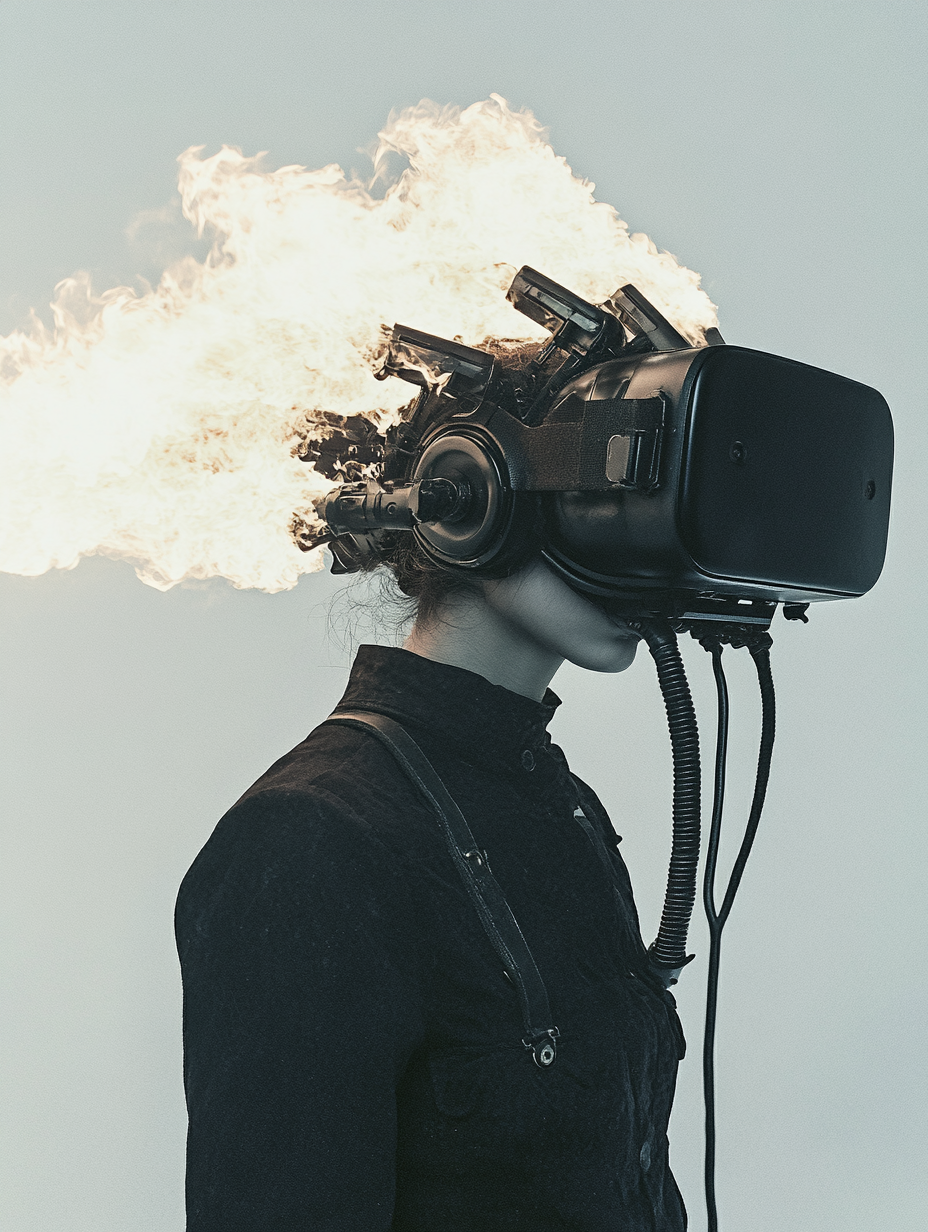
image by Alex Buzunov
Today, I explore GUI testing that combines the power of AI function calling, wxPython for creating interfaces, and Pywinauto for automation.
The Power of AI Function Calling
Before we dive into the technical details, let’s highlight a key feature of our approach: AI function calling. This powerful capability allows us to generate code and create files dynamically based on natural language prompts. In our case, we’re using it to create two distinct files:
- A wxPython script for our GUI application
- A test script using Pywinauto to automate GUI interactions
This approach demonstrates how AI can streamline the development process, generating both application code and test code simultaneously.
File 1: A Simple wxPython Application
Let’s start with our wxPython application. This script, which we’ll name wxpython_script.py, creates a window with a button that displays a “Hello, World!” message when clicked.
import wx

class MyFrame(wx.Frame):
    def __init__(self):
        super().__init__(parent=None, title='Hello World')
        panel = wx.Panel(self)
        my_button = wx.Button(panel, label='Click me')
        my_button.Bind(wx.EVT_BUTTON, self.on_button_click)
        sizer = wx.BoxSizer(wx.VERTICAL)
        sizer.Add(my_button, 0, wx.TOP, 20)
        panel.SetSizer(sizer)

    def on_button_click(self, event):
        wx.MessageBox('Hello, World!')

if __name__ == '__main__':
    app = wx.App()
    frame = MyFrame()
    frame.Show()
    app.MainLoop()
This script is generated and saved automatically using our AI function calling feature, demonstrating how quickly we can prototype GUI applications.
File 2: Pywinauto Test Script
Now, let’s look at our second file, *test_wxpython_script.py*, which contains our Pywinauto test script:
import subprocess
import time
import pytest
from pywinauto.application import Application
from pywinauto.findwindows import ElementNotFoundError

def wait_for_window(title, timeout=10, interval=0.5):
    app = Application(backend="win32")
    start_time = time.time()
    while True:
        try:
            app.connect(title_re=title)
            return app
        except ElementNotFoundError:
            if time.time() - start_time > timeout:
                raise TimeoutError(f"Window '{title}' did not appear within {timeout} seconds.")
            time.sleep(interval)

@pytest.fixture(scope="module")
def start_application():
    process = subprocess.Popen(['python', 'wxpython_script.py'])
    yield process
    process.terminate()

def test_wxpython_script_interaction(start_application):
    app = wait_for_window("Hello World")
    window = app.window(title="Hello World")
    window['Click me'].wait('ready').click()
    time.sleep(0.1)
    message_box = app.window(title="Message")
    assert message_box.exists(), "Message box did not appear"
    message_box['OK'].click()

if __name__ == "__main__":
    pytest.main(["-v", __file__])
Again, this entire test script is generated and saved automatically using our AI function calling feature. This demonstrates the power of AI in not only creating the application but also generating comprehensive tests for it.
The AI Function Calling Process
Here’s a brief overview of how the AI function calling works in our setup:
- We provide a natural language prompt describing the wxPython application and the desired test script.
- The AI processes this prompt and generates the appropriate code for both files.
- The AI then calls a
*create_files*function, passing the generated code as arguments. - The
*create_files*function saves the generated code into two separate files:*wxpython_script.py*and*test_wxpython_script.py*.
This process showcases how AI can streamline the development workflow, generating both application and test code from a single prompt.
1. Crafting the Prompt
The process begins with a carefully crafted prompt that describes the desired wxPython application and the corresponding test script. Here’s an example of such a prompt:
prompt = """
Step 1:
Generate a simple wxPython script that creates a window with a button.
When the button is clicked, it should display a message box saying 'Hello, World!'.
After generating the script, use the create_files function to save it to a file named 'wxpython_script.py'.
Make sure wxpython_script.py opens the frame and dialog when executed like this: 'python wxpython_script.py'

Step 2:
Generate a Python test script that uses pywinauto to click on buttons of the frame and then the dialog.
Use test_demo_script as reference.
After generating the test script, use the create_files function to save it to a file named 'test_wxpython_script.py'.

The create_files function takes a 'files' argument which is an object with 'path' and 'content' properties.
"""
2. Sending the Prompt to the AI
We use the Anthropic API to send this prompt to the AI. Here’s how we set up the API call:
import anthropic
import os

client = anthropic.Anthropic(api_key=os.environ.get("ANTHROPIC_API_KEY"))

def get_response(prompt):
    response = client.messages.create(
        model="claude-3-sonnet-20240229",
        max_tokens=1024,
        messages=[
            {
                "role": "user",
                "content": prompt
            }
        ],
        tools=[
            {
                "name": "create_files",
                "description": "Create one or more new files with the given contents.",
                "input_schema": {
                    "type": "object",
                    "properties": {
                        "files": {
                            "oneOf": [
                                {
                                    "type": "string",
                                    "description": "A single file path to create an empty file."
                                },
                                {
                                    "type": "object",
                                    "properties": {
                                        "path": {"type": "string"},
                                        "content": {"type": "string"}
                                    },
                                    "required": ["path"]
                                },
                                {
                                    "type": "array",
                                    "items": {
                                        "type": "object",
                                        "properties": {
                                            "path": {"type": "string"},
                                            "content": {"type": "string"}
                                        },
                                        "required": ["path"]
                                    }
                                }
                            ]
                        }
                    },
                    "required": ["files"]
                }
            }
        ]
    )
    return response
3. AI Generates Code and Calls Function
The AI processes the prompt and generates the code for both the wxPython script and the test script. It then calls the create_files function with the generated code. The function call might look something like this:
{
    "name": "create_files",
    "input": {
        "files": [
            {
                "path": "wxpython_script.py",
                "content": "import wx\n\nclass MyFrame(wx.Frame):\n    def __init__(self):\n        super().__init__(parent=None, title='Hello World')\n        panel = wx.Panel(self)\n        my_button = wx.Button(panel, label='Click me')\n        my_button.Bind(wx.EVT_BUTTON, self.on_button_click)\n        sizer = wx.BoxSizer(wx.VERTICAL)\n        sizer.Add(my_button, 0, wx.TOP, 20)\n        panel.SetSizer(sizer)\n\n    def on_button_click(self, event):\n        wx.MessageBox('Hello, World!')\n\nif __name__ == '__main__':\n    app = wx.App()\n    frame = MyFrame()\n    frame.Show()\n    app.MainLoop()"
            },
            {
                "path": "test_wxpython_script.py",
                "content": "import subprocess\nimport time\nimport pytest\nfrom pywinauto.application import Application\nfrom pywinauto.findwindows import ElementNotFoundError\n\n# Helper function to wait for window\ndef wait_for_window(title, timeout=10, interval=0.5):\n    app = Application(backend=\"win32\")\n    start_time = time.time()\n    while True:\n        try:\n            app.connect(title_re=title)\n            return app\n        except ElementNotFoundError:\n            if time.time() - start_time > timeout:\n                raise TimeoutError(f\"Window '{title}' did not appear within {timeout} seconds.\")\n            time.sleep(interval)\n\n@pytest.fixture(scope=\"module\")\ndef start_application():\n    # Start the wxPython script as a subprocess\n    process = subprocess.Popen(['python', 'wxpython_script.py'])\n    yield process\n    process.terminate()\n\ndef test_wxpython_script_interaction(start_application):\n    # Wait for the window with the title \"Hello World\"\n    app = wait_for_window(\"Hello World\")\n\n    # Access the main window\n    window = app.window(title=\"Hello World\")\n\n    # Click the \"Click me\" button\n    window['Click me'].wait('ready').click()\n\n    # Wait for the message box to appear\n    time.sleep(.1)  # Adjust this delay as needed\n\n    # Access the message box window\n    message_box = app.window(title=\"Message\")\n\n    # Assert that the message box appears\n    assert message_box.exists(), \"Message box did not appear\"\n\n    # Click the OK button using its identifier\n    message_box['OK'].click()\n\nif __name__ == \"__main__\":\n    # Programmatically run pytest\n    pytest.main([\"-v\", __file__])"
            }
        ]
    }
}
4. Handling the Function Call
In our Python script, we handle the function call and execute the create_files function:
response = get_response(prompt)
tool_uses = [content_block for content_block in response.content if content_block.type == "tool_use"]

for tool_use in tool_uses:
    tool_name = tool_use.name
    tool_input = tool_use.input

    if tool_name == 'create_files':
        tool_result = create_files(tool_input.get('files', [tool_input]))

        # Echo the result
        echo(tool_result)
5. Creating the Files
The create_files function is responsible for actually creating the files with the generated content:
import os

def create_files(files):
    results = []
    for file in files:
        path = file['path']
        content = file.get('content', '')

        # Create directories if they don't exist
        os.makedirs(os.path.dirname(path), exist_ok=True)

        # Write the content to the file
        with open(path, 'w') as f:
            f.write(content)

        results.append(f"File created: {path}")

    return {"message": "Files created successfully", "details": results}
This function creates any necessary directories, writes the content to the specified files, and returns a result indicating the success of the operation.
By following this process, we leverage AI to generate both our wxPython application and its corresponding test script, saving them as separate files. This showcases the power of AI function calling in automating and streamlining the development process, from code generation to file creation.
Benefits of This Approach
By leveraging AI function calling in combination with wxPython and Pywinauto, we gain several advantages:
- Rapid Prototyping: Generate both GUI applications and their tests quickly.
- Consistency: Ensure that tests are always aligned with the latest version of the application. 3. Time Savings: Reduce the time spent on writing boilerplate code and basic tests.
- Learning Tool: Developers can learn best practices for both GUI development and testing by examining the AI-generated code.
- Flexibility: Easily modify the prompt to generate different types of applications and tests.
Next Example: Automating Headless GUI Testing with wxPython and Claude AI Function Calling
The next step in our journey involves headless GUI testing. I’ll explore how to automate testing in environments without visible displays, ensuring that GUI tests are executed even in continuous integration systems. By leveraging wxPython and Claude AI’s function calling capabilities, I streamline this complex testing process.
Inspiration: Claude Engineer
This project was heavily inspired by Claude Engineer, an advanced command-line interface that utilizes the Claude AI models for file system operations, intelligent code analysis, and execution. Claude Engineer’s robust features — including isolated virtual environments for safe code execution and enhanced code editing workflows — demonstrate the immense potential for AI-driven development tools.
Conclusion
The combination of AI function calling, wxPython for GUI development, and Pywinauto for testing represents a significant leap forward in software development practices. It allows developers to quickly bring concepts to life and ensure their reliability through automated testing.
Happy coding!
Avenues for Further Exploration
While this article demonstrates an approach to automating GUI testing using AI function calling with wxPython and Pywinauto, there are several promising directions for further academic research, especially in the domain of large language models (LLMs) and advanced AI techniques. The following questions represent key areas for deeper investigation:
- How can deep learning techniques be applied to analyze GUI layouts and automatically generate comprehensive test cases that cover all possible user interactions, going beyond predefined scripts?
- What novel approaches in natural language processing could enable the translation of complex user stories or acceptance criteria directly into executable GUI test scripts, bridging the gap between requirements and automated testing?
- How might reinforcement learning be leveraged to create an AI system that can learn from past test executions and dynamically optimize test scripts for increased coverage and efficiency?
- What advancements in program synthesis could allow LLMs to not only generate individual test scripts but also entire test suites that ensure comprehensive coverage across multiple interconnected GUI components and scenarios?
- How can transfer learning be applied to create more versatile AI models that can generalize their understanding of GUI testing across different frameworks (e.g., wxPython, PyQt, Tkinter) and even different programming languages?
References
Podcast
How developers can use Anthropic’s Claude API and Python to automate software development workflows.
메타데이터
- post_id
- 41dffdea5fe5
- slug
- automating-gui-testing-leveraging-ai-function-calling-with-wxpython-and-pywinauto-41dffdea5fe5
- url
- https://medium.com/codex/automating-gui-testing-leveraging-ai-function-calling-with-wxpython-and-pywinauto-41dffdea5fe5
- canonical_url
- https://medium.com/codex/automating-gui-testing-leveraging-ai-function-calling-with-wxpython-and-pywinauto-41dffdea5fe5
- author_url
- https://medium.com/@alexbuzunov
- status
- ok
- fetched_at
- 2026-09-15 02:53:24