Getting Started with Amazon EFS: Scalable, Shared Storage for Your EC2 Instances
When building applications on AWS, one common challenge developers face is sharing files across multiple EC2 instances in a reliable…
Getting Started with Amazon EFS: Scalable, Shared Storage for Your EC2 Instances
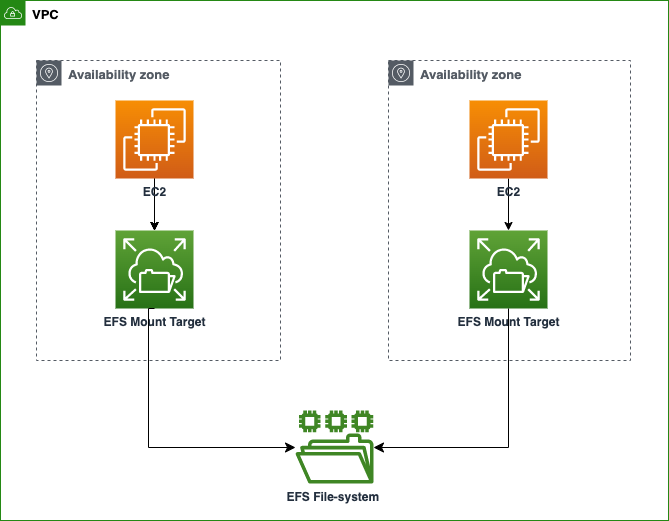
When building applications on AWS, one common challenge developers face is sharing files across multiple EC2 instances in a reliable, scalable, and secure way.
This is where Amazon Elastic File System (EFS) comes in.
EFS provides:
Shared storage — mount the same file system across hundreds of EC2s Highly available — data replicated across multiple Availability Zones (AZs) Elastic scaling — grows and shrinks automatically with your data Pay-as-you-go — no need for capacity planning
In this blog, let’s set up a production-ready EFS and mount it on two EC2 instances across different AZs.
Step 1: Create an Amazon EFS File System
- Open the EFS Console → Click Create file system.
- Configure settings:
- Name:
my-efs-demo(optional). - VPC: Choose your default or custom VPC.
- File system type:
- Regional → Recommended for HA (replicates data across AZs).
- One Zone → Cheaper but riskier (single AZ only).
- Backups: Enable automatic backups (recommended for production).
- Lifecycle management: Move old files to IA (30 days) or Archive (90 days).
- Encryption: Enable (default AES-256 or AWS KMS).
- Throughput mode:
- Elastic (recommended): Scales IO automatically, pay-per-use.
- Provisioned: Fixed throughput for predictable workloads.
- Performance mode:
- General Purpose (recommended): Low latency.
- Max I/O: High throughput, slightly higher latency.
Click Next → Create
Your EFS file system is now ready.
Press enter or click to view image in full size

Step 2: Configure Network Access
For EC2 instances to connect to EFS, we need mount targets and the right security groups.
- In EFS Network settings, select:
- VPC → Same as your EC2s.
- Subnets → Pick at least two subnets in different AZs (for Regional).
Press enter or click to view image in full size

- Create a Security Group (e.g.,
EFS-SG-Demo) and allow:
- Inbound Rule: NFS (port 2049) from your EC2 Security Group.
Tip: Always keep EC2 and EFS security groups linked properly; otherwise, your mounts will fail.
Save and attach the security group.
Press enter or click to view image in full size

Step 3: Launch EC2 Instances with EFS
Now let’s spin up two EC2 instances in different AZs and mount our shared EFS.
- Launch Instance A in
us-east-1a(or any AZ).
- Attach the same VPC.
- Select EFS-SG-Demo.
- In Storage settings → File Systems, add the EFS you just created.
- Launch Instance B in another subnet (e.g.,
us-east-1b).
- Attach the same security group as Instance A.
- Add the same EFS mount.
Press enter or click to view image in full size

Press enter or click to view image in full size

Step 4: Test File Sharing
Now, let’s test whether files written in one instance appear in the other.
On Instance A:
sudo su
echo "hello world" > /mnt/efs/fs1/hello.txt
cat /mnt/efs/fs1/hello.txt
Output:
hello worldPress enter or click to view image in full size

On Instance B:
ls /mnt/efs/fs1
cat /mnt/efs/fs1/hello.txt
Output:
hello.txt
hello world
Press enter or click to view image in full size

Why Use Amazon EFS in Production?
- Web applications — Store shared assets, images, logs
- CI/CD pipelines — Share build artifacts across runners
- Analytics workloads — Multiple compute nodes reading the same dataset
- Machine learning — Shared training data across GPUs
With EFS + EC2, you don’t worry about provisioning storage, scaling, or data consistency — AWS takes care of it.
Notes:-
Amazon EFS makes it easy to:
- Build scalable, highly available applications
- Share storage seamlessly across EC2s
- Keep costs under control with pay-as-you-go
If you’re running multi-instance workloads or want a serverless-friendly file system, EFS is one of the best choices on AWS.
Follow me :
Linkedin: https://www.linkedin.com/in/harshaljethwa/
GitHub: https://github.com/HARSHALJETHWA19/
Twitter: https://twitter.com/harshaljethwaa
Thank You!!!
메타데이터
- post_id
- 43745f065b07
- slug
- getting-started-with-amazon-efs-scalable-shared-storage-for-your-ec2-instances-43745f065b07
- url
- https://medium.com/@harshaljethwaa/getting-started-with-amazon-efs-scalable-shared-storage-for-your-ec2-instances-43745f065b07
- canonical_url
- https://medium.com/@harshaljethwaa/getting-started-with-amazon-efs-scalable-shared-storage-for-your-ec2-instances-43745f065b07
- author_url
- https://medium.com/@harshaljethwaa
- status
- ok
- fetched_at
- 2026-06-26 03:39:16