Claude Code with Z.ai Vision MCP: Master the full toolbelt
The moment you start caring about screenshots, charts, or diagrams is the moment you realise this MCP server’s invaluability.
Claude Code with Z.ai Vision MCP: Master the full toolbelt
The moment you start caring about screenshots, charts, or diagrams is the moment you realise this MCP server’s invaluability.
You paid for the whole speedometer, so use the whole speedometer
Z.ai is cheap as chips and is a solid performer. If you are running Claude Code on Z.ai and you are not using the Vision MCP server, you are flying blind. Text work is fine, but the minute you rely on screenshots, charts, or diagrams, you lose the purpose-built vision tools and the outputs go soft, vague, or wrong.
The server exposes Z.ai’s GLM-4.6V vision capabilities to MCP clients like Claude Code. This guide is the follow-on to my setup write-up and focuses on the other Vision MCP tools you can use once the server is installed.
You will learn what each tool does, when to use it, and how to prompt in a way that triggers the tool without explicitly naming it. I will focus on the tools shown in my screenshots, while still covering everything listed in the official docs.
Quick recap: why this is a complete handicap without it
Claude Code can call MCP tools, but image inputs do not always go through MCP unless the Vision server is installed and you reference a local file (recent iterations of Claude Code do the local/signature-protected file conversion automatically). Without it, you miss the dedicated vision tools and the results can be guessy or confident-but-wrong. That is the handicap.
If you have not installed the server yet, start here: **Fixing GLM-4.7 Image Parsing in Claude Code: Add the Z.ai Vision MCP Server** (my earlier guide). It includes the exact config and a fast verification flow.
If you are already installed, here is the minimal reminder:
claude mcp add -s user zai-mcp-server \
  --env Z_AI_API_KEY=your_api_key Z_AI_MODE=ZAI \
  -- npx -y "@z_ai/mcp-server"
That is enough to unlock the toolbelt below. No extra prompting ritual required.
The toolbelt at a glance (all tools on the docs page)
Z.ai lists eight Vision tools. Think of them as “intent-specific lenses” you can trigger with normal language:
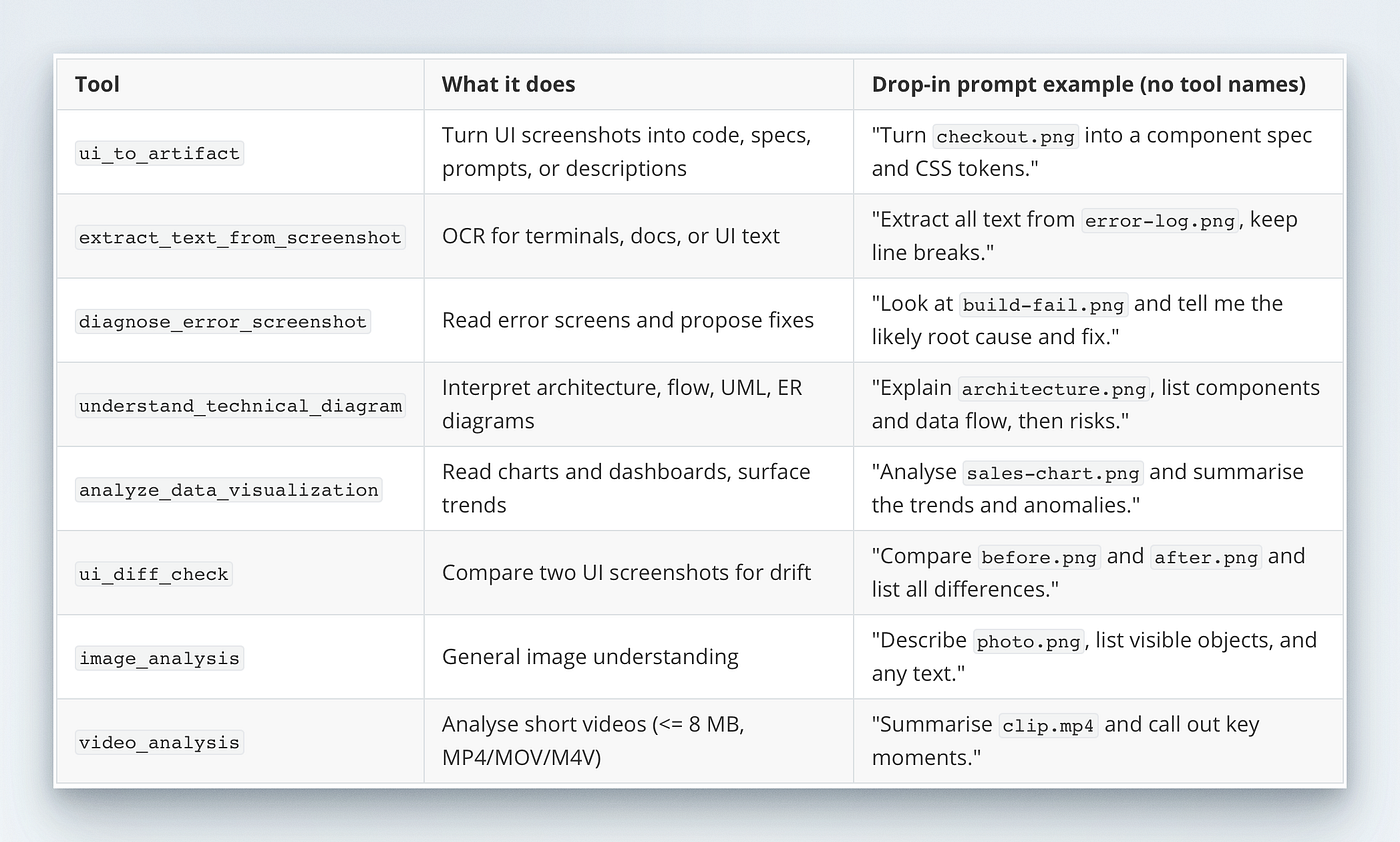
The Vision MCP server is NOT a one-trick pony. It does more, allowing you to do more.
The drop-in trick is simple: put the image in your working folder and reference it by name or path. Claude Code will pick the right tool on its own once the server is installed.
The “drop-in” behaviour you want to preserve
You do not need to say “use MCP” or “use tool X”. In practice, you just ask the question and include the file path. The MCP client figures out which tool fits.
Use a local file reference like:
“Can you analyse
chart.pngand turn the insights into a short brief?"
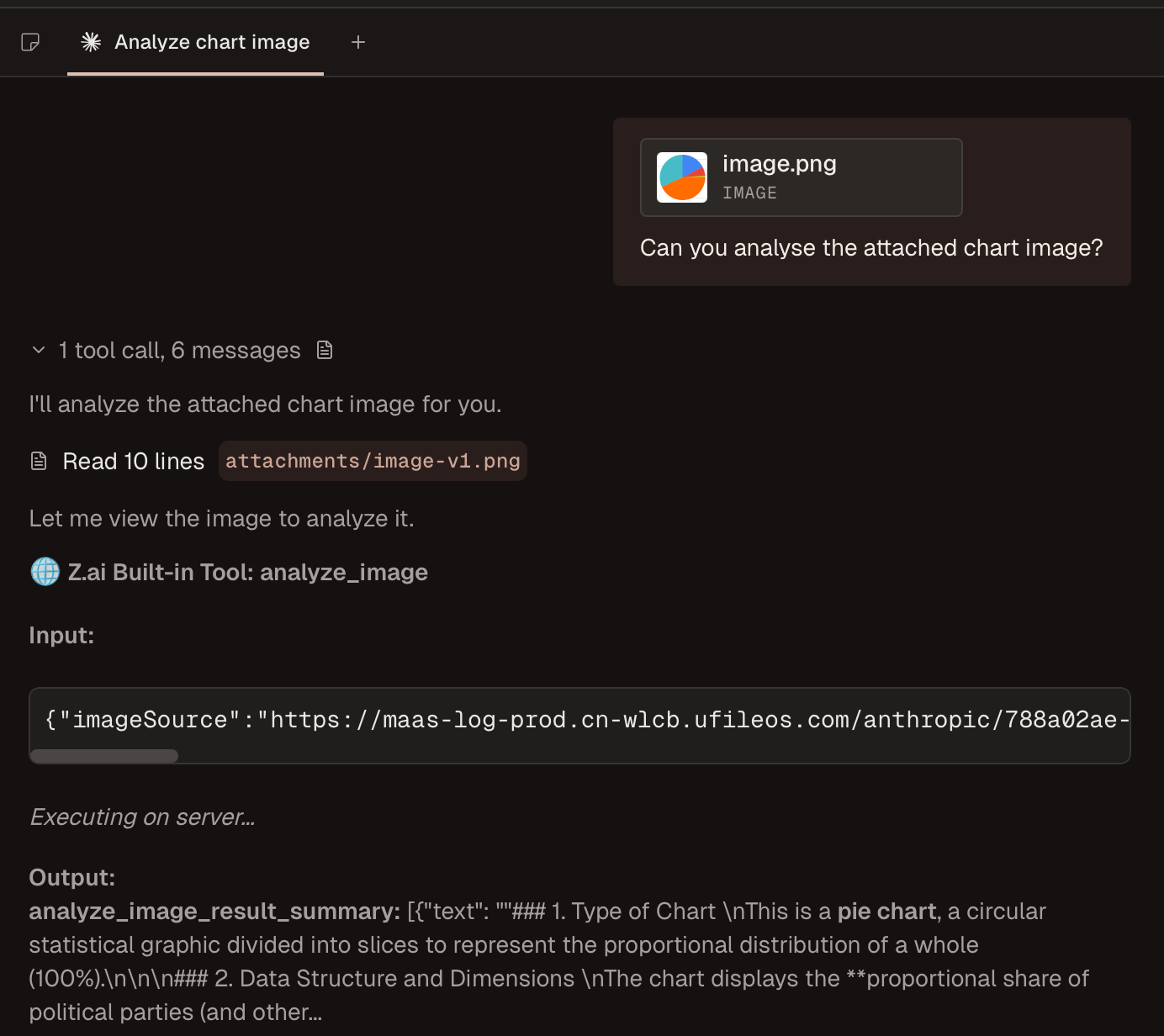
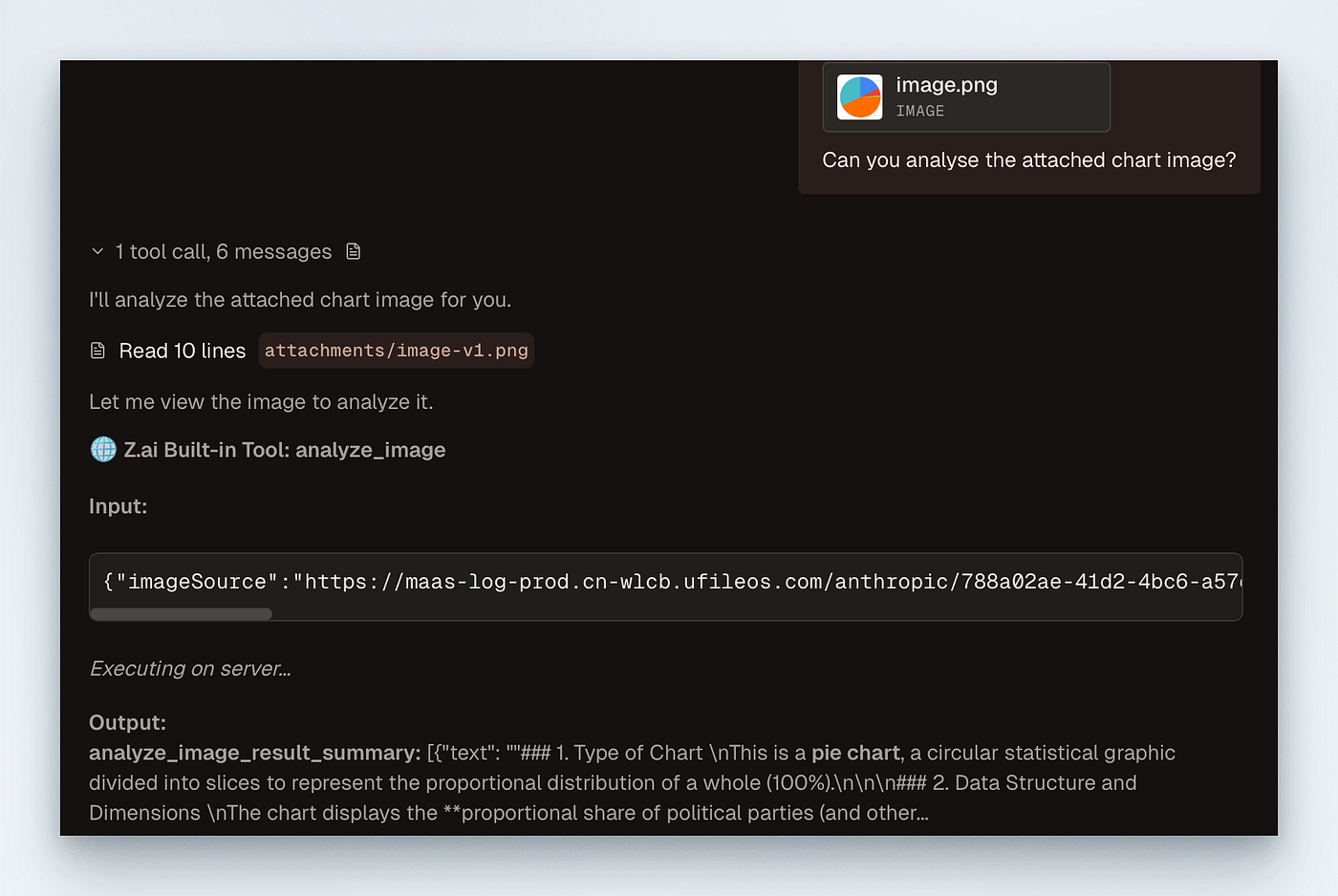
In Claude Code, this tends to trigger the correct Vision tool automatically. In other clients, the docs still recommend local file references to ensure the MCP server is used.
Here it is in action:
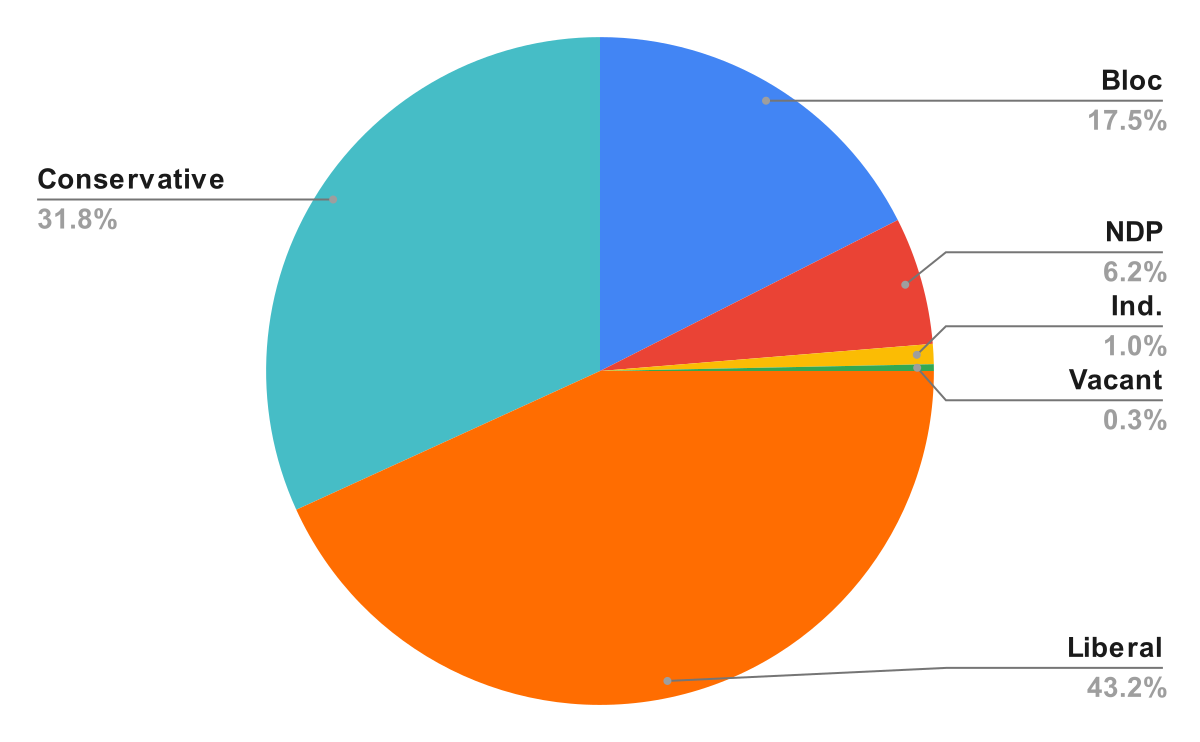
Canada’s political parties
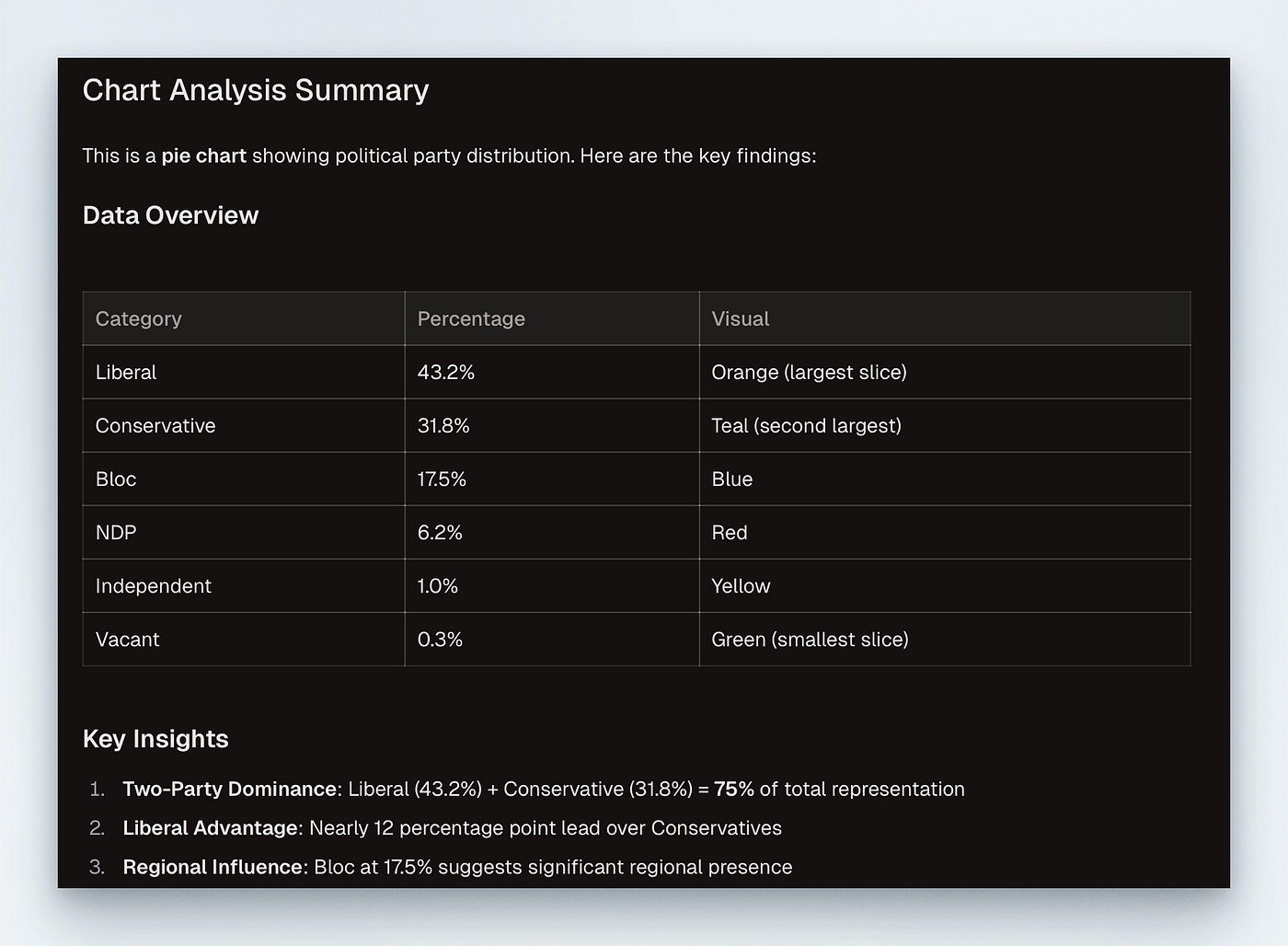
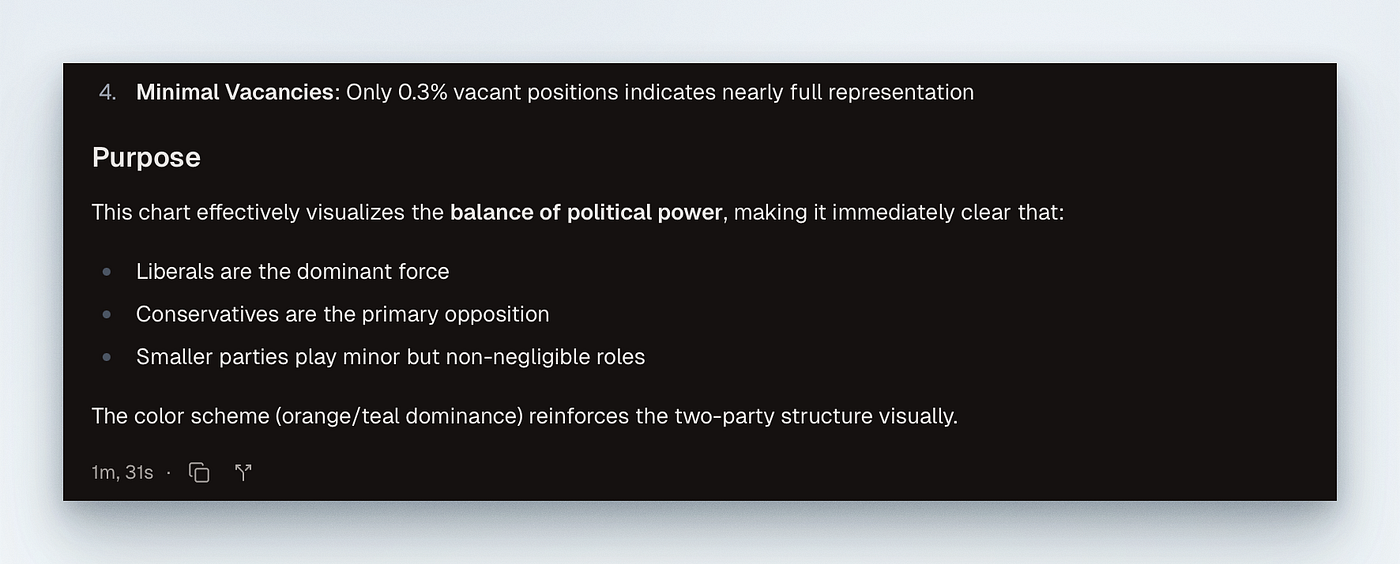
1) analyze_data_visualization: charts and dashboards
What it is good for:
- Summarising trends, outliers, and correlations.
- Converting a chart into a quick narrative brief.
- Highlighting questions you should ask next.
Prompt pattern:
Analyse chart.png. Summarise the top 3 trends, call out anomalies, and list 3 follow-up questions.You can make it concrete by asking for a table:
Analyse chart.png. Return a table with metric, trend, and likely explanation.2) understand_technical_diagram: architecture and flow
This is ideal for:
- Understanding a system diagram quickly.
- Extracting components and dependencies.
- Turning a diagram into a review checklist.
Prompt pattern:
Explain diagram.png. List components, data flows, and potential integration risks.If you want actionable output, ask for a plan:
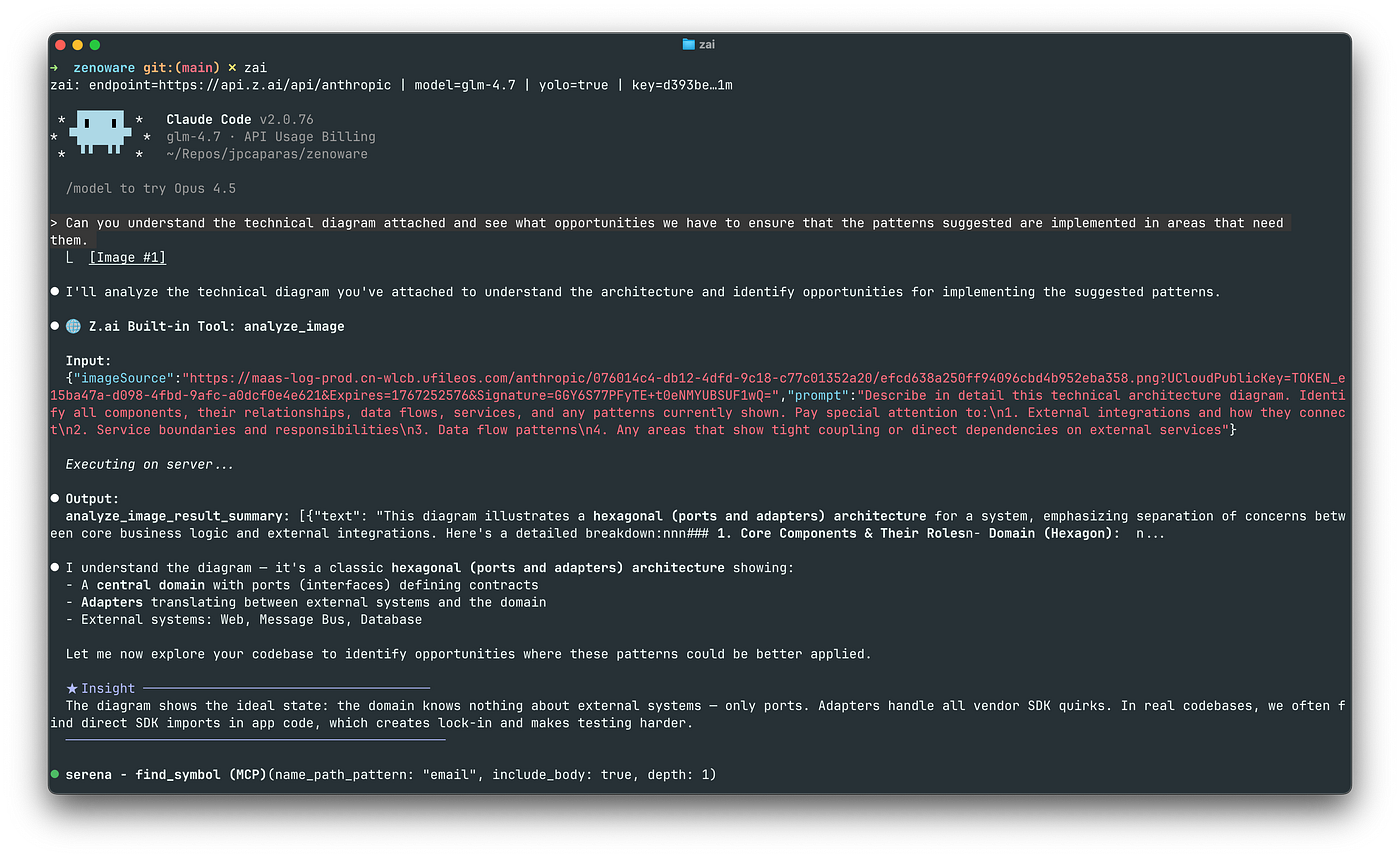
Explain diagram.png, then propose a 5-step review plan for the highest-risk areas.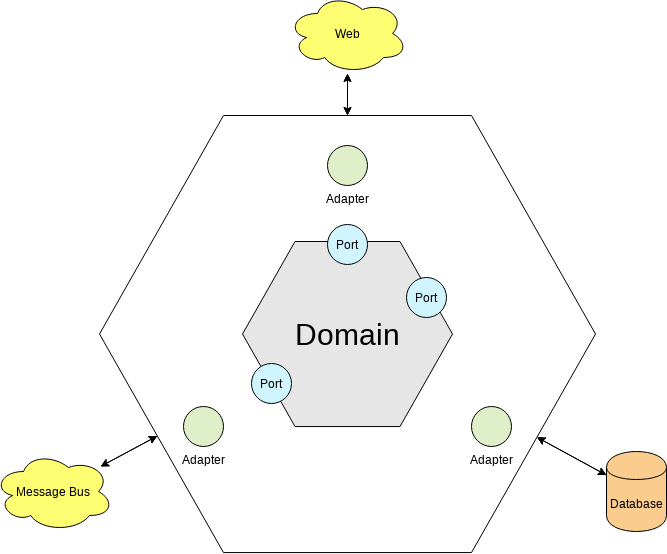
Hexagonal architecture pattern is one of the most popular software arch. patterns

3) extract_text_from_screenshot: OCR with structure
This is the “copy-paste I always wanted” tool. It reads text from a screenshot and preserves formatting if you ask for it.
Prompt pattern:
Extract all text from terminal.png and preserve line breaks and indentation.Once you have clean text, you can chain it into follow-up tasks like log triage or summarisation.
4) diagnose_error_screenshot: fast root-cause framing
This is perfect for CI screenshots, terminal errors, or UI exceptions. It gives you a likely cause and a fix path quickly.
Prompt pattern:
Look at error.png. Identify the error, likely cause, and a short fix checklist.5) ui_diff_check: catch visual drift
This tool is underrated. It helps you spot subtle differences between two screenshots when CSS changes or layout tweaks cause regressions.
Prompt pattern:
Compare before.png and after.png. List all visual differences and likely causes.The rest of the tools (still worth using):
ui_to_artifact: from screenshot to spec or code plan
This is great for turning a design into implementation scaffolding. It is not magic, but it does give you a strong first draft of structure, tokens, and layout.
Prompt pattern:
Turn ui.png into a concise component spec: layout, spacing, typography, and states.image_analysis: general-purpose fallback
If a screenshot does not fit any special case, use this. It is the “safe default”.
Prompt pattern:
Describe image.png in detail, then list any text or labels you see.video_analysis: powerful, but often unwieldy
Video analysis works, but in practice it is slower, noisier, and harder to steer. I’ve tried with files less than 8MB and it still craps out. If you can extract key frames and analyse those instead, you will get more reliable results.
Two practical tips:
- Keep videos small (<= 8 MB) and short.
- Prefer static frames for the specific moments you care about.
Example frame extraction:
ffmpeg -i clip.mp4 -vf "fps=1" frame-%03d.pngThen analyse the relevant frames with the image tools.
Prompt recipes that keep results sharp
These recipes keep outputs tight without forcing tool names:
- Summarise + quantify “Analyse
chart.pngand summarise the top 3 trends with rough percentages or deltas." - Extract + normalise “Extract text from
console.png, then normalise paths and env vars into placeholders." - Explain + plan “Explain
diagram.png, then propose a 5-step validation plan and who owns each step." - Compare + diagnose “Compare
before.pngandafter.png, list differences, then guess the CSS changes."
Practical guardrails (privacy and reliability)
- Keep images local and reference by filename to ensure MCP is invoked.
- Redact secrets before you attach anything. If the content is sensitive, blur or crop.
- Ask for structure (tables, bullets, checklists) to avoid long, meandering output.
- For repeatable work, save a “prompt template” or skill and reuse it with new files.
The quick-use decision guide
If you have a…
- Chart or dashboard ->
analyze_data_visualization - Architecture diagram ->
understand_technical_diagram - Error screen ->
diagnose_error_screenshot - UI screenshot to implement ->
ui_to_artifact - Two UI states ->
ui_diff_check - Generic image ->
image_analysis - Short clip ->
video_analysis(but try frames first)
Where this fits in your workflow
If you are a heavy Claude Code user, the Vision MCP server is the difference between “best effort” and “actual help”. It is the same GLM stack you are already paying for, but routed through tools designed for real-world inputs: screenshots, charts, and diagrams.
Once installed, the value is compounding: you reach for the right prompt, the tool triggers, and the output is grounded in the pixels, not the model’s imagination.
Liked this guide?
🚀 You’ve been invited to join the GLM Coding Plan! Enjoy full support for Claude Code, Cline, and 10+ top coding tools — starting at just $3/month. Subscribe now and grab the limited-time deal! Link: https://z.ai/subscribe?ic=IIJ5RBCVWO
If you prefer the long version of the setup and why the install matters, see my original guide.
References
- Vision MCP Server docs (supported tools, install, and usage): https://docs.z.ai/devpack/mcp/vision-mcp-server
- Model Context Protocol overview: https://modelcontextprotocol.io/
- Prior article: Fixing GLM-4.7 Image Parsing in Claude Code: https://jpcaparas.medium.com/fixing-glm-4-7-image-parsing-in-claude-code-add-the-z-ai-vision-mcp-server-f1c275d7cf3f
메타데이터
- post_id
- 4447c2f953a0
- slug
- claude-code-with-z-ai-vision-mcp-master-the-full-toolbelt-4447c2f953a0
- url
- https://ai.sulat.com/claude-code-with-z-ai-vision-mcp-master-the-full-toolbelt-4447c2f953a0
- canonical_url
- https://ai.sulat.com/claude-code-with-z-ai-vision-mcp-master-the-full-toolbelt-4447c2f953a0
- author_url
- https://medium.com/@jpcaparas
- status
- ok
- fetched_at
- 2026-06-22 17:31:34