macOS 27 Has a Hidden LLM Inside — 10 (Amazing) Things You Can Do With It
It’s free, runs entirely on your Mac, and lies in your Terminal from the day you update

Generated by the author using AI
macOS 27 Has a Hidden LLM Inside — 10 (Amazing) Things You Can Do With It
It’s free, runs entirely on your Mac, and lies in your Terminal from the day you update
I updated my MacBook to macOS 27 Beta like every other curious dev — mostly for the wallpaper, if I’m honest. And then I found something I wasn’t ready for.
I was in the Terminal for an unrelated reason, fat-fingered a command fm, and was surprised to see this:

Screenshot by the author
At first glance, I expected fm’s some file-management relic from 1994. Instead, it’s the CLI for “Apple Foundation Models” (The LLMs powering Apple Intelligence).
That’s the full AI assistant built into **/usr/bin/fm**. Works with no account and no internet, and almost nobody’s talking about it.
So I spent a day poking at it on my very humble machine — MacBook Air M1 8GB, the cheapest Apple silicon Mac there is (ok, except Neo) — and wrote down everything it can do.
Quick honesty first: It’s not Opus or GPT 5.5-level. It’s a small model. It has a tiny memory, it doesn’t know today’s date, and — you’ll see — it will occasionally lie to your face.
But if you need an AI model for little tasks, this is a genuinely useful and free one hiding. Let’s go.
First: what IS this thing?
Two models sit behind that little command.
**system* — Apple’s on-device model. It runs on your* Mac, offline, for free. This is the default, and it’s what most of this post is about.**pcc— the same idea but bigger, running in Apple’s [Private Cloud Compute](https://security.apple.com/blog/private-cloud-compute/)** data centers. Powerful and really private.
When I ran **fm --help**, this is the reveal that started the whole rabbit hole:

Screenshot by the author
The model itself isn’t brand new — the underlying **Foundation Models** framework has shipped since macOS 26, and you could already chat with it back then.
How? Using the “Use Model” action in the Shortcuts app (still the only way to touch it on an iPhone).

Screenshot by the author
[embed]Marvellous Apple Shortcuts nikhilvemu.medium.com
What macOS 27 added is the part that matters to us devs: a plain CLI tool — one you can pipe into, script, and wire into anything. (More on the Shortcuts route later.)
Here’s the whole shape of it before we dig in:

Image generated by the author
What’s in this article
**1 — Ask it anything, in one line [2](#2dbf) — Pipe anything on your Mac into it [3](#49e6) — Have a real conversation — and come back to it later [4](#1401) — Show it a screenshot [5](#ed0d) — Make it hand you a clean JSON (my favorite) [6](#f85e) — Auto-tag and classify text [7](#217d) — Count your tokens — and respect the 4,096 wall [8](#e57d) — Give it a personality, or make it predictable [9](#6aef) — Turn your Mac (mini) into a private “ChatGPT server” [10](#c2ca) — Call in the bigger brain: Private Cloud Compute [FAQs](#cfce) (That I got when using this) • No, it cannot read your Messages or Notes • How smart is it, really? • Where does it land against other models • Does it replace Ollama or LM Studio? • I’m a non-techie. Any easier way to use fm? • I’m not on macOS 27, but I cannot resist using this today [The honest bottom line](#bc8f)**
#1. Ask it anything, in one line
The simplest thing first. Type **fm respond** and a question in quotes:
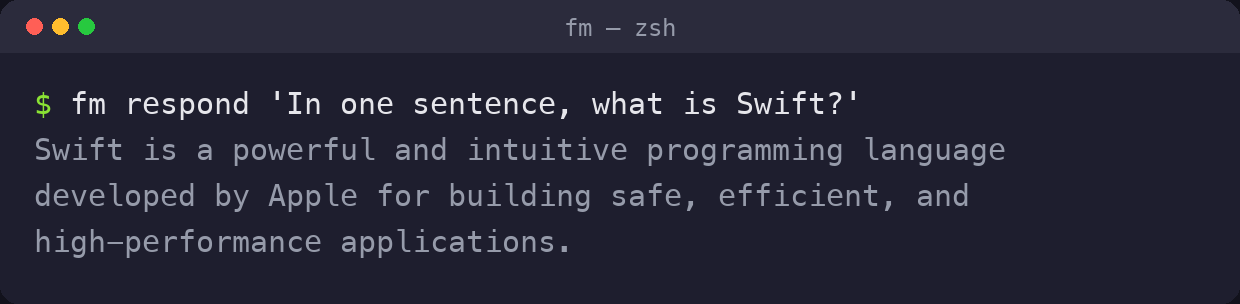
Screenshot by the author
That answer was generated On My Mac. No network, no login, no “free limits”.
The model runs as a system service that’s lazily loaded, so after the first warm-up, replies come back in a second or two.
The default is Apple’s on-device model — the command literally calls it **system. There’s the second, bigger model too (`pcc`**: Private Cloud Compute) but we’ll get to that in #10.
#2. Pipe anything on your Mac into it
This is where it stops being a toy.
**fm** reads from standard input, so you can “pipe” things into it — the same way you pipe anything else in a shell:

Screenshot by the author
A WORD OF WARNING, THOUGH — AND I’M LEAVING IT IN ON PURPOSEYou see, the output opened with "The Apple logo is displayed on the screen, which is a foundation model developed by Apple…" before listing Copy, Paste, and Undo.
Correct shortcuts, but a nonsense first sentence it just… made up. This is a small model. Trust it for shape and speed, not for gospel.Which means
**cat notes.txt | fm respond** (summarize a file), or**pbpaste | fm respond** (do something with your clipboard), or- piping a log file in and asking “what’s the error here.”
A real, private AI step you can drop into any script or Automator action.
#3. Have a real conversation — and come back to it later
**fm respond exits the moment it answers. `fm chat`** doesn’t:

Screenshot by the author
The good part — every session is saved to **~/.fm/sessions/. When you `/exit`**, it prints a resume command, so you can pick the exact conversation back up tomorrow:
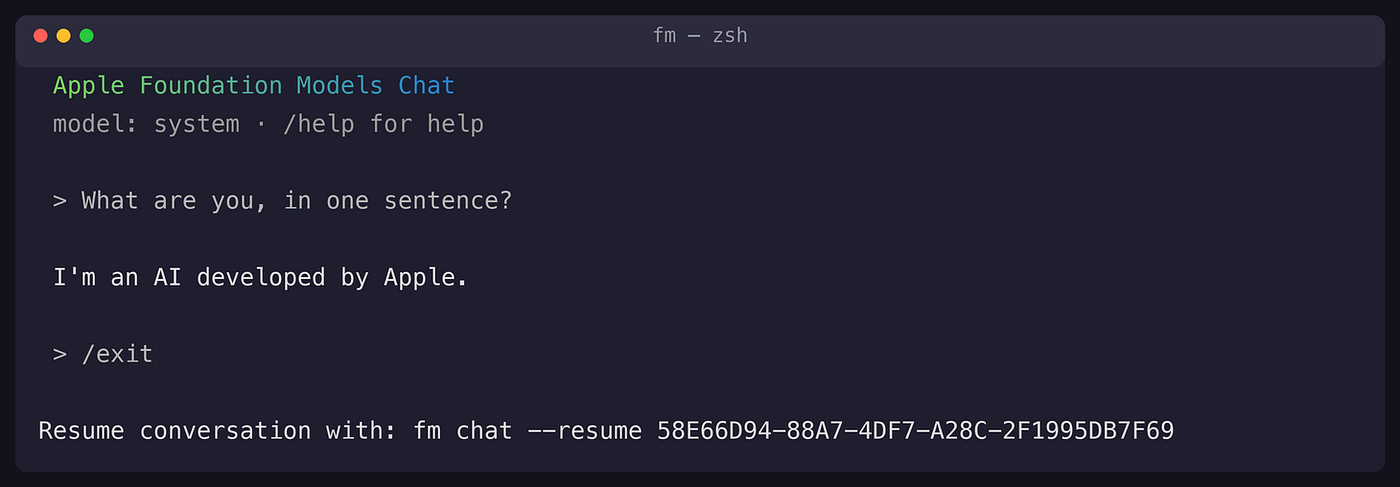
Screenshot by the author
I checked, and yes — the session files really are sitting there in **~/.fm/sessions/** as little JSON transcripts afterward. It’s your history, on your disk, that you can delete any time.

Screenshot by the author
#4. Show it a screenshot
The model can see.
Point **--image** at a file and ask about it:

Screenshot by the author
I fed it a grab of my own menu bar and it described it correctly. On an 8GB M1, no less.
It’s not going to solve a spreadsheet from a photo, no, but for “what’s in this picture” or rough OCR-style questions, it works… offline.
#5. Make it hand you clean JSON (my favorite)
Here’s the one that turned **fm from “neat” into “I’ll actually use this.” You can force the model to answer in a strict JSON shape** — no rambling, no markdown, just data your scripts can eat.
First, **fm** will even build the schema for you:

Screenshot by the author
That’s a local, free, private “turn messy text into structured data” machine.
- Extract contacts from an email,
- pull line items off a receipt,
- tag a folder of notes
and get back JSON every time. It even does nested objects and arrays if you want them. This is the feature I’d build an actual workflow around.
#6. Auto-tag and classify text
There’s a built-in mode tuned for exactly this. **--use-case content-tagging** returns keywords instead of prose:

Screenshot by the author
Feed it a photo caption, a bookmark, a support ticket — and get back tags you can file or search by. It’s the kind of dull, useful plumbing you’d normally pay an API for.
#7. Count your tokens — and respect the 4,096 wall
The on-device model has a small memory: 4,096 tokens for everything combined — your instructions, your prompt, and its answer. That’s roughly 3,000 words of total headroom. Go over and it stops.
So there’s a tool to measure before you send: **token-count**. And what happens if you blow past 4,096? I tested it:
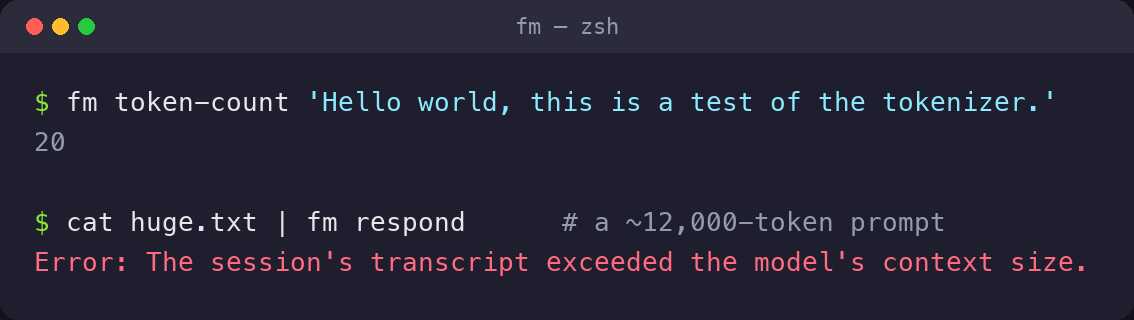
Now ditch OpenAI’s Tokenizer with this offline command.
It does not quietly forget the beginning and carry on. It STOPS, with a blunt **Error: The session’s transcript exceeded the model’s context size**.
Inside the window it remembers everything you told it — past it, you start a fresh session. So count long inputs first. This is why **fm is brilliant at “summarize this paragraph” and useless at “read this novel.” (`pcc`** has a much roomier window — around 32K — for when you truly need it).
#8. Give it a personality, or make it predictable
A few config flags worth knowing:
**--instructions 'You are a blunt code reviewer'** — a system prompt, sets the tone for the whole session**--greedy* makes answers more deterministic (same prompt → closer to the same output), handy in scripts. I asked for a pet-rock name and got a steady ”Rocky Buddy.”***--set-default-model**: persist whether you wantsystemor the cloud model as your default.**--guardrails permissive-content-transformations** loosens the safety filter for legitimate text-transformation work (editing fiction, say) where the default is too twitchy.**--save-transcript name/`--load-transcript file`**: snapshot a conversation and seed a later one with it.
None of it is “essential” itself. But**--instructions plus `--greedy** is the combo that makesfm` reliable enough to put inside a real script.
#9. Turn your Mac into a private “ChatGPT server”
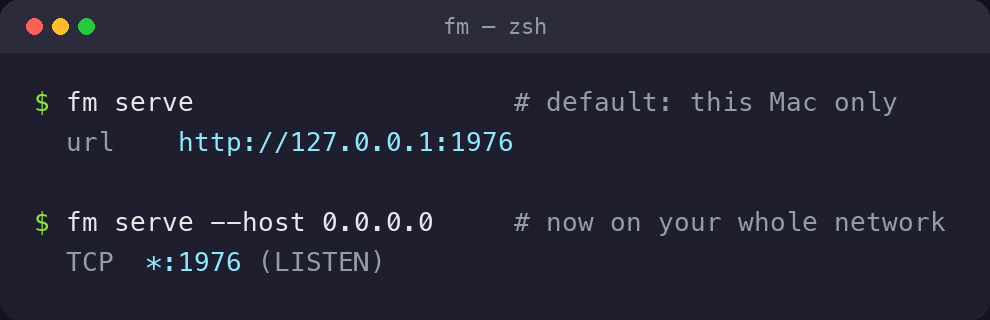
This is the sleeper feature. **fm serve starts a local web server that speaks the OpenAI API** — the same format ChatGPT’s own API uses:
Screenshot by the author
(The default port is **1976 — the year Apple was founded. Someone had fun. More macOS easter eggs in here ↓**)
[embed]10 amazing things of macOS hardly 0.1% of people know Once you see them, you can’t unseemedium.com
Now any tool that expects OpenAI — like a Python script, a VS Code extension, a chat app — can point at your Mac and use the local model instead, with no API key and no bill:

Screenshot by the author
That reply came straight off my own machine. One command turns your Mac into a free, offline, OpenAI-compatible endpoint. (The model name to pass is literally **system or `pcc**.) There’s also a--socket` option if you’d rather talk to it over a Unix socket than a port — cleaner for local Python.
Take it further: one strong Mac for the whole house
Here’s where it gets fun, and where it ties back to something I wrote about last month:
Two facts make this work. First, **fm serve can bind to your whole network, not just itself. By default it listens on `127.0.0.1** — this Mac only. Add--host 0.0.0.0` and it opens up:
Screenshot by the author
I actually ran this and watched it flip from **127.0.0.1:1976** (just me) to ***:1976** (anyone who can reach the Mac). That’s the whole trick.
Second — and this surprised me — the on-device model gets smarter on beefier Macs.
- An M1/M2 runs Apple’s small ~3B model.
- An M3 or M4 Mac with 12GB+ of memory — a base M4 Mac mini, or a Mac Studio — runs a much larger ~20B model.
Same command, noticeably better answers. So a single strong Mac behind the router can serve a genuinely better AI to every phone and laptop in the house, while the cheap laptops stay thin clients.
Your iPhone can’t run **fm** — obviously, coz there’s no Terminal on iOS — but a simple Shortcut that POSTs to your Mac’s address works just fine. No app to install. (If you’d rather not build one, any OpenAI-compatible chat app pointed at your Mac’s address works too.)
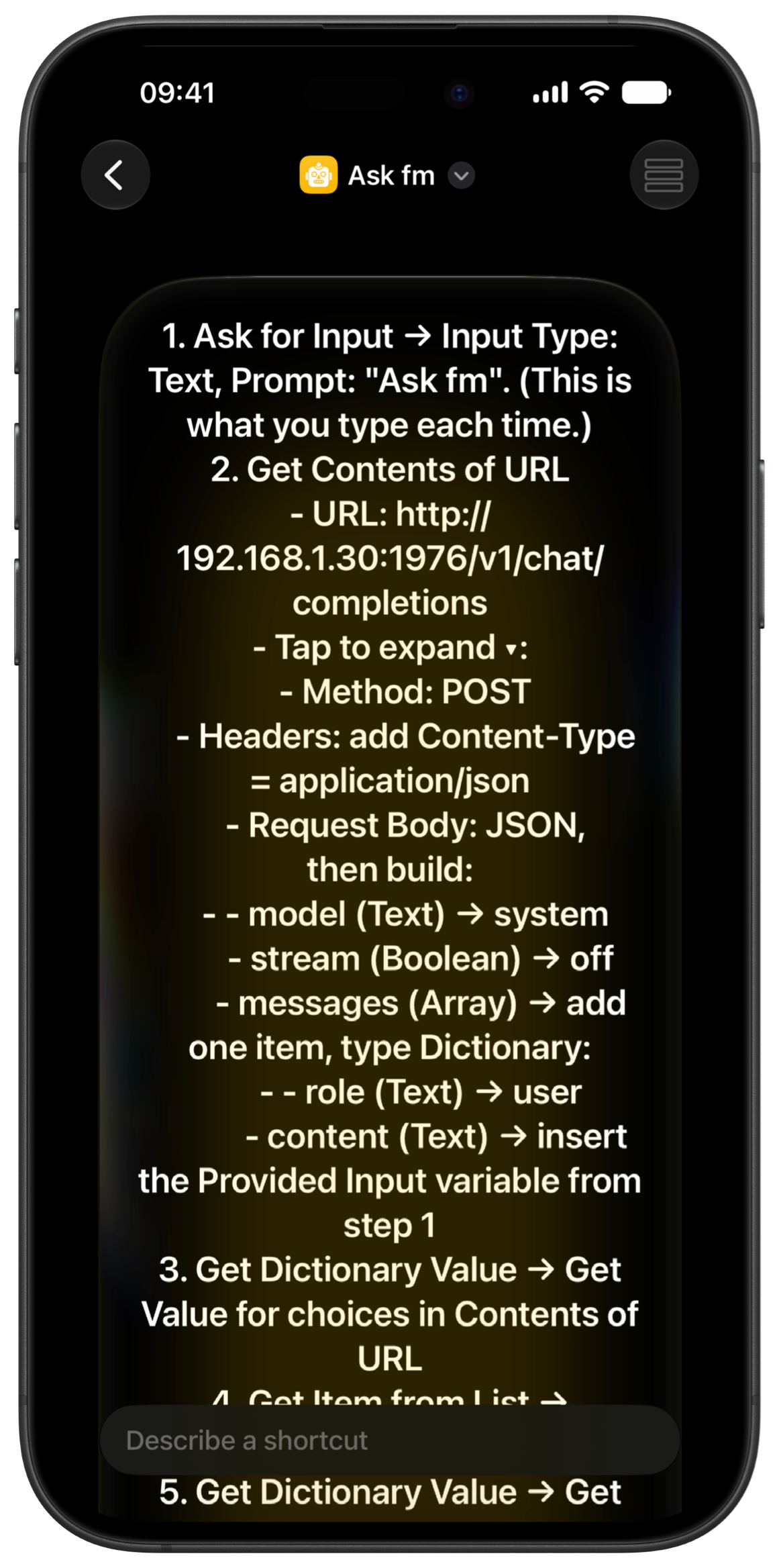

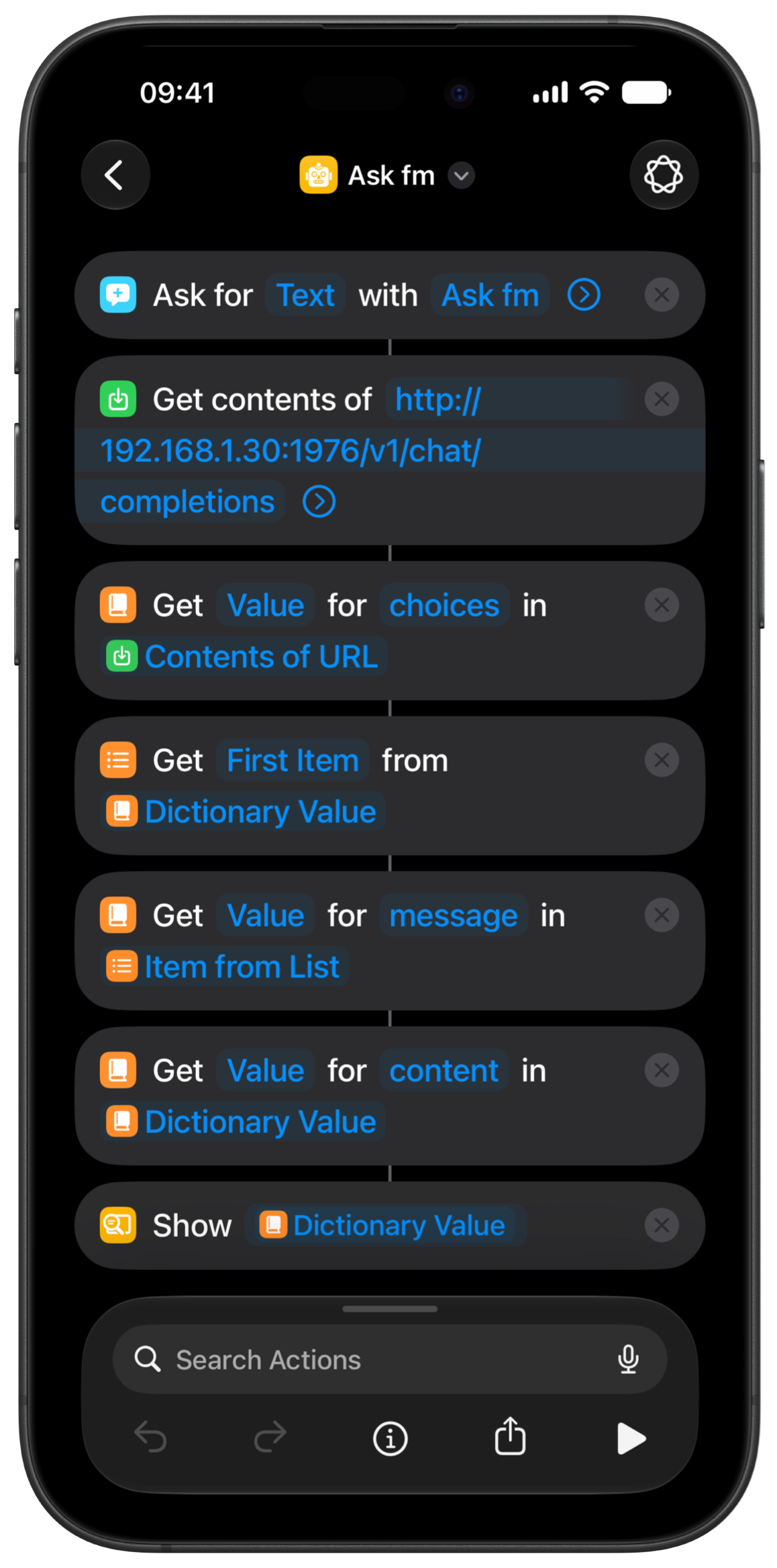
Too lazy to create the shortcut myself… So I used Apple Intelligence in iOS 27
SHORTCUTS PROMPT

1. Ask for Input → Input Type: Text, Prompt: "Ask fm". (This is what you type each time.)
2. Get Contents of URL
 • URL: http://192.168.1.30:1976/v1/chat/completions
 • Method: POST
 • Headers: add Content-Type = application/json
 • Request Body: JSON
   • model (Text): system
   • stream (Boolean): False
   • messages (Array): Dictionary
     • role (Text): user
     • context (Text): insert the Provided Input variable from step 1
3. Get Dictionary Value -> Get Value for "choices" in Contents of URL
4. Get Item from List -> First Item
5. Get Dictionary Value -> Get Value for "message"
6. Get Dictionary Value -> Get Value for "content"
7. Show Result (or Speak Text / Quick Look) with that final value
The one thing to take seriously: **fm serve has no password.** Anything that can reach the port can use it. So keep it to your home Wi-Fi, not the cafe’s.
If you want it while you’re out, don’t fling the port at the open internet — use a private mesh instead (like Tailscale). Treat it like a door on your network, because that’s exactly what it is.
#10. Call in the bigger brain: Private Cloud Compute
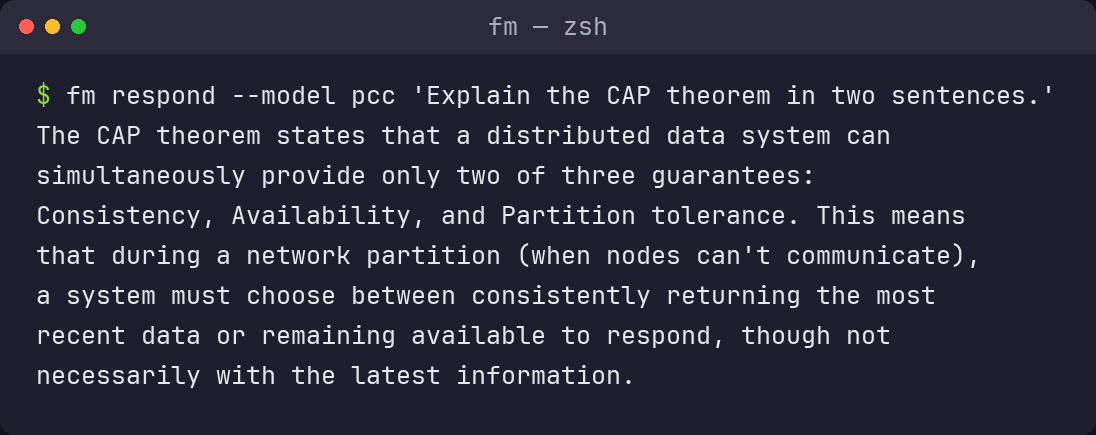
When the little model isn’t enough, **fm has a second gear: `--model pcc` sends your prompt to Private Cloud Compute**, Apple's server-side model.
Screenshot by the author
PCC is Apple’s answer to “I want a bigger model but I don’t want to hand my life to a chatbot company.”
It’s stateless — your prompt answers the question, then it’s gone: not stored, not even visible to Apple — and Apple publishes the server code and cryptographic proofs so independent researchers can verify that claim rather than just say ok.
If you’re the kind of person who won’t paste sensitive text into ChatGPT, this is the headline: a much bigger model, provably private, with nothing to install and no account to make. Just a --flag away.
Two things make it punch above the local model:
- As it runs in the cloud, every Mac gets the same PCC model — your chip and RAM don’t matter here, unlike the on-device one.
- Its context window opens up to 32,768 tokens — eight times the on-device 4,096 — so PCC will happily read inputs that make the little model quit. You can see that bigger ceiling in
**fm chattoo: switch with `/model pcc`**, and the status line starts counting your tokens against 32,768 instead of 4,096.
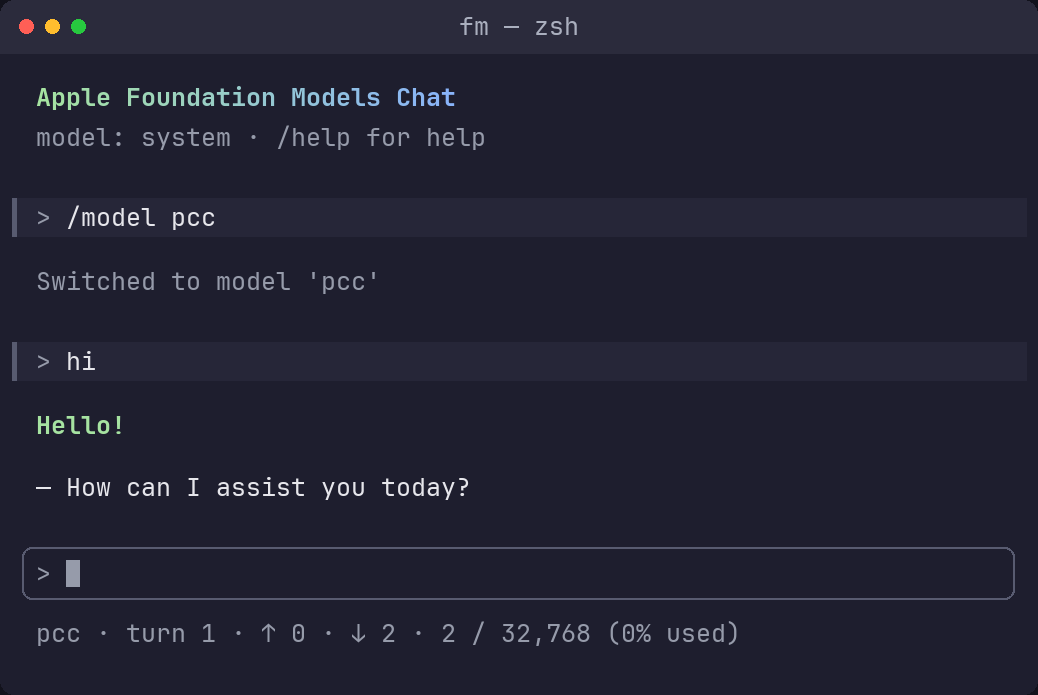
Screenshot by the author
One real limit still applies: PCC isn’t a bottomless well. It has a per-user daily quota tied to your Apple Account — which is why there’s an **fm quota-usage **command right there in the help.
Apple points to iCloud+ as the way to raise that ceiling. So no, it's not "unlimited frontier AI, free, forever" — plan on the heavy tier eventually costing something.
FAQs (That I got when using this)
• No — it can’t read your Messages or Notes (I asked it, repeatedly)
This is the question everyone lands on: it’s Apple’s model, on your Mac — so surely it knows your stuff? I assumed the same. So I interrogated it.
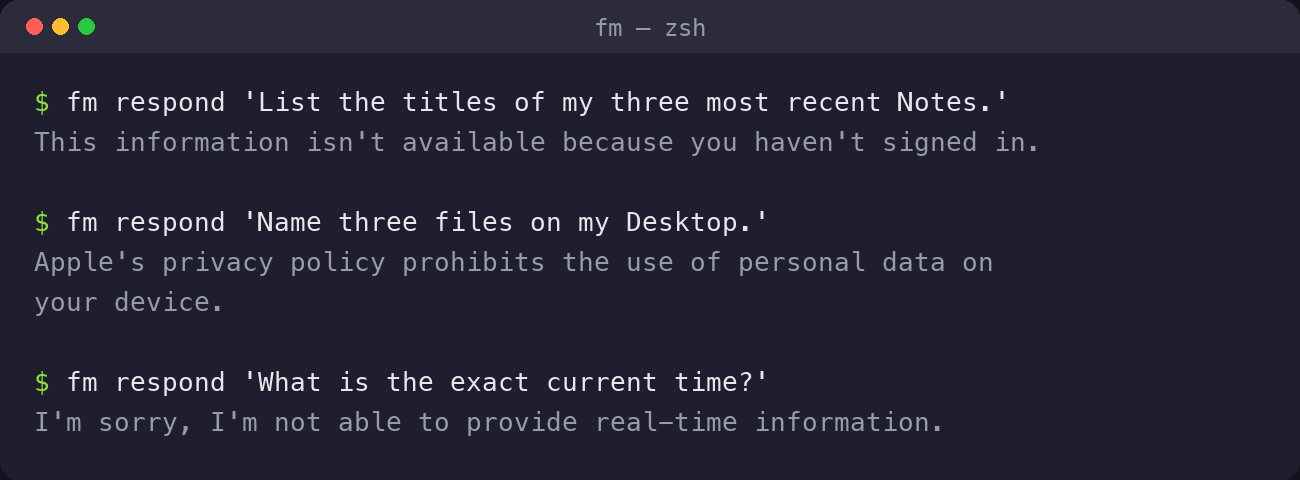
Screenshot by the author
I asked for my name, my three most recent Notes, my calendar, my last text, the files on my Desktop, the battery level, even the current time. Every single one came back empty — “not available,” “prohibited,” “I can’t access that.” It doesn’t even know what time it is.
And earlier — this is the funny part — it had cheerfully told me “Yes, I have access to your Notes, Messages, and files.” That was a flat-out hallucination. It has none. (Lesson: a small model will confidently make things up, including about itself. Verify.)
Here’s the thing people mix up: The “Personal Context” you’re thinking of belongs to Siri, not to this. That semantic index — the thing that lets Siri find “the photo Mom sent last week” — is a separate system feature.
The model **fm talks to is a deliberately blank, private slate. It only ever sees the text you choose to hand it. And it’s not a beta gap that fills in later — it’s the design, and it’s the right one. You can still give it your data on purpose, any time, with a plain `cat notes.txt | fm respond`*. You just have to choose* to.
• So how smart is it, really?
Set your expectations correctly and you’ll love it. Get them wrong and you’ll hate it.
It thinks today is September 11, 2024, and that the iPhone 15 is the newest phone. Its world knowledge is thin and frozen, and it can’t browse the web.
Apple says so plainly: the on-device model was not built to be a general-knowledge chatbot. It’s built to summarize, extract, classify, rewrite, and structure text — and at those jobs, on-device, for free, it’s very good.
• Where does it land against other models?
By Apple’s own tests, the little on-device one holds its own against other small models its size (like the 3–4B Qwen and Gemma class), and independent folks put it roughly in the “Gemini Nano / small-Llama” tier — great for narrow tasks, not a genius.
Private Cloud Compute plays a weight class up: Apple’s numbers have it beating some mid-size open models but still behind the true frontier (GPT-4o and friends). So: capable and private, not record-breaking.
• Does it replace Ollama or LM Studio?
For most people’s everyday chores — clean up this text, summarize that, pull the data out of this — honestly, yes, and with zero setup or downloads.
But if you run those to use big 70-billion-parameter models, or to load your own fine-tuned weights, keep them. **fm** can’t do either, and isn’t trying to.
• I’m a non-techie. Any easier way to use fm?
Yes, before **fm**, there was exactly this other way in.
Worth knowing, because it reframes why this matters: until macOS 27, the only way an ordinary person could reach these models — without writing code — was the “Use Model” action in the Shortcuts app.
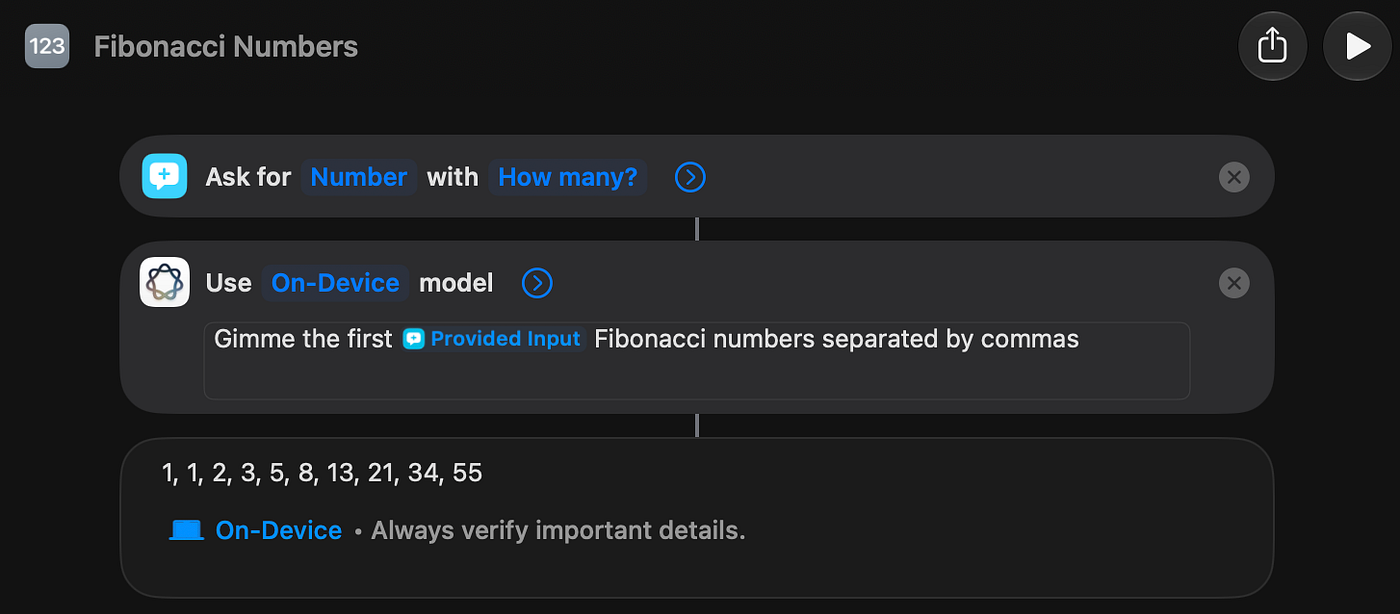
Screenshot by the author
That’s still there, and it’s still the way you touch this stuff on an iPhone. But a Shortcut isn’t something you pipe a log file into at 11pm. **fm** is the first time Apple’s given us a real, scriptable, command-line handle on its AI. That’s the actual news.
• I’m not on macOS 27, but I cannot resist using this today
The model has been on Macs since macOS 26 — only the fm command is new. If you’re on 26 and want in today:
**pip install apple-fm-sdk** — Apple’s official Python package, same on-device model, works on macOS 26+.- Community CLIs like
[**apfel](https://apfel.franzai.com/) and `afm`** wrap the same model with their own commands.
And if you install any of those now and then update to 27? They’ll keep working, but **fm** just quietly makes most of them redundant, because it does the same jobs natively.
The honest bottom line
Set the bar at “a fast, free, private text tool that lives in my Terminal,” not straightaway “ChatGPT,” and **fm** is a small delight. The three I keep coming back to:
**fm respond --schema**: turning messy text into clean JSON, offline.- piping files in:
**cat something | fm respond** for instant, private summaries. **fm serve**: a free, OpenAI-compatible endpoint for my own scripts.
It won’t tell you who won last year’s election. It doesn’t know your name. But it’ll quietly do a 100 small language chores a day without a single byte leaving your Mac — and it was already installed, waiting, the whole time.
Open your Terminal and type **fm respond hello**. That’s the entire barrier to entry.
Try it this weekend. My bet is you’ll leave **fm serve** running.
For more a‘macOS’zing terminal commands, read these.
[embed]Useful Mac Terminal Commands nikhilvemu.medium.com
Buy some cool stuff on my **Gumroad page**! I just published this:
20% OFF code auto-applied as you’re a Medium member!
메타데이터
- post_id
- 44a28d8cc042
- slug
- macos-27-has-a-hidden-llm-inside-10-amazing-things-you-can-do-with-it-44a28d8cc042
- url
- https://medium.com/macoclock/macos-27-has-a-hidden-llm-inside-10-amazing-things-you-can-do-with-it-44a28d8cc042
- canonical_url
- https://medium.com/macoclock/macos-27-has-a-hidden-llm-inside-10-amazing-things-you-can-do-with-it-44a28d8cc042
- author_url
- https://medium.com/@nikhilvemu
- status
- ok
- fetched_at
- 2026-07-10 14:51:46