I Mounted a File System That Can Grow to 8 Exabytes — Here’s What Happened (AWS Day 11)
If you’ve ever wondered how Netflix, or any large-scale app, shares files across hundreds of servers at once without breaking a sweat, the…
I Mounted a File System That Can Grow to 8 Exabytes — Here’s What Happened (AWS Day 11)

If you’ve ever wondered how Netflix, or any large-scale app, shares files across hundreds of servers at once without breaking a sweat, the answer usually starts with one service: Amazon EFS (Elastic File System). Today, on Day 11 of my AWS hands-on journey, I built one from scratch, mounted it to an EC2 instance, and pushed it hard enough to watch its throughput burst in real time on CloudWatch.
Here’s exactly how it went.
Why EFS Matters
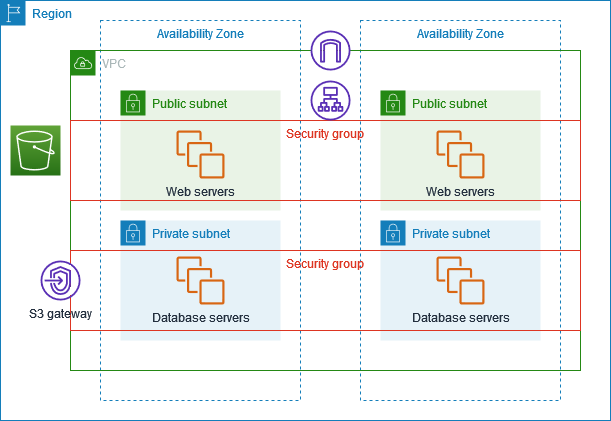
Unlike EBS, which is tied to a single EC2 instance, EFS is a fully managed, elastic NFS file system that can be mounted simultaneously across multiple EC2 instances — even across different Availability Zones in the same region. That makes it perfect for shared application data, content management systems, or any workload where multiple servers need to read/write the same files at once.
Today’s lab walked through five key stages: securing the file system, creating it, connecting to an EC2 instance, mounting the file system, and finally, stress-testing its performance.
Step 1: Locking Down Access with a Security Group
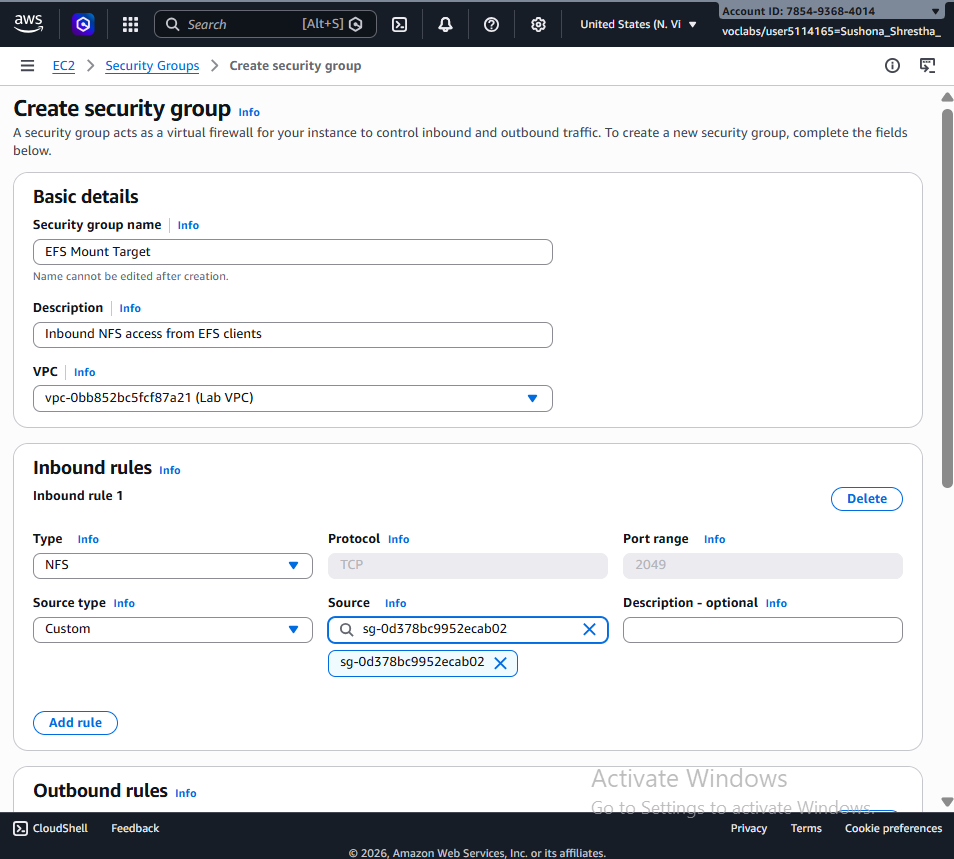
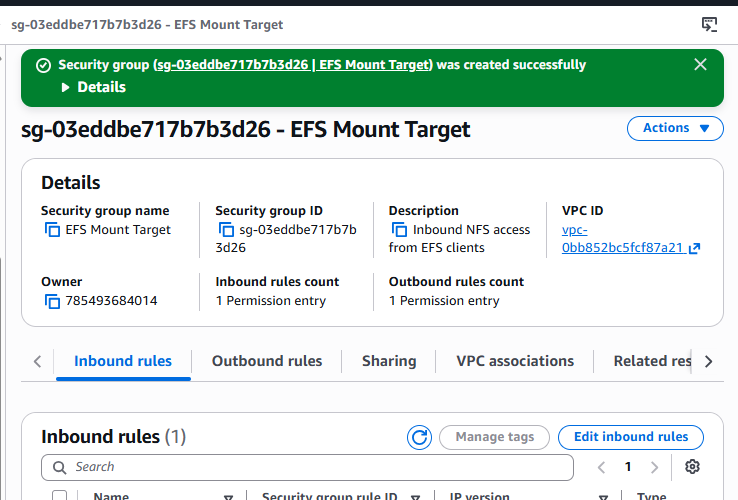
Before creating anything, I set up the network guardrails. EFS mount targets communicate over NFS (port 2049), so the first job was creating a dedicated security group:
- Name:
EFS Mount Target - Description: Inbound NFS access from EFS clients
- VPC: Lab VPC
- Inbound Rule: NFS traffic allowed only from a custom source — the
EFSClientsecurity group ID (not from the entire internet, or even the whole VPC)
This “custom source” trick is a nice example of the principle of least privilege — only instances belonging to the EFSClient security group can ever talk to the file system over NFS.
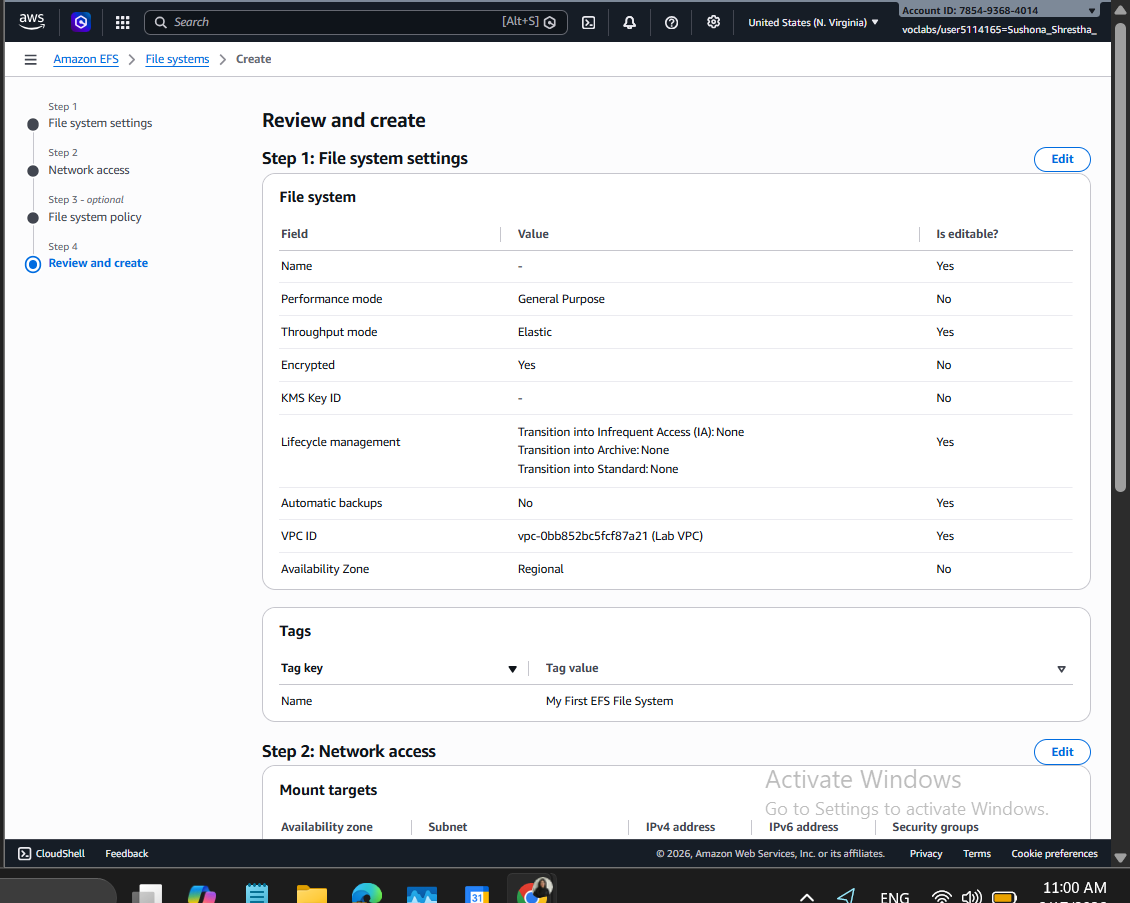
Step 2: Creating the EFS File System
With the security in place, it was time to create the actual file system.
Key configuration choices:
- Automatic backups: Disabled (fine for a lab, not recommended for production!)
- Lifecycle management (Transition into IA): None
- Tag:
Name = My First EFS File System - VPC: Lab VPC
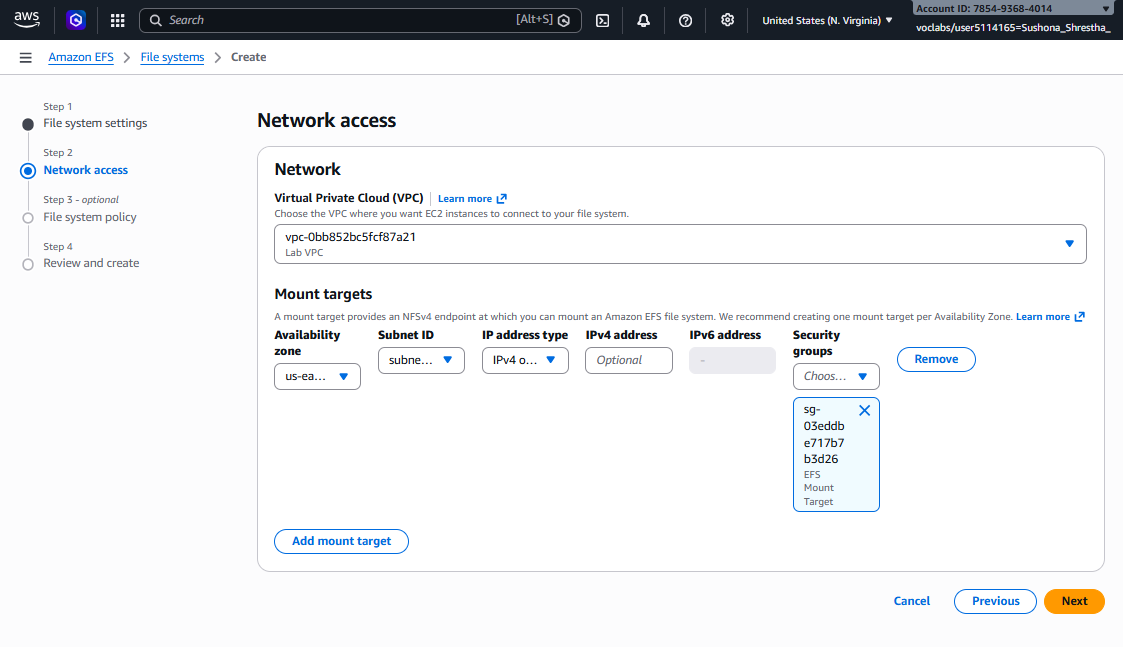
- Mount targets: For every Availability Zone, I detached the default security group and attached the
EFS Mount Targetsecurity group instead
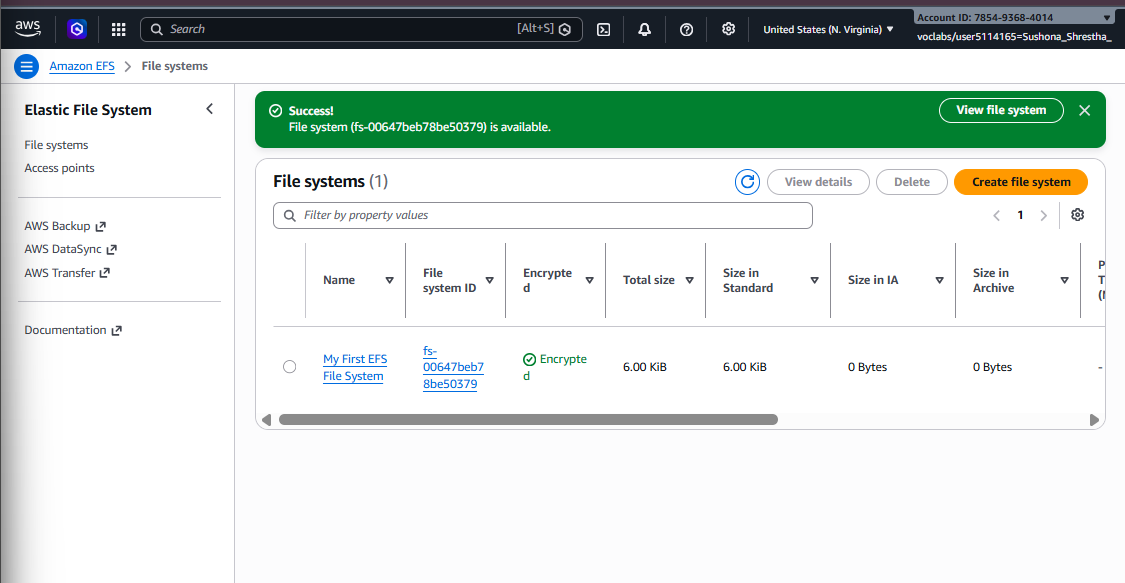
Within a few seconds, the file system state flipped to Available. The mount targets, however, took another 2–3 minutes to catch up — a good reminder that EFS provisions network interfaces per-AZ behind the scenes, which takes a little longer than the file system itself.


Step 3: Connecting to EC2 via Systems Manager
No SSH keys, no bastion hosts — just AWS Systems Manager Session Manager. I grabbed the InstanceSessionURL from the lab's AWS Details panel and was dropped straight into a browser-based terminal session on the EC2 instance.
This is one of those “small” AWS features that quietly removes a ton of operational headache — no key management, no open port 22, no jump boxes.
Step 4: Mounting the File System
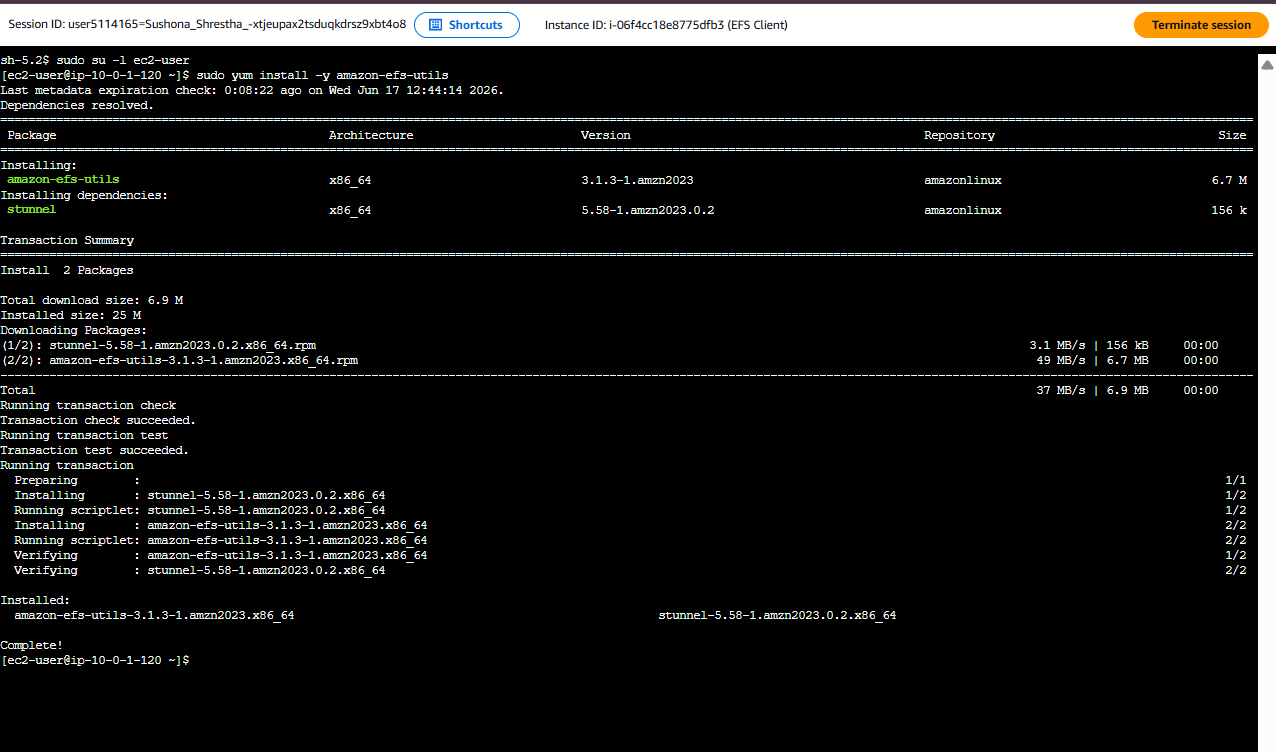
Here’s where the file system actually becomes usable storage on the instance.
bash
sudo su -l ec2-user
sudo yum install -y amazon-efs-utils
sudo mkdir efs
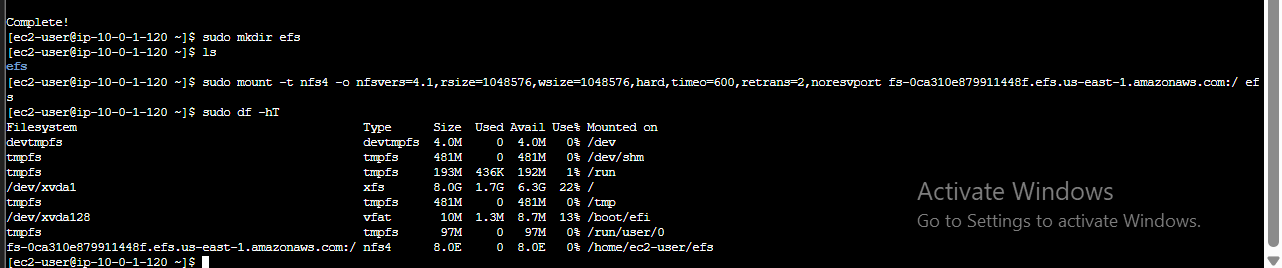
Then, using the exact mount command generated by the EFS console’s “Attach” instructions:
bash
sudo mount -t nfs4 -o nfsvers=4.1,rsize=1048576,wsize=1048576,hard,timeo=600,retrans=2,noresvport fs-XXXXXXXX.efs.us-west-2.amazonaws.com:/ efsA quick disk check confirmed the mount:
bash
sudo df -hTAnd there it was:
fs-XXXXXXXX.efs.us-east-1.amazonaws.com:/ nfs4 8.0E 0 8.0E 0% /home/ec2-user/efs8.0 Exabytes. That’s not a typo — EFS reports a virtually limitless capacity because it scales storage automatically, elastically, with no provisioning required. You only pay for what you actually store.

Step 5: Stress-Testing Performance with FIO and CloudWatch
This was the most satisfying part of the lab. I used Flexible IO (fio), a synthetic I/O benchmarking tool, to hammer the file system with a sustained write workload:
bash
sudo fio --name=fio-efs --filesize=10G --filename=./efs/fio-efs-test.img \
--bs=1M --nrfiles=1 --direct=1 --sync=0 --rw=write \
--iodepth=200 --ioengine=libaio
This writes a 10GB test file directly to the mounted EFS volume using large sequential 1MB blocks with high I/O depth — basically simulating a heavy, parallel write workload.

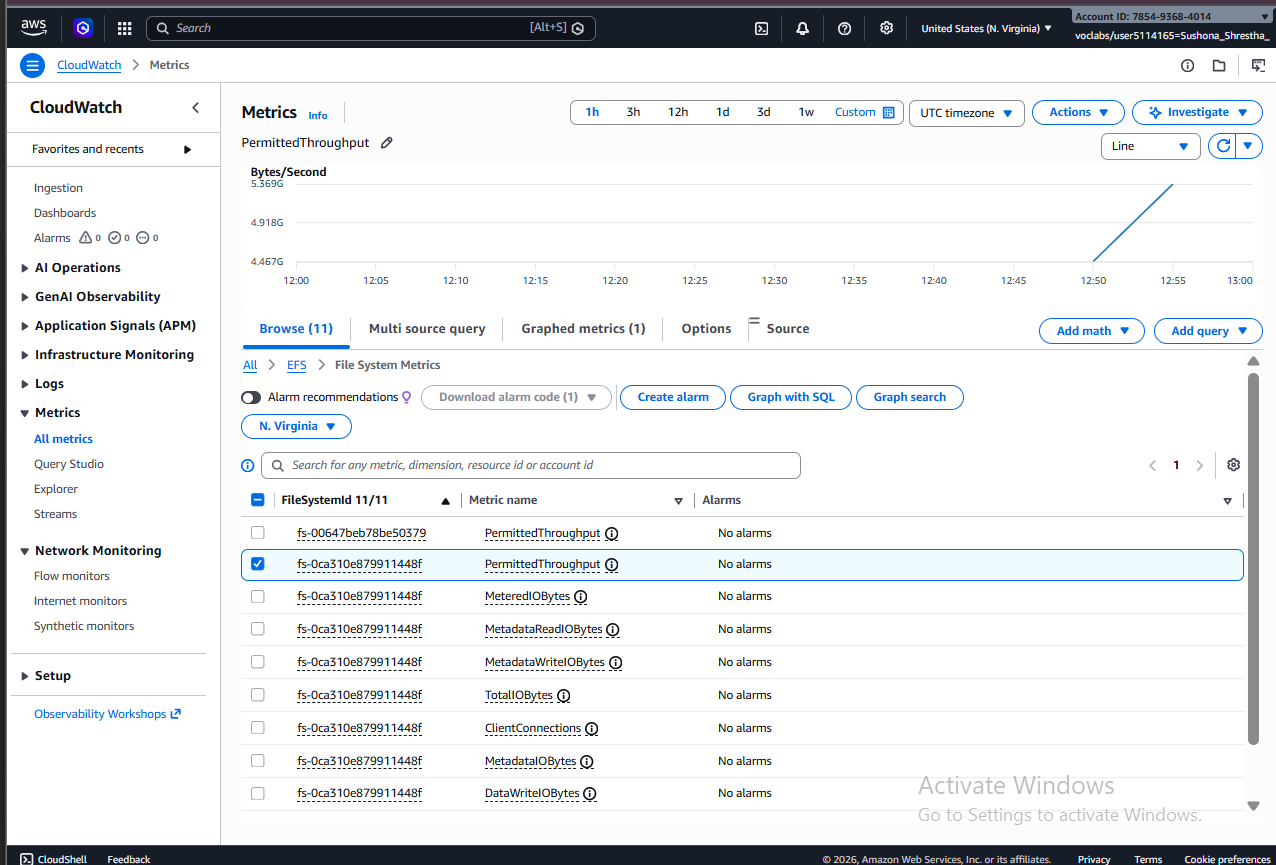
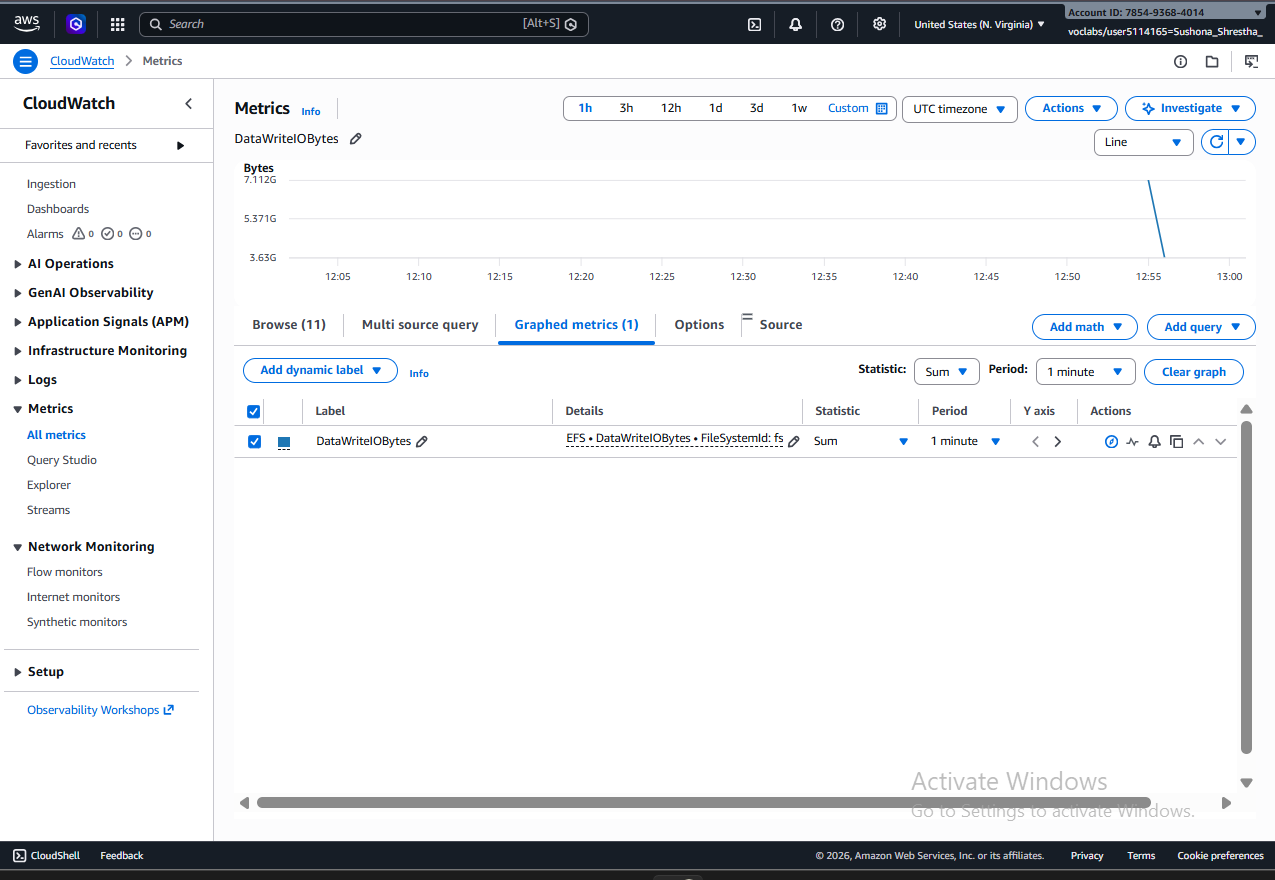
Then I switched over to CloudWatch to watch the file system respond in real time:
- PermittedThroughput — peaked at around 3 GB/s, confirming EFS was allowing burst throughput far beyond baseline
- DataWriteIOBytes (summed over 1-minute periods) — peaked around 7.6 GB, which works out to roughly 126 MB/s sustained write throughput during the test
Why the Burst Behavior Matters
Here’s the key insight from this lab: EFS throughput isn’t a fixed number — it scales with the size of your file system and is designed around real-world, spiky file workloads:
- Every file system gets a baseline of 50 MiB/s per TiB of storage
- Every file system, regardless of size, can burst to 100 MiB/s
- File systems over 1 TiB can burst to 100 MiB/s per TiB
- As you store more data, throughput scales up automatically — no manual provisioning required
- Throughput is shared across every EC2 instance connected to the file system
This “credit-based burst” model is very similar in spirit to burstable EBS volumes or burstable EC2 instances — short bursts of high performance, backed by a steady baseline.
Bonus: EFS Access Points
One thing worth calling out for future use: EFS supports Access Points, which act as application-specific entry points into a shared file system. They let you enforce a specific POSIX user identity and group for every request that comes through them — a clean way to give multiple applications secured, scoped access to the same underlying data without them stepping on each other.
Key Takeaways from Day 11
- EFS is regional, elastic, shared storage — mountable across multiple AZs and instances simultaneously, unlike EBS.
- Security groups are your access boundary — NFS traffic should only be allowed from trusted client security groups, not the whole VPC.
- Mounting is simple with
amazon-efs-utilsand the standard NFSv4.1 mount command. - Performance scales with storage size, and EFS is built to handle bursty, unpredictable file workloads gracefully.
- CloudWatch + fio together give you a real, measurable picture of how your file system behaves under load — not just theoretical numbers.
This lab was a great hands-on complement to the EFS documentation — nothing beats watching the throughput graph actually spike after you throw a real workload at it.
This is Day 11 of my AWS hands-on learning series. Screenshots from my own lab session are included above. Follow along as I keep building through the AWS services, one lab at a time.
메타데이터
- post_id
- 44ea4f54a560
- slug
- i-mounted-a-file-system-that-can-grow-to-8-exabytes-heres-what-happened-aws-day-11-44ea4f54a560
- url
- https://medium.com/@sushonashrestha/i-mounted-a-file-system-that-can-grow-to-8-exabytes-heres-what-happened-aws-day-11-44ea4f54a560
- canonical_url
- https://medium.com/@sushonashrestha/i-mounted-a-file-system-that-can-grow-to-8-exabytes-heres-what-happened-aws-day-11-44ea4f54a560
- author_url
- https://medium.com/@sushonashrestha
- status
- ok
- fetched_at
- 2026-07-15 00:47:22