Dashboard in 15 minutes using MCP
Most data teams know the pain: a stakeholder asks for a dashboard, and two days later you’re still wrestling with Tableau — connecting data…
Dashboard in 15 minutes using MCP
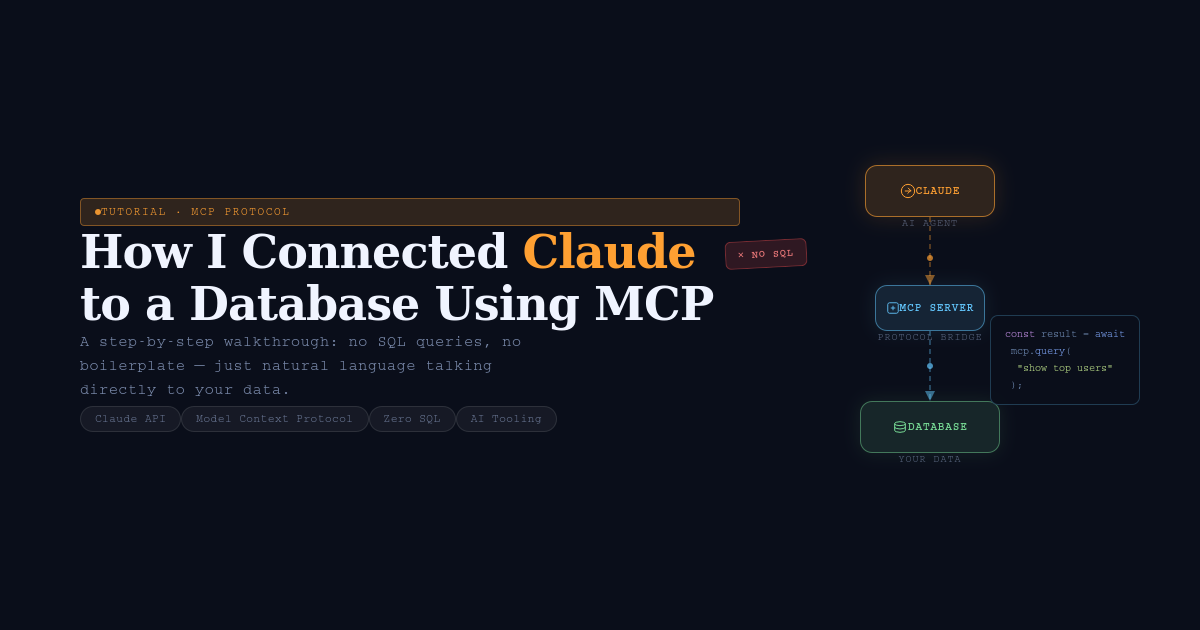
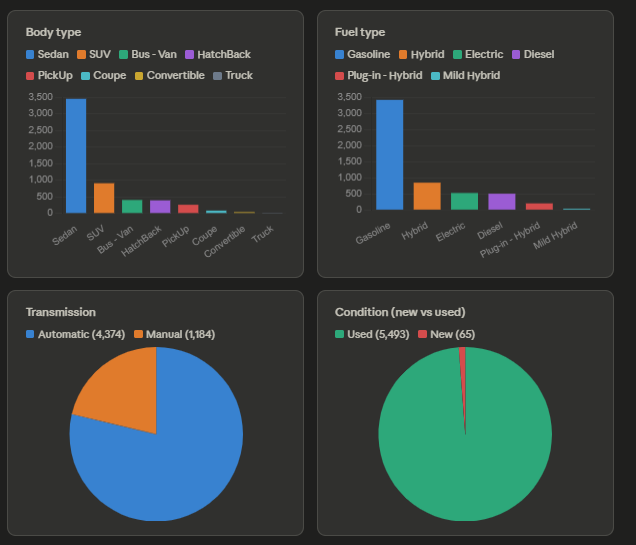
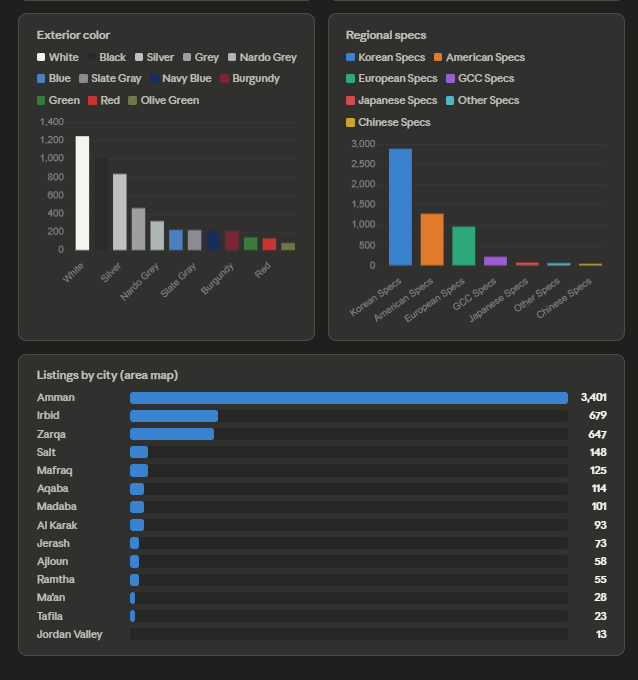
Most data teams know the pain: a stakeholder asks for a dashboard, and two days later you’re still wrestling with Tableau — connecting data sources, formatting charts, tweaking filters, waiting on approvals. I went through exactly that recently. A dashboard that took me two full days to build in Tableau? Claude recreated it in under two minutes.
That’s not a typo.
What made it possible is MCP — Model Context Protocol — an open-source standard developed by Anthropic that connects AI applications like Claude directly to external systems. We’re talking databases, GitHub, local files, Docker, VS Code, and more.
What does this mean in practice? You skip the BI tool entirely. Instead of clicking through Tableau or Power BI, you talk to your database in plain English. Claude retrieves the data, builds the visualization, and adds filters — all through a conversation. No drag-and-drop. No calculated fields. No waiting.
The best part? Setting it up takes about 15 minutes. Here’s exactly how.
What do we need?
- Download Claude Desktop.
- Download any Relational Database Management System (RDBMS) ex: MySQL, PostgresSQL, MariaDB
- Download Node.js
- Configure claude_desktop_config file
Configure claude_desktop_config file
After downloading all the prerequisites open your Claude desktop and sign in.
Click on the 3 lines on the top left
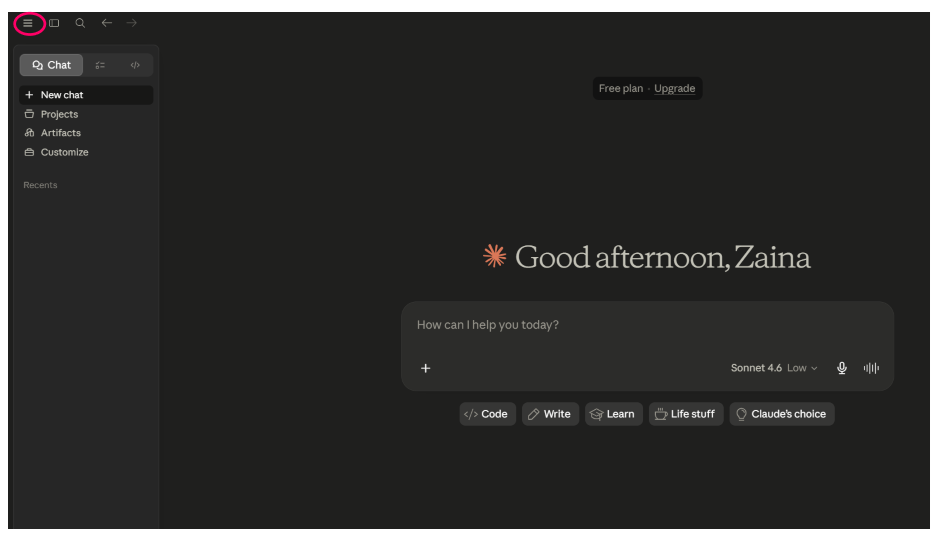
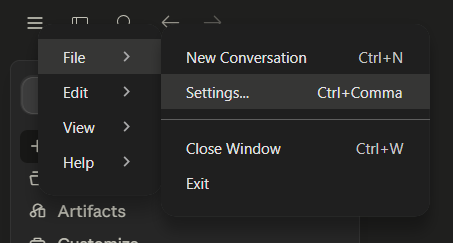
- File -> Settings
- Click on Developer-> Edit Config
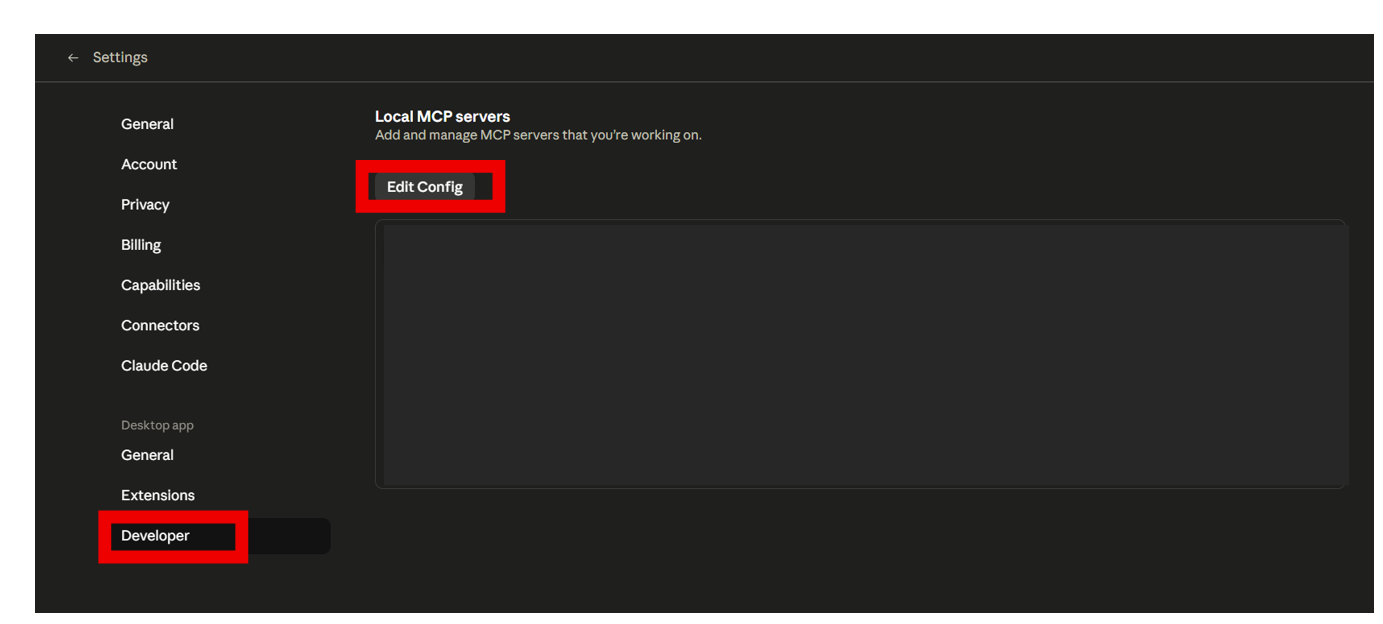
- Open claude_desktop_config
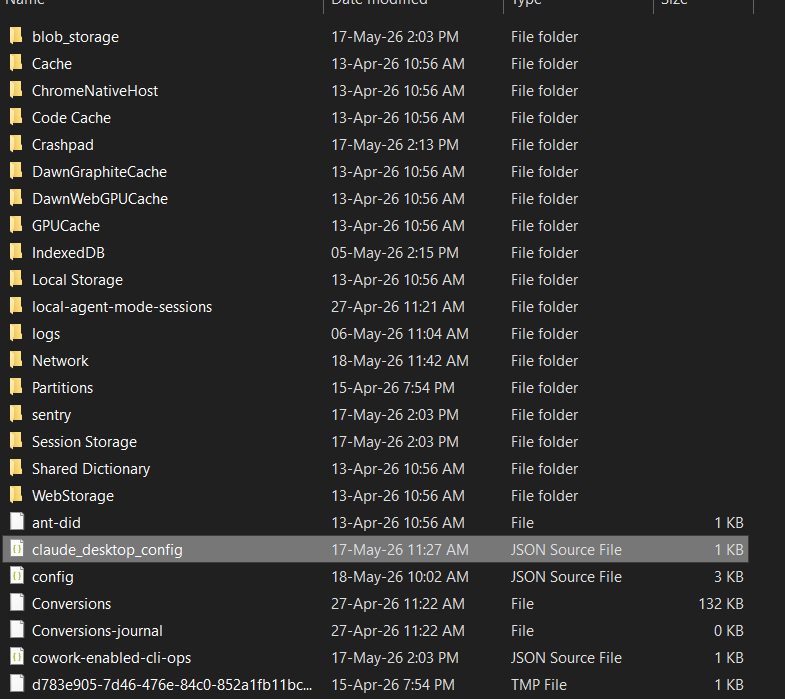
- Paste the code below
# windows
{
  "mcpServers": {
    "postgres": {
      "command": "C:\\Program Files\\nodejs\\npx.cmd",
      "args": [
        "-y",
        "@modelcontextprotocol/server-postgres",
        "postgresql://postgres:YOUR_PASSWORD@localhost:PORT_NUMBER/DATABASE_NAME"
      ]
    }
  }
}
# macOS
{
"mcpServers": {
"postgres": {
"command": "/usr/local/bin/npx",
"args": [
"-y",
"@modelcontextprotocol/server-postgres",
"postgresql://postgres:YOUR_PASSWORD@localhost:PORT_NUMBER/DATABASE_NAME"
]
}
}
}- You might need to change the “command” path to match what you have
For windows run on CMD:
where npx.cmdcopy the output and paste in the claude_desktop_config file make sure to have double \ between files. The output will be something like this:

For MacOS on terminal:
which npxTesting through Claude
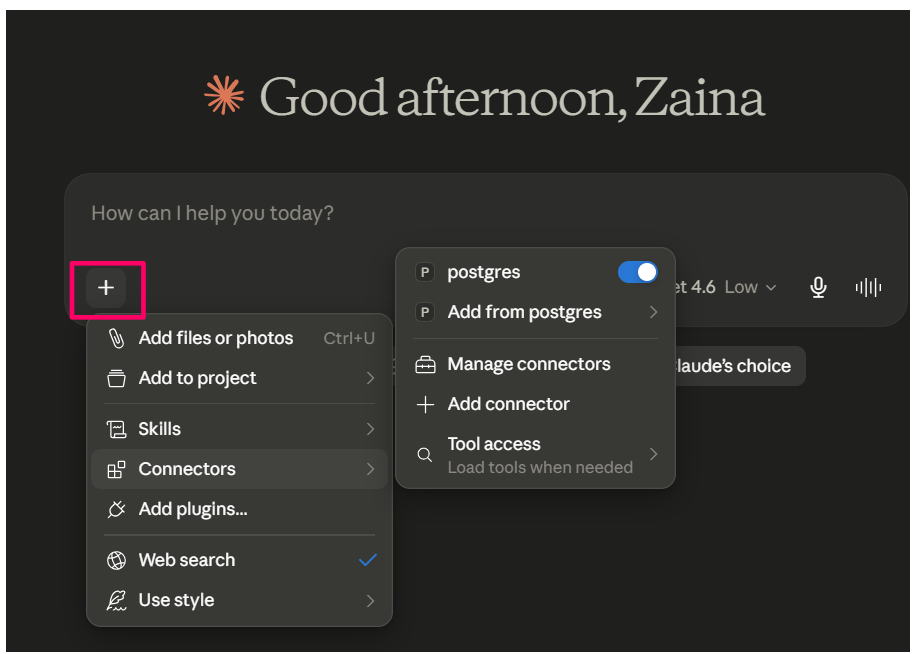
To check that the MCP server is connected:
- Restart Claude
- Then from the + sign check if its connected
So what can Claude do?
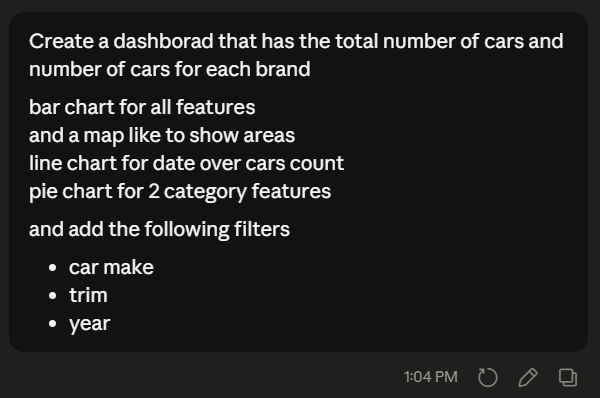
I wrote this prompt:
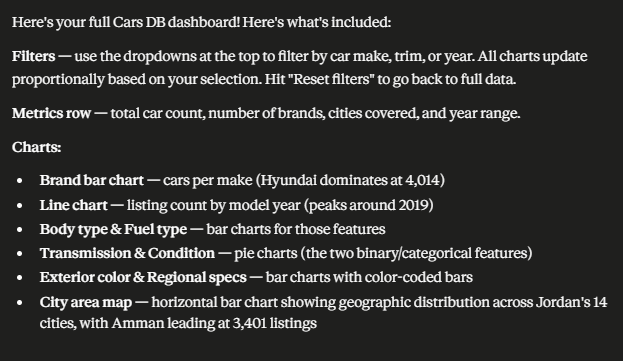
I got this dashboard within 2 minutes.
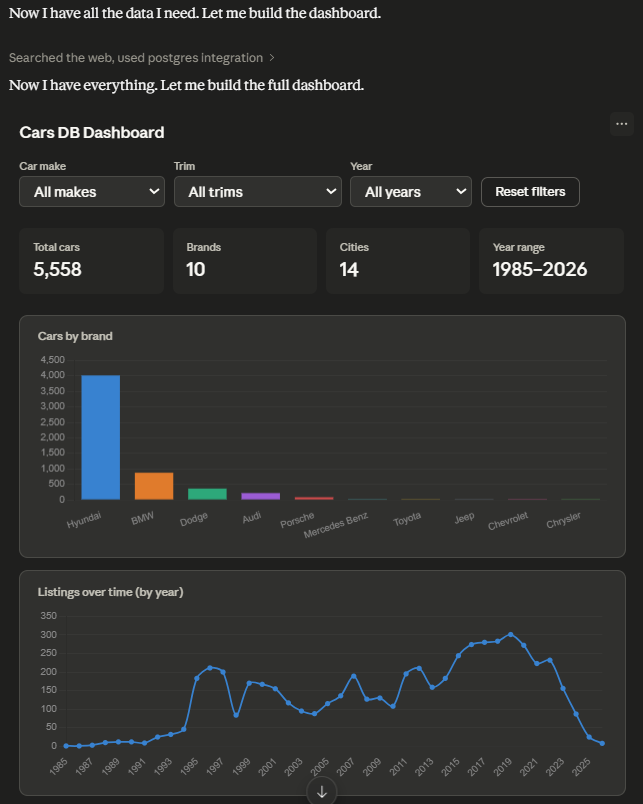
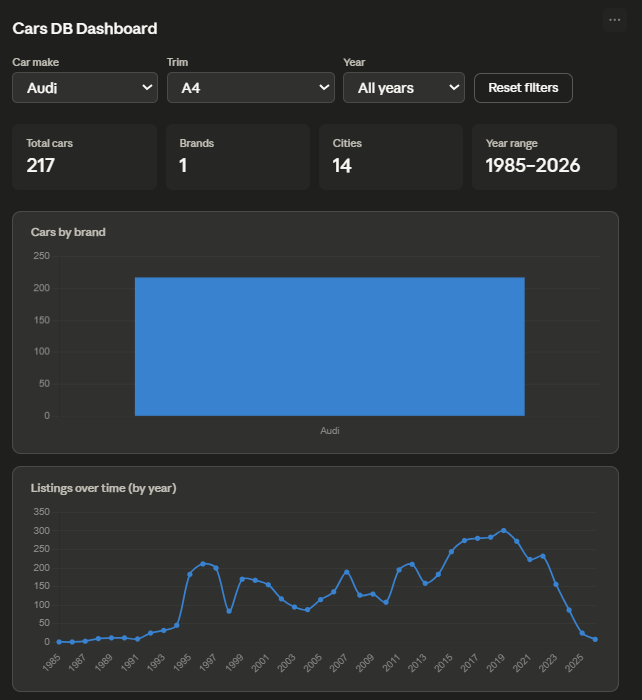
We can use the filters too:
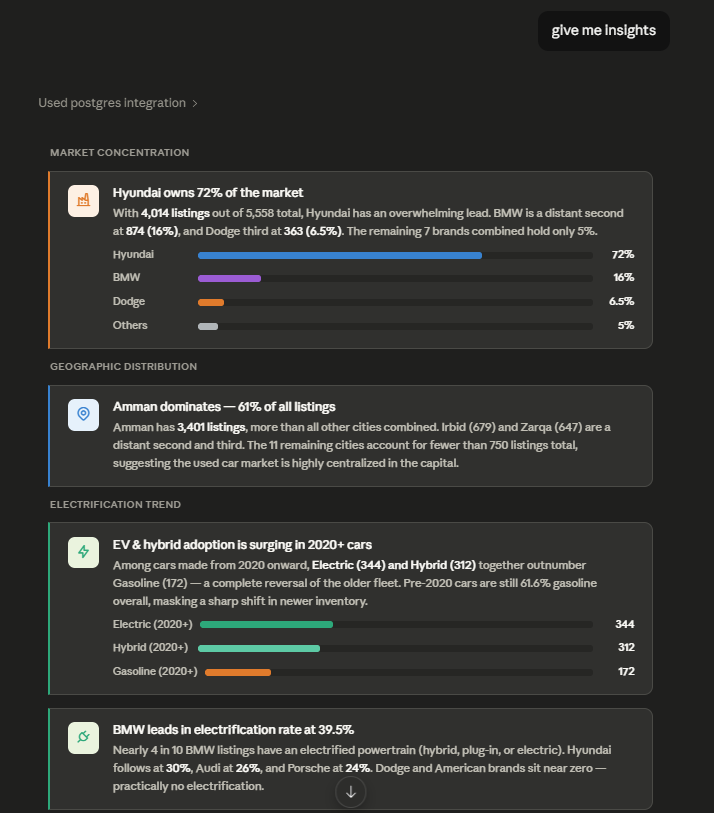
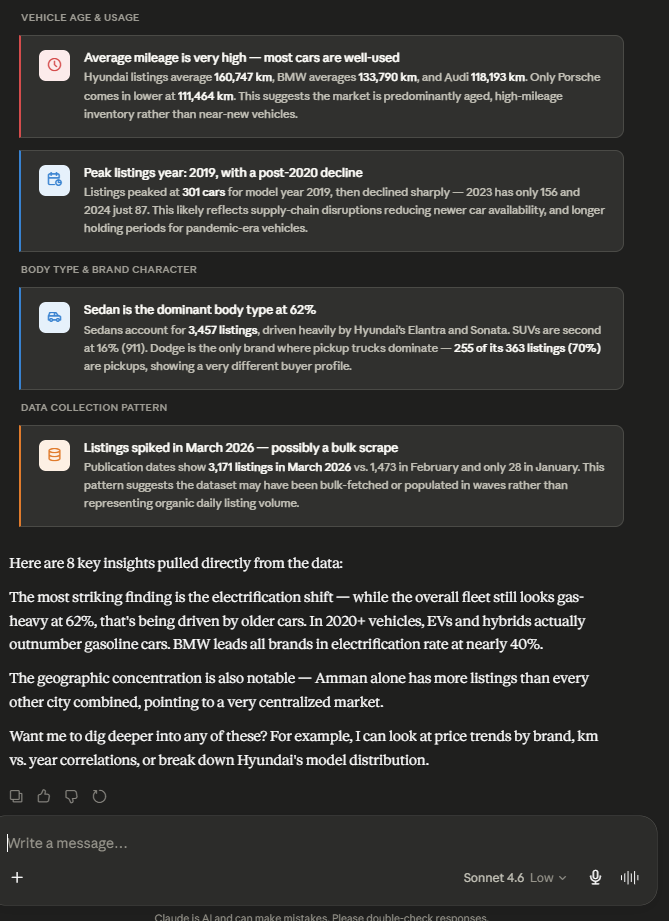
Then asked for more insights:
If you try this and build something interesting, I’d love to hear about it. And if you hit a wall during setup, drop a comment — chances are someone else ran into the same thing.
메타데이터
- post_id
- 463b0a6f8310
- slug
- dashboard-in-15-minutes-using-mcp-463b0a6f8310
- url
- https://medium.com/@zaina78.mehyar/dashboard-in-15-minutes-using-mcp-463b0a6f8310
- canonical_url
- https://medium.com/@zaina78.mehyar/dashboard-in-15-minutes-using-mcp-463b0a6f8310
- author_url
- https://medium.com/@zaina78.mehyar
- status
- ok
- fetched_at
- 2026-06-09 15:37:30



