The 4 Best AI To-Do List for Every Type of Person
I’ve tested more than dozens of AI task managers over the past year. Because I kept switching and nothing stuck. I’m a professionals who…
The 4 Best AI To-Do List for Every Type of Person
I’ve tested more than dozens of AI task managers over the past year. Because I kept switching and nothing stuck. I’m a professionals who lives between messy thoughts, meeting notes, and a running list of tasks that somehow keeps growing no matter how many I cross off.
I’ve talked to freelancers, team managers, students, and executives who have the same problem.
What I found is that there is no universally best AI to-do list. There’s only the best one for how you actually work.
If you’ve tried three apps and still can’t make one stick, this article is for you. I’ll be specific about who each tool is built for, because that’s the only thing that actually matters.
Quick answer: What are the best AI to-do list by use case?

- Saner.AI — Best for anyone with information overload. Captures tasks from notes, emails, and brain dumps, then organizes everything with AI. Free plan available.
- Motion — Best for teams with packed calendars. Auto-schedules your tasks into real open time slots and reschedules around meetings. Starts at $34/month
- Todoist — Best for people who want full control. The fastest task capture on the market, now with AI voice input. Free plan; Pro at $5/month.
- Taskade — Best for remote teams. AI agents generate sub-tasks, link to docs, and run inside shared workspaces. Free plan; Pro at $8/month.
What is an AI to-do list?

An AI to-do list is a task management app that uses artificial intelligence to do more than store what you type. It might auto-prioritize tasks based on deadlines, suggest when to work on something, turn voice notes into structured items, or learn your habits over time to surface what matters most.
How I chose these tools
I used each app as my primary task manager for at least three weeks. I looked at four tools total, each selected to serve a distinct type of user — knowledge worker, calendar-driven professional, minimalist, and team lead.
My evaluation criteria:
- AI quality — Does the AI actually reduce your decision-making load, or is it just a chatbot wrapper on a task list? I tested how well each tool captured, organized, and surfaced tasks without manual effort.
- Capture speed — How many taps or clicks to log a task from anywhere? Friction at capture kills the habit. This was non-negotiable.
- Scheduling logic — Does the tool understand the difference between when something is due and when you’ll actually work on it? Most apps don’t.
- Learning curve — How long before the tool saves more time than it costs to set up? I noted the point where each became genuinely useful, not just promising.
- Pricing transparency — No bait-and-switch. Core AI features had to be available on a plan most individuals can afford.
- Cross-platform availability — Desktop, mobile, and web. If it only works well on one platform, it loses.
Saner.AI — Best for knowledge workers who get too many tasks
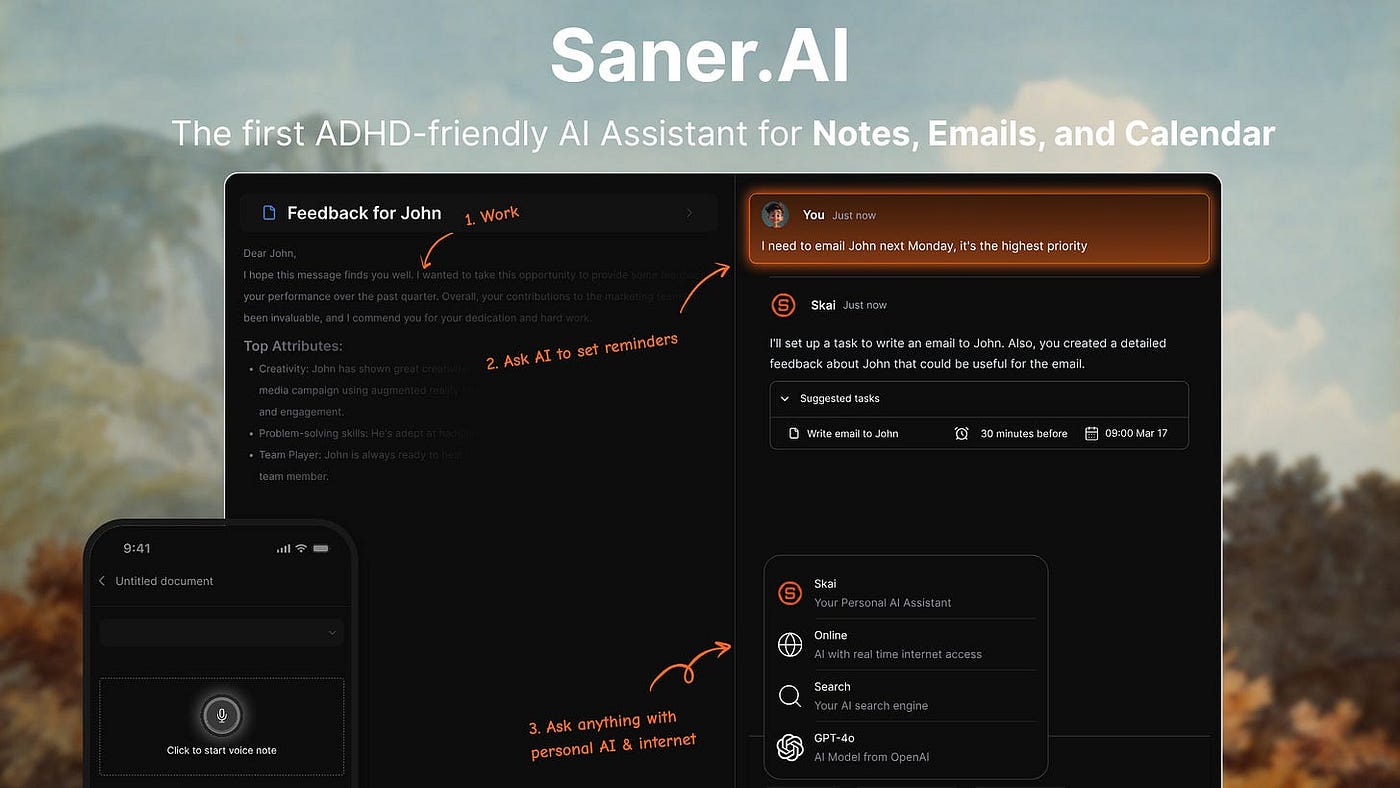
Saner.AI is built for people whose problem is that their tasks are scattered across five different places and they can’t remember what they decided last Tuesday. It pulls from your notes, emails, calendar, and brain dumps, then uses AI to organize everything into one place without you having to manually sort anything. I found it most useful not as a to-do list, but as a system that makes the to-do list almost build itself.
Key features:
- AI task extraction: Saner reads your brain dump and emails and pulls out action items automatically.
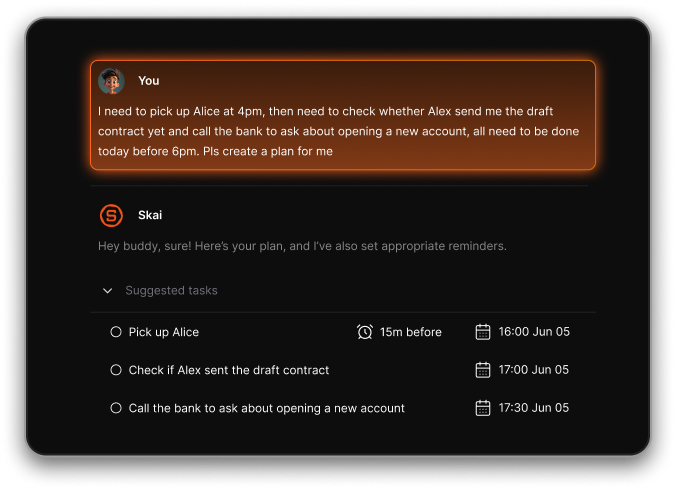
- Unified inbox: Notes, tasks, emails, and calendar events live in the same place. I stopped switching between four apps to figure out what I needed to do next.
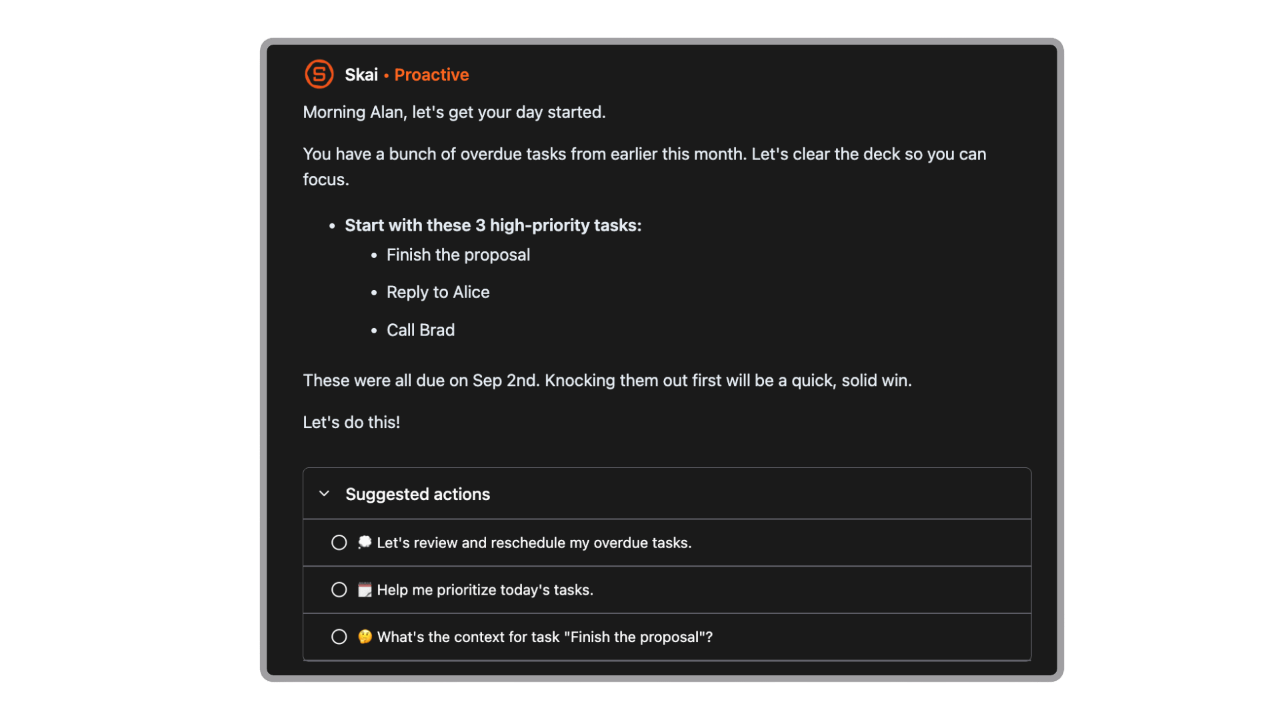
- Proactive Day Planning: Every morning, the AI hands you a optimized and personalized schedule using your information.
- AI chat over your own data: You can ask Saner questions about your notes like you would ask ChatGPT, except it searches your actual documents. Useful when you need to find a decision you made three months ago.
Pros:
- The semantic search finds what I need even when I can’t remember the exact words I used
- Setup takes about ten minutes. There’s no configuration maze before it becomes useful.
Cons:
- The free plan is limited: 30 AI requests and 100MB storage. It’s enough to test the concept, not enough for daily use.
- Offline mode doesn’t exist.
Pricing: (see pricing page)
- Free — 30 AI requests/month, 100MB storage, core note and task features
- Starter — $8/month (billed annually) or $12/month billed monthly — more AI requests, connectors, full task management
- Standard — $16/month (billed annually) or $20/month billed monthly — unlimited AI, 100GB storage, all features
Best for:
- Knowledge workers, researchers, and freelancers with tasks buried across multiple tools
- People with ADHD who need a system that captures and organizes without manual effort
- Anyone who has tried five productivity apps and given up on all of them
How to get started:
- Connect your email and calendar first — that’s where most of your hidden tasks already live. Spend the first session doing a brain dump rather than trying to set up a perfect system. The AI needs some input to start being useful, and a messy dump works better than a carefully structured list.
Motion — Best for teams whose calendar is full
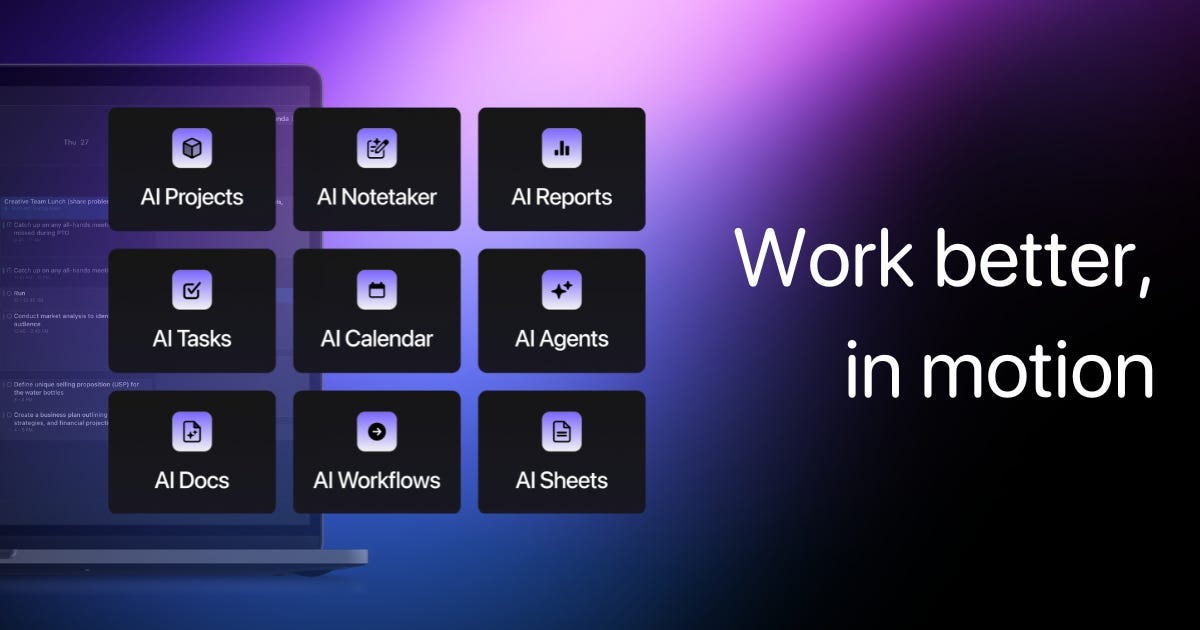
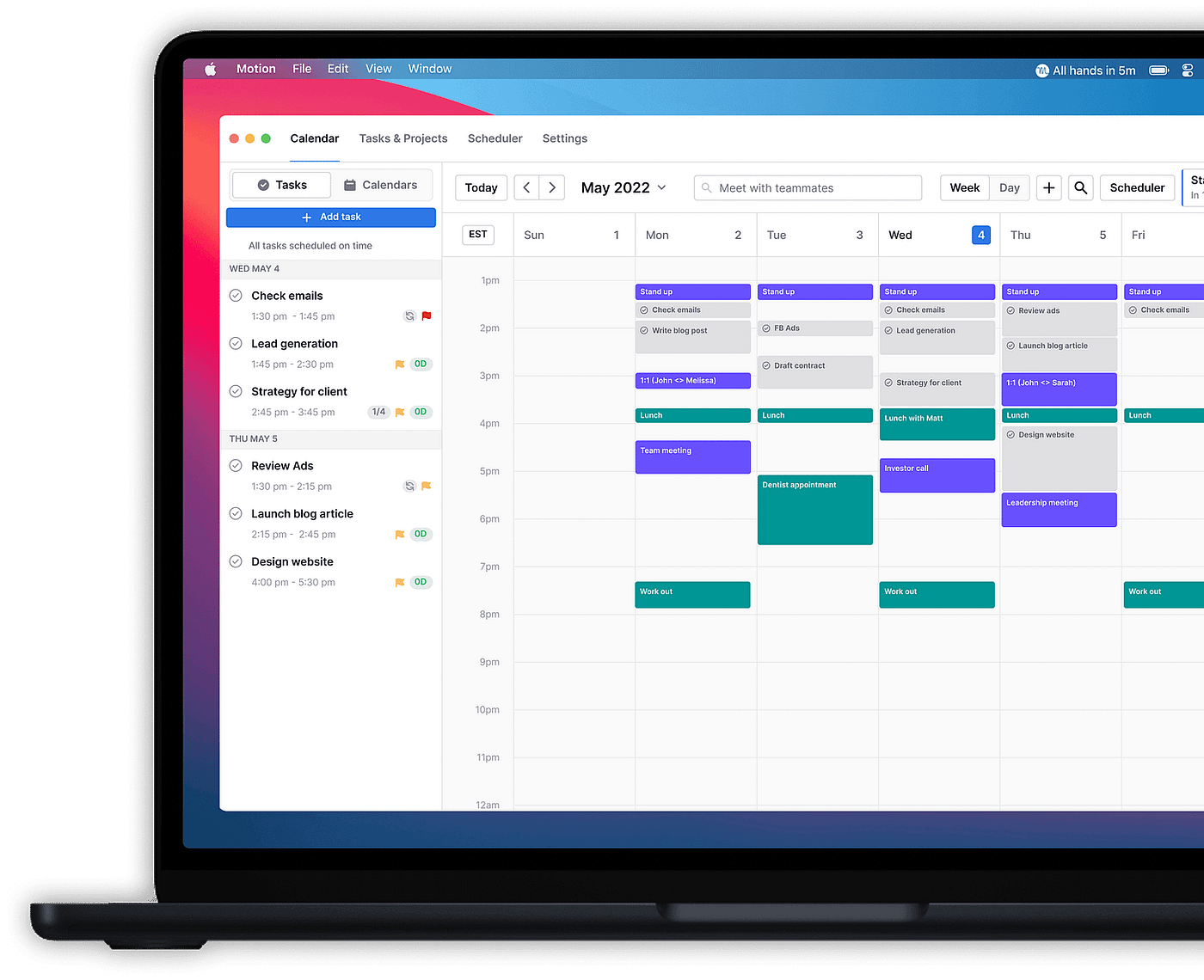
You add tasks, give them deadlines and time estimates, and Motion figures out when you’ll do them by fitting everything into the gaps in your calendar. When a meeting moves, it reschedules your tasks automatically. For someone with 15-plus meetings a week, that alone saves a noticeable amount of time.
Key features:
- Auto-scheduling: Motion looks at your calendar, finds open slots, and books your tasks in.
- Project management layer: Tasks can belong to projects with dependencies and priorities.
- AI meeting notetaker: Motion added a meeting transcript and summary feature. It’s solid, not best-in-class, but useful when combined with the auto-scheduling.
Pros:
- Tasks that don’t get done don’t disappear. They roll forward to the next available slot automatically.
- The calendar view is informative. You can see at a glance whether your week is already overloaded before committing to anything new.
Cons:
- $49/month is hard to justify if your calendar isn’t actually chaotic. The value is proportional to how packed your schedule is.
- The mobile app is meaningfully weaker than the desktop version. Several core features are web-only.
- Onboarding takes longer than it should. The AI needs configuration time before it schedules things the way you want.
Pricing: (see pricing page)
- No free plan — 7-day trial only
- Individual — $49/month billed monthly or $29/month billed annually
- Team — $39/month per user billed annually
Best for:
- Executives, consultants, and managers with back-to-back meeting schedules
- Small teams who need to coordinate workloads without a full project management tool
How to get started:
- Give the AI at least a full work week to calibrate — the first two days will feel a little off as it learns your patterns. Start by inputting every task you would normally track in your head, with honest time estimates. Underestimating how long things take is the most common reason Motion’s schedule feels unrealistic in the first week.
Todoist — Best for people who want fast, clean task capture with no AI interference
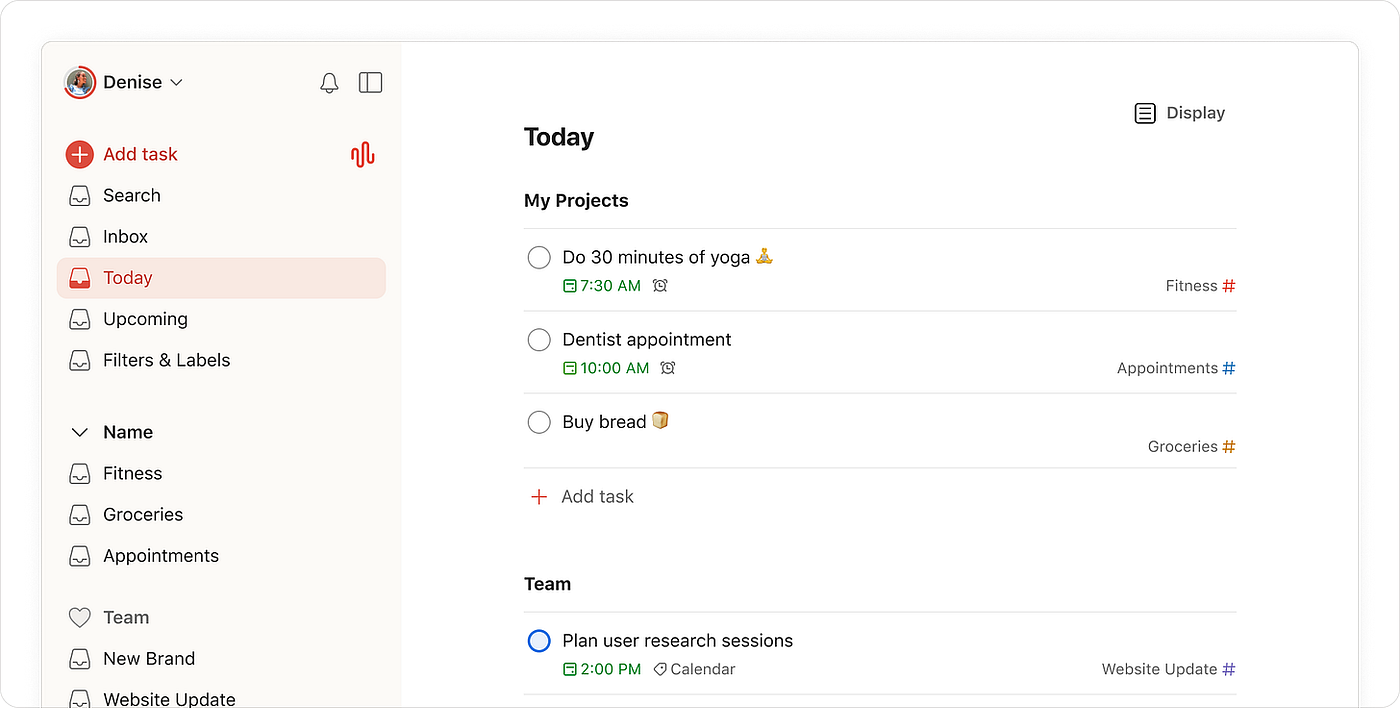
In early 2026 it added Ramble, a voice-to-task AI feature that turns spoken thoughts into organized tasks. For people who don’t want AI making scheduling decisions for them, Todoist is the best at staying out of the way while still being genuinely smart about input.
Key features:
- Natural language parsing: Type “Submit report every second Thursday at 3pm” and Todoist sets the date, time, and recurrence without you touching a menu.
- Filters and priority levels: Todoist’s filtering system is sophisticated enough that power users build complex views, while beginners can ignore it entirely and still have a clean inbox.
- Cross-platform reliability: Web, desktop, mobile, Linux, both major smartwatch systems. Sync is fast. I’ve never lost a task to a sync error in two years of daily use.
Pros:
- The learning curve is essentially zero. I handed it to a non-technical family member and they were using it productively within a day.
- The Karma gamification is small but it works. Finishing tasks on time feels slightly rewarding, which matters more than it sounds.
Cons:
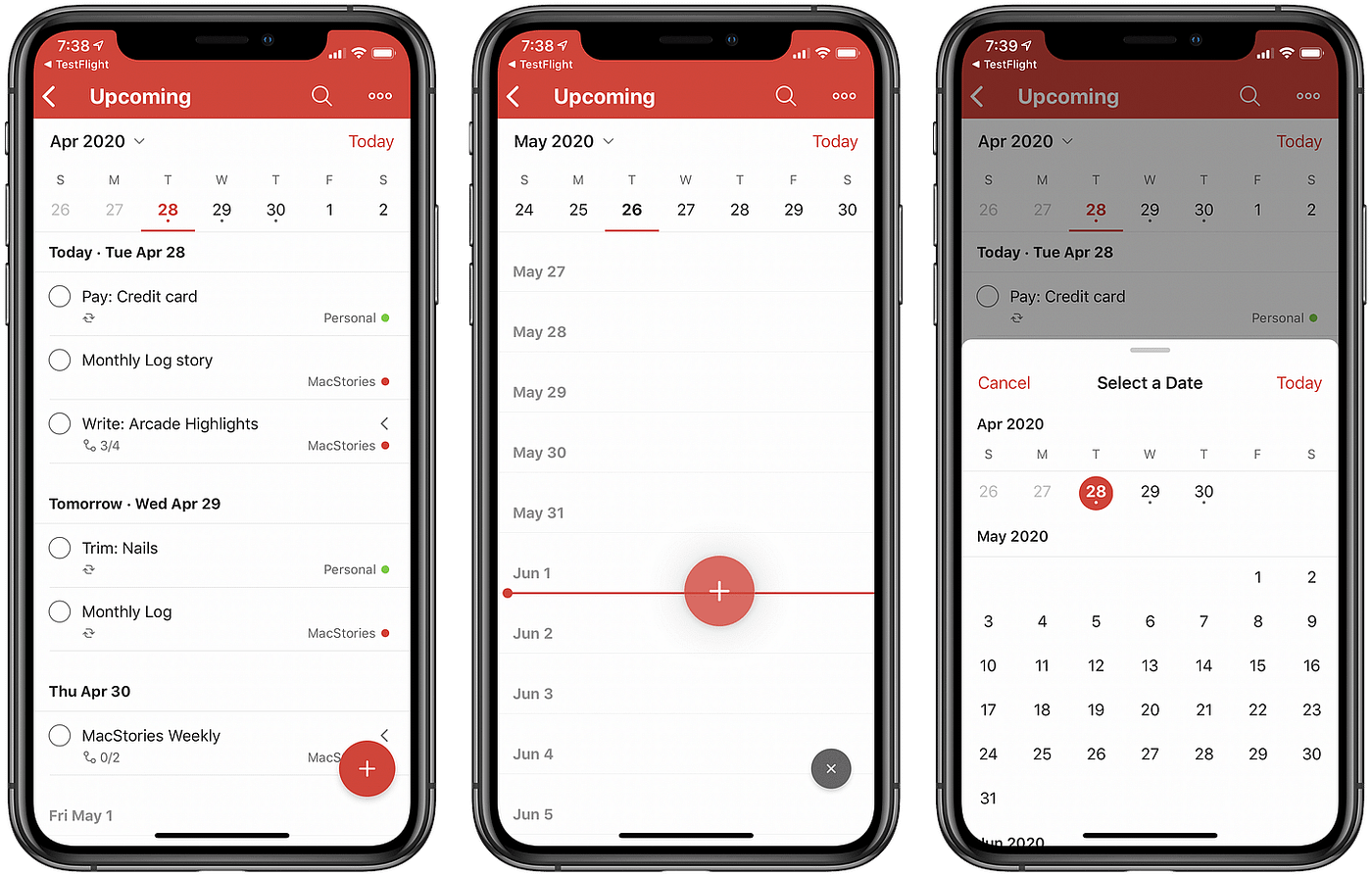
- Todoist doesn’t touch your calendar. It shows tasks by date but won’t tell you when you’ll realistically fit them in.
- The free plan caps at five projects. That runs out faster than expected for anyone using it across work and personal life.
- There’s no knowledge management here. If your problem is information overload on top of task overload, Todoist won’t help with the first part.
Pricing: (see pricing page)
- Free — 5 active projects, basic features, up to 5 collaborators
- Pro — $5/month billed annually — unlimited projects, reminders, AI Assist, calendar sync
- Business — $8/month per user billed annually — team features, admin controls, shared projects
Best for:
- Students and solo users who want a clean, reliable system without a big subscription cost
- Anyone who has failed at every complex app and just needs something that works
How to get started:
- Don’t set up a complicated project structure on day one. Add every task to the Inbox first and spend the first week just capturing.
Taskade — Best for remote teams who need AI to do more than organize a list
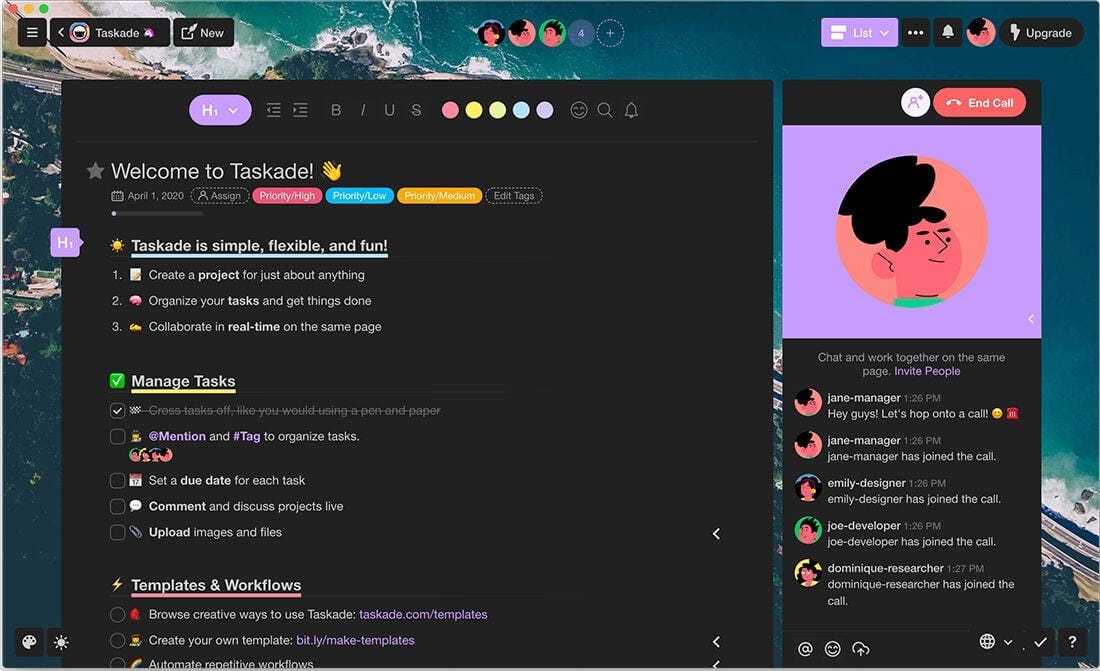
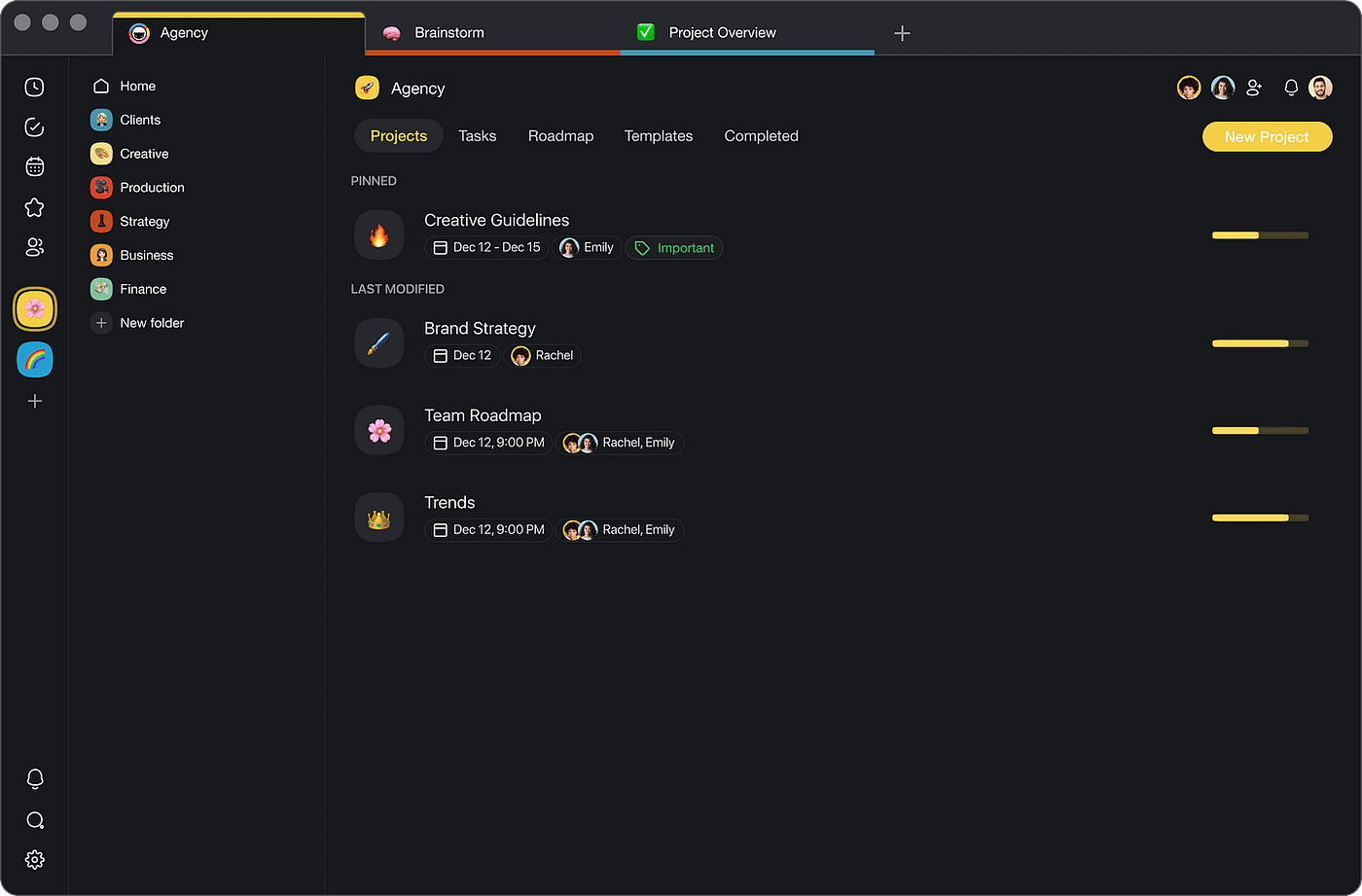
Taskade is not really a to-do list. It’s closer to a team workspace where AI agents can write, research, generate sub-tasks, and manage workflows on your behalf. For a solo user it might feel like more than you need. For a small remote team currently split across Notion, Slack, and a shared Google Doc, Taskade replaces most of that in one place.
Key features:
- AI task generation: Describe your project goal and Taskade generates a full task list with sub-tasks, assignments, and structure.
- Custom AI agents: You can build AI teammates that take on specific roles: a researcher, a project coordinator, a content reviewer.
- Seven project views: List, board, calendar, table, mind map, Gantt, and org chart, all switchable within the same project. Teams that need different views for different members don’t have to compromise.
- Built-in video and chat: Real-time communication lives inside the same workspace as the tasks.
Pros:
- I can set up an agent to handle first-draft research on any topic my team is working on.
- For a 10-person team, the per-seat cost is significantly lower than Asana, ClickUp, or Notion at comparable AI feature levels.
Cons:
- It tries to do a lot, and first-time users often feel overwhelmed. The interface has improved but it still takes a few days to figure out what you actually need from it.
- No time tracking, no portfolio-level reporting, no sprint management. If your team runs complex multi-quarter projects, Taskade won’t go deep enough.
- The mobile app has responsiveness issues and there’s no offline mode.
Pricing: (see pricing page)
- Free — unlimited projects and tasks, basic AI, up to 5 members
- Pro — $8/month per user billed annually — full AI agents, automation, advanced views
- Business — $16/month per user billed annually — custom agents, priority support, admin controls
Best for:
- Remote or hybrid teams of 2 to 15 people who want AI-assisted project management
- Creative agencies and startups running loosely structured, fast-moving projects
- Teams paying for multiple tools separately who want to consolidate into one
How to get started:
- Start with one real project your team is actively working on — don’t try to migrate everything at once. Set up the AI agent for that project first and let it generate a task list from your project description.
Conclusion
The right AI to-do list comes down to one question: what’s actually broken in your current system?
- If you want AI to plan, organize tasks for you, Saner.AI is the best choice
- If your calendar is the chaos, Motion is the one to beat.
- If you just want the fastest, cleanest task capture with no AI making decisions for you, Todoist can be an option
- And if you’re managing a small remote team across too many tools, Taskade is worth consolidating into.
Start with the tool that solves your most painful problem today. You can always switch later, but the best system is the one you’ll actually use tomorrow.
메타데이터
- post_id
- 4663fbb82c2c
- slug
- the-4-best-ai-to-do-list-for-every-type-of-person-4663fbb82c2c
- url
- https://medium.com/@theokeene/the-4-best-ai-to-do-list-for-every-type-of-person-4663fbb82c2c
- canonical_url
- https://medium.com/@theokeene/the-4-best-ai-to-do-list-for-every-type-of-person-4663fbb82c2c
- author_url
- https://medium.com/@theokeene
- status
- ok
- fetched_at
- 2026-06-25 12:15:08





