How to Fix Messy Text After PDF to Text Conversion (Step by Step Guide)
Introduction
How to Fix Messy Text After PDF to Text Conversion (Step by Step Guide)
Introduction
You convert a PDF file into text expecting a clean output, but what you actually see looks confusing. Lines break in the middle of sentences, spaces appear in random places, and paragraphs lose their structure. It feels like the content is there, but not usable.
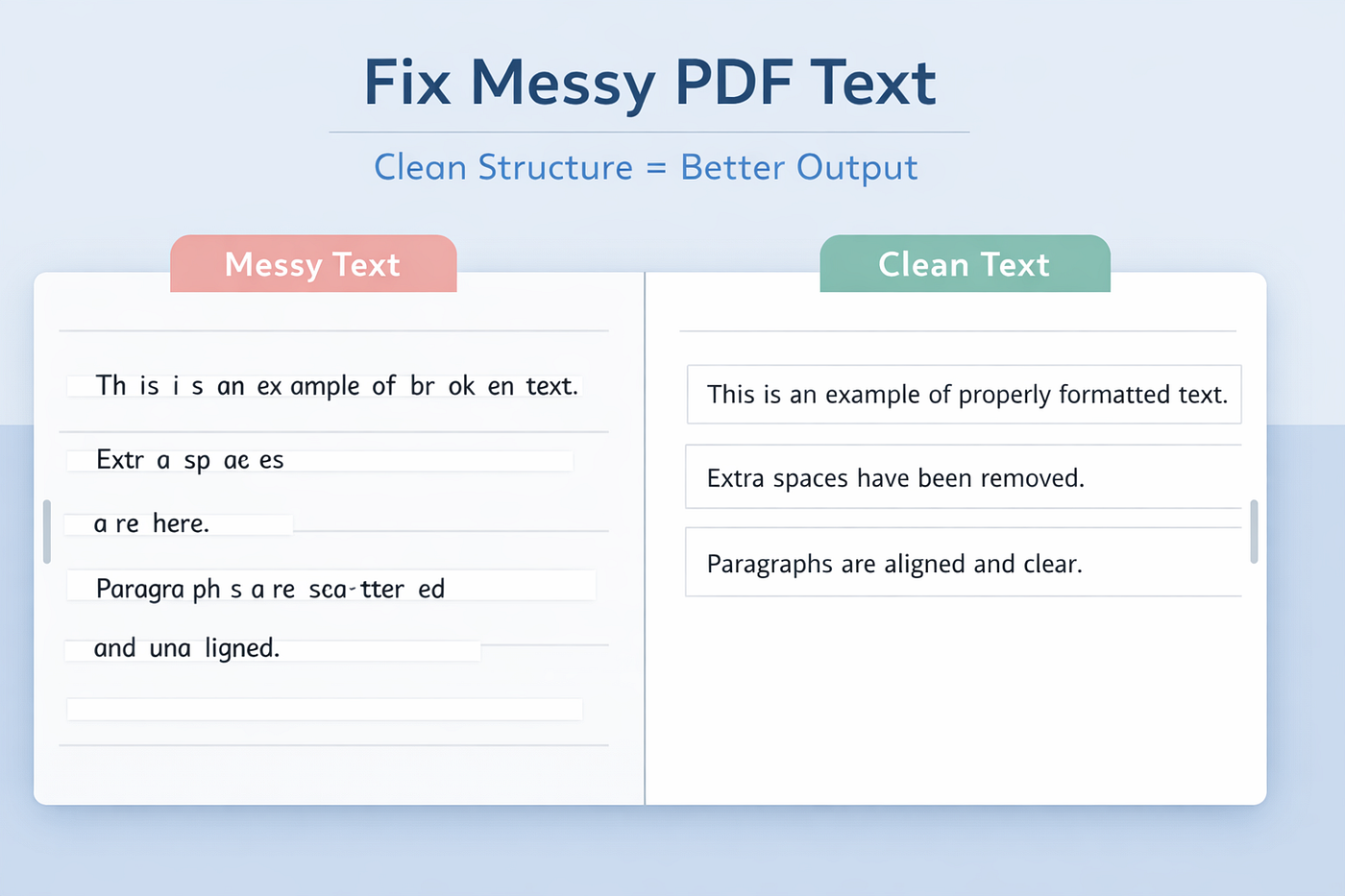
This situation is very common, especially when you extract text from different types of PDF files. Many people think the tool failed, but the thing is that the issue usually starts from how the PDF was created and how the text is structured inside it.
What you need to understand is this. PDF files are not designed to store text like normal documents. They are designed to preserve layout. That’s why when you extract text, the structure often breaks.
Why Extracted Text Looks Messy
Before fixing the problem, you need to understand why it happens.

The reason is quite clear. PDFs store content based on visual layout, not logical text flow. That means:
- Lines are stored based on position, not sentences
- Spaces depend on layout spacing, not actual words
- Paragraphs are visually arranged, not structurally defined
Because of this, when text is extracted, the system simply pulls characters in the order they appear on the page.
That’s why you see:
- Broken sentences
- Extra spaces between words
- Random line breaks
- Missing paragraph structure
You must have noticed this if you have ever copied content from a PDF into a text editor.
Difference Between Digital and Scanned PDFs
Now here’s the important part.
Not all PDFs behave the same way during conversion.
Digital PDFs
These are created from tools like Word or Google Docs. The text is real, so extraction is easier. But even here, formatting issues can still happen due to layout differences.
Scanned PDFs
These are image-based files. You need OCR to extract text from them. If OCR quality is low, the output can become even more messy.
If you want to understand this deeply, you should also check your previous learning about why text is not selectable. That connection helps a lot while fixing extraction problems.
Step by Step Method to Fix Messy Text
Now let us go to the next part. This is where you actually fix the problem.
Step 1: Remove Broken Line Breaks
After extraction, sentences often break in the middle.
You can fix this by:
- Joining lines that should be continuous
- Removing unnecessary line breaks
This is the first cleanup step.
Step 2: Fix Extra Spaces
Sometimes words get separated with multiple spaces.
You should:
- Replace multiple spaces with a single space
- Check spacing between words carefully
This improves readability instantly.
Step 3: Rebuild Paragraphs
Now here’s the part many people miss.
You need to group sentences into proper paragraphs. Look at the content and decide where a paragraph should start and end.
You may think it’s not needed, but it matters a lot. Without structure, text feels confusing.
Step 4: Add Headings and Structure
Once the basic cleanup is done, you should organize the content.
- Add headings where needed
- Separate sections clearly
- Keep a logical flow
This makes the content usable for reading, sharing, or publishing.
Step 5: Check for OCR Errors
If your PDF was scanned, you should review the text carefully.
OCR sometimes:
- Misreads characters
- Changes words
- Skips parts of text
So always do a quick manual check.
Using Better Tools for Cleaner Output
Now here’s the thing.
Manual fixing works, but it takes time.
One thing you can try is using a tool that gives cleaner extraction output from the start. For example, you can check:
It helps in extracting text from PDFs in a more structured way, especially when you are working with scanned files or mixed content.
Still, even with tools, a small cleanup step is always required.
Common Mistakes You Should Avoid
Many people make small mistakes that create bigger issues later.
You should avoid:
- Ignoring line breaks during cleanup
- Trusting raw extracted text without checking
- Using low quality scanned PDFs
- Skipping OCR when needed
One small mistake can mess up the entire output.
Practical Example You May Relate To
You convert a PDF report and paste it into a document editor.
Instead of clean paragraphs, you see:
- Each sentence on a new line
- Random spaces in between
- No proper structure
Now you follow the steps:
- Fix lines
- Remove extra spaces
- Rebuild paragraphs
After that, the same content becomes clean and readable.
This is what actually happens in most real cases.
Final Thoughts
The point is simple here. Messy text after PDF conversion is normal, not an error.
It happens because of how PDFs store content.
Once you understand the reason, fixing it becomes much easier. You just need to clean the structure step by step.
Sometimes this works better when you combine a good extraction tool with manual cleanup.
At the end, you get clean, usable text that you can edit, share, or publish without confusion.
That’s how it works.
메타데이터
- post_id
- 484e4fa78f80
- slug
- how-to-fix-messy-text-after-pdf-to-text-conversion-step-by-step-guide-484e4fa78f80
- url
- https://medium.com/@sonusahublogger/how-to-fix-messy-text-after-pdf-to-text-conversion-step-by-step-guide-484e4fa78f80
- canonical_url
- https://medium.com/@sonusahublogger/how-to-fix-messy-text-after-pdf-to-text-conversion-step-by-step-guide-484e4fa78f80
- author_url
- https://medium.com/@sonusahublogger
- status
- ok
- fetched_at
- 2026-06-29 01:02:39
