ForgeRock HowTo101: How to Integrate ForgeRock Access Management (AM) with Directory Server (DS) as…
In ForgeRock HowTo101: How to Set up ForgeRock Directory Server in 5 minutes, we installed an LDAP server and populated it with sample…
ForgeRock HowTo101: How to Integrate ForgeRock Access Management (AM) with Directory Server (DS) as an identity store in 10 minutes
In ForgeRock HowTo101: How to Set up ForgeRock Directory Server in 5 minutes, we installed an LDAP server and populated it with sample data. This article will show you how to use the installed Directory Server as an identity store, a persistent repository of user data. User profile data facilitate the authentication and authorization processes.
Note that the LDAP server is a generic database, storing many kinds of data, like session data, configuration data, application and policy data, etc. How to enable their ‘storage’ capability all depends on what profile/schema you define during setup. This topic will be covered in future articles.
We will continue the journey of ForgeRock HowTo101: How to Protect your Tomcat application using ForgeRock Access Management in 30 minutes, in which we can only access the protected tomcat app using super user, which doesn’t make sense in the real world.
We will add ForgeRock DS as the user repository so that all your users can access the protected resources.
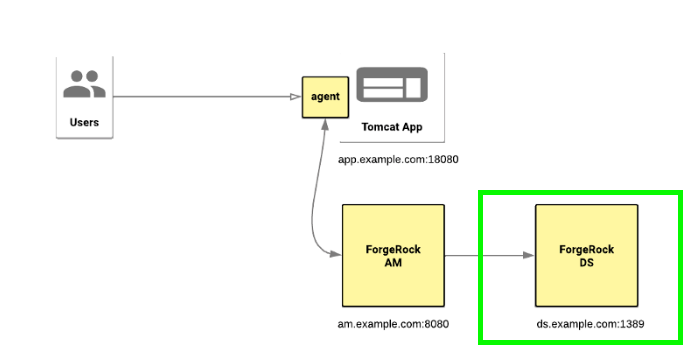
Let’s get started
Configure a new identity store
- go to http://am.example.com:8080/am/XUI/#login/, login as ‘amadmin’
- go to ‘Realms’ -> Top Level Realm -> Identity Store -> Add Identity Store

- Give the store a name, and choose the right store type. The dropdown lists all supported LDAP servers, and the last type, ‘Generic LDAPv3, ’ covers all other LDAPv3-compliant directory implementations. Choose ‘openDJ’ since we are going to connect to ForgeRock DS. As mentioned in the beginning, the Generic LDAPv3 also works.

- On the store configure page, you must update the parameters in the green rectangle. Still, remember the C/S model from here. In this case, AM is the client who makes LDAP requests, and DS is the server that serves LDAP data CRUD services.

- When you save the changes, you will go back to ‘Realms’ -> Top Level Realm -> ‘Identities’. Nice! all identities are loaded.

- Pick the same sample identity user.10131, we showed you here. Compare the attributes and values to see if there are any differences :)

Let’s try this user on our first Tomcat App. Open a new browser, and enter ‘http://app.example.com:18080/myTomcatApp/user.jsp’. Instantly the request gets intercepted, and redirects to the AM login page. Once you provide the correct username & password, you can see the protected page.

ForgeRock’s self-service dashboard is also convenient, where you view and update your profiles.

In summary, we connected AM to an external DS and used the stored user data for authentication. It’s a straightforward use case for web password authentication. We can use profile data n multi-factor authentication, forgot password flow, policy evaluation, etc. Hope you are enjoying the reading and taking another step further into the IAM world.
*Boston Identity helps organizations complete their IAM journey with passion and customer-first principles in all phases.*
메타데이터
- post_id
- 4be89c4f8b27
- slug
- forgerock-howto101-how-to-integrate-forgerock-access-management-am-with-directory-server-ds-as-4be89c4f8b27
- url
- https://medium.com/@bostonidentity_88981/forgerock-howto101-how-to-integrate-forgerock-access-management-am-with-directory-server-ds-as-4be89c4f8b27
- canonical_url
- https://medium.com/@bostonidentity_88981/forgerock-howto101-how-to-integrate-forgerock-access-management-am-with-directory-server-ds-as-4be89c4f8b27
- author_url
- https://medium.com/@bostonidentity_88981
- status
- ok
- fetched_at
- 2026-07-26 11:40:32




