How to Convert HTML to JPG | Toolsnak
Ever needed to turn a webpage layout, an invoice, or an email template into a clean image? Maybe you built a nice product card in HTML and…
How to Convert HTML to JPG | Toolsnak
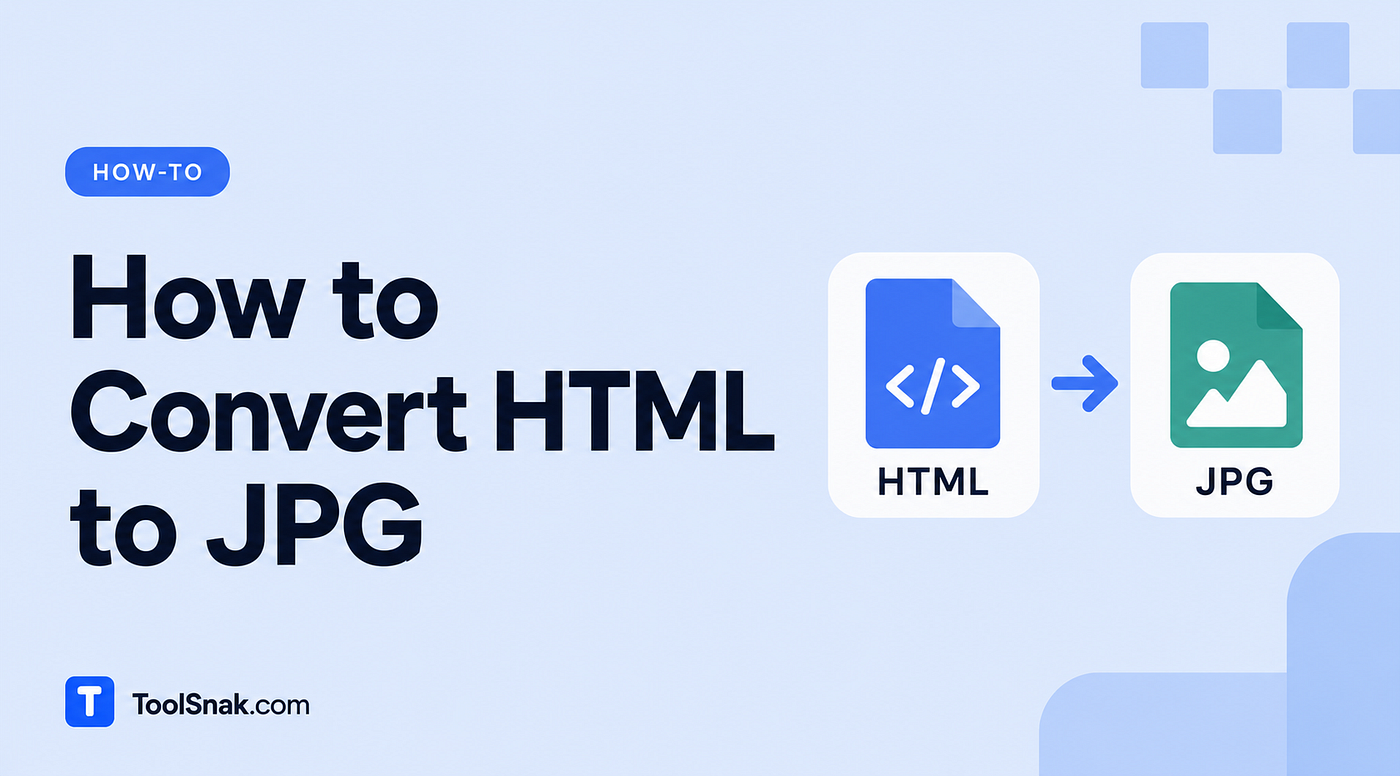
Ever needed to turn a webpage layout, an invoice, or an email template into a clean image? Maybe you built a nice product card in HTML and now you want it as a JPG to share on social media. Taking a manual screenshot is clunky, cuts things off, and looks messy.
A free HTML to JPG converter fixes that. You paste your code or upload a file, and it renders your HTML into a crisp, pixel-perfect image you can download in seconds. No screenshots, no software, no signup. And it all happens right in your browser, so your code stays private.
👉 **Try the Free HTML to JPG Converter**
What Is an HTML to JPG Converter?
An HTML to JPG converter is an online tool that renders your HTML code or file into a downloadable image. Instead of taking a manual screenshot, it captures exactly what the browser draws — fonts, colors, gradients, shadows and all — and saves it as a clean JPG. ToolSnak’s version also lets you export as PNG or WebP, and everything runs locally in your browser.
Think of it as a smarter screenshot. You start from real HTML and CSS, so the output looks precisely how the page renders, at whatever quality and resolution you pick.
How to Convert HTML to JPG
- Open the HTML to JPG converter
- Paste your HTML into the box, or upload/drag-and-drop your
.htmlor.htmfile - Preview how it looks
- Pick your format (JPG, PNG, or WebP), adjust quality, resolution (1×, 2×, 3×), capture width, and background color
- Click to render and download your image
That’s it. Takes just a few seconds, and you get an image that matches your layout exactly.
How It Works
The tool renders your HTML the same way a browser does, then captures that rendered result as an image. Because it starts from your actual code and CSS, everything comes through — custom fonts, background gradients, box shadows, the works.
Here’s a quick example. Say you have an HTML invoice with a logo, a table, and some styled totals. You paste the code, set resolution to 2× for a sharp result, choose JPG for a small file size, and download. In a couple of seconds you’ve got a clean invoice.jpg that looks exactly like the styled page, ready to email or attach. No screenshot cropping, no white edges.
One thing worth knowing: JPG and WebP don’t support transparency, so they get a background color (which you can choose). If you need a see-through background, export as PNG instead.
Why Use It?
- No messy screenshots — get the full layout, perfectly captured, every time
- Pixel-perfect output — fonts, gradients, and shadows all render exactly as designed
- Share anywhere — turn HTML into an image for social media, emails, or docs
- Control the quality — pick resolution and format to match where the image is going
Key Features
- Export as JPG, PNG, or WebP — pick the right format for your needs
- Quality slider to balance file size and sharpness
- 1×, 2×, or 3× resolution for crisp results on high-DPI screens
- Adjustable capture width to control how the layout reflows
- Custom background color for JPG and WebP
- Paste code or upload an
.html/.htmfile - Runs in your browser — no download, no install
- Completely free, no signup, no limits
Where Does It Come in Handy?
- Invoices and receipts — turn a styled HTML invoice into an image to send
- Social media cards — export product cards or quote graphics as JPGs
- Certificates — generate downloadable certificate images from templates
- Email template previews — create thumbnails of your email designs
- Documentation — capture UI components or layouts as images for guides
- Portfolios — save rendered designs as shareable pictures
HTML to JPG vs Manual Screenshots
FeatureToolSnakManual ScreenshotFull layout capturedYes, exactlyOften cut offResolution control1×, 2×, 3×Fixed to screenFormat choiceJPG, PNG, WebPUsually PNG onlyClean edgesYesDepends on croppingBackground controlYesNoPriceFreeFree but limited
Best for: developers, designers, and marketers who need clean, high-quality images from HTML.
Who Is This For?
- Web developers — export components and layouts as images fast
- Designers — turn HTML mockups into shareable pictures
- Marketers — generate social cards and email previews from templates
- Anyone — convert HTML to an image free, no account needed
Tips for Best Results
- Use 2× or 3× resolution for images you’ll print or show on high-DPI screens
- Pick JPG for the smallest file, PNG if you need transparency
- Set the capture width to match how you want the layout to reflow
- Keep your CSS inline or embedded so all styling renders correctly
- Bookmark the tool so it’s one click away next time
Common Mistakes to Avoid
- Expecting transparency from JPG — JPG can’t do transparent backgrounds. Use PNG for that.
- Rendering at 1× for print — it’ll look blurry when enlarged. Bump it up to 2× or 3×.
- Relying on external resources — external fonts or images may not load. Embed what you can for a reliable result.
Privacy
Your code stays yours. The HTML is rendered to an image entirely inside your browser using client-side technology. Nothing gets uploaded, stored, or logged, which makes it safe for confidential invoices, internal templates, and client work. Close the tab and nothing remains.
Frequently Asked Questions
Is it free? Yes, completely free. There’s no Pro version, no signup, and no limits. You can convert as much HTML to JPG (or PNG or WebP) as you want, as often as you like, without paying or making an account.
Is my HTML private? Yes. Everything is rendered to an image right in your browser. Your HTML is never uploaded, stored, or logged, so it’s safe for private documents and templates. We can’t see or access your code, and once you close the tab, nothing is kept.
What image formats can I export? You can export as JPG, PNG, or WebP. JPG gives the smallest file size, PNG offers lossless quality with transparency, and WebP provides modern compression with small files. Pick whichever fits where the image is going.
How do I get a sharper, higher-resolution image? Use the resolution control to render at 2× or 3×. This produces a crisper image that looks great on high-DPI displays and in print, at the cost of a slightly larger file size.
Related Tools
- **HTML Formatter** — clean up or minify your HTML code
- **Image Converter** — switch between PNG, JPG, WebP and more
- **Image to PDF** — combine images into a single PDF
- **HTML to PDF** — turn your HTML into a PDF file
👉 **Convert your HTML to JPG now — free, no signup**
🔗 Connect with ToolSnak
- 🌐 Website: https://www.toolsnak.com
- 📌 Pinterest: https://in.pinterest.com/toolsnak
- 💼 LinkedIn: https://www.linkedin.com/in/tool-snak-322aa7405/
- 📸 Instagram: https://www.instagram.com/toolsnak
- 👍 Facebook: https://www.facebook.com/profile.php?id=61587953512613
- ❓ Quora: https://www.quora.com/profile/Tool-Snak
- ✍️ Medium: https://medium.com/@toolsnak
- ✖️ X (Twitter): https://x.com/ToolSnak
- ▶️ YouTube: https://www.youtube.com/@toolsnak/shorts
메타데이터
- post_id
- 4c2ab2b2f84a
- slug
- how-to-convert-html-to-jpg-toolsnak-4c2ab2b2f84a
- url
- https://medium.com/@toolsnak/how-to-convert-html-to-jpg-toolsnak-4c2ab2b2f84a
- canonical_url
- https://medium.com/@toolsnak/how-to-convert-html-to-jpg-toolsnak-4c2ab2b2f84a
- author_url
- https://medium.com/@toolsnak
- status
- ok
- fetched_at
- 2026-07-10 04:31:59