ONTO Anydrop Organizer Guide
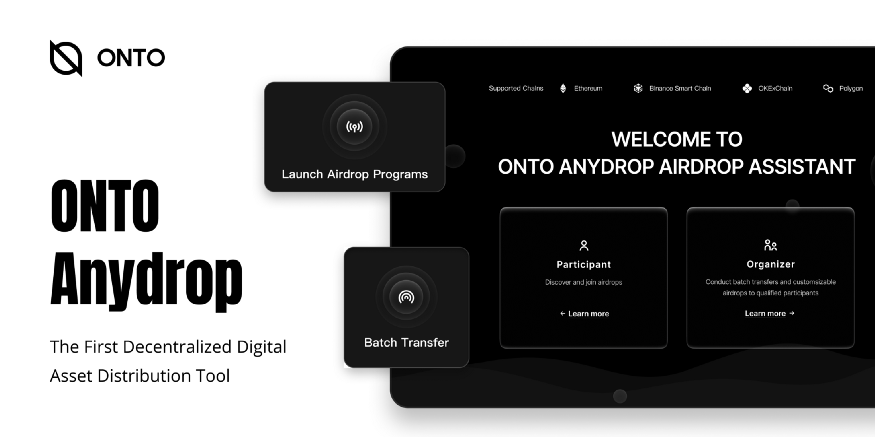
ONTO Anydrop Organizer can conduct batch transfers and customizable airdrops to qualified participants. Supported chains: Ethereum, Binance…
Wiki topics:
CRY · Crypto & Web3
ONTO Anydrop Organizer Guide
ONTO Anydrop Organizer can conduct batch transfers and customizable airdrops to qualified participants. Supported chains: Ethereum, Binance Smart Chain, OKExChain and Polygon.

Open ONTO Anydrop Airdrop Assistant
- Open anydrop.ont.io
- Click “Log in” in the upper right corner of the webpage to open the “QR Code Login” pop-up window.
Log in with ONTO App
Download ONTO App and Create an ONT ID Wallet
- Open ONTO App
- Click the Scan button in the upper right corner of “Assets” page (camera permission access is needed to scan).
- Scan the QR code in the pop-up window of the ONTO Anydrop webpage.
- Check the ONT ID to log in with, click the arrow icon below, enter the ONT ID wallet password, and then click “Confirm” to finish.
Open Organizer Dashboard
- On the ONTO Anydrop webpage, click the “Organizer” button at the bottom right to open the organizer dashboard.
Batch Transfer
- On the organizer dashboard page, click “Batch Transfer” at the bottom left to open the “Batch Transfer” page.
- On “Batch Transfer” page, refer to the “Step-by-Step Guide” on the right
- Select the asset network, select an asset or enter a contract address, upload recipient wallet addresses
- Supported file formats: Excel, CSV and TXT (click “File example” at the bottom right to download file examples)
- After uploading a file, follow the prompts to delete invalid addresses, deal with duplicates, and then click “Next” at the bottom right to open the next page.
- Set transaction fee: use the slider to set the transaction fee, or turn on “Custom” to set the gas price and gas limit.
- After checking all the information on the page, click “Send” at the bottom right to open the “Confirm Transaction” pop-up window.
- Open ONTO App
- Click the Scan button in the upper right corner of the “Assets” page (camera permission access is needed for the scanning function)
- Scan the QR code in the “Confirm Transaction” pop-up window
- Click “Confirm” in the transaction details pop-up window, enter your ONT ID wallet password, and then click “Confirm” to finish.
Launch Airdrop Programs
- On the Organizer dashboard page, click “Launch Airdrop” to open the “Launch Airdrop Programs” page.
- On the “Launch Airdrop Programs” page, refer to the “Step-by-Step Guide” on the right.
- Set the schedule, choose the address network, and fill in the description, specify requirements for participants.
- Then, click “Next” at the bottom of the page to open the preview page.
- On the “Program Page Preview” page, check the information.
- To modify, click the arrow icon at the bottom left of the page to return to the previous page.
- Click “Next” in the lower right corner to save the information.
- Click “View Dashboard” at the bottom right to open “Participant Data Dashboard”.
- On the “Participant Data Dashboard” page, click “Airdrop” to view airdrop program information.
- Click “Edit” to modify the information of the airdrop program.
- Click “Launch” to launch the airdrop program.
After launching the airdrop, if the airdrop status is “Upcoming”, you can choose to click “Cancelled” to cancel the airdrop; if the airdrop status is “Active”, it cannot be cancelled.
Participant Data Dashboard
- On the Organizer dashboard page, click “View Dashboard” at the bottom right to open “Participant Data Dashboard”.
- On the “Participant Data Dashboard” page, click “Airdrop” to check and manage a saved airdrop program.
- Click “Participant Data” to check the participant claims of the airdrop program.
- On “Participant Data” page, click Details to approve or reject the claim, then the status of the claim will be changed to passed or rejected.
- Click “Save” to download the Excel file of the claims information.
For further details, questions or comments, follow us on Twitter, join our Telegram or contact us.
메타데이터
- post_id
- 4c8446649eb8
- slug
- onto-anydrop-organizer-guide-4c8446649eb8
- url
- https://medium.com/onto/onto-anydrop-organizer-guide-4c8446649eb8
- canonical_url
- https://medium.com/onto/onto-anydrop-organizer-guide-4c8446649eb8
- author_url
- https://medium.com/@theontoteam
- status
- ok
- fetched_at
- 2026-07-26 03:39:34